
How to Fix Microsoft Edge Opens New Tab on Every Link
Do you want to fix Microsoft Edge opens new tab on every link (especially from Bing search results)? If yes, then you’re on the right page.
Well, Microsoft Edge is a popular and efficient web browser developed by Microsoft. With its neat look and quick speed, it is now the preferred browser for people using Windows 10 and 11.
Still, like other browsers, Edge can experience issues that can be erratic and irritating.

People often face an issue where Microsoft Edge opens a new tab for every link clicked out of a Bing search result. Such actions are annoying and can make your browser full of many tabs, which slows down your work.
However, this is not a browser problem because Bing search engines do this task, and the search engine provides an option to enable and disable this task. But this problem is also caused by extensions, faulty settings, and corrupted browser data.
So, in this article, I’ll show you why Microsoft Edge opens a new tab on every link, especially when searching through Bing, and provide you with step-by-step solutions to fix it.
Why Does Microsoft Edge Open a New Tab on Every Link?
There are several reasons Microsoft Edge might behave this way.
The main reason is the Bing Search Settings. The Bing search engine provides an “Open links from search results in a new tab or window” option, which is enabled by default. This option forces the browser to open Bing search results in a new tab.
However, some browser extensions (especially search enhancer tools, privacy blockers, and ad blockers) can sometimes control your links differently than usual.
Moreover, in some rare cases, corrupt browser cache or settings and website-defined behavior also cause this problem.
Also Read: Fix Microsoft Edge Keep Tabs When Closing
How to Fix Microsoft Edge Opens New Tab on Every Link
Let’s go through the practical methods to stop Microsoft Edge from opening every link in a new tab, especially those from Bing search results.
Bing has a built-in feature that opens results in a new tab. You can change this easily:
- Open the Microsoft Edge browser on your computer and open the Bing search engine using the https://bing.com URL.
- After that, click on the hamburger menu (☰) in the top-right corner of the Bing homepage.
- You’ll see the list of options. Click on the Settings option and expand it. After that, click on the More option.

- Now the Bing Settings will be open. From the Results section, uncheck the “Open links from search results in a new tab or window” and “Open links from news results in a new tab or window” options.
- Scroll down to the end of the page and click on the Save button.

- That’s it.


Now when you open any link from the Bing search engine, the link will be opened in the same tab.
Alternative Solutions to Fix Microsoft Edge Opens New Tab on Every Link
However, the above solution works for almost all users. But if the problem is not solved on your browser, it may be a browser-related issue.
1. Disable Problematic Extensions
Microsoft Edge browser extensions are simple add-ons that improve the functionality of the browser. But not every extension is useful.
Some extensions that are related to privacy, search engine customization, tab managers, ad blockers, or even shopping assistants can interfere with how Edge handles link behavior.
Some extensions may override your browser or Bing settings and always make links open in a new tab.
So, extensions can interfere with link behavior. To disable them:
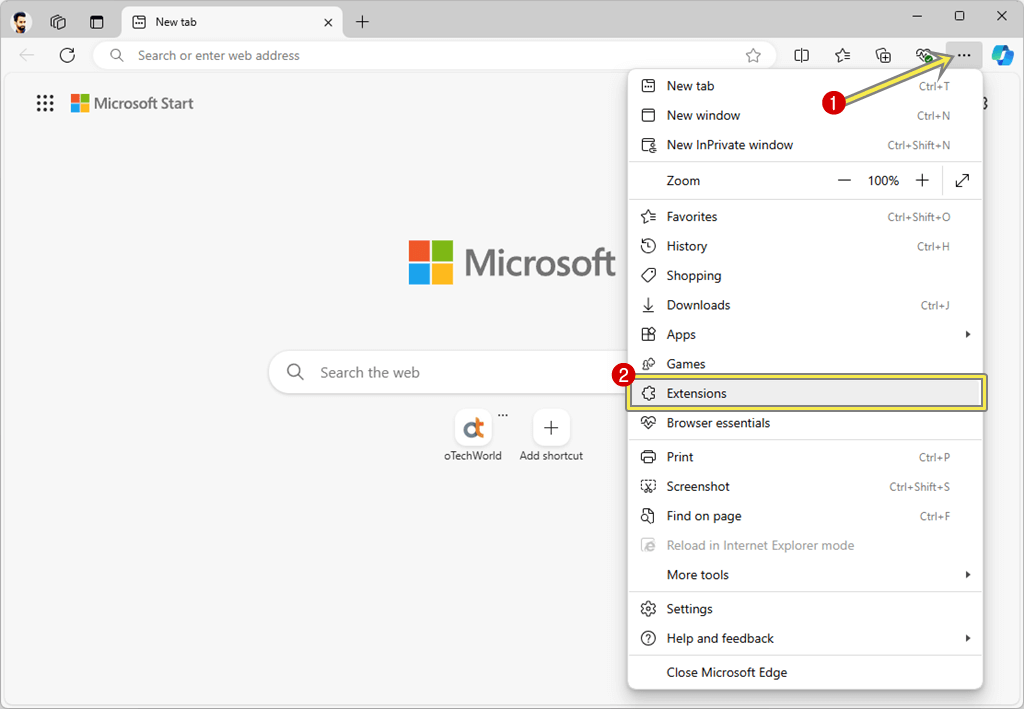
- Open Microsoft Edge. Click the three-dot menu (⋯) at the top-right.
- Choose the Extensions option from the list.

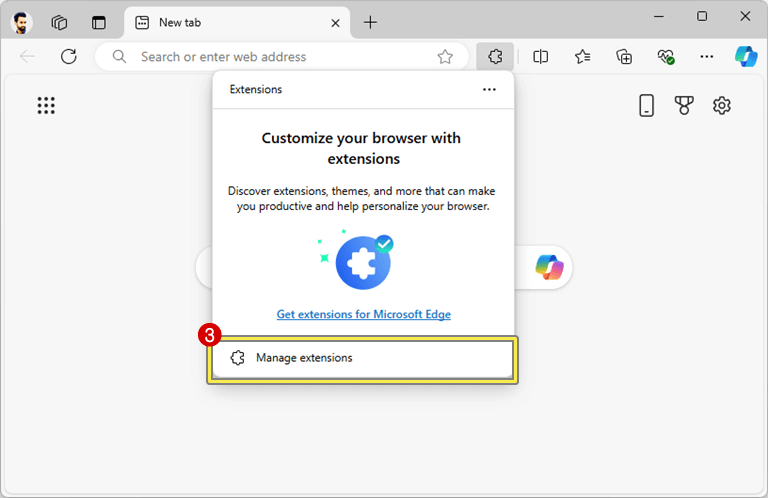
- From the popup window, click on the Manage Extensions option.

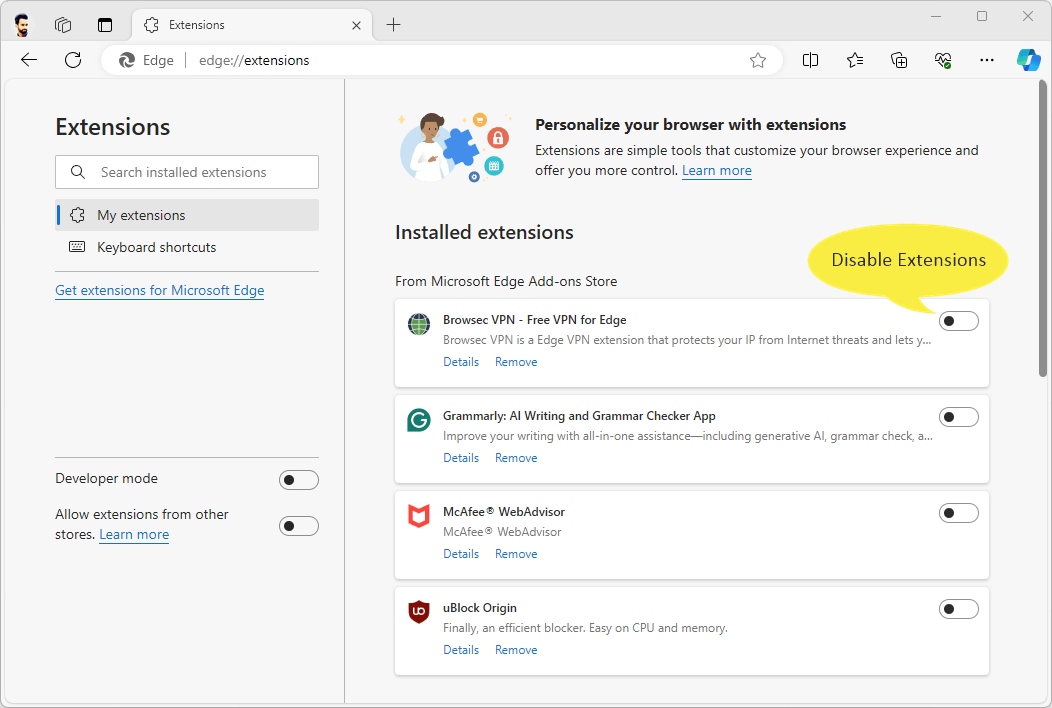
- Toggle off or remove any suspicious or recently added extensions, especially those related to privacy, security, or search modifications.

- Restart Edge and test again.
2. Reset Edge Settings to Default
If Microsoft Edge continues to open a new tab for each link, even after verifying Bing settings and turning off extensions, the issue could be in deeper browser configuration problems.
As time goes on, modifications made to your browser settings, damaged preferences, or conflicts from third-party tools can lead Edge to act improperly.
In these cases, refreshing Edge to its default settings is a good method of resolving the issue. It will reset the browser to where it was when you originally installed it, without getting rid of your saved passwords or bookmarks.
The steps are given below to reset Microsoft Edge:
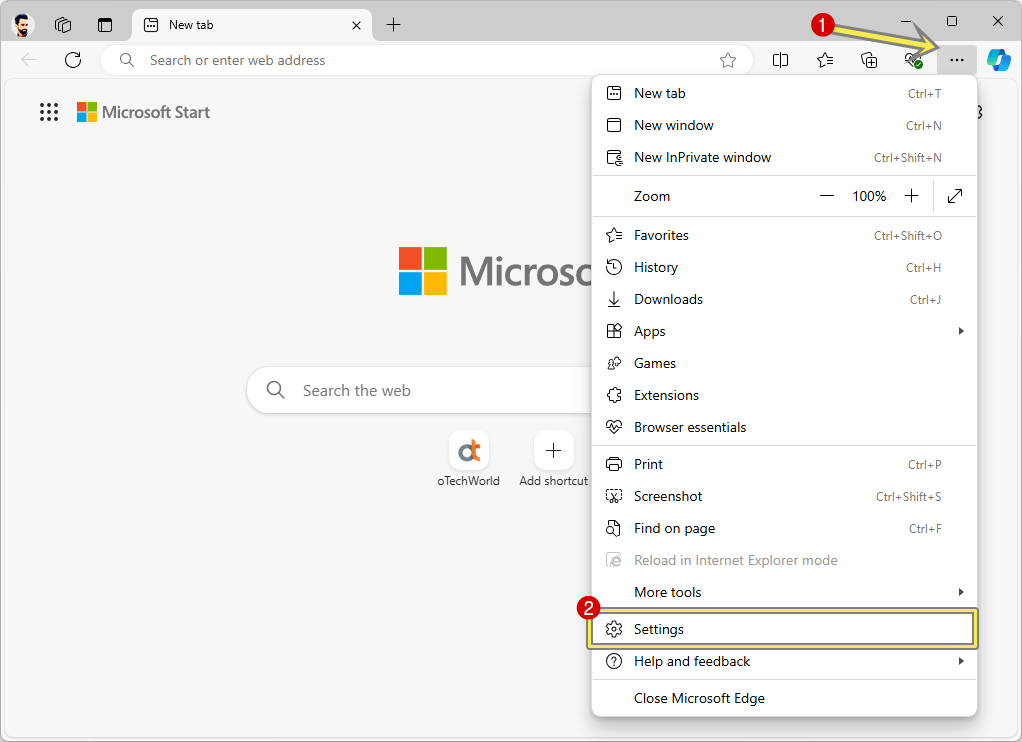
- Open Microsoft Edge and go to the three-dot menu » Settings.

- After that, select the Reset settings option on the left sidebar.
- Click Restore settings to their default values.

- You’ll see the confirmation pop-up. Confirm by clicking on the Reset button.


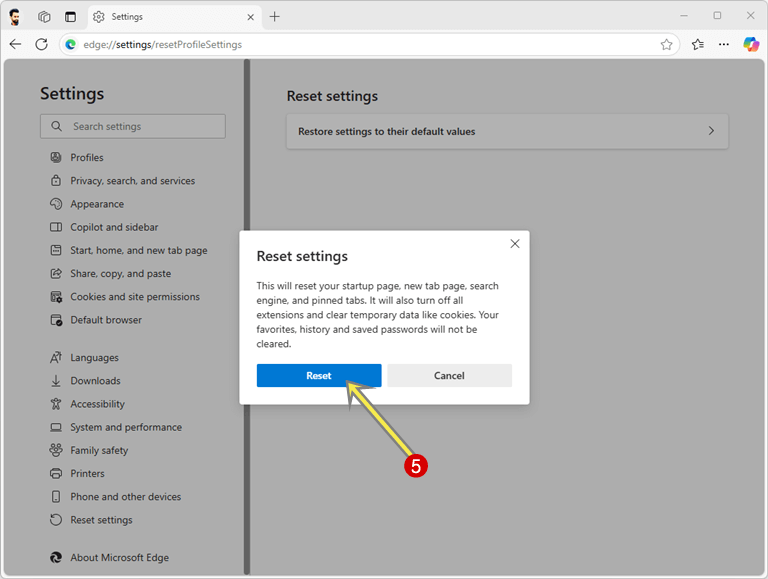
Note: The reset option will reset your startup page, new tab page, search engine, and pinned tabs. It will also turn off all extensions and clear temporary data like cookies. Your favorites, history, and saved passwords will not be cleared.
3. Clear Browser Cache and Cookies
As you use the web over time, Microsoft Edge will cache temporary data, including cache, cookies, and saved site preferences. This speeds up the loading of websites and improves your surfing experience. But when this data is corrupted or becomes old, it may lead to abnormal working, such as links opening in new tabs, login problems, or websites not loading properly.
Clearing your browser cache and cookies is a quick but efficient solution to resolve performance and behavior issues in Microsoft Edge, including the issue of every link opening in a new tab.
The steps are given below to clear Microsoft Edge cache and cookies:
- Open the Microsoft Edge browser and click the three-dot menu (⋯) » Delete browsing data.

You can also use the Ctrl+Shift+Delete keyboard shortcut. - Now the Delete browsing data popup window will be open.
Select “All Time” from the Time range.
Enable the checkmark next to the “Cookies and other site data” and “Cached images and files” options. - Click on the Clear Now button.
- That’s it.


Frequently Asked Questions
1. Why does Microsoft Edge open new tabs when I click on the search results in Bing?
This normally occurs due to a Bing setting that causes results to load in a new tab. It can also be caused by extensions.
2. How do I stop links from opening in a new tab in Edge?
Go to your Bing search settings and uncheck the “Open links from search results in a new tab or window” option. Additionally, remove any unnecessary extensions, and reset your Edge settings as needed.
3. Is this issue caused by Edge settings?
Yes, incorrect settings or Edge flags may initiate such activity. Resetting settings usually solves the issue.
4. Will resetting Edge remove my bookmarks?
No, resetting Microsoft Edge will not delete bookmarks or saved passwords. It only disables extensions and resets settings.
5. Why does this occur only with Bing and not with Google?
Bing has a special user-controlled option that will open links in new tabs. Google doesn’t have this option enabled by default.
Final Words
I hope this article helps you learn how to fix Microsoft Edge opens new tab on every link.
Whether you’re a casual user or someone who relies on Edge for work, restoring normal tab behavior is essential for smooth web browsing.
It can be quite irritating when Microsoft Edge opens a new tab each time you click on a link from Bing search. Most of the time, it is just a setting in Bing or an extension conflict. After following the steps provided above, you can easily solve this problem.
If that does not work, reset Edge or even reinstall it. A fresh start usually fixes mysterious bugs.
Popular on OTW Right Now!




About The Author

Gagan Bhangu
Founder of otechworld.com and managing editor. He is a tech geek, web-developer, and blogger. He holds a master's degree in computer applications and making money online since 2015.