
[Fixed] No Sound in Microsoft Edge on Windows 11
Are you facing the “no sound in Microsoft Edge” problem on Windows 11, even though you have no issue with audio in other applications, browsers, music, or videos? If yes, then you’re not alone.
Well, Microsoft Edge is one of the most optimized and fastest browsers for Windows 11. It comes built in in Windows 11. It supports modern web standards, plays high-quality media, and works seamlessly with Windows audio settings.

Sometimes, users suddenly find that Edge stops playing sound. So, the users are unable to hear sound on Edge while playing audio online or watching videos on YouTube, Netflix, or other websites.
This issue can be frustrating, especially when you’re watching videos, attending online meetings, or streaming content directly in the browser. Sometimes this problem forces the user to switch the problem.
The good news is that this is usually not a serious problem. In most cases, the issue is caused by muted tabs, Windows sound settings, incorrect output devices, browser permissions, or extensions.
But, there are chances that the user is still unable to solve this problem for some reason.
So, in this guide, I’ll show you how to fix no sound in Microsoft Edge or audio not playing in the Edge browser.
Also Read: How to Troubleshoot Microsoft Edge to Fix Its Problems
Why Is Microsoft Edge Not Playing Sound on Windows 11?
Before jumping into the solutions, it’s important to understand what actually causes this issue.
Here are the most common reasons:
- The Microsoft Edge browser is muted.
- The Edge tab or website is muted.
- Windows Volume Mixer has muted Edge specifically.
- The wrong audio output device is selected.
- Website sound permissions are blocked.
- Corrupted browser cache or settings.
- Problematic browser extensions.
- Outdated Edge or Windows version.
- Sound enhancement or driver conflicts.
Any one of these can stop audio playback in Edge while other apps continue working normally.
Also Read: How to Repair Microsoft Edge in Windows 11
How to Fix No Sound in Microsoft Edge on Windows 11
Let’s go through all the effective methods one by one. You don’t need to try them all because most users get their sound back after the first few steps.
Method 1. Check If Edge Browser is Muted
If the audio or sound is working on all other browsers and apps, then you should use this method to solve the sound issue with the Edge browser.
Well, this is the most common reason. Sometimes, Microsoft Edge appears to be working perfectly, but there is still no sound coming from videos or websites.
This is because the issue is not associated with the Edge browser. Sometimes, the audio or sound is muted in the Windows 11 Volume Mixer.
Windows 11 allows you to control sound levels for each application individually using Volume Mixer.
Sometimes, Microsoft Edge appears to be working perfectly, but there is still no sound coming from videos or websites. In many cases, the issue is not with the browser itself—it’s simply muted in Windows 11’s Volume Mixer, even though other apps are playing audio normally.
It means Microsoft Edge can be muted or set to a very low volume without affecting system sounds or other apps like VLC, Spotify, or system notifications.
The steps are given below to check and fix if the Edge Browser is muted:
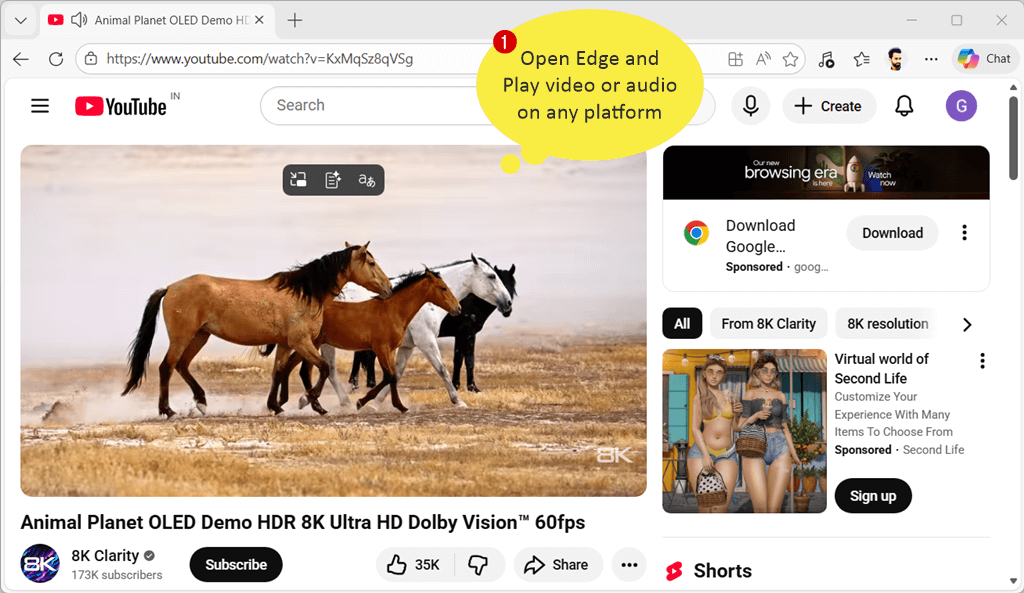
- First, play a video or audio on Microsoft Edge so that Windows detects it as an active audio app. You can play any video on YouTube or another platform.

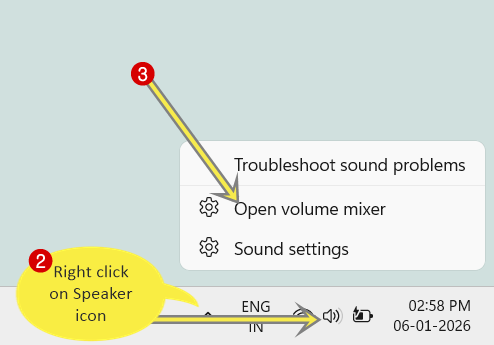
- Now, right-click on the speaker icon located in the taskbar (near the system clock). From the pop-up menu, click on Open volume mixer.

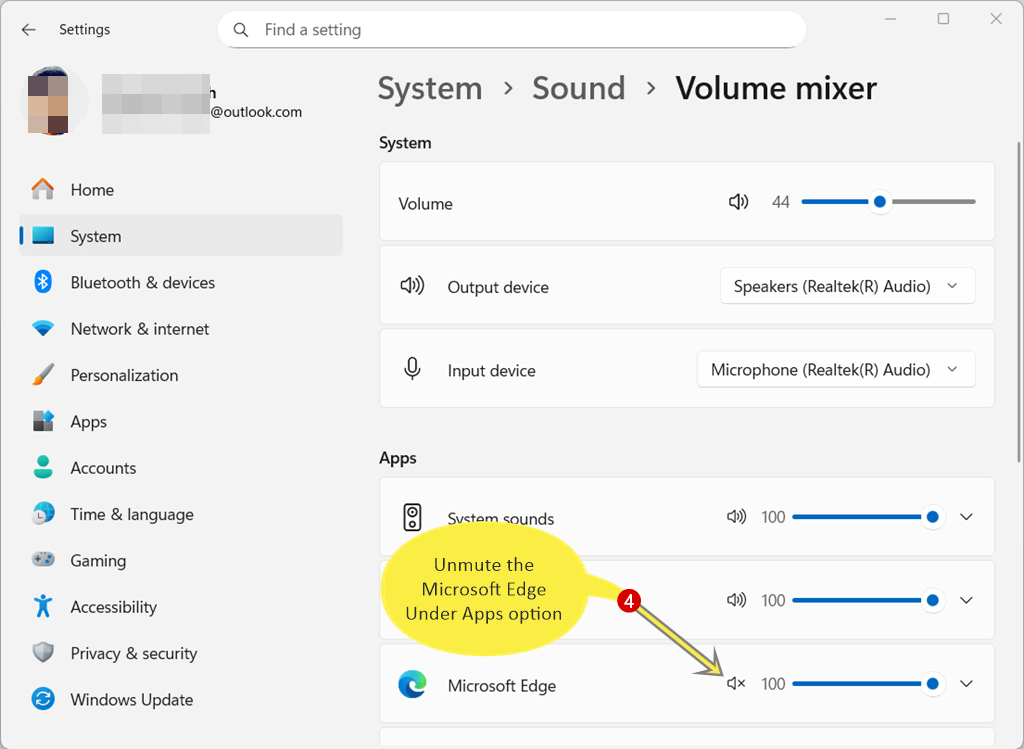
- In the Volume Mixer window, you’ll see a list of apps currently using sound. Look for Microsoft Edge in the Apps section.
- Make sure the speaker icon next to the Microsoft Edge is not muted. If muted, click on the mute icon to unmute it.
Also, increase the volume to 100 if not.
- That’s it.
Method 2. Check If the Edge Tab Is Muted
Sometimes a tab gets muted accidentally, especially when right-clicking on tabs or clicking on the speaker icon on the tab.
This issue is limited to a specific tab rather than the entire browser or system. Microsoft Edge allows users to mute individual tabs.
If a tab is muted, then no sound will play from that page. Even if everything else is working fine, i.e., audio playing on other tabs.
Steps to unmute the Edge browser tab:
- Open Microsoft Edge and play any video or audio in a tab. If audio or video is already played, then skip this option.
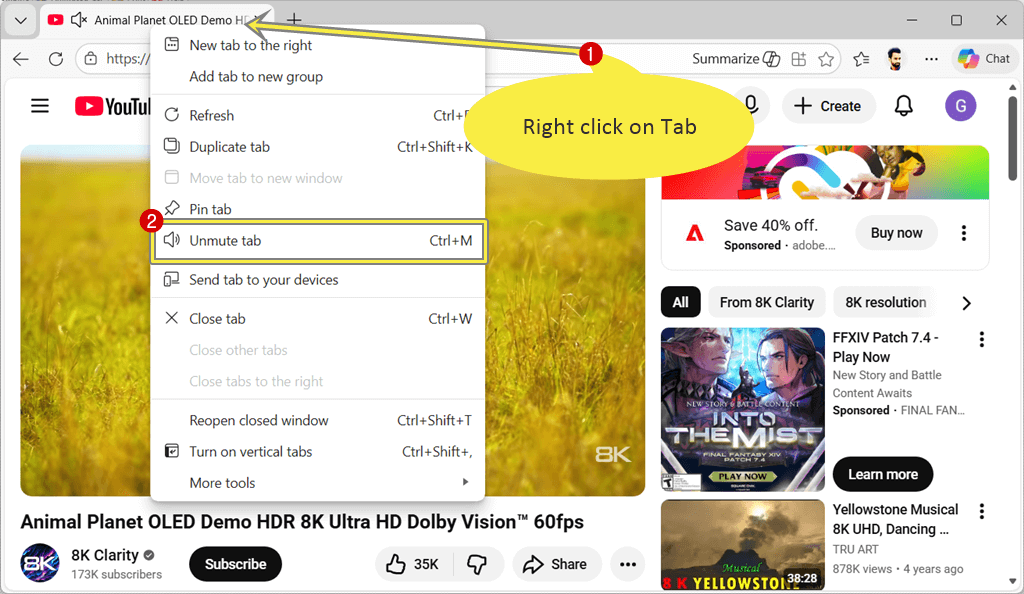
- Now right-click on the tab, and if you see “Unmute tab”, click it. (If the option says “Mute tab”, then the tab was already unmuted.)
Otherwise, you can see the speaker icon on the tab to mute or unmute the tab.
You can also use the Ctrl+M keyboard shortcut to mute or unmute a tab.
- That’s it.
Method 3. Check Website Sound Permissions in Edge
Microsoft Edge allows you to block sound for individual websites. If you blocked sound earlier, the website will remain silent. So, you need to check whether the website’s sound permission is allowed or blocked.
Well, this happens when users block sound pop-ups or disable permissions unknowingly.
Steps to check sound permissions:
- Open the Edge browser and open the website with no sound. Play the video or audio.
- After that, click the lock icon (🔒) next to the address bar.
- Click on the drop-down menu next to the Sound option under Site permissions.
- Set it to the Automatic (default) option.
- Reload the page.
- That’s it.
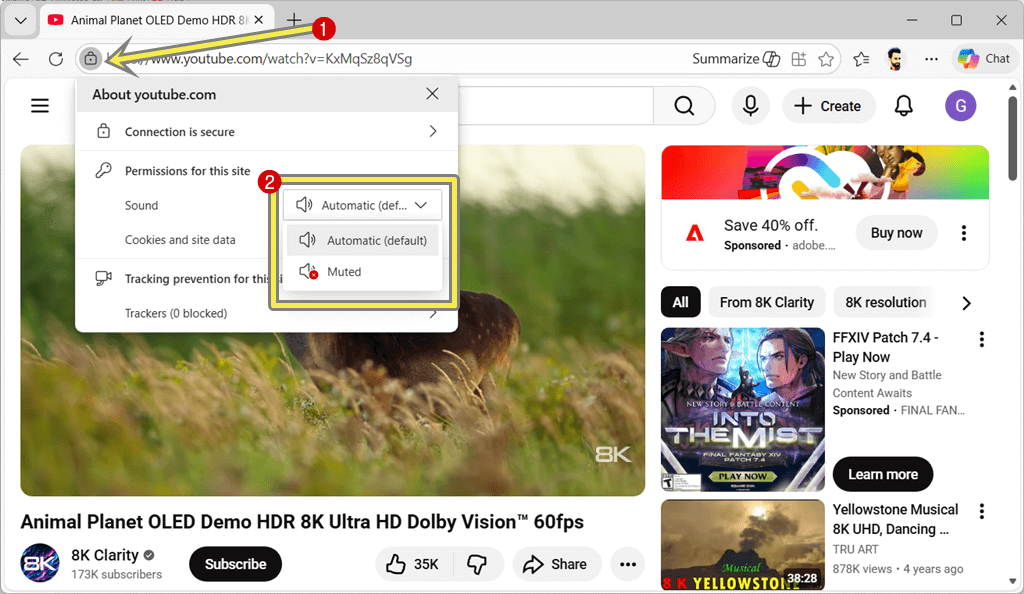
Once the Automatic (default) option is selected, audio should start playing immediately.
Method 4. Set the Correct Audio Output Device
If you recently connected Bluetooth headphones, speakers, or HDMI devices, Windows might be sending audio to the wrong device. However, Windows 11 automatically switches the output audio device. But sometimes the operating system fails to do this job because of some reasons.
Windows 11 supports multiple audio output devices such as speakers, wired headphones, Bluetooth earbuds, and HDMI audio. If the wrong output device is selected, Microsoft Edge may appear to have no sound.
This usually occurs after connecting or disconnecting Bluetooth devices or external monitors.
Steps to select the correct output:
- First, click the speaker icon on the taskbar.
- After that, click on the select a sound output icon next to the volume slider.

- Now, select the correct output device (speakers or headphones).

- Test audio again in the Microsoft Edge browser.
- That’s it.
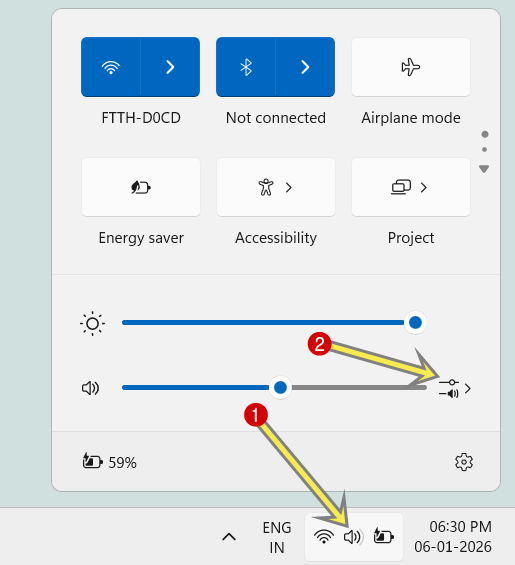
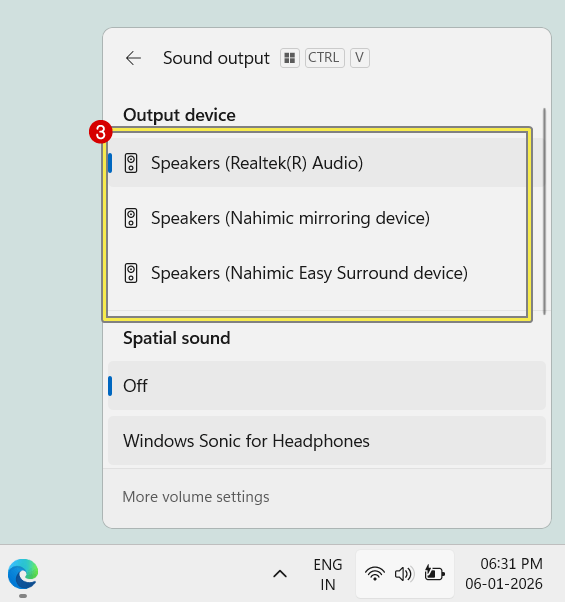
Also, check that the same output device is selected in Settings » System » Sound.
Method 5. Restart Windows Audio Services
Sometimes audio services get stuck in the background, which causes browser-specific sound issues.
If audio services are not functioning properly in the background, then browsers like Microsoft Edge may fail to play sound even though volume settings are correct.
Restarting audio services refreshes the sound system without rebooting your PC.
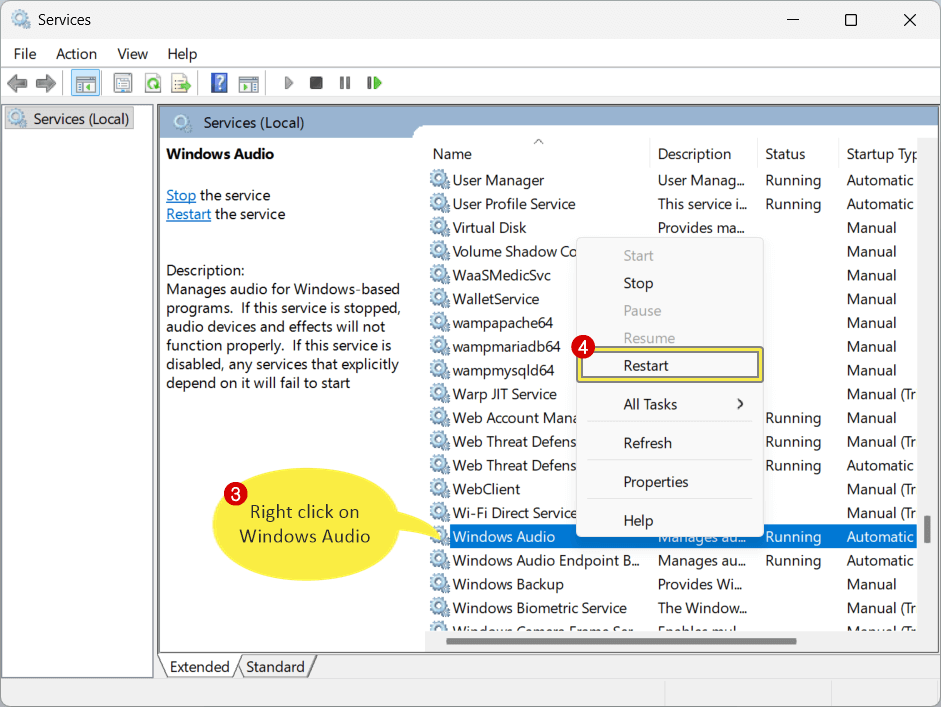
Steps are given below to restart Windows audio services:
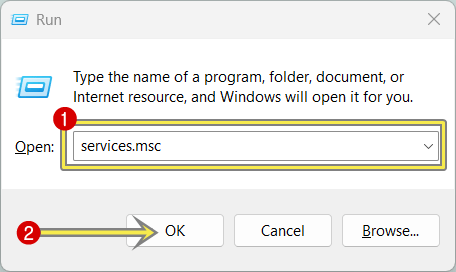
- Press Win + R on your Windows 11 computer to open the Run command prompt.
- Type services.msc in the run command prompt and press the Enter button or click on the OK button.

- Find the Windows Audio option and right-click on it. After that, select the Restart option from the right-click context menu.

Do the same for the Windows Audio Endpoint Builder option. - That’s it.
Method 6. Disable Edge Extensions Temporarily
Extensions enhance browsing experience by adding additional functionality to the browser. But some extensions, especially ad blockers, privacy tools, or media-related extensions, can interfere with website audio.
If Edge sound suddenly stops after installing an extension, then you need to disable the extension to check if the problem is caused by the extension.
Steps to disable extensions in Microsoft Edge:
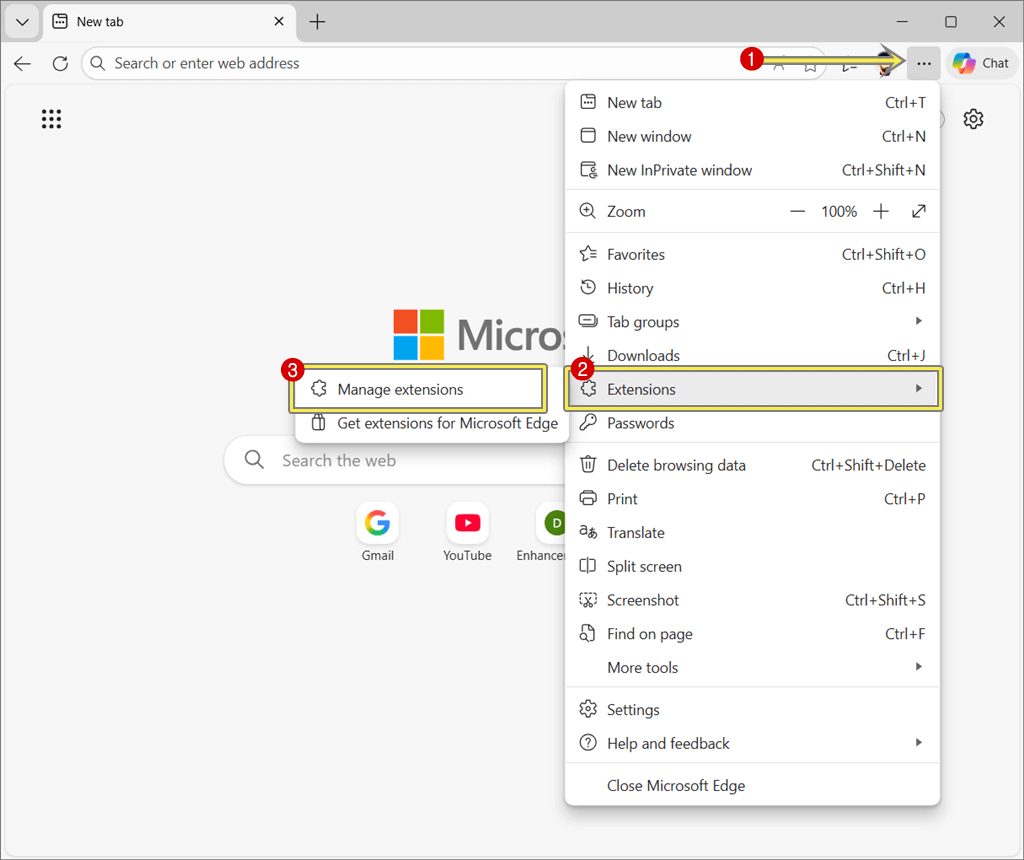
- Open the Microsoft Edge browser and click the three-dot menu » Extensions » Manage extensions.

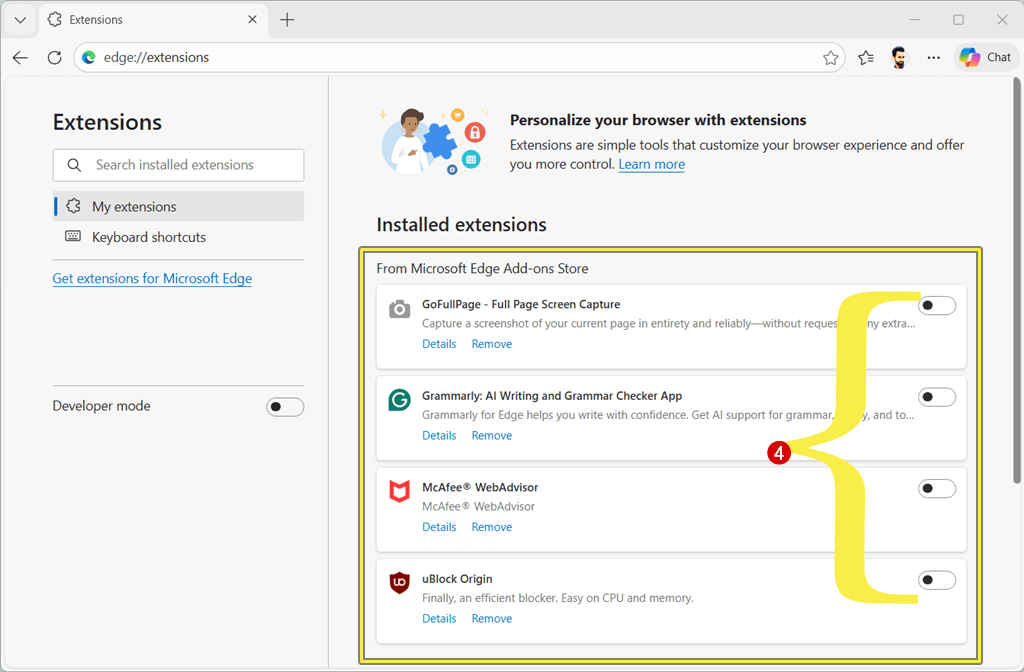
- After that, turn off all extensions using the toggle button next to the extension’s name.

- Restart Edge (close and open the Edge browser) and test the sound.
- That’s all.
You can also start Microsoft Edge without extensions to troubleshoot extension-related problems.
Method 7. Update or Reinstall Audio Drivers
Sometimes, the issue may be related to your system’s audio driver. Outdated or corrupted drivers can prevent browsers from accessing sound properly.
Steps are given below to update the audio drivers:
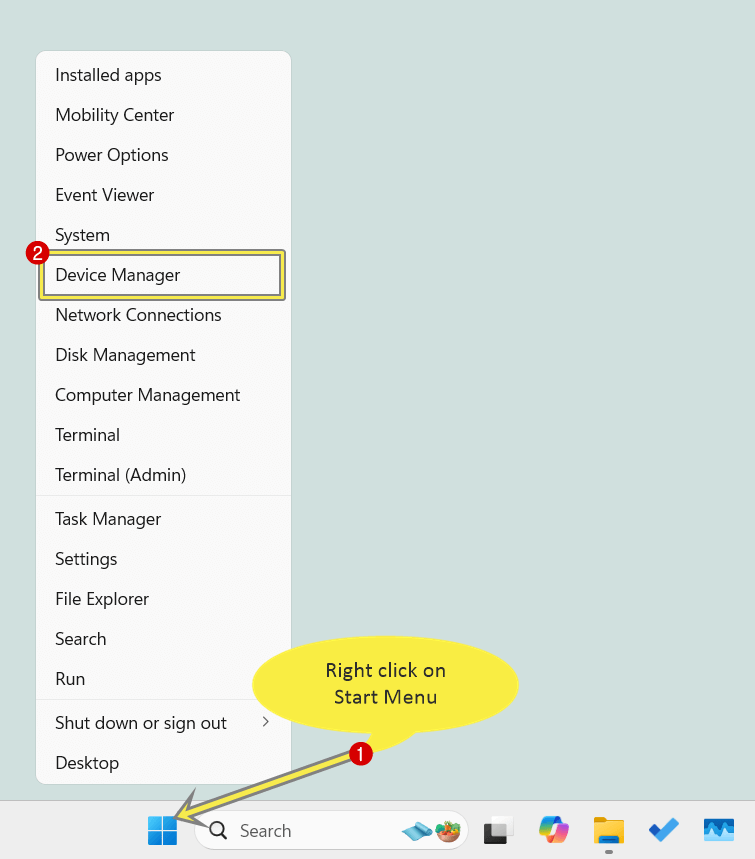
- Right-click the Start menu icon and click on the Device Manager option from the context menu.

- Expand Sound, video, and game controllers.
- Right-click your audio device and click on the Update driver option.
If you see multiple devices, then update all drivers one by one.
- After that, restart your PC, and that’s all.
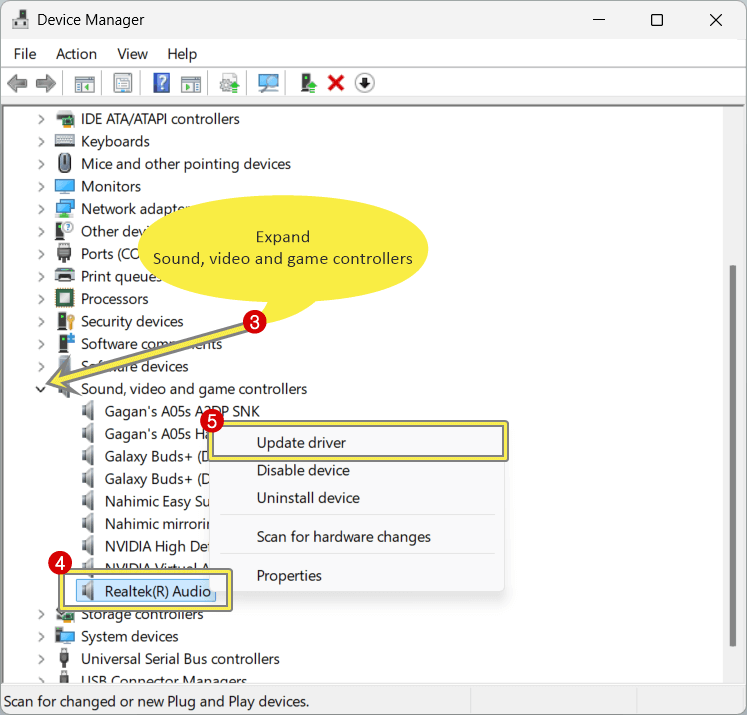
If updating doesn’t help, uninstall the driver and restart Windows. For this, just right-click on the device after expanding the Sound, video, and game controllers and select the Uninstall driver option.
Method 8. Clear Edge Cache and Cookies
Over time, Microsoft Edge stores cached files and site data to speed up browsing. However, corrupted or outdated cache files can cause issues like broken media playback or no sound.
Clearing the cache fixes some browser problems.
Steps are given below to clear the cache in the Microsoft Edge browser:
- Open Microsoft Edge and press the Ctrl + Shift + Delete keyboard shortcut.
Otherwise, click on the three dots from the top right and select the Delete browsing data option from the context menu.
Also Read: How to Enable Auto Delete Browsing History in Microsoft Edge
- Now the Delete browsing data pop-up will be open.
- After that, select All time from the Time Range drop-down menu.
- Enable the checkbox on:
Cookies and other site data
Cached images and files - After that, click on the Clear now button.
- Restart the Edge browser.
- That’s it.


Method 9. Reset Microsoft Edge Settings
If Edge sound issues still occur, try basic fixes. The browser settings may be corrupted or misconfigured.
So, when you reset the Edge browser, it restores all settings to their original state while keeping bookmarks and saved passwords safe.
Steps to reset the Edge browser:
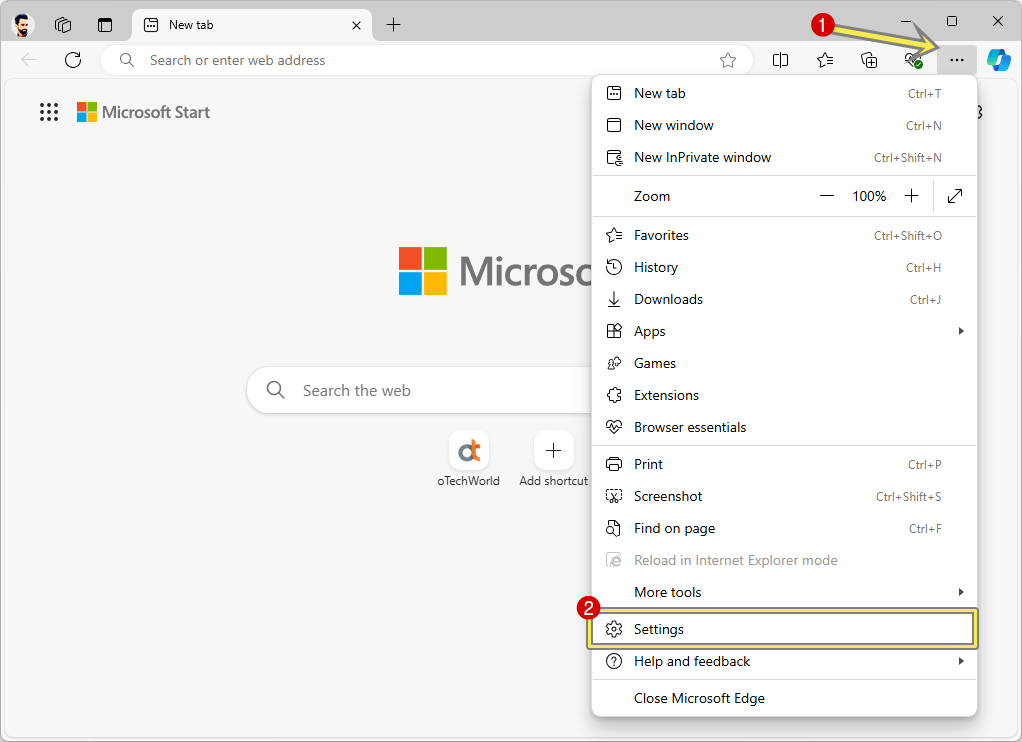
- Open the Edge browser, click on the three dots, and open Settings.

- From the left navigation pane, click on the Reset settings option.
- After that, click Restore settings to their default values from the right side.

- Confirm the reset from the pop-up.

- That’s it.

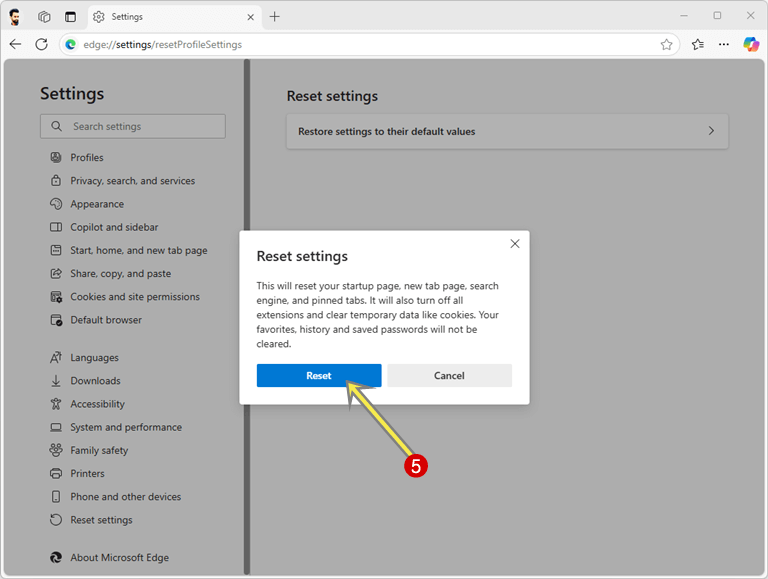
Note: This will disable the extensions and reset the browser settings to default. Note that it won’t delete bookmarks or saved passwords.
Method 10. Update Microsoft Edge
Well, outdated versions of Microsoft Edge may contain bugs or be incompatible with audio drivers that cause problems related to audio playback or media compatibility.
Keeping Edge updated ensures better stability and fixes known issues.
Steps to update Edge:
- Open Edge and click on the menu (three dots), and then open the Settings option.
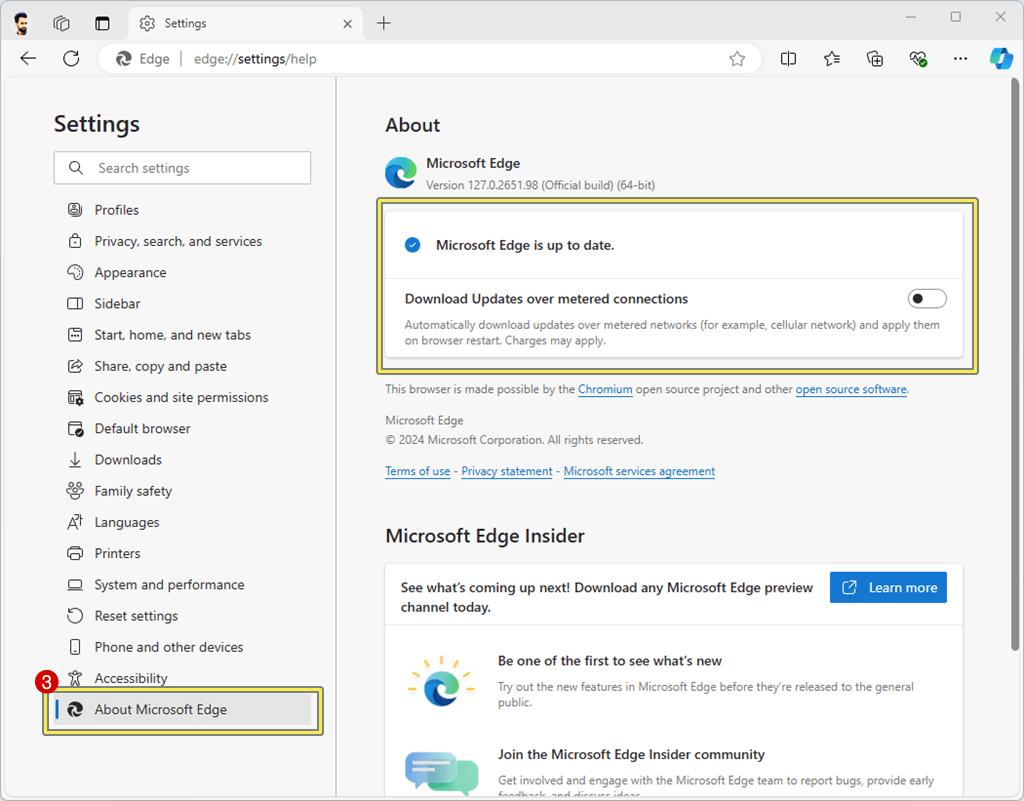
- Hover the mouse on Help and Feedback, and go to About Microsoft Edge.

- Edge will automatically check for updates. Install updates if available.
- Restart the browser.
- That’s it.
Frequently Asked Questions (FAQs)
1. Why does Microsoft Edge have no sound while other browsers work?
There are several reasons for this. The most common reason is that the Edge browser is muted in the volume mixer settings of Windows 11. Other reasons are muted tabs, blocked site permissions, outdated audio drivers, and bugs in the browser.
2. Can extensions cause sound issues in Edge?
Yes. Some extensions can cause sound issues in the browser. However, this chance is rare. Ad blockers, privacy extensions, and media tools can block or interrupt audio playback.
3. Will resetting Edge delete my bookmarks?
No. Resetting Edge only resets settings and disables all extensions. Your bookmarks and passwords remain safe.
4. Why does Edge lose sound after connecting Bluetooth headphones?
Windows 11 switches the audio output device automatically. Sometimes Windows 11 is unable to switch the audio output device, so in that case, you need to manually select the correct output again.
5. Is this a Windows 11 bug?
Not. It’s usually a configuration or permission issue rather than a system-level bug.
Final Words
I hope this guide helped you fix the no sound issue in Microsoft Edge on Windows 11.
In most cases, the problem is simple and easy to fix. For example, muted tabs, wrong output devices, or blocked sound permissions. Once you identify the cause of the problem, you can solve the problem quickly.
Microsoft Edge is a powerful browser, and audio issues are temporary. By following the given methods, you can restore sound and enjoy uninterrupted browsing again with audio playback.
If the problem keeps coming back, updating Edge, Windows, and audio drivers regularly will prevent future issues.
Popular on OTW Right Now!




About The Author

Gagan Bhangu
Founder of otechworld.com and managing editor. He is a tech geek, web-developer, and blogger. He holds a master's degree in computer applications and making money online since 2015.