
Transfer WhatsApp to New iPhone in Minutes | No Data Loss
Getting a new iPhone is always exciting, a faster processor, better camera, and the latest iOS updates. But one thing that often stresses users out is how to transfer WhatsApp data from iPhone to iPhone. Your WhatsApp holds years of personal and professional conversations, media files, and documents that you can’t afford to lose.
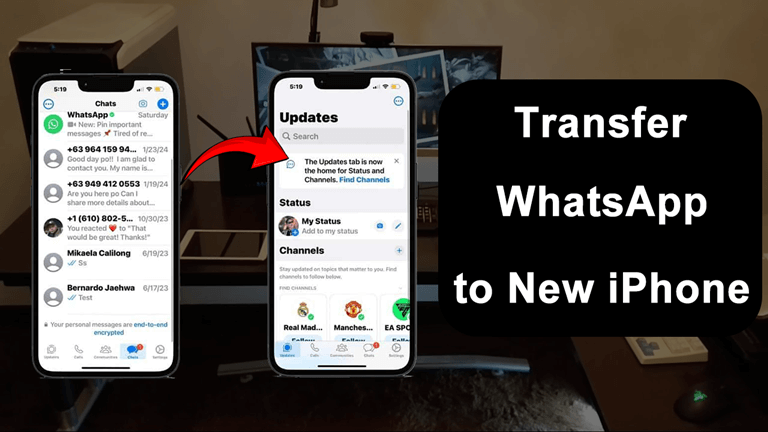
Although Apple does offer a few options to transmit data via iCloud or iTunes, this can be rather slow, limiting, or even fail to work when you have reached the capacity of your storage. In this article, you will know a few simple and safe methods of moving WhatsApp out of iPhone to iPhone, with the most effective, which is MagFone WhatsApp Transfer.
Method 1: Transfer WhatsApp via iCloud Backup
iCloud is the most frequent method to transfer WhatsApp information between iPhones. It is an official way and offered by WhatsApp and Apple, however, there are several conditions associated with it.
Here’s how to do it. On your old iPhone, open WhatsApp. Open Settings, then tap on Chats followed by Chat Backup. Tap Back Up Now to create a fresh backup of your chats and media to iCloud. Make sure your iPhone is connected to Wi-Fi and your Apple ID has enough iCloud storage. Install WhatsApp on your new iPhone and sign in using your existing phone number. When asked, select Restore Chat History to recover your backup.
Pros:
- Official and free method.
- Keeps chat history intact if backup works properly.
Cons:
- Requires the same phone number and Apple ID.
- Needs enough iCloud storage space.
- Big backups are time-consuming to restore.
- May fail if your Wi-Fi connection is unstable.
Method 2: Transfer WhatsApp Using iTunes or Finder
You can back up your entire iPhone, including WhatsApp data, to iTunes (or Finder on macOS Catalina and later), in case you need to do so because your iCloud is full or you want to do so.
Connect your iPhone that is old to your computer. Open iTunes (or Finder). Tap your iPhone icon, and Back Up Now. After you are finished with the backup, connect your new iPhone. Click Restore Backup and select the last file. It will transfer all your applications, settings, and WhatsApp information to your new iPhone.
Pros:
- Works without Wi-Fi.
- Full device backup.
Cons:
- Recovers not only WhatsApp but also all data.
- Time-consuming and requires enough local storage.
- There is no option of selective transfer.
- If you only want to move WhatsApp chats and avoid transferring unnecessary data, this might not be ideal.
Method 3: Transfer WhatsApp with MagFone Chats Transfer (Best Way)
If you want a quick, direct, and hassle-free solution, MagFone Chats Transfer is the best tool to use. It is specifically created to assist users in transferring WhatsApp and WhatsApp Business data between iPhones, even in situations when they access them using different Apple IDs. In contrast to iCloud or iTunes, MagFone Chats Transfer does not depend on storage capacities or unreliable backups. It directly moves your WhatsApp data from one device to another with 100% data integrity.
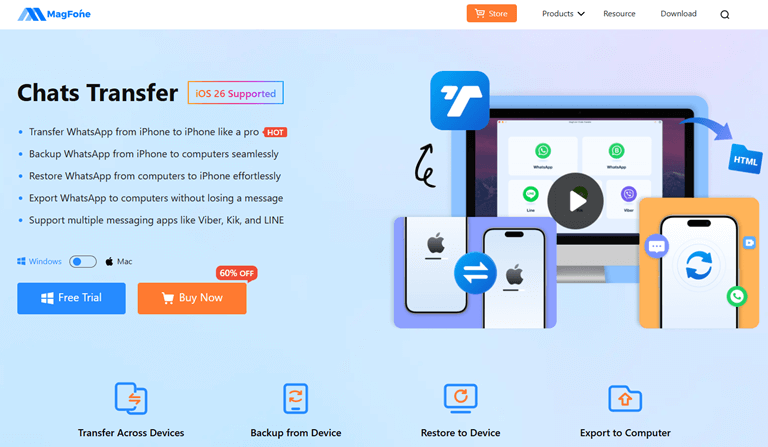
Step 1: Download and install MagFone Chats Transfer on your Windows or Mac computer. Launch the program and choose WhatsApp. 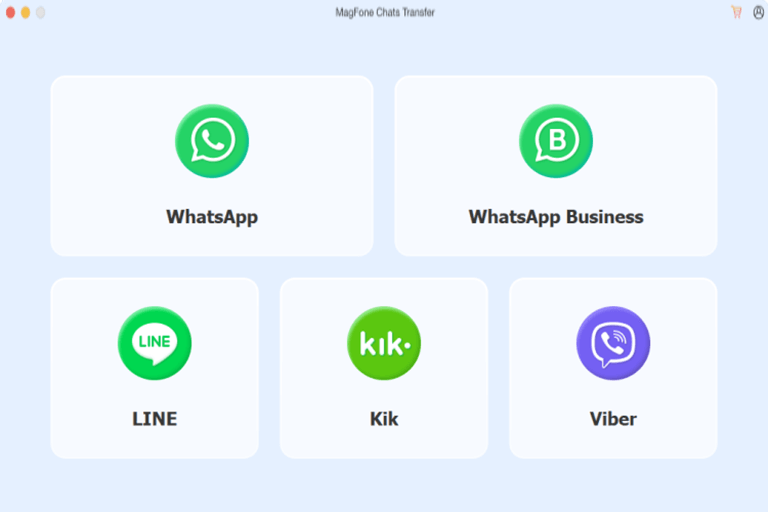
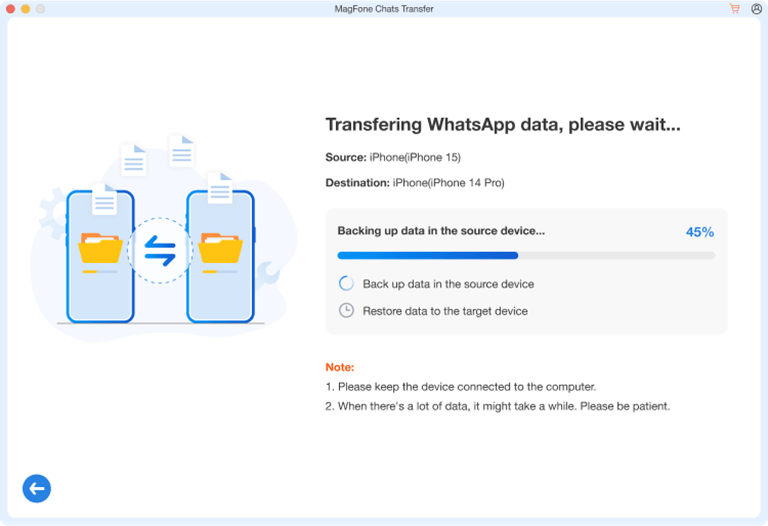
Step 2: Use the USB to connect both of the iPhones. After that, choose the old iPhone (Source) and the new iPhone (Destination). Migration. Click Transfer to begin the migration.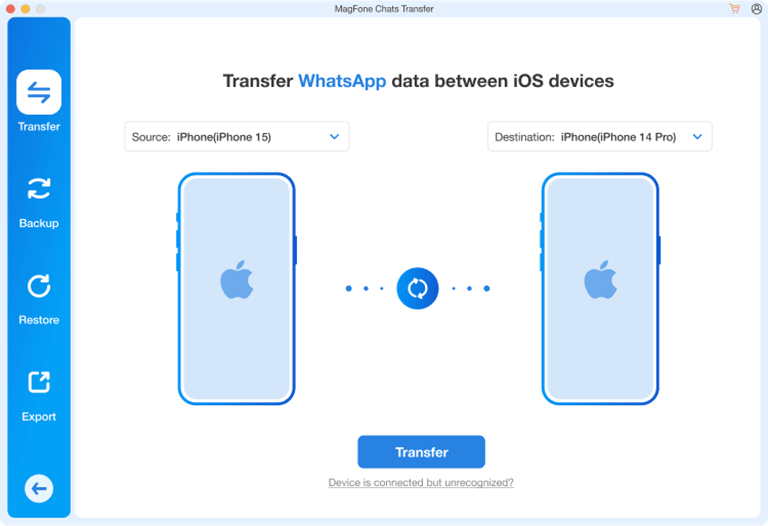
Step 3: It will take a couple of minutes; everything you chatted about and photographed, videos, attachments, and even stickers are transferred safely. That’s it! After doing this, open WhatsApp on your new iPhone, and the history of your chat will be there just as it was.
Why choose MagFone Chats Transfer:
- Supports both WhatsApp and WhatsApp Business.
- Works even with different Apple IDs.
- No need for iCloud or iTunes.
- Rapid transfer rate and no loss of data.
- Secure and easy-to-use interface, ideal for beginners.
When changing your phone to a new iPhone, whether in the workplace or just to replace your phone, MagFone Chat Transfer will save you a couple of more hours in setting up, and all your communication will be retained.
Method 4: Transfer WhatsApp Using Quick Start (Apple’s Setup Tool)
The second alternative is the built-in Quick Start feature of Apple that is offered when installing a new iPhone.
During setup, select Transfer on iPhone and then read the instructions on the screen. This will copy the majority of the data on your old phone, including WhatsApp, provided that both your devices run on iOS 15.5 or more.
However, this method can be slow and depends on both devices being connected to power and Wi-Fi for a long time. It also doesn’t work if WhatsApp isn’t backed up properly before the transfer.
Tips Before Transferring WhatsApp Between iPhones
- Use the same phone number on both devices; otherwise, your old chats won’t link correctly.
- Update WhatsApp on both phones to the latest version.
- Backup your chats before starting any transfer, even if you plan to use MagFone.
- Check storage space on your new iPhone to ensure it can handle all transferred data.
- Avoid interruptions (calls or disconnections) during the transfer process.
Conclusion
Moving your WhatsApp data to a new iPhone doesn’t have to be stressful. While iCloud and iTunes can work in some cases, they often come with limitations, from storage issues to long transfer times. If you prefer a faster, simpler, and more reliable method, MagFone Chat Transfer is your best option. It allows you to transfer WhatsApp from iPhone to iPhone in minutes, with no data loss, no Apple ID restrictions, and no complicated setup.
Whether you’re upgrading your iPhone or managing business communication, MagFone makes sure your WhatsApp data goes with you, securely and effortlessly.
Popular on OTW Right Now!




About The Author

Gagan Bhangu
Founder of otechworld.com and managing editor. He is a tech geek, web-developer, and blogger. He holds a master's degree in computer applications and making money online since 2015.