
My 5-Year-Old Laptop Felt Brand New After One Click with Advanced SystemCare 19’s AI Scan
If you’ve been using the same laptop for years, you probably know the frustration of dealing with slow performance. Programs take longer to open, boot times increase, and even basic tasks start feeling sluggish. I recently experienced this problem with my five-year-old laptop. What once felt fast and responsive had become frustratingly slow.
I assumed aging hardware was the main issue and started considering buying a new device. But before spending money, I decided to try Advanced SystemCare, a trusted Windows cleaner known for improving system performance. Surprisingly, after running its AI Scan feature, my laptop felt significantly faster—almost like it was brand new again.
Why Older Laptops Slow Down
Many people think that as a laptop ages, its performance is bound to suffer, but it doesn’t always have to be that way. Many times, the issue is caused by years of buildup within the system.
Some common reasons include:
Junk File Accumulation
Over time, temporary files, cache, and remnants from the installation accumulate.
Startup Overload
Excessive Applications Start on Laptop On.
Registry Problems
A broken or out-of-date registry may slow the system down.
Background Processes
Unused programs silently consume CPU and RAM.
As a result of these minor problems over time, you will notice that your experience is becoming slower.
Discovering Advanced SystemCare
I just wanted to get a quick solution without having to have technical skills or hours of troubleshooting. I did some research, and I found Advanced SystemCare. The highlight was its AI-powered optimization tool. The software automatically runs a scan for problems and makes improvements, depending on how the computer is being used. It was a Windows cleaner that could effectively clean up and optimize Windows without any complex settings, as it was reliable to use.
The First Experience with AI Scan
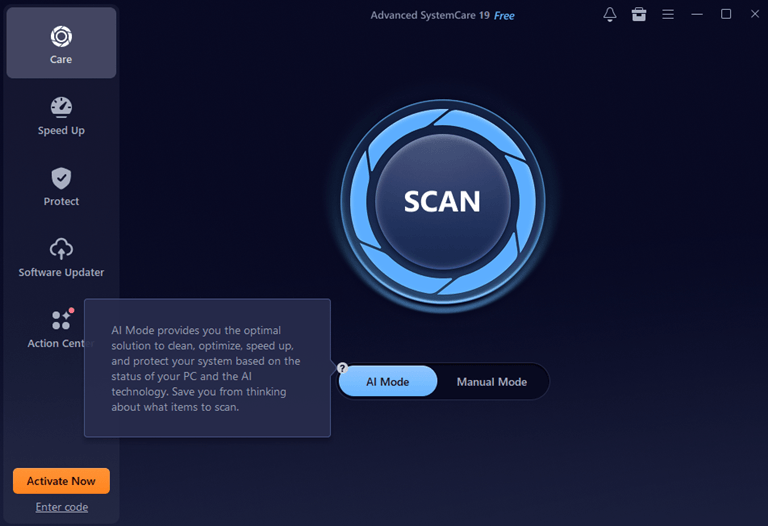
The software was easy to install and only took a few minutes. After installing the program, the interface was simple and easy to understand. The AI Scan option was my first notice.
Step 1: Running the Scan
I clicked the scan button and allowed this Windows cleaner to analyze my laptop.
Step 2: Detecting Problems
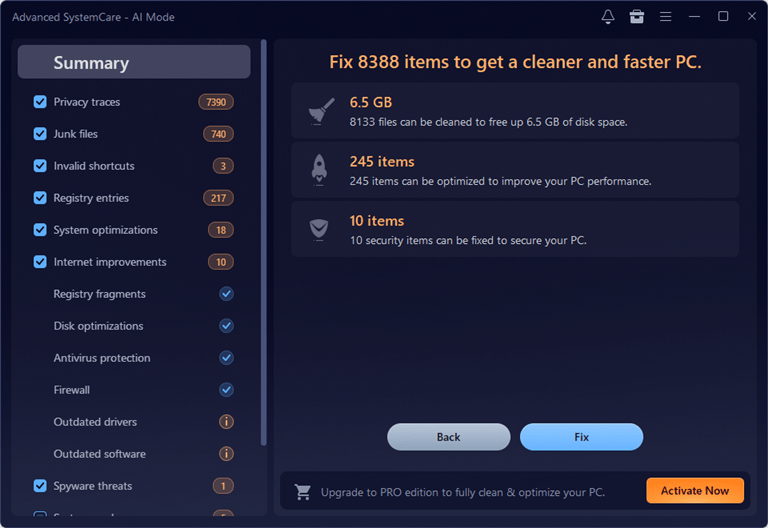
Within minutes, it identified:
- Junk files.
- Privacy traces.
- Startup issues.
- Registry errors.
- Performance slowdowns.
I was amazed at the number of files that had built up over the years and were no longer needed.
Step 3: One-Click Optimization
Once the scan was finished, I hit the fix button. That was it. No technical adjustments. No complicated steps. All it took was the software, and it accomplished everything automatically.
The Difference Was Immediate
After cleaning up, I restarted my laptop, and the difference was apparent.
Faster Startup
My laptop has started booting up 90% faster than normal.
Better Responsiveness
The application went live more quickly, and multi-tasking worked better.
Reduced Lag
Simple file and browse operations started to be faster.
Cleaner System
Unused files and trash were cleaned up in an efficient manner. It was like I was using a new device.
Why AI Scan Makes a Difference
The most impressive aspect for me was how easy everything was. Advanced SystemCare intelligently identifies problems, unlike traditional optimization techniques. Rather than letting users work out the settings by themselves, the software:
- Identifies performance bottlenecks.
- Cleans unnecessary system files.
- Optimizes startup programs.
- Fixes registry-related problems.
It is fully automatic and can be used by both new and seasoned players.
More Than Just a PC Cleaner
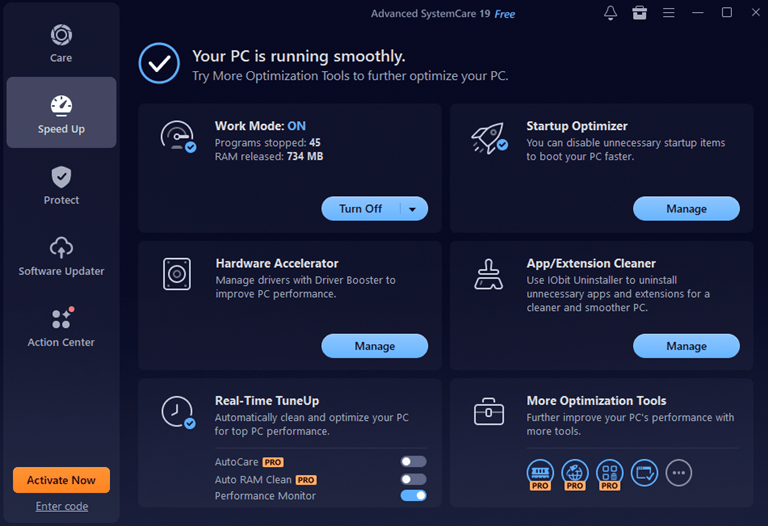
Although I originally used it to improve speed, I realized the software offers much more.
As a PC cleaner, it helps maintain overall system health. As a Windows cleaner, it removes unnecessary clutter that builds up over time.
Additional benefits include:
Real-Time Performance Monitoring
Monitors CPU, memory, and disk usage.
Privacy Cleanup
Clears browsing history and temporary files.
Startup Management
Helps control programs that slow boot times.
System Optimization
Works efficiently with little effort.
These features facilitate long-term maintenance.
Why Regular Optimization Matters
I had just seen what had happened and knew I had neglected my system maintenance for years.
Regular optimization can help:
- Extend laptop lifespan.
- Improve performance.
- Reduce lag and crashes.
- Free up storage space.
Even older devices can remain functional if properly maintained.
Who Should Try Advanced SystemCare?
Based on my experience, Advanced SystemCare is useful for:
Students
Those who require more speed for study and research.
Remote Workers
Those who depend on a stable system’s performance.
Casual Users
Those who simply want a smoother experience.
Older Laptop Owners
Anyone experiencing slow performance on their device.
If your computer feels outdated, optimization may help more than you expect.
Final Thoughts
I was actually pretty sure my 5-year-old laptop was ready to be scrapped. Every day tasks became frustrating due to slow performance, and there seemed to be no way to upgrade. But my outlook shifted 180 degrees after a trial of Advanced SystemCare. The performance of my laptop was immediately 90% faster and smoother after the first AI Scan.
It was a great PC cleaner and Windows optimizer that could remove years of junk and optimise Windows without any technical skills. You don’t need to rush into a replacement for your old laptop if it is slow. In some cases, all you have to do is a proper clean-up, and your system will feel new again.
Popular on OTW Right Now!


About The Author

Gagan Bhangu
Founder of otechworld.com and managing editor. He is a tech geek, web-developer, and blogger. He holds a master's degree in computer applications and making money online since 2015.