
How to Verify an Office Software Website Before Downloading on Windows
Office software can access invoices, contracts, reports, spreadsheets, presentations, and synchronized folders. That makes website verification an essential security step: a polished page or prominent search result does not prove that the installer comes from the software publisher.
Search pages may mix advertisements, review articles, download directories, mirror sites, and genuine product pages. The safest approach is to inspect the domain, compare platform and version information, check the real destination behind the download button, and verify the publisher after the file reaches the Windows computer.
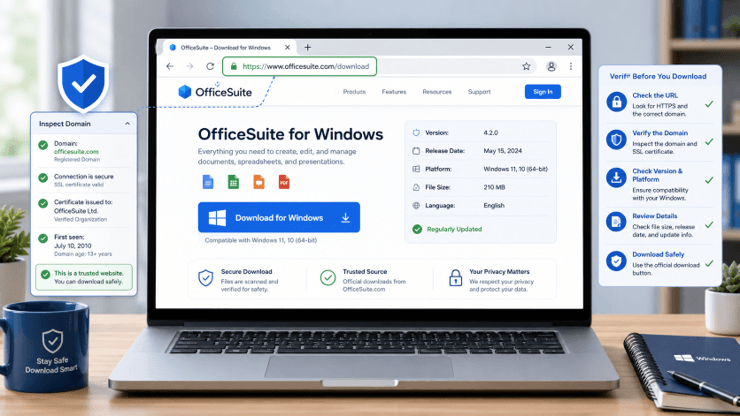
This guide explains how to evaluate an office software website before downloading, with practical checks for individual users and organizations in Hong Kong and Taiwan that may work across English and Traditional Chinese interfaces.
Why Search Results Do Not Prove a Website Is Official
Search engines organize information, but they do not guarantee that every result represents an official software publisher.
The first result may be a paid advertisement. Advertisements are normally labeled, but the label can be easy to overlook when the page uses the same product name that the user searched for. A sponsored result may lead to a reseller, a software directory, a review site, or a page promoting a bundled installer.
Organic search results can also include unofficial sources. A page may rank well because it has existed for a long time, contains detailed information, or receives many links. Ranking position alone does not confirm who operates the website.
Software directories frequently use phrases such as:
- Official download
- Latest version
- Safe installer
- Free Windows download
- Verified software
- One-click installation
These phrases are often marketing language rather than proof of publisher ownership.
The search-result title and description may also differ from the actual page. A result may mention Windows support, while the page redirects to a general download manager. Another result may display a recent version number even though the downloaded file is older.
Before trusting any result, open the page and verify its details independently.
Inspect the Office Software Domain Before Downloading
The domain name is one of the most important identity signals.
Look closely for extra words, missing letters, duplicated characters, hyphens, or unusual domain extensions. Lookalike websites often rely on users reading the product name quickly without checking the full address.
When reviewing a wps官网 resource, users should examine the domain spelling, HTTPS connection, page structure, platform information, and download destination before trusting the page.
HTTPS is useful because it encrypts the connection between the browser and the website. However, HTTPS does not prove that the website belongs to the software publisher. Almost any website can obtain an HTTPS certificate.
A stronger domain check includes several questions:
- Does the domain spelling match the expected brand or publisher?
- Does the website clearly identify who operates it?
- Are the legal pages and contact details consistent?
- Does the navigation contain normal product and support information?
- Does the download page remain on the same domain?
- Is the content written clearly and consistently?
- Are there unexplained redirects?
Users should also be cautious when a page copies the appearance of another website but lacks normal support, account, product, or policy pages.
Do Not Rely on Software Logos or Page Design
Logos, screenshots, icons, and brand colors are easy to copy. A polished page can still distribute an outdated, modified, or unrelated installer.
Fake and misleading pages may reproduce:
- Official-looking logos
- Screenshots from the real application
- Product descriptions
- Version numbers
- Customer-review badges
- Security icons
- Large download buttons
These visual elements should be treated as supporting information, not proof.
Check the website footer for the company name, contact information, copyright notice, terms of service, privacy policy, and publisher relationship. If the website claims to be operated by the software developer, those details should be consistent across the site.
A third-party information page can still be useful when it clearly describes itself as independent. The risk increases when a page deliberately creates the impression that it is the publisher while providing no verifiable company information.
Trust should come from several consistent signals rather than one logo or one professional-looking page.
Compare Office Software Version and Platform Information
Before clicking download, confirm that the page clearly identifies the correct operating system and software version.
Windows users should check:
- Supported Windows editions
- 32-bit or 64-bit compatibility
- File size
- Version number
- Release date
- Installer format
- Available update method
- Hardware requirements
- Administrator-permission requirements
A reliable download page should distinguish between Windows, macOS, Linux, Android, iOS, and browser-based editions. A single unexplained button labeled “Download Now” for every platform may indicate that the page is not providing precise product information.
Version information should also be internally consistent. The page title, download section, installer filename, and application properties should not show several unrelated version numbers.
An older installer is not always malicious, but it may lack security fixes, compatibility improvements, and support for newer document formats. Users should know whether they are downloading the current release, a legacy version, or an archived build.
Inspect the Real Download Button Destination
Download buttons are a common source of confusion.
Some pages contain several large buttons, but only one belongs to the actual software. Others may be advertisements for unrelated programs, browser extensions, system cleaners, or download managers.
Before clicking, move the mouse pointer over the button. Most browsers display the destination address near the bottom of the window. Review that address carefully.
Warning signs include:
- An unrelated domain
- A shortened URL
- A tracking link that redirects repeatedly
- An unknown file-hosting service
- A download-manager page
- A browser-extension store
- A compressed archive with no explanation
A legitimate page may use a content-delivery network, but the destination should still be consistent with the product and publisher information.
Record the expected filename and installer type before downloading. For Windows office software, common installer formats include .exe and .msi. If the downloaded file has a different or misleading extension, stop and investigate before opening it.
Verify the Windows Installer Publisher
The website and the installer should support the same identity.
A practical WPS website verification guide should explain how to compare the website information with the installer name, publisher details, digital signature, and installed application version.
After downloading the file, locate it in the Windows Downloads folder. Right-click the installer and select Properties.
Depending on the file, Windows may display:
- File description
- Product name
- Product version
- Company name
- File size
- Copyright information
- Digital-signature details
If the installer includes a Digital Signatures tab, review the signer name and signature status. A valid signature can help confirm that the file has not been altered since it was signed.
The publisher shown in the Windows User Account Control prompt should also match the expected software company. If Windows lists an unknown publisher, a different company, or no publisher at all, additional verification is needed.
Publisher verification does not replace antivirus scanning, but it adds another useful identity check.
What to Check After Downloading the Installer
Do not open the installer immediately. Perform a short file review first.
Check the extension
Make sure the filename does not hide a second extension. Windows may hide known extensions by default, which can make a file such as document.pdf.exe appear misleading.
Review file properties
Confirm that the product name, version, company, and file size match the information on the download page.
Scan the installer
Use Windows Security or another trusted security tool to scan the file. A scan cannot guarantee that every file is safe, but it can identify many known threats.
Review the digital signature
Check the signer and signature status when available.
Examine administrator requests
When the installer requests permission, verify the publisher shown in the prompt before selecting Yes.
Watch for bundled software
Read each installation screen. Avoid automatically accepting browser extensions, system utilities, homepage changes, or unrelated applications.
After installation, open the application from the Windows Start menu and review its About or Update section. Confirm that the installed name and version match the expected software.
Warning Signs That Should Stop an Office Installation
Stop the process when several warning signs appear together.
Common examples include:
- Multiple download buttons with unclear labels
- An automatic download that starts without a deliberate click
- Instructions to disable antivirus protection
- Requests to install an unrelated browser extension
- A random or misleading filename
- A publisher name that does not match the product
- Missing version information
- Repeated redirects through unrelated domains
- A password-protected archive with no clear reason
- A download manager instead of the expected installer
- Claims that security warnings should always be ignored
- A file type that does not match the described Windows application
A warning does not always prove malicious intent, but it means the source has not provided enough confidence to continue.
Users should avoid solving the problem by downloading several different installers from random websites. That approach increases exposure to outdated and modified files.
Website Verification for Hong Kong and Taiwan Users
A legitimate product may have separate global, regional, and Traditional Chinese pages, so a different language does not automatically make a site suspicious. The important questions are whether the ownership is clear, the navigation is consistent, the privacy and support pages are credible, and the final installer is issued by the expected publisher.
Be cautious when a page mixes Simplified Chinese, Traditional Chinese, and English inconsistently or uses urgent language to push an immediate download. Regional users should also verify that the selected build supports their Windows version and language requirements rather than assuming that every localized page provides the same installer.
Office Software Website Verification Checklist
Before downloading office software on Windows, confirm the following:
- The domain spelling has been checked carefully.
- The website clearly identifies its operator or publisher relationship.
- The page distinguishes Windows from other platforms.
- The version number and release information are consistent.
- The download button leads to an expected destination.
- The filename and file type match the described software.
- The installer publisher matches the expected company.
- The digital signature has been reviewed when available.
- The file has been scanned with Windows Security.
- No unrelated software is required during installation.
Office software may handle private, financial, commercial, or personal documents. Verifying the source before installation is therefore an essential part of protecting a Windows computer.
Frequently Asked Questions
Does HTTPS prove that a software website is official?
No. HTTPS encrypts the connection, but almost any website can obtain a certificate. Domain identity, publisher information, download destination, and installer properties still need to be checked.
Can the first Google result be an unofficial download page?
Yes. The first result may be an advertisement or an independent website. Search position should be treated as a discovery signal, not proof of ownership or installer authenticity.
What is the most important check after downloading?
Inspect the file before running it. Confirm the extension, filename, publisher, digital signature when available, file size, and security scan results. Stop if the installer identity does not match the expected product.
Conclusion
No single logo, search position, security badge, or download label can verify an office software website. Reliable verification combines domain inspection, platform comparison, destination checking, publisher review, and post-download file analysis.
That layered process is especially useful in multilingual markets, where global and localized pages may coexist. Taking a few minutes to validate the source can prevent unwanted software, outdated installers, and avoidable risks to important documents.
Popular on OTW Right Now!


About The Author

Gagan Bhangu
Founder of otechworld.com and managing editor. He is a tech geek, web-developer, and blogger. He holds a master's degree in computer applications and making money online since 2015.