
How to Download and Install Office Software Safely on Windows: A Practical Guide
Downloading office software on Windows is not only a convenience decision. The application may open contracts, spreadsheets, presentations, PDFs, cloud folders, and confidential local files, so the source and Installer deserve the same scrutiny as any other business-critical tool.
The safest process is to verify the website, select the correct Windows build, inspect the installer publisher, review setup options, and test real documents after installation. These checks help prevent outdated versions, unwanted bundled programs, incorrect file associations, and formatting problems that may appear only after work begins.
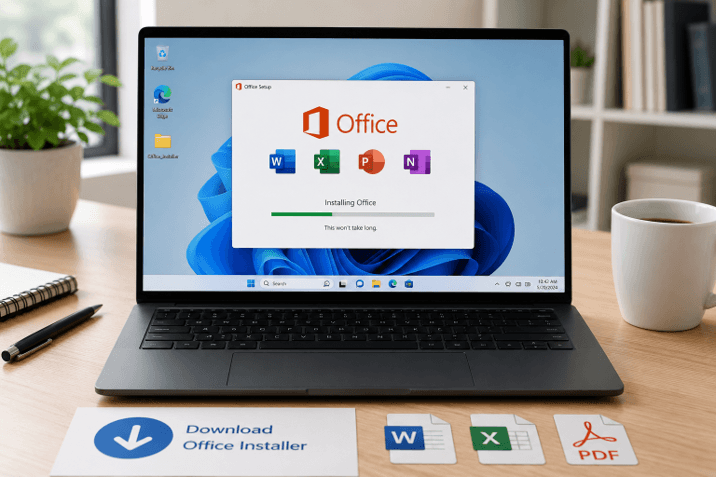
This guide provides a practical workflow for downloading and installing office software for home users, remote teams, and businesses, including readers in Hong Kong and Taiwan who regularly work with English and Traditional Chinese documents on Windows devices.
Why Office Software Download Results Can Be Misleading
Searching for office software might seem simple, but there are multiple types of search result pages.
In the initial results, ads, official product pages, software directories, mirror sites, review articles, download portals, and pages designed primarily to lure users searching for popular application names may be featured. A high position in search results doesn’t mean that the site is a publisher operating the page.
Some of these third-party download sites are trusted and declare themselves as such. Others aren’t as obvious. They don’t use brand names, interface screenshots, brand colors, or terms like “safe download,” “latest,” or “official” without clearly stating who is running the page.
Users should also be alerted to pages with multiple large download buttons. The most obvious button might be a commercial and not the application you’re viewing. In your circumstances, the web page might change across several domains before the Installer begins downloading.
Another issue is the version’s age. A page may contain a Windows Installer that was uploaded months or years ago. An out-of-date version might lack security updates, support for the latest file versions, compatibility fixes, or enhancements for the most recent Windows versions.
Before downloading anything, determine whether the page clearly provides:
- The name of the software
- The supported operating system
- The current version or release date
- The publisher or developer
- The correct download destination
- System requirements
- Update information
- A privacy policy and contact information
When these details are missing or inconsistent, it is safer to stop and verify the source elsewhere.
Verify the Office Software Download Source
The first verification step is to review the domain name carefully. Other similar domain names can be formed by adding words, swapping letters, adding hyphens, or using a different domain extension—users shouldn’t trust the page’s appearance, as it is easy to copy logos and screenshots.
The address bar will display an HTTPS connection, but not a new one with the name of the trustworthy website. It only indicates that the connection between the browser and the site is secure.
Users searching for a wps下载 resource should review the domain, platform information, version details, and download destination before running any installer.
Hover over the download button before clicking it. Almost all browsers will show the URL you are going to at the bottom of the window. If the domain you are going to is unrelated, the shortened link is an advertising network, or the file’s host is unknown, then further verification is needed.
A download page should also differentiate between the Windows, macOS, Linux, Android, iOS, and browser-based versions. If this is a page with the same description of the same Installer on all platforms, it could be inaccurate.
It is also helpful to compare the page with other information about the product it covers. Verify that the software name, supported systems, screenshots, software version information, and software installation type are congruent. Any contradictory information is a red flag.
Choose the Correct Office Software Version for Windows
Before downloading the Installer, identify the Windows edition and system architecture used by the computer.
On most modern computers, users can open:
Settings > System > About
Generally, the system type (64-bit or 32-bit) is specified in the System type section. Today, most Windows systems are 64-bit, but on older computers and in dedicated environments, 32-bit versions can be used.
The Installer should also support the Windows version installed on the device. A program written for a new Windows version might not run as expected on an older version of Windows. Similarly, older office software may not open newer document formats or may not update properly.
Check the following before downloading:
- Supported Windows versions
- 32-bit or 64-bit requirements
- Available storage space
- Memory requirements
- Processor requirements
- Internet connection requirements
- Administrator permission requirements
- Supported document formats
Businesses should approach installing Office software on managed computers with great caution. Centralized update tools, security policies, approved software lists, or restricted administrator accounts may be used on company devices. Incorporation of an unauthorized program may conflict with those controls.
Check the Office Installer Before Opening It
Once you have downloaded the file, don’t open it right away. Go to the Downloads folder and check the Installer.
Check whether the filename matches the proposed product. A good installer will usually have a name and a .exe extension; a file with a completely random name, a random extension, or two or more extensions is a good indicator that it may not be a good installer.
Typical extensions for installing desktop applications in Windows are .exe or .msi. A compressed archive could also be valid, and users should know the reason for the compression before extracting and running it.
Right-click the file and select Properties. Depending on the Installer, the properties window may show:
- File description
- Product name
- Product version
- Copyright information
- File size
- Creation or modification date
- Digital signatures
- Publisher information
If an organization has signed the file, the Digital Signatures tab can help identify which one. Not all applications are suitable, but if they lack a valid digital signature, additional checks should be performed.
Users might also scan the Installer using the security software they have installed. If you download files, Windows Security can automatically check them, but it is an added layer of security to have a manual scan.
If an installer is blocked, please don’t turn off security protection. Determine the reason for the warning. The file might be rare, unsigned, corrupted, altered, or come from an untrustworthy source.
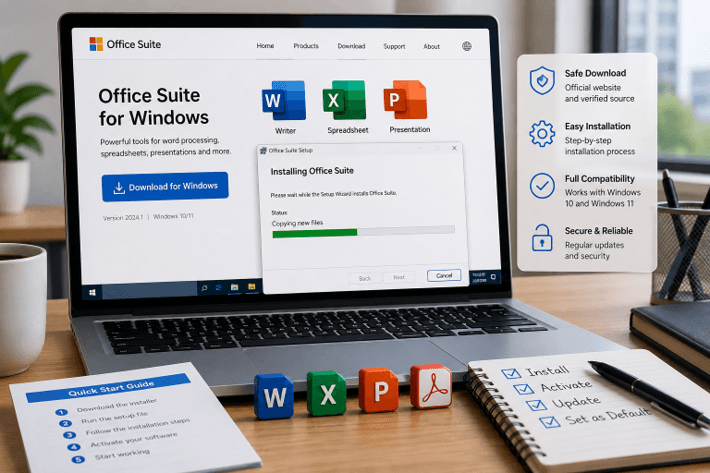
Install Office Software Safely
Once the source and Installer have been checked, begin the installation while paying attention to each screen.
Avoid selecting the fastest option without reviewing the details. Some installers offer optional components, browser extensions, startup services, cloud integrations, file associations, or additional utilities. These options may be useful, but they should not be accepted automatically.
A reliable WPS download guide should also explain how to review installer properties, avoid bundled utilities, and verify the application after installation.
During setup, confirm:
- The application name
- The installation folder
- The publisher name
- Optional components
- Desktop and Start menu shortcuts
- Automatic startup settings
- Default file associations
- Update preferences
- Cloud-storage options
- Diagnostic or usage-data settings
If the Installer requests administrator permission, verify that the displayed publisher matches the expected developer. Select No if the information is unfamiliar or if the request appears at an unexpected time.
Once installed, launch the app from the Windows Start menu; don’t launch it from an advertisement or from a leftover browser download page. This ensures that the installed software is properly registered in Windows.
Look in the About, Account, or Update section of the application. Ensure the product name, installed version, and update status match the information provided before installation.
Set Default File Associations in Windows
Office applications can prompt you to set them as the default application for a document, spreadsheet, presentation, or PDF file. This option determines what happens when someone double-clicks a file in File Explorer.
Do not change every default automatically. Consider which application should open each file type.
Common document extensions include:
- .doc and .docx
- .xls and .xlsx
- .ppt and .pptx
- .txt
- .csv
- .rtf
To review file associations in Windows, open:
Settings > Apps > Default apps
Users can search for the application name individually or choose a file extension. This enables an office suite to create editable documents, while another trusted application is used for PDF files.
Set defaults and test several representative documents. Open a document that contains a lot of text, a spreadsheet with formulas, a presentation with images, and a PDF export. Verify that fonts and spacing, tables, page breaks, formulas, charts, comments, and images appear as expected.
Compatibility should be evaluated using real work files rather than a blank document.
Troubleshoot Common Office Installation Problems
Even the rightful Installer may be unable to install an application. These are often due to lack of storage, an outdated Windows version, problems with security software, corruption, lack of admin rights, or a previous version of the software.
If the application doesn’t open, make sure the download was successful first. Compare the file size with what is indicated on the download page (if available). If a file is unusually small, it may be incomplete.
If Windows says the application won’t run on the PC, check the operating system version and the computer’s architecture on which the application was installed.
If one is already installed, make sure to save important files and settings, and then delete it. Uninstall the old version, restart Windows, and then rerun the new version.
For installation errors:
- Restart the computer.
- Confirm sufficient free storage.
- Download a fresh installer from the verified source.
- Scan the file.
- Close conflicting Office applications.
- Run the Installer with the necessary permissions.
- Review Windows Security notifications.
- Check the software’s support site for the exact error message.
Don’t install multiple copies of an application from various sites. This increases the chances of installing an unrelated or modified package.
If the application installs, but the documents do not open properly, check file associations and test the documents within the application. Some formatting discrepancies might not be the result of an installation failure but could be due to font issues, compatibility issues, or document version issues.
Windows and Document Compatibility Considerations in Hong Kong and Taiwan
In HONG KONG and TAIWAN, people are known to share files developed in various Windows language packs, fonts, keyboard layouts, and regional settings. Once installed, test the Traditional Chinese text, punctuation, tables, comments, tracked changes, and PDF export, rather than checking a blank document. Successful opening of a file in no way guarantees that substituted fonts, changed line breaks, and altered pagination are not visible in the file.
Other special formatting types to consider in spreadsheets that span workflows in HKD, TWD, and international formats include date, currency, and number formatting. Make sure that formulas are preserved, decimal separators are displayed correctly, and the office suite doesn’t automatically adjust the regional setting. Before changing default applications or file formats, make sure the business has original copies of representative documents.
Safe Office Software Installation Checklist
Before considering the installation complete, confirm each of the following:
- The download came from a verified and clearly identified source.
- The domain and download destination were reviewed.
- The Installer matches the correct Windows version and architecture.
- The filename, file size, publisher, and digital signature were checked.
- The Installer was scanned with security software.
- Optional bundled components were reviewed before acceptance.
- The application name and version were confirmed after installation.
- Automatic update settings were configured.
- File associations were selected deliberately.
- Representative documents were tested for compatibility.
- Unused installers and temporary files were removed.
- Important documents remain backed up.
Frequently Asked Questions
How can I tell whether an office software installer is safe?
Make multiple checks: verify the domain, confirm the download location, check the file’s properties and signature, verify a valid digital signature (if available), scan the file, and refuse installers that request extensions or utilities unrelated to the file.
Should I choose a 32-bit or 64-bit Windows version?
The vast majority of existing Windows machines are 64-bit, but differences depend on the operating system, any existing add-ins, and company needs. Visit Settings > System > About and follow the prompts to stay compatible.
What should I test after installation?
Open Word, spreadsheet, presentation, and PDF files. Test fonts, formulas, comments, page breaks, printing, export, access to the cloud, and default file associations before conducting critical work in the application.
Conclusion
Installing office software safely should be a verification process rather than a single click. Before it becomes part of the daily workflow, it is important to review the source, Windows versions, the identity of the Installer, optional components, update settings, and document compatibility.
Real English and Traditional Chinese content files will be tested, and important documents will be backed up. Users can minimize security risks and create a more secure Windows environment in multilingual markets such as Hong Kong and Taiwan.
Popular on OTW Right Now!


About The Author

Gagan Bhangu
Founder of otechworld.com and managing editor. He is a tech geek, web-developer, and blogger. He holds a master's degree in computer applications and making money online since 2015.