
How to Block Pop-Up Ads in Microsoft Edge
Do you want to block pop-up ads in Microsoft Edge browser? If yes, then you’re on the right page.
Well, Internet users have been complaining about pop-up ads over the years. Whether you’re browsing your favorite news site, watching a video, or simply surfing the web casually, a sudden and intrusive pop-up ad can break your focus, slow down your browser, and even pose security risks.

So, if you are irritated by pop-up ads in your Microsoft Edge, you don’t need to worry. Because modern browsers, such as Microsoft Edge, provide a solution to prevent pop-up ads.
So, in this guide, I’ll show you how to block pop-up ads in Microsoft Edge.
What are Pop-up Ads in Microsoft Edge?
Before knowing how to block or stop pop-up ads in the Edge browser, you might need to know about pop-up ads.
Pop-up ads are online advertisements that open in a new browser tab or window automatically when you are browsing the internet. Compared to static or banner advertisements that are embedded in a webpage, pop-ups disrupt your session and take you to another page.
There are generally two types of pop-ups:
Legitimate pop-ups: Used by websites for essential features like login forms, subscription windows, or payment confirmations.
Malware pop-ups: Harmful advertisements claiming to run malicious software, forcing you to install the malicious extensions, showing fake alerts, showing adult content, etc.
Why Do Websites Show Pop-up Ads and Why Do You Need to Block Them?
Reasons are given below: Why Do Websites Show Pop-up Ads:
- Monetization: A lot of free sites rely on ad revenue to remain in business. Pay-per-click or pay-per-view rates in pop-ups are usually higher than those of static ads.
- Promotions: Some websites will display pop-ups that are trying to promote their own stuff, products, or newsletter emails.
- Lead Capture: It is used when a business is trying to capture a lead by pushing users to sign up for email lists or register to use a given service.
- Third-Party Ads: Some publishers place ad codes of third-party networks, which will automatically pop up adverts, and they may not be fully aware of what happens.
Why You Should Block Pop-up Ads in Edge
- Faster Browsing: Pop-ups can slow down your browser performance by loading additional scripts and windows.
- Security: A lot of pop-ups are phishing, malware distribution, or scams.
- Less Distraction: Pop-ups prevent distractions from contents you are not interested in.
- Better User Experience: Cleaner browsing with fewer interruptions.
How to Block Pop-up Ads in Microsoft Edge
Microsoft Edge has a built-in pop-up blocker that blocks most pop-ups without needing third-party tools. You must enable this feature to stay away from unwanted pop-ups.
However, this feature is enabled by default. And you don’t need to enable it. But, you can add sites to allow or not allow to showing of intrusive or misleading ads.
Sometimes the built-in feature is not sufficient because some websites bypass this built-in pop-up blocker. So, you might need to use other methods also.
Method 1. Use the built-in Microsoft Edge Pop-Up Blocker and Edge’s Tracking Prevention Feature
1. Use Built-in Microsoft Edge Pop-Up Blocker
Being one of the most advanced and secure browsers today, Edge includes a built-in pop-up blocker that’s designed to prevent unwanted pop-up ads and redirect windows that interrupt your browsing experience.
This native functionality is enabled by default and is effective on the majority of websites without the need to use third-party applications or extensions. If you accidentally turned it off or want to make sure whether the pop-up blocker is enabled or not, then follow the following steps.
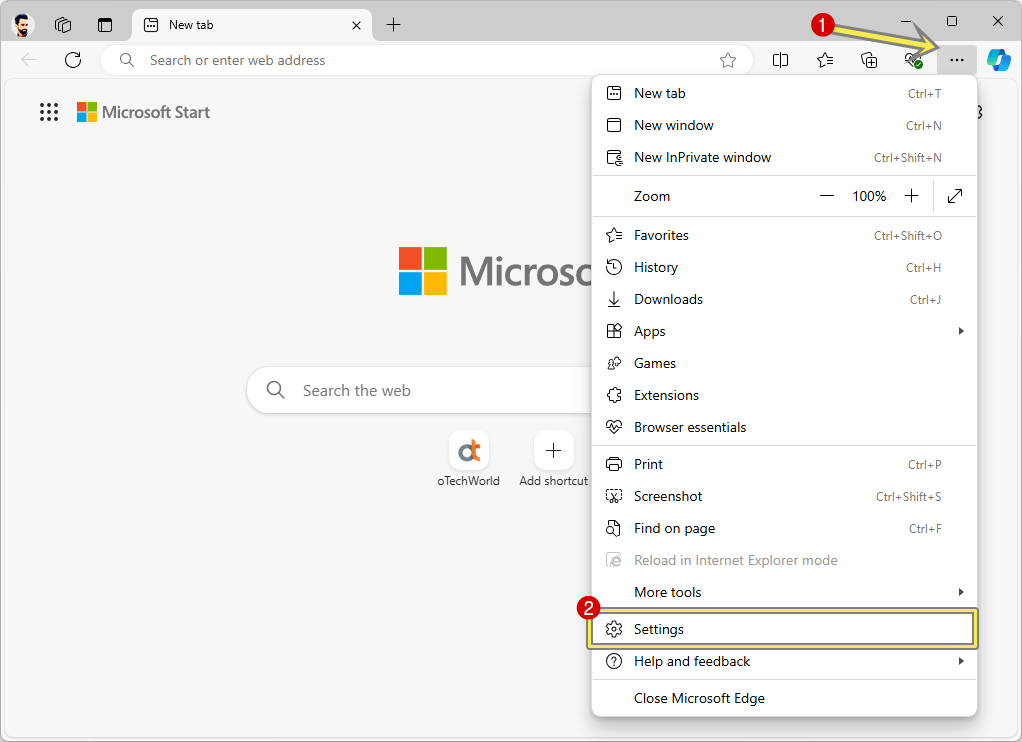
- Open the Microsoft Edge browser on your computer and click on the three dots from the top right. After that, open Settings from the list.

- Now, click on the “Privacy, search, and services” option from the left pane and select the “Site permissions” option from the right side.

- Click on the All Permissions option.

- Open the “Pop-ups and redirects” option.

- Make sure the Blocked option is enabled.
You can open this page directly using Edge Settings Url edge://settings/privacy/sitePermissions/allPermissions/popups - That’s it.


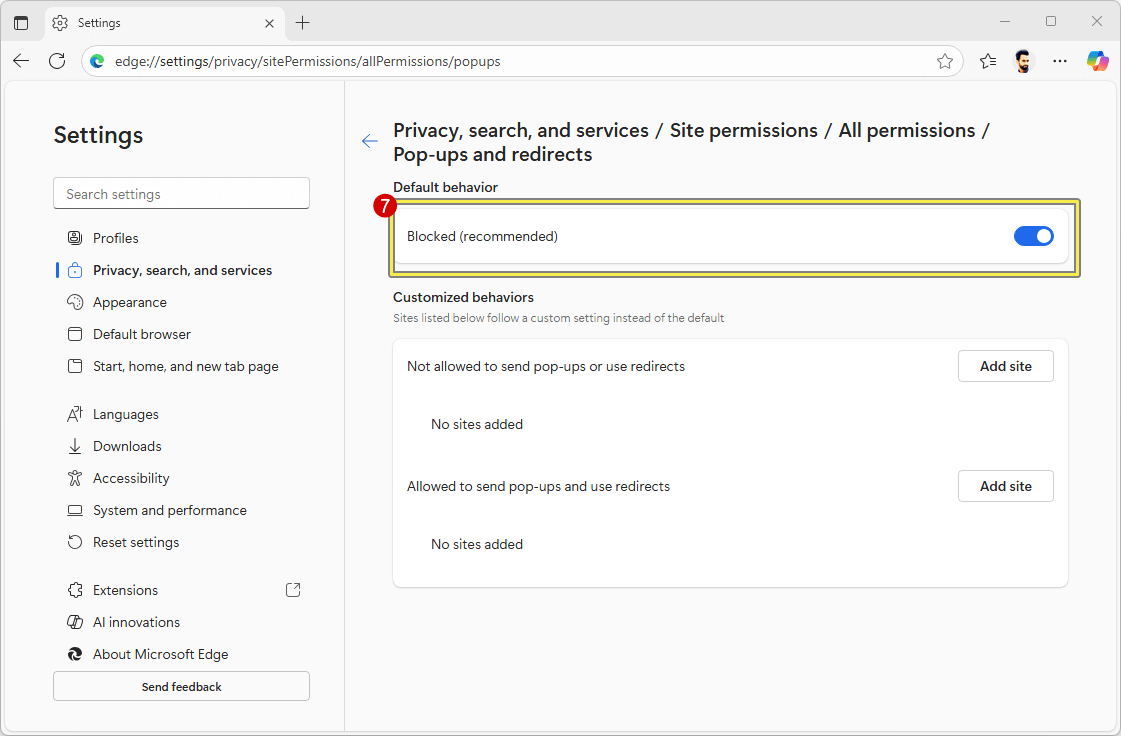
You can also use the Customized behavior option for custom settings instead of the default. You can add sites in “Not allowed to send pop-ups or use redirects” and “Allowed to send pop-ups and use redirects”.
2. Edge’s Tracking Prevention Feature
Pop-ups usually use ad-network tracking scripts. Microsoft Edge has a strong Tracking Prevention tool to cut off most of them.
However, the basic option is enabled by default in tracking prevention. But you can also use balanced and strict mode.
The steps are given below to use Microsoft Edge’s Tracking Prevention Feature.
- Open Microsoft Edge and click on the three dots from the top right. After that, open the Settings option from the list.
- Click on the “Privacy, search, and services” option from the left navigation pane and open the “Tracking Prevention” option from the right side.
- Now, the Tracking prevention page will be open, and make sure the tracking prevention is turned on. After that, select the mode from basic, balanced, or strict.
Use Balanced mode; otherwise, if you often open untrusted websites, use the Strict option.
Tip: To open the Tracking prevention page directly, you can use edge://settings/privacy/trackingPrevention internal URL. - That’s it.


Method 3. Use Pop-Up Blocker and Ad Blocker Extension
Edge has its own pop-up blocker, which is respectable, but there are always ways to add a bit of security to it with browser extensions. Because some pop-ups triggered by advanced JavaScript or aggressive ad networks can still bypass the default settings
These add-ons have gone into specializing in ad and pop-up prevention, which are more specific. Edge will now be compatible with many extensions that are found both on the Microsoft Edge Add-ons Store and the Chrome Web Store, allowing you to use some of the best available pop-up and ad blockers.
Best Pop-Up Blocker and Ad Blocker Extensions for Microsoft Edge:
1. Poper Blocker (strict)
Poper Blocker is a lightweight, yet extremely useful extension that blocks pop-ups, overlays, and scroll hijacking windows.
The extension stops all kinds of window opening prompts to the users. You are able to accept or deny a request. Several separate requests are presented together with each other. When any single website requests the same URL more than once, a badge number will be shown indicating the total number of requests to the given URL.
It provides the following options:
- Deny the pop-up request.
- Allow popup requests.
- Redirect the current page to the popup URL source.
- Open a popup request in a background tab.
Features of Popup Blocker (Strict)
- Detects and blocks pop-ups in real-time.
- Blocks site overlays and third-party scripts that trigger ads.
- Works silently in the background with minimal CPU usage.
- Clean UI with stats on blocked content.
Pros:
- Optimized for pop-up and overlay blocking.
- Doesn’t interfere with normal page ads if you want a lighter approach.
- Simple user interface.
Cons:
- Doesn’t block banner or video ads (not a full ad blocker).
🔗Install: Pop-Up Blocker – Edge Add-ons
2. AdGuard AdBlocker
One of the most trusted and highly rated ad-blocking extensions in the Microsoft Edge browser is AdGuard AdBlocker. It is developed by AdGuard Software Ltd., an extension that is specifically optimized to block all forms of advertisements on the webpages, such as banners, video advertisements, pop-ups, interstitials, and trackers, and will present a cleaner, faster, and more secure browsing experience.
Compared to many other ad blockers that do not focus on hidden or background trackers and can slow down your browsing and harm your privacy, AdGuard provides the most extensive filtering engine to block any kind of ad.
Features of AdGuard AdBlocker
1. Full Ad Blocking
- Blocks any type of ads: pop-up, video, floating, banners, sponsored links, pop-overs, and others.
- Works on popular websites such as YouTube, Facebook, Reddit, etc.
2. Anti-Tracking Protection
- It removed the third-party tracking scripts found on webpages.
- Stop websites from collecting your personal browsing information.
3. Phishing and Malware Protection
- It warns you about dangerous websites when you visit.
- Protects you from malicious ads that can force you to install malware or redirect you to phishing sites.
4. Custom Filter Lists
- Comes with optimized filter lists (such as EasyList, AdGuard Base filter, and others).
- Enables users to create their own popular filter or even subscribe to new lists (regional/language-specific).
5. Allowlist (Whitelist) Mode
- It is easy to turn on ads in your favorite sites to help content creators.
- Very easy to control using the toolbar or settings page.
6. Stealth Mode (Advanced Privacy Settings)
- Hide your search queries.
- Block WebRTC leaks, strip tracking parameters from URLs, and more.
7. Lightweight and Fast
- It is optimized to use minimum CPU and memory.
- Does not slow down the page loading speed like some older blockers.
🔗Install: AdGuard AdBlocker – Edge Add-ons
3. AdBlock or AdBlock Plus
Two of the most well-known and used ad-blocking browser extensions in the world are AdBlock and AdBlock Plus (ABP). Although the names can be similar to a great extent, they are created by various teams:
- Adblock, Inc. (getadblock.com) is the developer of AdBlock.
- AdBlock Plus is developed by eyeo GmbH (https://adblockplus.org).
Both are available for Microsoft Edge and offer nearly identical basic functionality—blocking intrusive ads, improving page loading speed, and protecting user privacy by disabling trackers.
Common Features of AdBlock and AdBlock Plus:
- Blocks All Major Ad Types: It is able to block banners, pop-ups, auto-play video adverts, interstitials, and floating adverts.
- YouTube and Video Ad Blocking: Prevent pre-roll, mid-roll, and overlay advertising on video sites such as YouTube and Facebook.
- Element Blocking Tool: Allows you to manually hide certain items on a website (e.g. sticky banners or widgets).
- Custom Whitelisting: Gives you the chance to whitelist certain websites that you do not mind ads.
- Tracking Protection: Blocks third-party cookies and known tracking scripts.
- Lightweight Performance: Designed to run efficiently with minimal impact on page speed or system resources.
🔗Install: AdBlock – Edge Add-ons
🔗Install: AdBlock Plus – Edge Add-ons
However, there are numerous ad-blocking extensions or add-ons available on the Edge Add-ons store. But these are the most popular and most trusted extensions.
Final Words
I hope this article helped you learn how to block pop-up ads in Microsoft Edge browser. Pop-ups aren’t just annoying; sometimes they can be dangerous.
Microsoft Edge provides powerful built-in tools to prevent pop-up ads. But using extensions like Pop-up Blocker, AdBlock, or AdGuard can make your browsing cleaner, faster, and safer.
You are also able to customize your privacy settings to make your web surfing experience distraction-free, without compromising your security or speed.
Popular on OTW Right Now!

About The Author

Gagan Bhangu
Founder of otechworld.com and managing editor. He is a tech geek, web-developer, and blogger. He holds a master's degree in computer applications and making money online since 2015.