
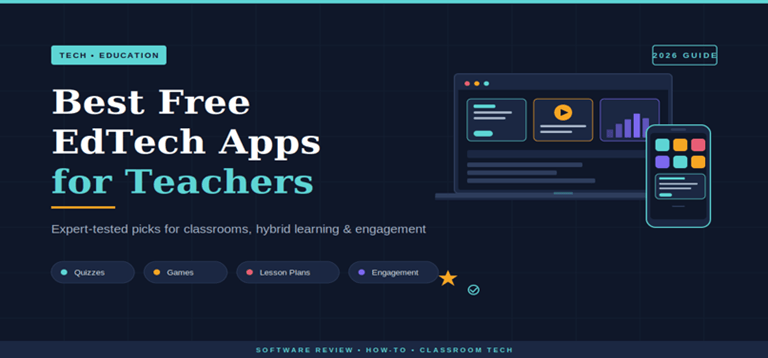
Best Free EdTech Apps for Teachers: 2026 Expert Guide
A teacher’s most valuable resource is not a textbook. It is a well-built app stack.
I have tested over 40 EdTech tools over the past two years while consulting with three schools on their classroom technology decisions. The pattern is consistent. Teachers who pick the wrong five apps spend more time fighting their software than teaching. Teachers who pick the right five become noticeably more effective within a single semester.
This guide reviews the apps that actually deliver in 2026, what each one is genuinely good at, where the free tiers run out, and how to avoid the most common stack-building mistakes. No affiliate-driven rankings. No tools added just to fill the list. Real picks from real classroom use.
Why do teachers need EdTech apps in 2026?
Teachers need EdTech apps because modern classrooms run on a mix of digital assignments, parent communication, formative assessment, and engagement tools that paper-based workflows cannot match. The right app stack saves teachers 5-8 hours per week on prep, grading, and communication while measurably improving student participation. An AI essay grader for teachers can also help streamline the grading process by providing faster feedback on student writing.
Three shifts forced this change in the last 24 months.
Hybrid learning became permanent. Even classrooms that never adopted full remote teaching now expect digital assignment submission, online quiz delivery, and shared digital resources. A purely paper-based classroom feels broken to students who grew up with screens.
Parent expectations changed. Parents now expect real-time updates, digital portfolios, and same-day grade visibility. Email and printed report cards no longer cut it. Apps like ClassDojo and Seesaw became standard parent-facing channels in K–8 schools.
Engagement tools became table stakes. Gamification platforms like Kahoot, Quizizz, and blooket.it.com moved from “nice to have” to expected. Students perform measurably better on review material delivered through these tools than through traditional flashcards or worksheets. A 2024 study from the Journal of Educational Technology Research found a 23% increase in retention when review content was gamified.
The teachers who are opposed to this change are working harder and getting less productive. Those who took a laser-focused approach to their app stack found that they regained whole days of preparation time.
How do you choose the right EdTech app for your classroom?
The perfect EdTech app is the right app for your subject, your grade level, your school’s set-up, and your problem. The majority of teachers fail at choosing the apps based on social media frenzy, and not a workflow gap. First,t choose the gap and then select the app.
Use this six-step filter every time you evaluate a new tool.
Step 1 — Name the exact problem. You can’t find a quiz tool without specifying the type. I need a 5-minute formative assessment that my students can complete on their cell phones at the end of each class, which is specific enough to assess against. This is because there are generic needs, and therefore generic tools, and they are not used after week three.
Step 2 — Check device compatibility. Your school might have Chromebooks, iPads, or a BYOD school. An application that can only be accessed on an iPad is not useful in a Chromebook district. Use the same device your students use – don’t use your laptop!
Step 3 — Check the free tier honestly. There’s a wide variety of conditions for free tiers of EdTech apps. Some charge for particular features, some have a limit on the number of their classrooms, some limit the number of students per class, etc. Be sure to read the pricing page carefully before deploying to 120 students.
Step 4 — Verify district approval. Schools have a list of approved apps that are based on COPPA, FERPA, and GDPR policies. If your district isn’t familiar with a particular app, check to see if its data is included on your district’s list of approved tools or if it has appropriate data agreements.
Step 5 — Test for one week with one class. Avoid installing a new app in all classes at once. Test with a group for one week. If engagement is low, or tech is getting on my nerves, kill it while it’s not too big a problem.
Step 6 — Commit fully or remove it. Half-adapted apps cause cognitively challenging situations for students. If the tool gets into your “stack,” then use it regularly. If it doesn’t, then take it out. It’s a bad idea to keep 12 “occasionally used apps” as compared to 4.
The typical teachers that I work with find that they have a 5-app stack that covers 90% of what they are doing on a day-to-day basis. Anything else is typically “more of the same.
What are the best free EdTech apps for teachers in 2026?
The most innovative free EdTech apps for 2026 fall into six categories: assignment management, formative assessment, gamified review, lesson design, parent communication, and student creation. Some of the most popular apps are Google Classroom, Quizizz, Canva for Education, ClassDojo, and Seesaw. They both have one core function they’re very good at.
Here is the curated stack based on actual classroom testing.
1. Google Classroom (assignment management)
Google Classroom is the core of any school using Google Workspace for Education. Seamless, included in the suite of Docs, Sheets, and Slides, and used by more than 150 million students across the globe.
Best for: Assignment distribution, collection, basic grading, and announcement broadcasting. Free tier: Generous, with no real classroom limits. Limitation: Grading workflows are basic. Pair with a separate gradebook for complex rubrics.
2. Quizizz (formative assessment)
Quizizz rules the roost when it comes to in-class quizzes. Self-paced quizzes with auto-grading, comprehensive analytics, and an extensive library of pre-made content by other teachers.
Best for: End-of-lesson checks, homework quizzes, test prep. Free tier: Up to 100 participants per session, basic reports.Limitation: Advanced reports and AI features sit behind the paid tier.
3. Blooket (gamified review)
Booklet revolutionizes the way students can be made to review. The teacher creates the questions, and students log in via a game code provided by the teacher. There are multiple game modes,s such as Tower Defense, GoldQuest, and Cafe, making the questions always new and fresh in every review session.
Best for: Friday reviews, end-of-unit recaps, test prep with engagement built in. Free tier: Unlimited basic gameplay, most game modes accessible.e Limitation: Advanced analytics and custom themes behind Buckett Plus
The standout feature is the Blooket join flow—students enter a code on any device and start playing within 10 seconds. Students do not need to register for any account, as there is no friction. At the end of a session where I got some grumbles about doing another vocabulary review with Blooket, I have heard 7th graders say, “One more Blooket.”
4. Canva for Education (creative work)
The education plan is free for verified teachers and students of Canva. Supports lesson slides, infographics, posters, worksheets, and student creative projects using templates that can be used in the classroom.
Best for: Slide design, student presentations, classroom posters, worksheets. Free tier: Full Canva Pro features for verified educators. Limitation: Requires teacher verification, which takes 2–3 days to process.
5. ClassDojo (parent communication)
Parent communication in K–8 classrooms is managed more effectively than any other free tool available, ClassDojo. Track behavior, post photos, create individual student folders, and message parents all in one place.
Best for: Parent updates, behavior reinforcement, and classroom community building.g Free tier: Full features for teachers and parents. Limitation: Best suited for elementary and middle school; less useful in high school.
6. Seesaw (student portfolios)
Seesaw is the K–5 version of a digital portfolio + parent communication. Students post their work, parents can see it as soon as it is posted, and teachers can leave audio feedback.
Best for: Elementary classrooms, especially .K–2 Free tier: Core posting and family connection features. Limitation: Advanced assessment features require Seesaw for Schools.
7. Edpuzzle (video learning)
When it comes to adding questions, notes, and discussion prompts to any YouTube or uploaded video, Edpuzzle gives teachers the flexibility to do so. Students cannot skip around questions, as this is required to be watched actively.
Best for: Flipped classrooms, homework video lessons, science demonstrations.s Free tier: Up to 20 video uploads, full embedded question features. Limitation: Video storage cap forces deletions or upgrades for heavy users.
Comparison table: free tier strengths at a glance
| App | Primary Use | Free Tier Cap | Best For Grade Levels |
| Google Classroom | Assignment hub | No real limit | K–12, College |
| Quizizz | Formative assessment | 100 participants per session | 3–12, College |
| Blooket | Gamified review | Unlimited basic gameplay | 3–10 |
| Canva for Education | Creative design | Full Pro for verified educators | K–12 |
| ClassDojo | Parent communication | Full features free | K–8 |
| Seesaw | Student portfolios | Core features free | K–5 |
| Edpuzzle | Interactive video | 20 video uploads | 4–12 |
This seven-app stack covers nearly every classroom workflow I encounter. Teachers who try to maintain more than this typically discover that 80% of the value comes from these core tools anyway.
What mistakes do teachers make when adopting EdTech apps?
The biggest mistakes are stacking too many apps, ignoring student device limitations, skipping the free-tier fine print, picking tools because they trend on social media, and abandoning training too early. Each error has the same outcome—a half-used app collection that creates more friction than it solves.
These patterns repeat across nearly every school I consult with.
Mistake 1 — App stacking syndrome. A teacher discovers Kahoot and adds it. Then, Quizizz adds it. Then Blooket adds it. Then Gimkit. Within a semester, they have four overlapping quiz tools, and students do not know which one matters. Pick one tool per category and commit.
Mistake 2 — Ignoring device reality. The lovely iPad-only app is not compatible with the Chromebook classroom. The web application that has the best user experience is not usable on the school’s locked-down devices. Test always with the exact equipment your students use; it makes no sense to test with your own laptop.
Mistake 3 — Free-tier blindness. The word “free” is almost never used to mean “unlimited. A free Quizizz can have up to 100 participants. The free uploads are capped by Edpuzzle. To use Canva for Education, you must verify your account. Read the limits before you deploy; don’t wait until there’s a quiz failure before reading the limits.
Mistake 4 — Trend-driven adoption. It’s a common practice on TikTok and Twitter to promote new EdTech tools, and these platforms do it frequently. The majority fade out in less than a year. Wait 3 months before using any “hot new app. If it still exists, then properly appraise it.
Mistake 5 — Quitting the learning curve too early. Each new piece of equipment is clumsy for the first 2–3 weeks. Those teachers who leave during that period don’t reap the rewards. Don’t judge any tool for your classroom after 21 days. Don’t give up after 21 days on any tool for your classroom.
Mistake 6 — Skipping district compliance checks. Student data sharing with non-approved applications presents a very real legal risk under FERPA, COPPA, and State privacy laws. Students will only roll out an app if it has been approved on the district’s list.
Mistake 7 — Forgetting accessibility. A lot of trendy EdTech apps are not accessible to screen readers, don’t have subtitles, or require fine motor skills, which not all students have. Ensure that all new tools are run through a school’s accessibility checklist prior to adoption.
But the teachers who do not fall into these pitfalls become comfortable with stable 5–7 app stacks that function for years. Those who don’t end up replacing their classroom tech each semester.
How much does a full classroom EdTech setup cost in 2026?
The full free tier allows for $0 per teacher per year for a full EdTech solution. Per the teacher, annual costs for paid tier upgrades for power features typically range from $100 to $300. The free tiers are adequate for most K–12 classrooms and are used for 90% of classroom use. Upgrade once you’ve reached certain free limitations.
Here is the realistic spending breakdown for a teacher building a full stack.
Pure free tier setup:
- Google Classroom: $0
- Quizizz (free): $0
- Blooket (free): $0
- Canva for Education (verified): $0
- ClassDojo: $0
- Seesaw (free): $0
- Edpuzzle (free): $0
Total annual cost: $0
Paid tier upgrades are worth considering after one semester:
- Quizizz Super: $96/year (advanced reports, AI features)
- Blooket Plus: $35.88/year (advanced game modes, detailed analytics)
- Edpuzzle Pro: $98.50/year (unlimited video uploads, advanced features)
Realistic upgraded annual cost: $100–$250
The majority of schools pay for one or two of these as a department-wide license, further reducing the cost per teacher. The free version is not a scrimped-on demo; it’s a full working version. These teachers are more likely to prioritize the use of the paid improvements as a choice rather than a mandate, and therefore are more inclined to invest their EdTech budget in the actual: new hardware, professional development, or classroom supplies.
FAQs
What is the best free quiz app for teachers in 2026?
With a generous free tier, a massive library of quizzes created by other teachers, and a self-paced mode for teachers to use as homework, Quizizz is the top free quiz in the Teachers’ Choice. If gamification and student enthusiasm are more important than in-depth data, Blooket is the best option. Choose Quizizz – assessment focus, Booklet – engagement focus.
Are gamified EdTech apps actually effective for learning?
Yes, as long as it’s used correctly. A 2024 Journal of Educational Technology Research study showed an average 23% greater retention of review material when it was presented via gamified platforms as compared to standard review strategies. The problem is that they’re not used for instruction, but for review and reinforcement.
Which EdTech apps work best on Chromebooks?
Most of the major EdTech applications that are web-based will work well on Chromebooks (Google Classroom, Quizizz, Booklet, Canva, Edpuzzle, Seesaw, and ClassDojo). Avoid iPad-only apps and apps that are not Windows-specific in schools where there are lots of Chromebooks.
How many EdTech apps should a teacher use?
Most effective teachers end up with a total of 5-7 apps, each one in a category. More makes students’ thinking load and overwhelms classroom workflows. The idea is to use the material at a depth rather than a width.
Are free EdTech apps safe for student data?
Apps such as Google Classroom, Quizizz, and Bookit are trusted apps that adhere to COPPA, FERPA, and important regional privacy laws. Prior to deployment to students, though, always check if the app is on the list of approved tools. The extent of privacy compliance will vary depending on the tools.
Can EdTech apps replace traditional classroom teaching?
No! They should not try. The great EdTech apps are those that complement a teacher and enhance their impact. There simply is no substitute for direct instruction, mentorship, and human feedback. Apps are not about teaching; they are about operational and engagement layers of teaching.
What is the easiest EdTech app for non-tech teachers to start with?
If a teacher is familiar with Gmail and Google Docs, then Google Classroom will be the simplest way to add to their current workflow. Canva for Education is the simplest of creative tools. Blooket is the easiest thing to learn when it comes to gamification: Make a question set, share the code, and students play. The typical teacher runs their first session within 20 minutes of signing up.
Should teachers pay for EdTech app premium tiers?
After using up the free quota first. Most of the premium upgrades cover advanced analytics, AI capabilities, or increase participant limits. Free tiers provide first-year teachers and teachers in smaller classrooms with real classroom needs. Avoid the feature envy upgrade; upgrade according to the number of hits.
Closing thoughts
There is a crowd of EdTech apps and tools, with a noisier-than-usual space with tools vying for attention from teachers. The vast majority of them are noise. The seven apps listed above address the true classroom processes experienced by every grade level and every subject area, every school year.
Select one tool from each category. Follow the same routine throughout an entire semester. The next one is added after the previous one is completely integrated. That’s what the entire idea of a working EdTech stack is about.
Teachers who do this well find they have more time, less stress, and they see that their students are more engaged. The ones that try to follow the latest app craze are the ones who are always busy yet are not more effective. Start small. Pick five tools. Commit. Repeat at the end of each semester.
A right stack is not a purchased stack.
Popular on OTW Right Now!


About The Author

Gagan Bhangu
Founder of otechworld.com and managing editor. He is a tech geek, web-developer, and blogger. He holds a master's degree in computer applications and making money online since 2015.