
iTop Voicy: Is It a Worth Considering AI Voice Changer for Gaming and Streaming?
I used to play games with friends and stream online on the weekends. After some time, I began to feel a sense of repetition in my streams. My responses were identical; my commentary was flat, and even the fun moments didn’t go as they should. I was looking for a simple method to get more fun out of my streams without any expensive tools.
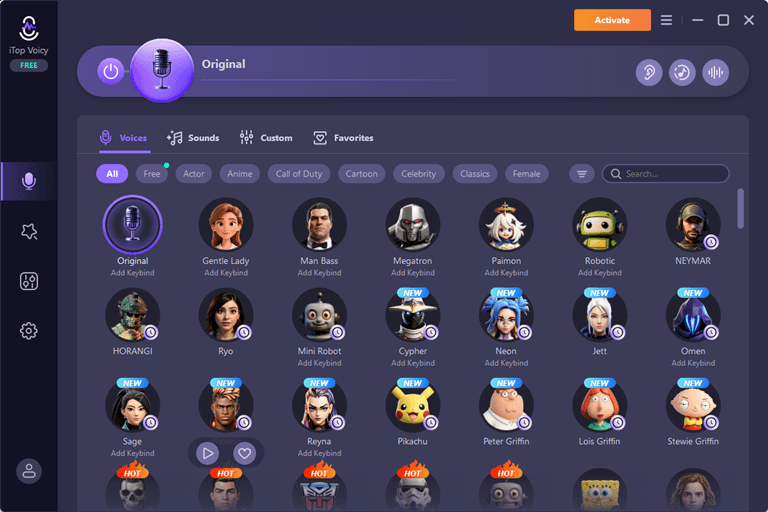
That is when I came across iTop Voicy.
I originally believed this was just another simple voice changer with a robotic voice and echo delay. I tried it during a game session and in a couple of livestreams. Then I found out that it is more useful than I thought. It actually made my streams more interactive and helped me to retain visitors’ attention for longer.
What is iTop Voicy?
iTop Voicy is a voice changer for PC that lets you change your voice in real time. It helps users to change their voice during gameplay, live chat, streaming applications, and online calls.
The software can modify your voice without the need for recording and later editing. This is because the modified version is heard in real time as part of conversations.
The tool includes:
- Real-time voice effects
- AI-based voice changing
- Noise reduction
- Voice recording tools
- Custom voice settings
- Soundboard and audio effects
I mainly used it during gaming and streaming. However, it also works with streaming software and meeting apps.
Why I Decided to Try It?
I downloaded this software just because I wanted to make gaming and streaming more fun.
Usually, I play multiplayer games with the same set of friends. After months of hearing the same reactions and jokes, I thought it would be fun to switch things up a little. I also stream sometimes. I also wanted something to make the streams feel less repetitive.
Overall, I wanted to have a simple solution without slowing my PC down or a complicated setup. When I started using iTop Voicy, I found it just right for all my needs.
How I Set Up iTop Voicy for Gaming?
It was quicker to get everything going than I anticipated.
● Install the Software
I downloaded iTop Voicy and installed it. After opening the app, it automatically detected my microphone and headset.
● Test My Microphone
I went to audio settings, chose my microphone, and tested voice input. The sound meter responded immediately. So, I knew that everything was connected correctly.
● Choose a Voice Effect
I then had a look around the voice library. Multiple voice styles were offered, such as a deep voice, a robotic voice, a cartoon-like voice, and other natural voice changes. I tried a couple and then went to a voice chat.
The preview option was useful as I was able to hear the sound of each voice prior to use.
● Connect It to Discord
I use Discord for gaming the majority of the time. So, I went into the settings and chose iTop Voicy as my microphone input.
Once I joined the voice channel, my modified voice worked instantly.
Features of iTop Voicy I Used the Most
These are the features you will be getting when using the software.
Real-Time Voice Changing
This was my primary focus and worked well for the most part. My voice transformed in real time when I spoke. This was important during play times as misaligned audio can disrupt communication.
I tried a few voices in funny situations in the game, and my friends reacted instantly. This is because everything sounded natural in real time.
AI Voice Effects
Most of the AI effects here were surprisingly smooth, but some voice changers sound quite robotic. I especially liked the deeper voice options. This is because they sounded more realistic compared to other voice-changing apps I have tested before.
Noise Reduction
I have a keyboard that can get pretty loud during matches. This is particularly true during more competitive matches. Noise reduction was built in and helped to cut down on background noise, which helped me make my voice heard in voice chat.
Custom Voice Settings
I could make my own voice effects as well with a custom pitch and tone. This made it much easier for me to come up with a voice style that sounded more natural with longer streams.
What I Liked Most?
After using the software regularly, these were the biggest positives for me:
- No tutorials or complex audio routing were needed. Everything went great right off the bat.
- Viewers were more responsive when watching streams as the voice changes made gameplay moments funnier and more unpredictable.
- I had some concerns regarding how it would impact the game’s performance, but I did not experience significant drops in the number of frames per second while using it.
- There were enough voice styles to experiment with without feeling repetitive quickly.
A Few Things I Didn’t Like
To be fair, there were some drawbacks that I saw.
- There are some voices that sound better than others. Not all of the voice effects were realistic. Some were so over-the-top that they were not suitable for general discussion.
- Initially, I took some time to adjust the microphone levels and effects before I got the most effective setting.
Who do I Think Should Try It?
From my experience, I believe that this software is suitable for:
- Streamers who would like more audience interaction.
- Gamers who enjoy voice chat humor
- Content creators making reaction videos
- Role-playing communities
- Anyone who desires live voice effects without the need for editing later
This can be particularly handy for content creators looking to break up their streams.
Final Thoughts
I used iTop Voicy for some of my games and livestreams, but started using it more than I had anticipated. It was a fun experiment, and now I use it in my streams and games regularly.
It made interactions more fun. If you have started to feel like your stream or voice chat is getting repetitive, iTop Voicy is a good option to try.
Popular on OTW Right Now!


About The Author

Gagan Bhangu
Founder of otechworld.com and managing editor. He is a tech geek, web-developer, and blogger. He holds a master's degree in computer applications and making money online since 2015.