
I Almost Blamed My Hardware for My PC’s Lag: Here’s the Hidden Driver Problem I Discovered
For months, I was convinced my computer was getting old. Games weren’t running as smoothly as they had done in the past, videos would occasionally stutter, and switching between applications was not always quick enough. I thought my PC had finally reached its limits, as it was some years old. I’ve even begun to consider new processors and graphics cards for an inevitable upgrade. Luckily for me, it didn’t cost me a dime to find out, so that’s what I did.
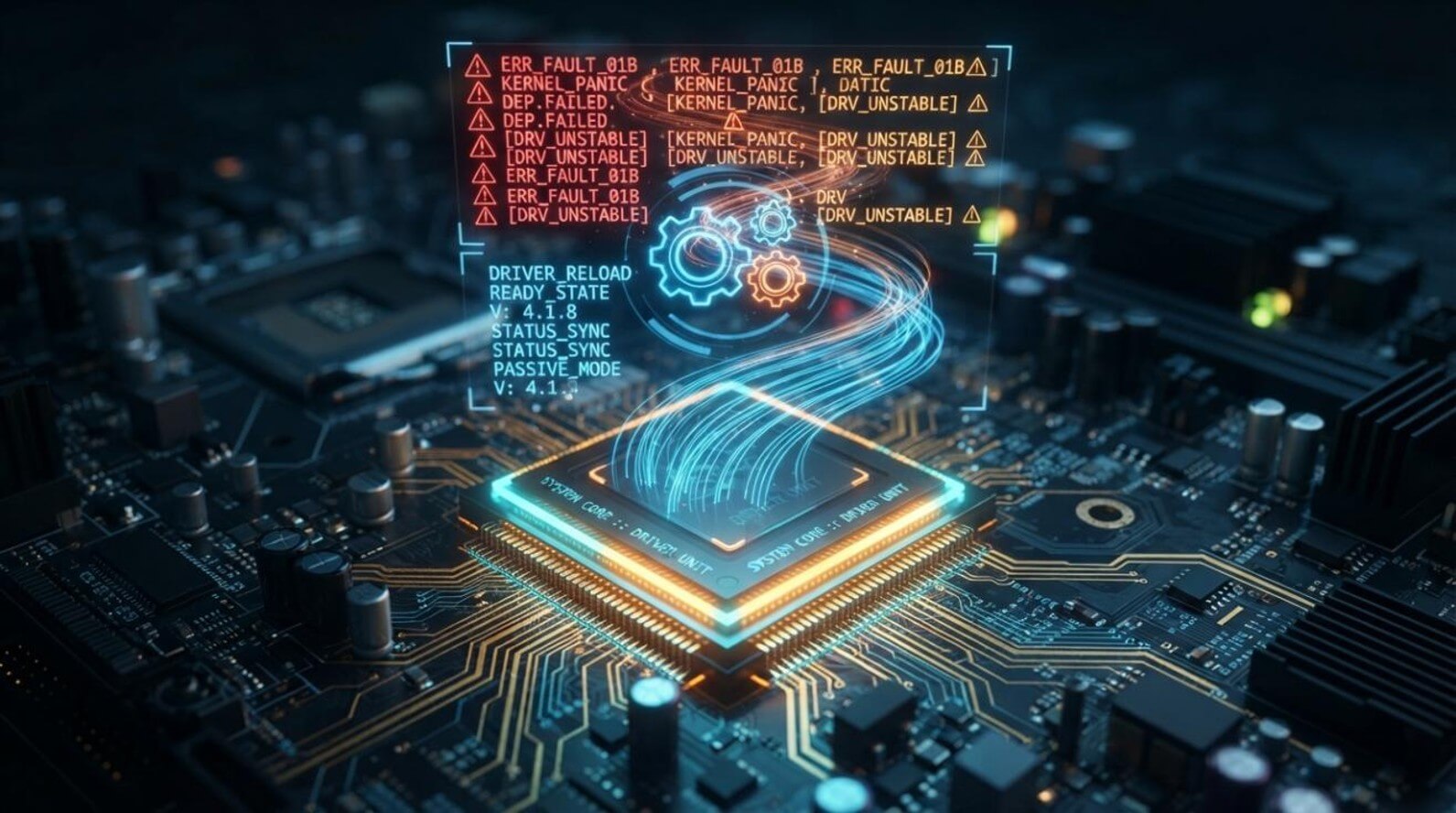
Looking for the Real Cause
The first thing I did was look at the obvious things. I closed unnecessary background applications, freed up space in my disk, and ensured that Windows is fully updated. Those modifications did help a little, but the lag was never eradicated.
It was at this point that I began reading conversations from other PC users who had encountered similar issues. A tip that kept popping up was to review the drivers. It would be nice if I hadn’t thought about the drivers; you should see me. If my computer was running, I assumed that everything was up to date. I couldn’t have been more wrong.
Discovering Outdated Drivers
After discovering that several of my device drivers—including my graphics driver—were outdated and subtly reducing my system’s performance and responsiveness over time, I chose to use Driver Booster instead of manually searching for updates across multiple manufacturer websites, appreciating how the software instantly scanned my PC, organized everything in one place, and clearly displayed which drivers needed attention to make the entire process effortless.
Features I Found Most Useful
After using Driver Booster for several weeks, a few features became particularly valuable.
Large Driver Database
I appreciatednot havinge to look up each hardware component separately, as the software recognized over 12 million drivers.
Automatic Driver Scanning
The software scanned my system and found outdated drivers in just a few minutes, instead of checking every device myself.
One-Click Driver Update
Updating several drivers individually would have taken much longer. Being able to perform a driver update with just a few clicks made the process much more convenient.
Backup Before Updating
What I liked about it is that it allowed me to create a backup before installing new ones. Just an added layer of security in case I’d ever need to revert to a previous version.
Beginner-Friendly Interface
It was perfectly structured, and it was easy to understand what needed to be updated, even if you didn’t have a technical background.
The Difference I Noticed
I wasn’t expecting dramatic improvements overnight. However, after restarting my PC and using this driver updater for a few days, several changes became noticeable. Games loaded quicker. Minor stuttering was less common. The switching between apps was faster. Even regular browsing felt a bit more responsive. Not every update altered my computer, but they haveall made itr healthier.
Pros
- Automatically scans for outdated drivers.
- Easy driver update process with just one click.
- Simple to use for novices.
- Contains driver support before installation.
- Saves time over manual driver searches.
- Helps improve system stability and compatibility.
Cons
- Advanced features are only available in the paid version.
- In many instances, driver changes still require restarting the system.
- The results depend upon the condition of the PC and existing drivers.
My New Maintenance Routine
This experience completely changed how I maintain my PC. Now I make sure to:
- Check for a driver update
- Install Windows updates promptly.
- Remove software I no longer use.
- Keep enough free storage available.
- Restart my PC after major updates.
These habits can be done in mere minutes, but they can save me from many of the issues I faced before.
What I Learned
It was not the drivers’ learning that was the biggest lesson. It was a question of making assumptions. I spent hundreds of dollars on replacing hardware that was not actually broken. What actually was a problem was some software that needed periodic maintenance. Since then, I have come to understand that I need not worry about maintenance problems if I can avoid costly upgrades.
Final Thoughts
I’m happy that I didn’t rush to purchase new hardware. By spending time troubleshooting the issue, I found that other outdated drivers were contributing to the lag I had been experiencing.
Using Driver Booster made keeping my drivers up to date much easier, and regular driver update checks have become part of my normal PC maintenance routine. Drivers are not designed to make old hardware work like new hardware, but updated drivers can provide improved stability, compatibility,, and overall responsiveness.
For me, it was a straightforward solution that was much more impactful than I thought.
Popular on OTW Right Now!


About The Author

Gagan Bhangu
Founder of otechworld.com and managing editor. He is a tech geek, web-developer, and blogger. He holds a master's degree in computer applications and making money online since 2015.