
How to Set Up Telegram on Windows and Manage Cross-Device Sessions
Telegram on Windows can make long messages, group discussions, file review, and multi-chat work more efficiently than relying on a phone alone. The desktop client is most useful when installation, login, local storage, notifications, and session access are configured as a single connected workflow.
A Windows login is not a separate account. It extends an existing Telegram profile to another device, so verification codes, QR code authorization, downloaded files, and active sessions must be handled carefully. An old computer that remains connected can continue to expose messages even after the user stops using it.
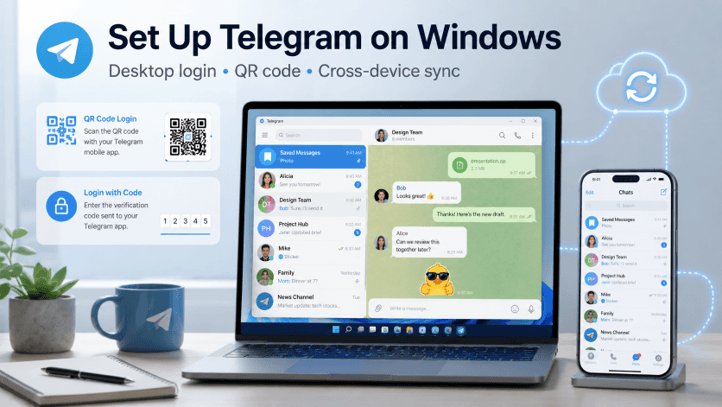
This guide explains how to safely set up Telegram on Windows, manage cross-device synchronization, and review connected sessions, with practical considerations for Hong Kong and Taiwan users working in English and Traditional Chinese.
Prepare the Windows Computer for Telegram
It’s always good practice to see if the Windows computer will be usable before installing Telegram.
Start with the Windows version. Generally, newer releases offer greater compatibility, improved security features, and improved notification handling. An outdated system might have no issues running the app, but may have issues during updates, security prompts, or background App behavior.
Users should also review:
- Available storage space
- Internet connection quality
- Pending Windows updates
- Notification permission settings
- Default download folder
- Security-software status
- Whether the device is personal, shared, or managed by a company
The importance of storage is that, over time, messaging apps can start storing downloaded files, caches, images, and videos. Network quality is important because it affects login codes, synchronization, and file downloads.
It can also be beneficial to determine the location of downloaded files in advance. Using a computer for both business and personal communications will help avoid later confusion.
Choose the Correct Telegram Desktop Version
Telegram on Windows may be available in multiple formats, and users should understand the differences before installing it.
Common choices may include:
- A standard installer version
- A Microsoft Store version
- A portable version
- Versions designed for different Windows environments
For users seeking a typical desktop application with a standard installation procedure, the standard installer is the most familiar choice. A store-based version can more seamlessly fit into the Microsoft Store update system. Sometimes, a portable version can be used without a full traditional installation, which can be helpful in certain situations, but users should research their source thoroughly.
When choosing a version, consider:
- Whether the computer is 32-bit or 64-bit
- How updates will be delivered
- Whether administrator permission is available
- Whether the application needs to run on a restricted workplace device
- Whether long-term maintenance or portability is more important
What is good for one computer isn’t always good for another. A work device, for instance, might have policies that impact installation rights or background activities.
Install Telegram on Windows Safely
The installation phase is one of the most essential aspects of the setup, as it determines whether the file source and the application’s identity are reliable.
Before setting up 电报电脑版, users should confirm the installer source, Windows compatibility, publisher information, and whether the application can receive future security updates.
Download the installer and preview it before execution. Look for the file name, file size, file extension, and Windows file properties. A legitimate Windows installer file typically is either an .exe file or a common application file extension. The file name should not be random or misleading; it should be the name of the product being installed.
Users should also inspect:
- The installer source
- The publisher name
- Available digital-signature information
- Windows Security warnings
- Whether the app appears current and actively maintained
If the computer prompts for an administrator’s password, check the publisher information in the prompt. This is a good place to check that the file is still uniform with the anticipated application.
When installing, do not rush through the process. If any optional behavior—such as startup settings, shortcut creation, or file associations—is offered, check it out before consenting. Fewer problems will arise later if it is done carefully at the initial installation.
Log In With a Telegram Verification Code
After installation, the next step in Telegram is to link the Windows application with the user’s account.
A significant number of users log in with a cell phone number and a one-time code. Based upon the current state of the account and connected devices, that code can be delivered via one of several avenues.
Important checks include:
- Confirming the correct phone number format
- Checking whether the code arrives on another logged-in device
- Watching for SMS delivery when appropriate
- Understanding that older codes may expire
- Avoiding repeated login attempts that trigger temporary limits
- Never sharing the code with anyone
A code can be sent to the user via SMS, or via an active Telegram conversation in which the code will be displayed. If the screen you’re waiting for is the desktop login screen, consult the phone app before requesting another code.
Be aware that requesting multiple codes may result in a delay or temporary restriction. Only enter the latest code; don’t assume that the app is faulty after a single attempt.
Use Telegram QR Code Login Carefully
QR code login may be helpful to sign in to Telegram for Windows, particularly if a trusted mobile device is already logged in.
But convenience does not negate the need for caution. A QR code should only be scanned on a trusted login screen that the user actively opens. QR codes received from people you don’t know, in chat, or on suspicious websites must not be scanned to gain access to an account.
Before using QR code login, users should:
- Confirm the Windows application or website is trustworthy
- Understand which device will authorize the login
- Check the device name after authorization
- Review the resulting session afterward
Once the QR code is scanned and the session is active, go to the session-management area and ensure the new Windows login appears exactly as you want it to. If there is anything in the list that you don’t recognize, delete it immediately.
QR-based login is helpful, but it should be treated as an account authorization event rather than a harmless shortcut.
Manage Telegram Messages and Files Across Devices
One of Telegram’s practical advantages is that conversations and files can be accessed across devices. That flexibility becomes more useful when it is managed deliberately.
On Windows, users should think about:
- Where downloaded files will be stored
- Whether media downloads should happen automatically
- How much cache Telegram may accumulate
- Which chats should be pinned for quick access
- How search will be used for older messages
- Whether local copies of important files are needed
Cloud-based chats make it easier to switch between the phone and the computer, but local file management still matters. A file downloaded on Windows may remain in a local folder even when the same file is still available in the cloud conversation.
If users need to work with attachments frequently, they might want to set up a clear file and folder structure for documents, images, and temporary files. Cleaning up will also prevent Telegram from taking up unnecessary space.
The desktop workflow can be greatly enhanced with pinned chats and search tools. A Windows setup that is suitable for communication and organization is ideal.
Configure Telegram Notifications on Windows
Notifications are an important part of using Telegram effectively, but too many can be distracting.
Windows users should configure both system-level and app-level notification settings. These controls often include:
- Windows notification permission
- In-app notification preferences
- Group mute options
- Private chat alerts
- Sound settings
- Start-up behavior
- Focus mode or do-not-disturb compatibility
The urgency of a chat is not the same for all chats. For private messages, you might want to get a quick notification, but for busy group chats you can set it to muted or “mention only” notifications. Start-up behavior should also be reviewed. Certain users would like Telegram to run automatically at startup; others would like to open it manually. This will depend on how integral Telegram is to everyday business.
A helpful notification system cuts down on noise while ensuring that users do not miss important messages.
Review Telegram Active Sessions
Every time Telegram is connected to a new computer or device, the active-session list should be reviewed.
After installing Telegram for Windows, users should review active sessions, identify the new computer, and remove any device they no longer recognize or use.
A session list may show:
- Device type
- Operating system
- Approximate location
- Application version
- Recent activity time
- IP-related information
This information helps users verify that the current Windows device is the one they are looking for. This will also help ensure that an older computer, a forgotten browser session, or a login from an unknown location is found.
Users should remove:
- Old laptops no longer in use
- Shared computers
- Temporary workstations
- Sessions created during testing
- Any unfamiliar device
Reviewing sessions should not be a one-off. It’s a standard part of account cleaning, particularly for individuals who use a telephone, a home computer, a workplace device, and even a travel laptop.
Troubleshoot Common Telegram Windows Problems
A Telegram desktop setup may still run into problems even when the installation and login were done correctly.
Telegram does not open.
Look for any errors indicating that Windows blocked the application; it may require a system restart, or the installation may not have completed. Installing from a trusted source and upgrading Windows could help.
The verification code does not arrive.
Review the phone number format, check whether the code appeared on an already connected device, and avoid repeated requests that may create a temporary limit.
The QR code does not work
Ensure that the App is signed in, the scanner is correct, and the code is scanned from a trusted login screen. Old, outdated QR codes need to be updated.
Messages do not sync
This can be due to connectivity problems, an outdated version of the app, or multiple accounts. Verify the account and a stable Internet connection.
Notifications do not appear
Make sure to look at Windows notification settings and in-app preferences. It could be a focus mode, muted chat, or a restriction when opening.
Files do not download correctly.
Check the download folder, storage, internet stability, and app cache behavior. If a download fails or is interrupted, it may need to be repeated.
Changing multiple settings at once is often more of a hit-or-miss endeavor, whereas a systematic troubleshooting process is likely to be more successful.
Using Telegram on Windows in Hong Kong and Taiwan
For traditional Chinese users, test the user interface language, Chinese input, contact names, message search, file names, and notifications for both desktop and mobile platforms. When discussing both Chinese and English, the search behavior may vary; therefore, test real keywords and document names, not all of which will be equally discoverable.
Local Windows settings also influence the experience. Check default folder, time zone, date format, notifications, and startup preferences. If it’s a work account or a shared computer, store important documents in approved storage and sign out completely when the computer is not trusted.
Telegram for Windows Setup Checklist
Before considering the setup complete, confirm the following:
- The Windows computer has enough storage and is up to date.
- The correct Telegram desktop version was chosen.
- The installer source and publisher were reviewed.
- The application was installed without rushing through the prompts.
- Login was completed using a trusted verification method.
- Verification codes were not shared.
- QR code login was used only on a trusted screen.
- Download folders and cache behavior were reviewed.
- Pinned chats and search are ready for daily use.
- Notification settings were adjusted for work and personal needs.
- The new Windows device appears correctly in active sessions.
- Unused or unfamiliar sessions were removed.
Frequently Asked Questions
Can I use Telegram on Windows without keeping my phone connected to the internet?
Once the desktop session is authorized, Telegram is designed to be used with multiple devices—which the Windows client can continue to use normally. Some trusted access methods might still be required for account recovery and new logins.
Is QR login safer than entering a code?
Both of these are safe when used in the verified client. Logins via QR codes should be approved only if the displayed Windows device is within your physical reach, and after you log in, you should check the new session immediately.
How do I remove Telegram from an old computer?
Remove the old device from the active-session list, and delete any locally downloaded programs and applications if you are still the computer’s controller. Someone else may have used the device; change other security details.
Conclusion
The best way to use Telegram on Windows is to treat the desktop client as an account session rather than a one-time installation. Verified software, careful logon, controlled downloads, proper notifications, and frequent session checks ensure productivity and privacy.
Users in Hong Kong and Taiwan can leverage testing of mixed English and Traditional Chinese workflows to find problems in search, file, or notifications before they impact critical communication.
Popular on OTW Right Now!




About The Author

Gagan Bhangu
Founder of otechworld.com and managing editor. He is a tech geek, web-developer, and blogger. He holds a master's degree in computer applications and making money online since 2015.