
How to Remove Text and Logo Overlays from Videos Using AI
Overlaid text and logos are features you can find in video content. It could be in the form of watermarks stamped by stock footage platforms or subtitles baked directly into the frame. While these overlays can naturally complement videos, you can repurpose and free the footage from these features.
To create an AI text-to-video, you can capture videos with AI tools and get the impression that the watermark elements weren’t actually in the video at all. In this article, we will explain how it works and how you can get rid of the text and logo overlays.
Can I Remove Text and Logo Overlays from Videos?
Yes, it is possible to get rid of text and logo overlays in videos. At times, watermarks are in media files by default, right from the production stage. This may be in the form of subtitles providing the content of the video in a specific language. In the case of brand content, logo overlays can be a good thing to mark the source. But if you download the video from the internet, you can get rid of any of these watermarks. Or, if you’re an editor looking to make post-production changes.
There are several ways to remove overlays from footage. Simple one-off processes to a multi-task approach. The simple way to get rid of the logo or text overlay is to cut out the section that has it in the video. This is best accomplished if the element is towards the end of the video file. A few mobile systems and applications allow for basic editing to filter it out, particularly when you can get rid of the frame.
Another method that can be used to edit out text and logos is by blurring out the logo or text in the video. Videos with these materials have mosaics which brush off the part from the viewers, but may not be clean. It’s quick and simple to use for editing yourself.
Video editing has reached a new level with the advent of AI video editing software. It can now be processed and output quickly and easily. Use dedicated AI watermark removers to get rid of watermarks from video files. They are offered in the online and app versions and will be useful in video customisation. Despite all this, it still enhances your videos in terms of their aesthetic appeal and quality.
How Can I Remove Text and Logo Overlays from Videos Using AI?
The choice of text and logo removal by AI tools is not out of place. You can easily explore it for the different videos you want to modify. Here are step-by-step processes for the removal.
Find an AI tool
In order to remove overlays using AI, there is a need for a tool that would work for you. There are different AI software tools available, and they can be easily found online. They come in many different depths and widths, however.
In the case of editing a video on a low budget, a free AI tool will do the job. The paid options are more expensive, but also have more of a general function. Apart from watermark removal of text and logo, you can upscale your videos following the editing process. When choosing AI tools, it’s worth considering those that offer this functionality and others.
Signup/Login
Once you’ve located the ideal AI tool, register as a fresh user. If you have a tool that you have used previously and want to refresh yourself with its use, log in. But there are a few AI tools that do not necessitate registration or login. If you are in need of a one-off video processing, this can be your choice.
Upload your video
Choose and upload your video from your device to correct the overlay. Check the AI’s ability to process multiple videos at once if you have multiple videos to process. This functionality is facilitated by tools that allow you to upload and repair several videos at a time, thus saving time and effort.
Review and Download
The processing time varies with AI tools, according to the network and the video size. Upload your video and view the processed video to confirm that the AI has successfully removed the logo/text. If your video has text and/or a logo over it, make sure these are both anchored. If any of the parts are missing, you can repeat the process.
What are the Best AI Tools to Remove Text and Logo Overlays
There are various AI tools to remove overlays in videos, both short and long. Below are your best three shots.
Zawa
The Zawa AI will help you get rid of overlays – text and logos – in just a couple of seconds. No signups required; you don’t have to worry about the hassles of creating accounts. The AI-powered tool is able to remove unwanted marks from footage without effort and process your footage to produce a high-quality result. It also helps in batch uploading and processing, saving time.
Dewatermark
One of the best tools for removing overlays in videos, apart from Zawa AI, is Dewatermark AI. As the name suggests,s this AI tool removes the watermark elements from videos. It scans the text or logos in the image and removes the unwanted parts of the ima, such as dense elements, with the help of the auto-remove feature, quickly. The tool can be used in online mode and in the desktop application.
Vmake Labs
Vmake Labs is an AI-powered solution that enables you to remove text and logo overlays from video. It’s very useful when you have a static logo that’s in the corner of a programme shot. Additionally, you can remove several elements without being concerned with blurs. The quality of the post edit is preserved as in the initial edit without any changes.
How to Remove Text from Videos with Zawa AI
Open the Zawa AI Video Text Remover online to upload your video. The AI supports batch upload. As such, you can upload and process multiple files at once.
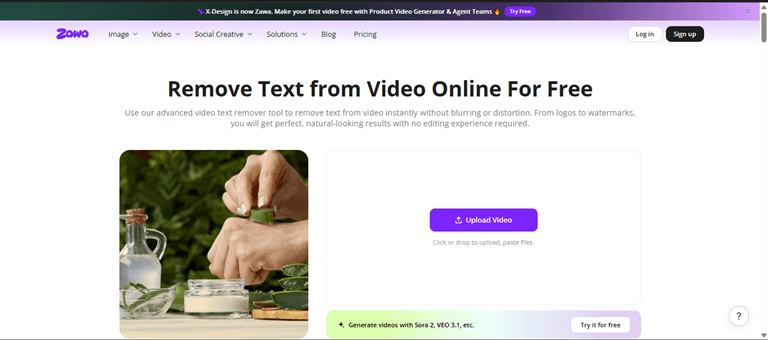
- After upload, select your preferred customisation mode. Zawa AI offers smart watermark and subtitle removal in auto mode to remove the overlay.
The video below features a subtitle of “Try it Free today” in the lower layer.
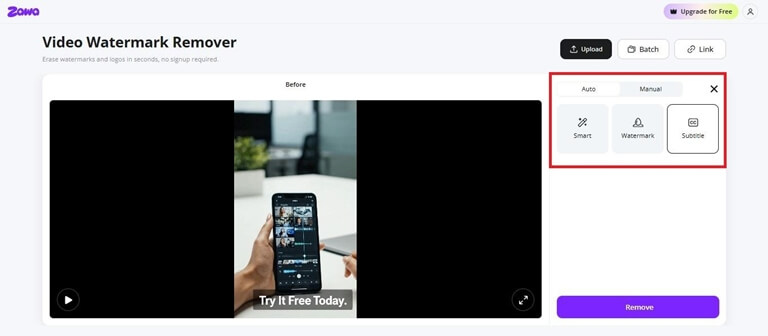
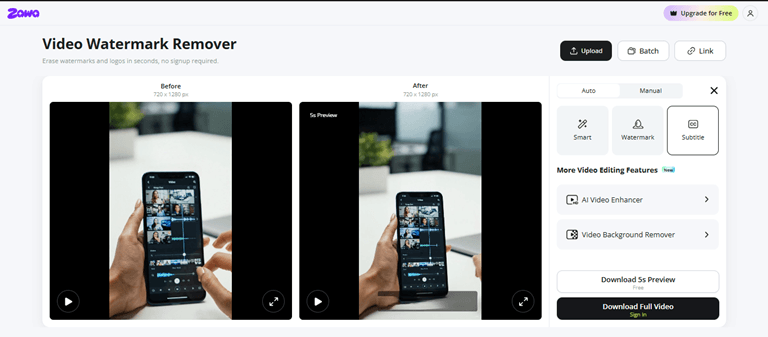
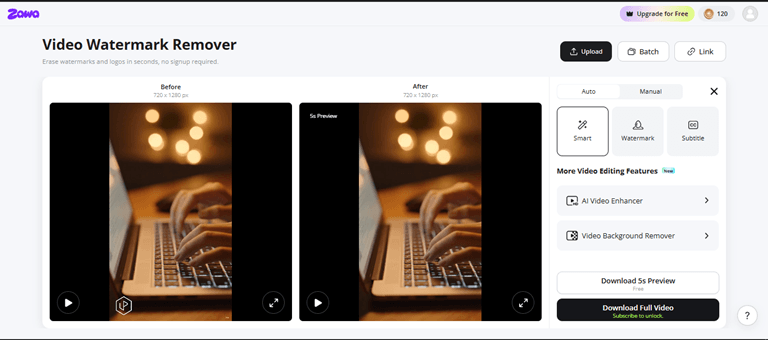
- Review and download the processed video on your device. You can download a 5s preview as a free user without signing up. Alternatively, sign in and subscribe to a paid plan to download the full video.

How to Remove Logo from Videos with Zawa AI
- Open the Zawa AI Video Watermark Remover to upload your video file. The AI supports batch upload. And you can upload multiple videos with logos at once for processing.

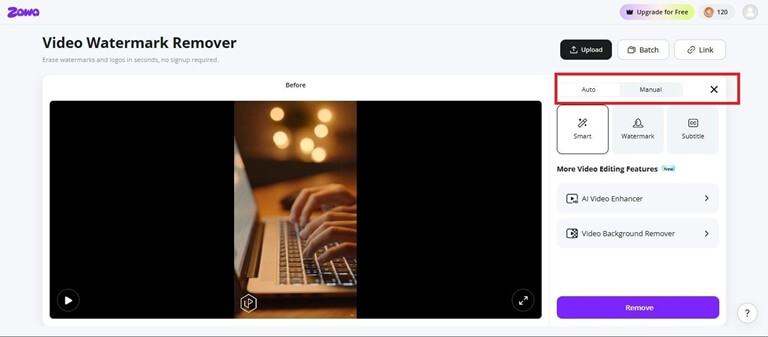
- After upload, select your preferred customisation mode. The AI comprises auto and manual modes for flexible customisation. In the manual mode, you can draw a box over the logo area to capture the element.
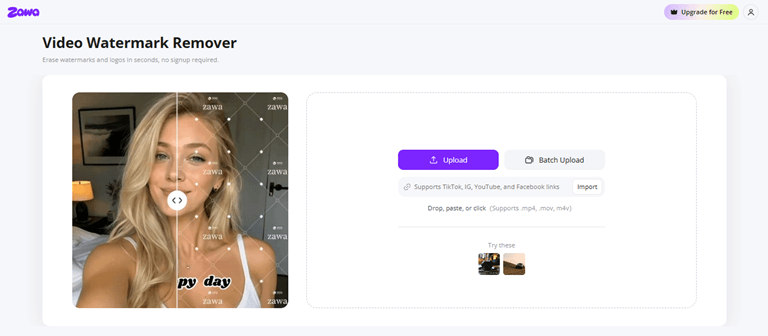
The video below features a hexagonal-shaped logo in the lower layer.
- Review and download the logo-free video on your device. You can download a 5s preview as a free user without signing up. Sign in and subscribe to a paid plan to download the full video.

Conclusion.
AI can easily get rid of text and logo overlays from your videos without hassle. It is also an option for non-scripted editing. The only thing you can do, apart from saving time, is to upscale your video resolution after removing the watermark. Better still, some AI solutions can be smart, auto-retouched, and manually adjusted as well.
Popular on OTW Right Now!




About The Author

Gagan Bhangu
Founder of otechworld.com and managing editor. He is a tech geek, web-developer, and blogger. He holds a master's degree in computer applications and making money online since 2015.