
How to Flip or Mirror YouTube Video
Are you searching for how to flip or mirror video on YouTube? If yes, then you’re on the right page.
Sometimes, you might need to flip or mirror video on YouTube for some reason. For example, sometimes, creators record videos using a webcam or front-facing phone camera, which captures a mirrored video. If the creator forgets to correct it before uploading, viewers will see everything reversed — text, signs, diagrams.
However, there are plenty of reasons to flip or mirror the video on YouTube.
Sadly, YouTube doesn’t provide any built-in option in its player to flip the video horizontally. But there are several reliable ways to mirror a YouTube video
So, in this article, I’ll show you how to flip or mirror video on YouTube without any hassle.
How to Flip or Mirror Video on YouTube
Method 1: Use a Browser Extension (flip locally, instant)
You can use a browser extension to do this task. A browser extension is the fastest and easiest way, and you can flip or mirror the YouTube video with one click.
The extension modifies the video element (the <video> tag or the player container) in your browser and applies a CSS transform that mirrors the video horizontally.
On Google Chrome
- First, you need to install the YT Mirror extension on your Chrome browser. For this, open the Chrome browser on your computer and click on the three dots from the top right » Extensions » Visit Chrome Web Store and search for YT Mirror from the search bar.
The direct link is given below:
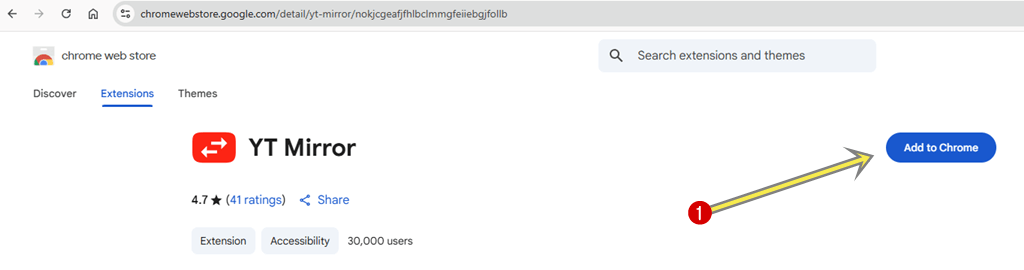
Get YT Mirror Extension - After opening the link, click on the Add to Chrome button.

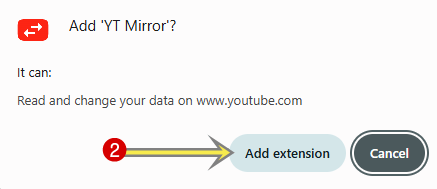
- The pop-up will arrive, and click on the Add extension from the pop-up.

- Now open YouTube.com and play any video. You’ll see the YT Mirror flip icon in video player controls.
- Click on the flip icon to mirror the YouTube video.

- That’s it.
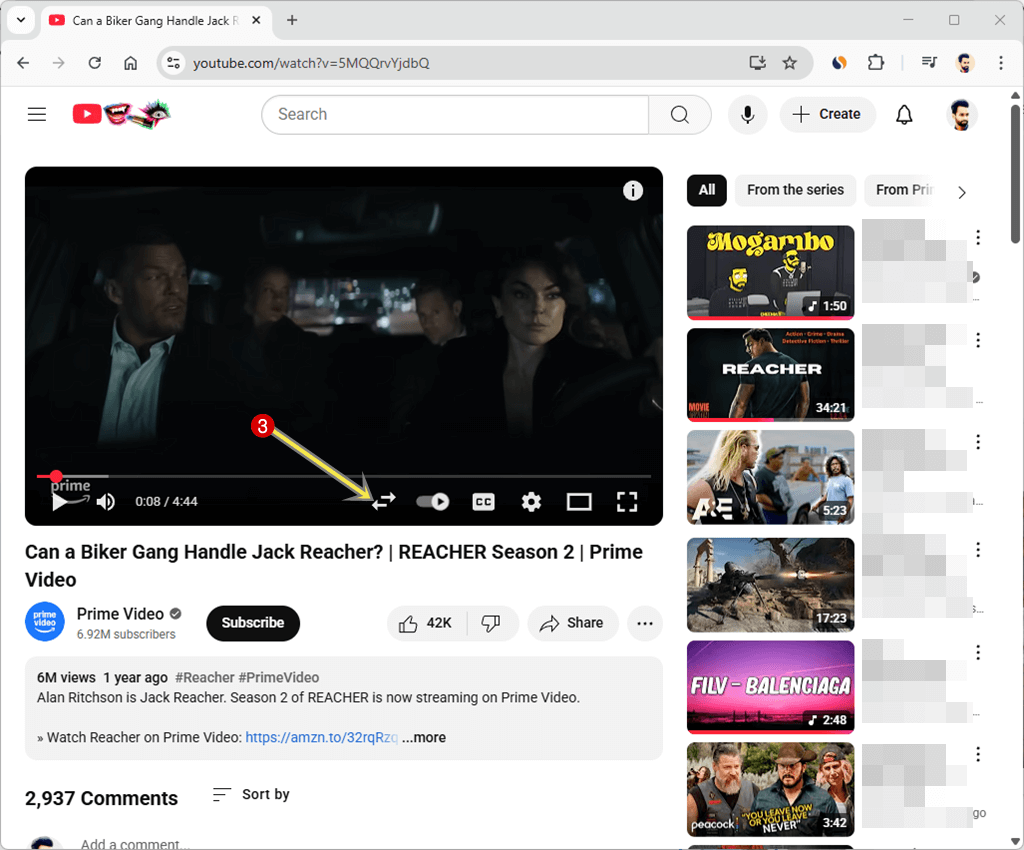
You can click on the icon again to revert the changes.
On Microsoft Edge
- Open Microsoft Edge and click on three dots from the top right » Extensions » Get extensions for Microsoft Edge.
- Search for an Enhancer for YouTube using the search bar. Otherwise, the direct link is given below.
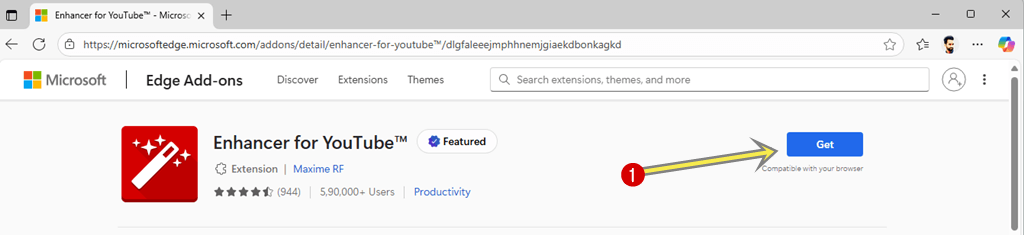
Get Enhancer for YouTube - After opening the link or extension page, click on the Get button.

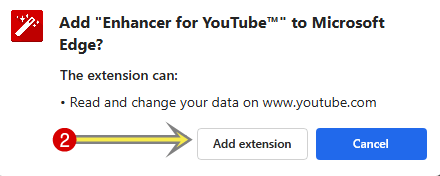
- From the pop-up, click on the Add Extension button.

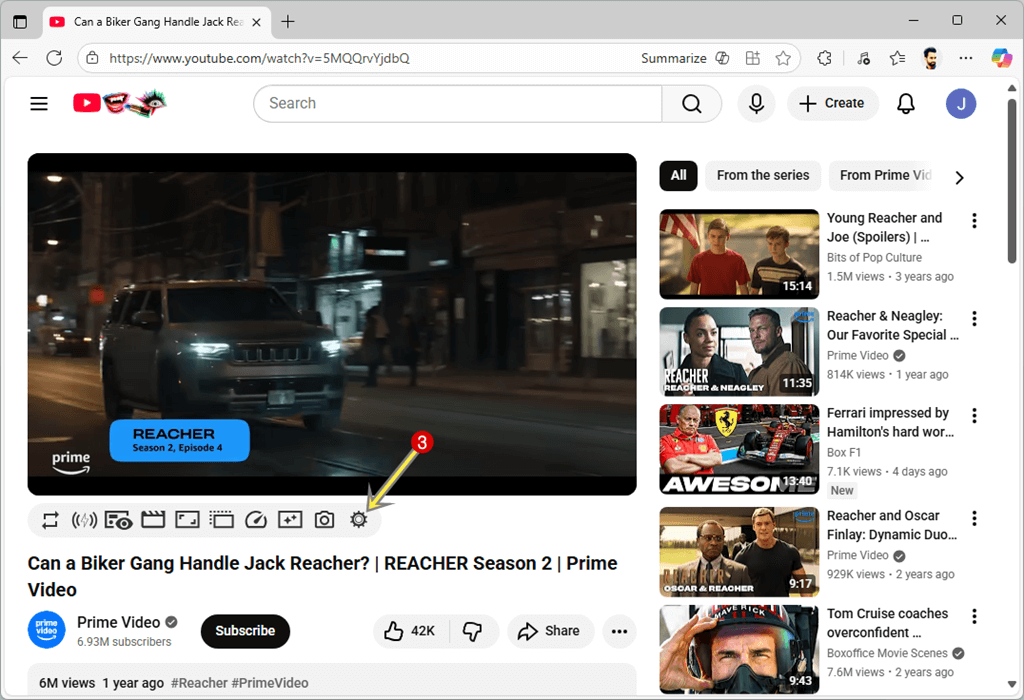
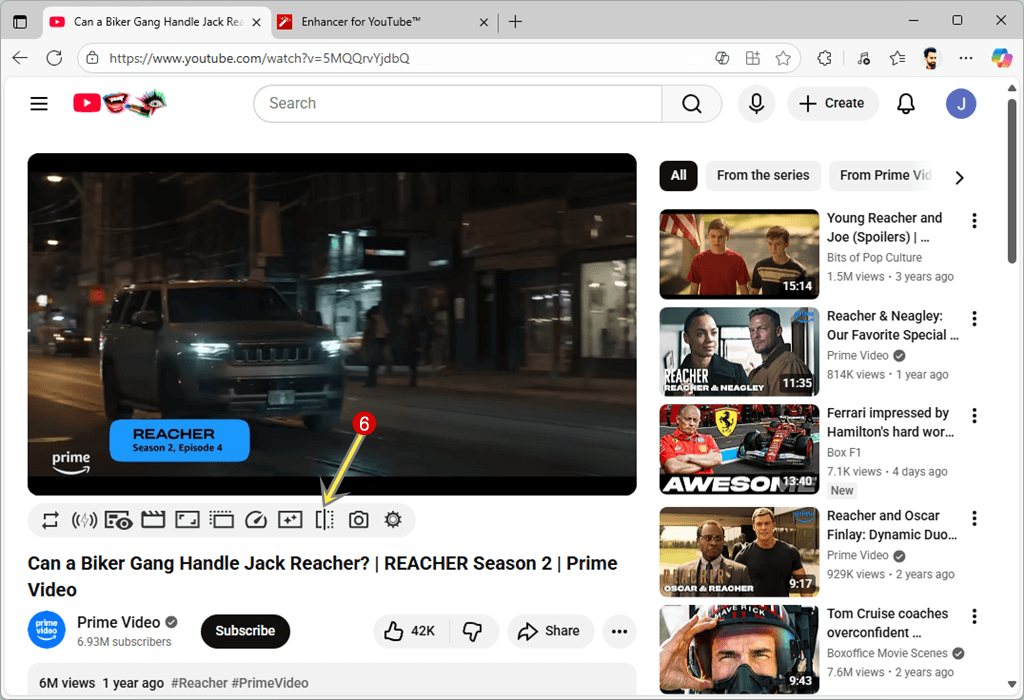
- Now open YouTube and play any video, you’ll see the new controls under the video player. Click on the Gear icon option.

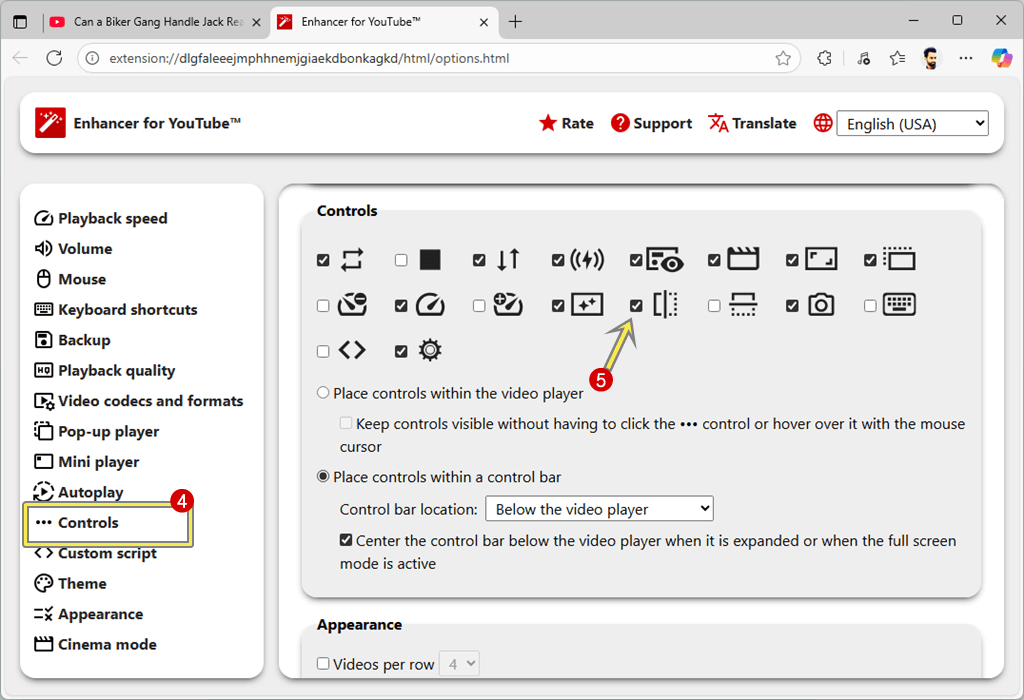
- The extension settings will be open. Click on the Controls option from the left navigation pane.
- Enable the checkmark next to the flip the video horizontally icon.
- Now go back to the YouTube tab, and you’ll see the flip or mirror icon.
- Click on the Flip icon to flip the video.
- That’s it.
On Mozilla Firefox
- Open the Mozilla Firefox browser on your computer and click on the three horizontal lines icon from the top right, and open the Extensions and Themes option.
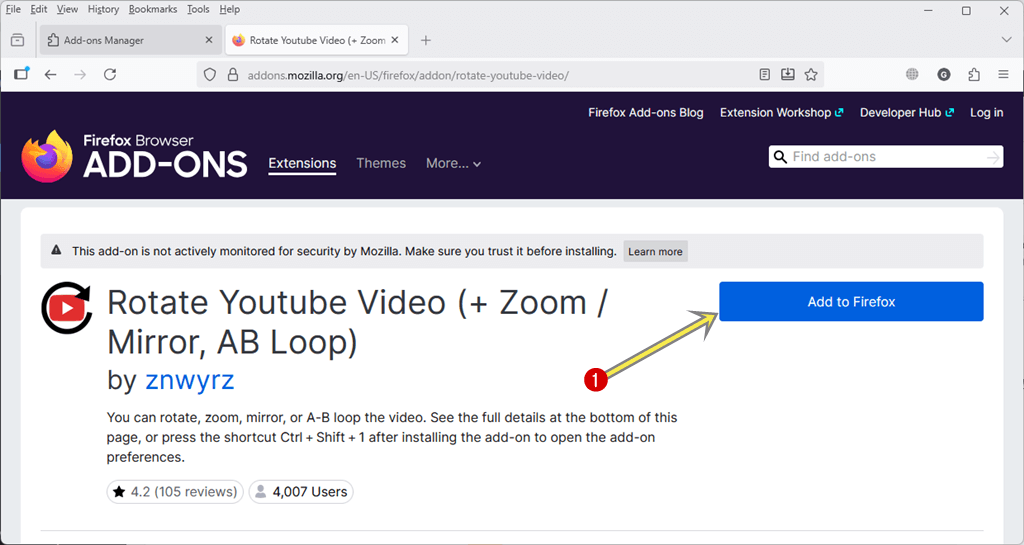
- Search for a Rotate YouTube video using the search bar and open the extension page. Otherwise, the direct extension link is given below.
Get Rotate Youtube Video - Click on Add to Firefox option, and after that pop-up will appear.

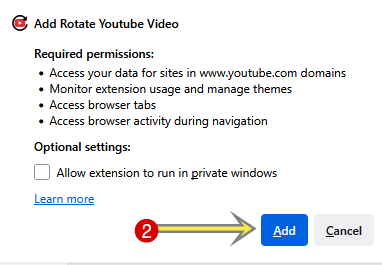
- Click on the Add button from the pop-up.

- After that, open YouTube and play any video.
- Click on the Zoom/Mirror icon from the controls.

- Click on the ON option next to the Mirror to flip the video icon.
- That’s it.
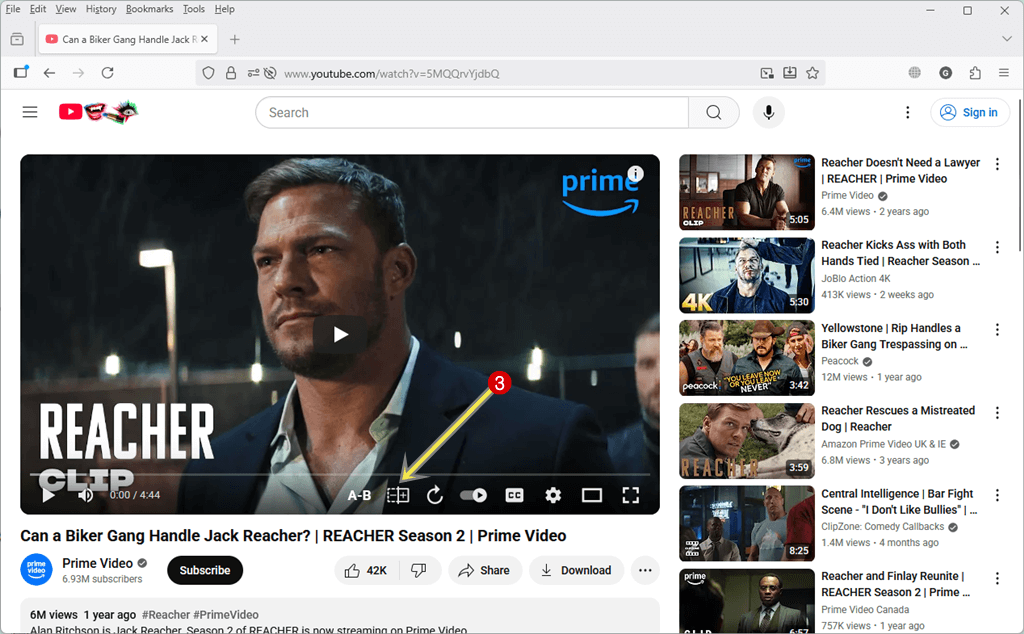
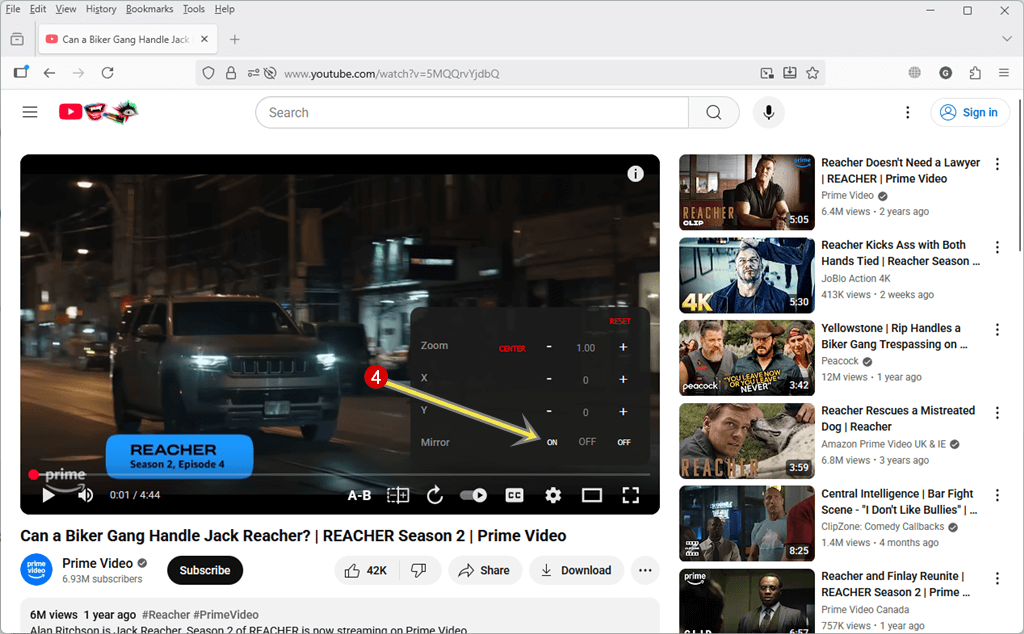
You need to click on the OFF button to view the video as the original.
Method 2: Use Developer Tools
If you’re comfortable with a tiny bit of code, you can use developer options to flip any video in your browser without installing an extension.
It works immediately and can be undone by refreshing the page.
However, this method doesn’t require any additional extension or tool, but for some users, this method is tough because it requires copying and pasting the code each time.
The Steps are given below:
Note: The steps are the same for all browsers.
- Open Google Chrome, Microsoft Edge, or Mozilla Firefox browser, and open YouTube and play any video you want to flip or mirror.
- Press Ctrl+Shift+I (Windows/Linux) or Cmd+Option+I (Mac) keyboard shortcut to open Developer options Console.
- Copy and paste the following code and press the Enter button.
var v = document.querySelector('video');

if (v) v.style.transform = 'scaleX(-1)';

else alert('No video element found.');
- That’s it.
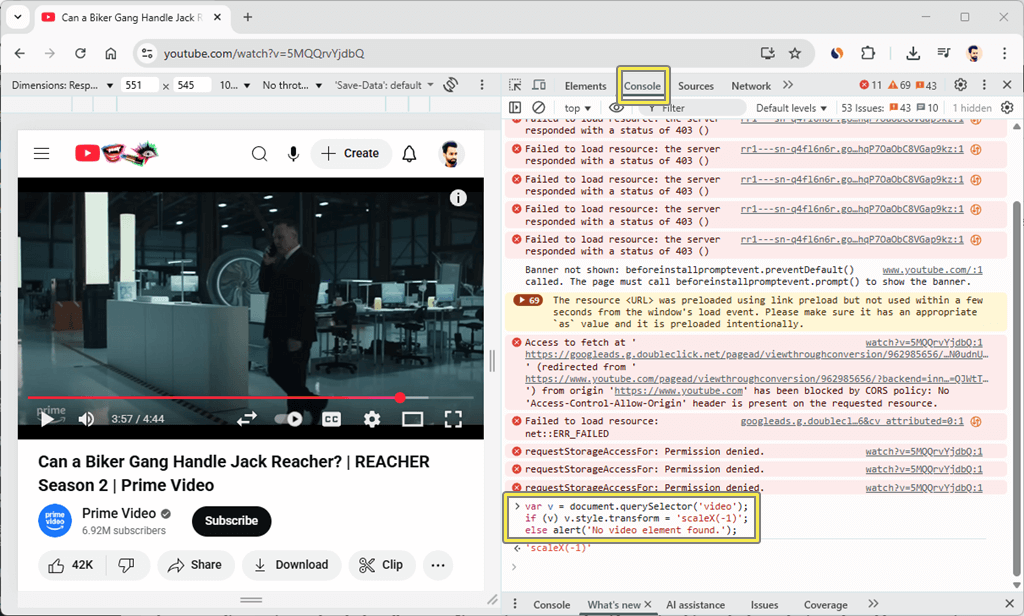
Note: If you are unable to paste the code, type allow pasting and press Enter.
Method 3: Using an Online Website Tool
There are online services and tools that allow us to flip or mirror a YouTube video. Using this method, you don’t need to add any extension or remember the code.
They are websites that operate directly out of your browser; all you need to do is paste or edit the YouTube video URL, and the site will load and play you an instant mirrored version of that video.
The best part? No installation of software or registering, or editing of skills is necessary. It all occurs on the internet, one or two clicks.
These online tools are used as a kind of proxy player. When a YouTube link is edited, the site loads the video using YouTube public embeds and mirrors the video play (just like using the CSS transform: scaleX(-1) trick) — meaning:
- The visuals are mirrored horizontally.
- The video plays normally (with sound).
- No files are downloaded or changed permanently.
You can watch, pause, seek, and enjoy the video as usual, but everything you see is reversed — left becomes right, and right becomes left.
One of the simplest and most popular ways to instantly mirror any YouTube video is by using the MirrorTheVideo.com website.
The step-by-step guide is given below. Let’s get started.
Step 1: Open the YouTube video
Open the web browser and go to YouTube.com, and open the video you want to flip or mirror.
Example: -https://www.youtube.com/watch?v=QrnNEQAOLKw
Step 2: Replace the domain in the URL
In your browser’s address bar, replace the word youtube.com with mirrorthevideo.com. And press the enter video
For example, change:
–https://www.youtube.com/watch?v=QrnNEQAOLKw
to
https://www.mirrorthevideo.com/watch?v=QrnNEQAOLKw
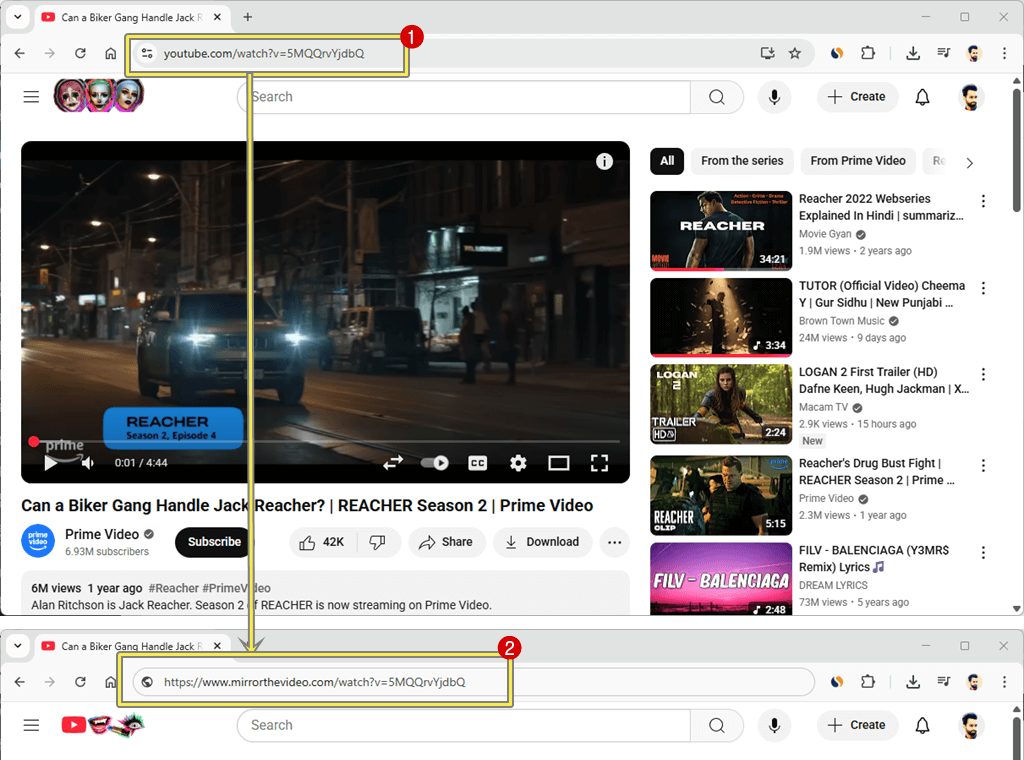
After changing the link, press the Enter button to open the link.
After that, the same video will now open and play mirrored on MirrorTheVideo’s site.
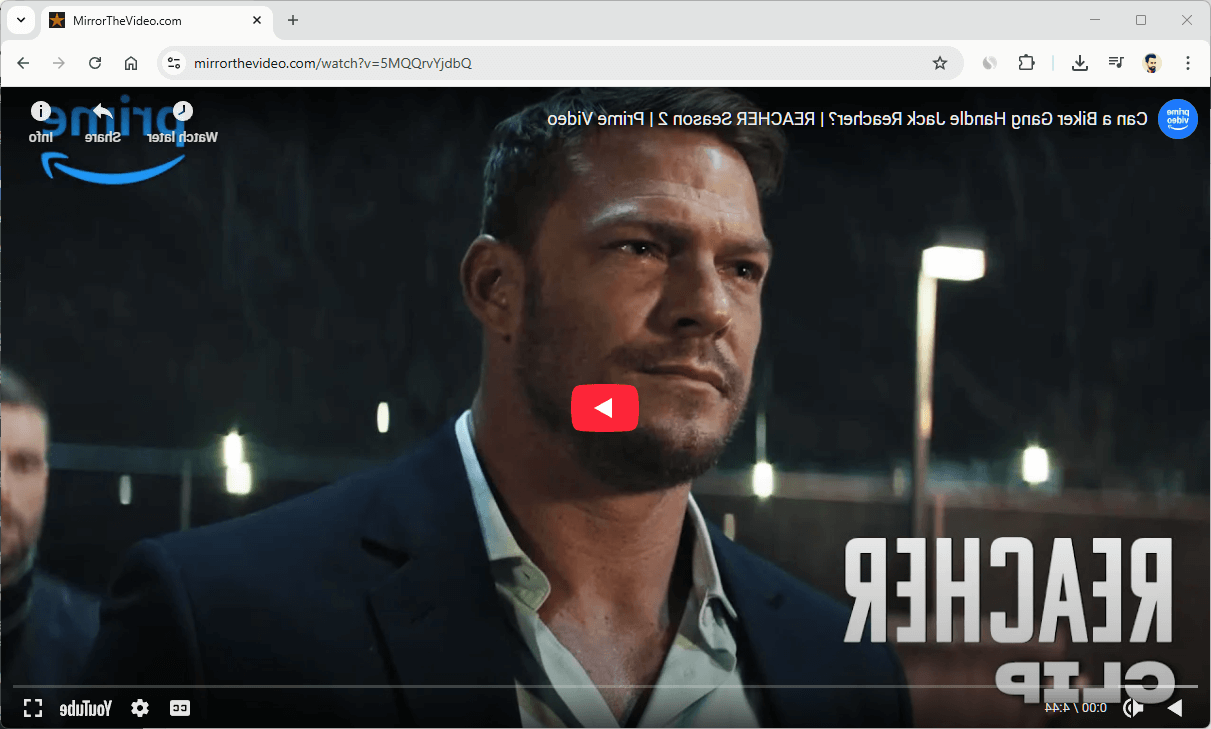
You don’t need to paste the URL into any input box or upload anything because it works automatically.
Method 4: Download the Video and Play Using VLC Player
Sometimes you want to flip or mirror a downloaded YouTube video, or you want to download the video from YouTube and play the mirrored video locally on your computer.
In this situation, you can use online tools to download the video from YouTube and then play the flipped or mirrored video using VLC media player.
However, you can directly play a YouTube video in VLC Media Player, but sometimes this feature may not work.
Steps are given below:
Step 1: Download the YouTube Video Using Online Tools
As there is no built-in downloading button on YouTube for all the videos, you may use a reliable online downloader that allows you to download the video to your computer.
However, there are plenty of online downloaders available, but I prefer https://savefrom.net/.
Note: These internet applications are used to download videos for personal or educational use only. Always respect YouTube’s copyright terms and download videos that you either own or have permission to reuse.
The steps are given below to download the video from YouTube:
- Open a web browser and open YouTube in your browser. After that, play the video you want to flip.
- Copy the full video URL from your browser’s address bar.

- Open a new tab and open the downloader site, such as https://savefrom.net.
- Now paste the YouTube URL into the provided input box and click on the Download button.
- After that, wait for a while, and you’ll see the Download button with a dropdown that provides options to select the video quality and format.
- Select the video quality and click on the Download button to download the video.

- That’s it.
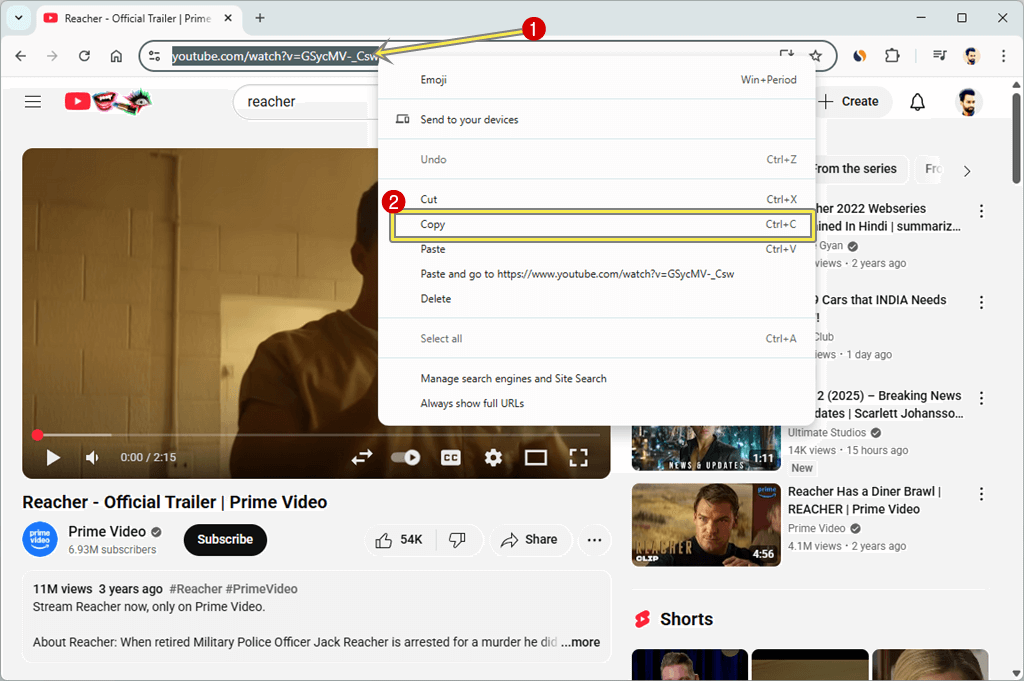
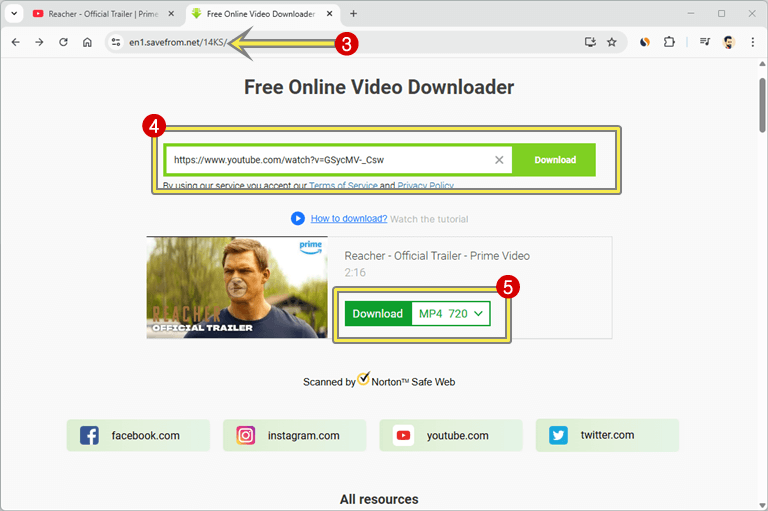
Step 2: Open the Downloaded Video in VLC Media Player and Play the Mirrored Video
- Play the downloaded video in VLC media player.
- In VLC’s top menu, click Tools » Effects and Filters.

- After that, you’ll see the pop-up window. In the pop-up window, select the Video Effects tab.
- Now, go to the Geometry section.
- Check the box next to the Transform option.
- After that, click on the drop-down menu and select the Flip Horizontally option.
- Click Save and Close.

- That’s it.
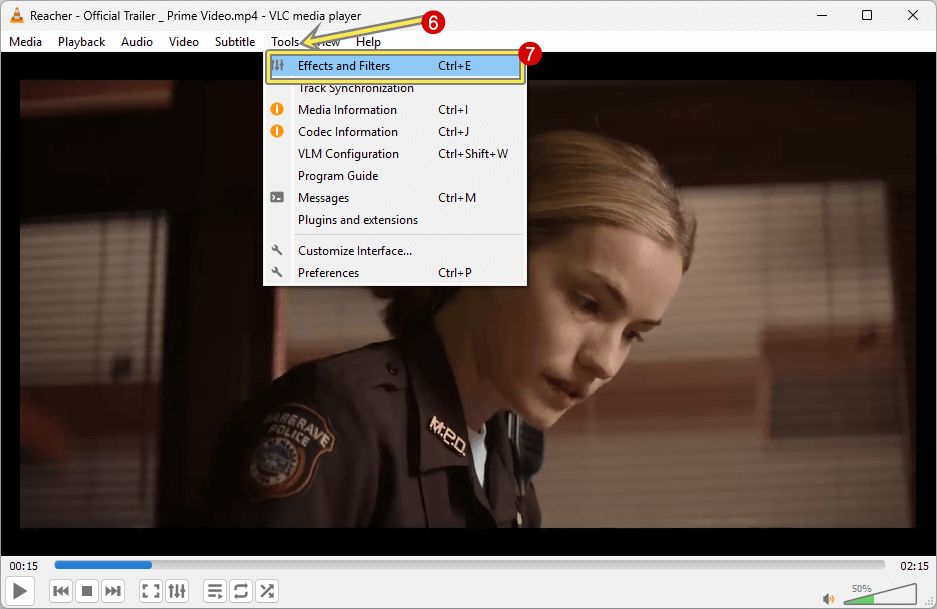
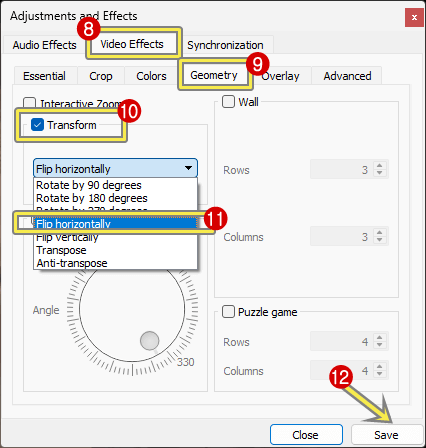
Now you see the flipped or mirrored video.
FAQ (short, practical)
1. Can I flip a YouTube live stream?
Yes, you can flip a YouTube live stream using any method. However, Extension is easy to use for YouTube live stream videos.
2. Will flipping break subtitles/captions?
Soft captions (YouTube captions) remain unaffected functionally — the text overlay YouTube renders will still read normally. But any text that’s part of the video image will be mirrored and read backward.
3. Which is the best method to flip or mirror a YouTube video?
A browser extension is one of the easiest methods to flip or mirror the video on YouTube. Because you don’t want to do anything. Just install the extension, and the mirror icon will be added to the YouTube player.
Final Words
I hope this guide helped you know how to flip or mirror a YouTube video. I discussed the 4 easiest methods. However, you can use video editors to flip the video, but for common users to watch the video, video editing software is not a good choice.
Flipping or mirroring a YouTube video might seem like a small visual adjustment, but it can completely change the way you view or interpret content.
So, a browser extension is the best way, followed by an online tool. Each method has its own advantages depending on your goal:
- Browser extensions are ideal for those who frequently watch YouTube videos and want a one-click mirroring option.
- Online mirror websites are best if you prefer a quick, no-install solution — perfect for occasional use.
- Downloading the video and using VLC gives you the most control, allowing you to flip, rotate, or edit the video in any way you want without depending on browser tools.
Finally, it is all about making your YouTube video viewing experience more intuitive, comfortable, and, at times, enjoyable to flip it. You can change the experience of viewing your favorite content with only a few clicks.
Popular on OTW Right Now!




About The Author

Gagan Bhangu
Founder of otechworld.com and managing editor. He is a tech geek, web-developer, and blogger. He holds a master's degree in computer applications and making money online since 2015.