
How To Change WiFi Password (With Pictures)
Changing the WiFi password is not a difficult task. But for non-techie guys, it may be a bit difficult to change their WiFi password for the first time. So, here is the complete guide on how to change a WiFi password. Setting a password is the first step to secure your WiFi network. Also, you need to set a complex password for security.
There are so many reasons to change the WiFi password. If your neighbor steals your WiFi bandwidth, then you also need to change the password. There are many other methods available to kick people off your WiFi network. But sometimes these methods are not useful for non-techie people.
How To Change WiFi Password
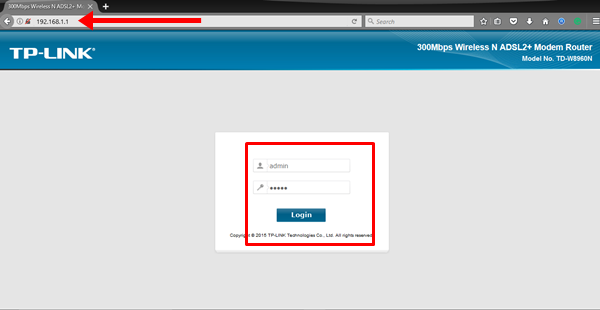
1. First of all, you need to open router settings/configurations. You need to type the IP address of the router in your browser URL. By default, the IP address is 192.168.1.1 or 192.168.0.1. So, type 192.168.1.1 in the browser URL and press Enter. After that, type the username and password. By default, the username is “admin,” and the password is “password” or “admin”.
IP address not working?
If an IP address is not working, then, you can check the IP address from the internet or either from your computer. Connect your PC to the router via ethernet cable or WiFi and press Windows + R keys to open a run command window. Type cmd in the run command and click on the OK button. After that, type ipconfig in the command window and press enter key. Note down the IP address from Default gateway.
2. After that, Click on the “Wireless” and click on the “Security” option. Now change the password from “Wireless network key”. In some routers, this option is labeled as “Password” or “Passphrase”.
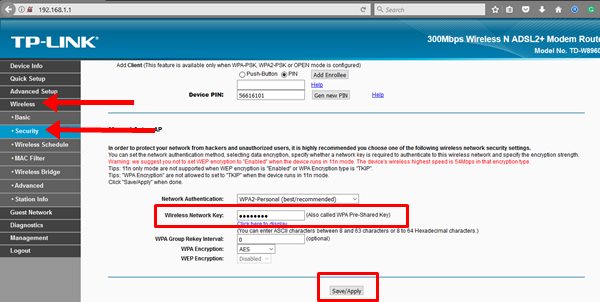
3. Click on the Save/Apply button.
Restart your router if required. You need to set a strong password. After changing the password, you need to reconnect your devices with the new password.
Troubleshoot
Common IP addresses or URLs of routers to log in.
- 192.168.1.1
- 192.168.0.1
- 192.168.2.1
- http://www.routerlogin.net (For Netgear)
Common Username and Passwords
In some routers, there is no need to enter a username and password for the first time. Below are the common usernames and passwords for routers.
| Username | Password |
|---|---|
| admin | password |
| admin | admin |
| user | user |
Final Words
So, guys, these are the simple steps to change your WiFi password. The options may differ between router brands, but the overall process is almost the same for most models. If you have trouble logging in with your router’s username or password, search online for your specific router model. Also, if you’re upgrading your home network or looking for high speed internet providers, comparing available plans in your area can help you get better performance alongside a secure WiFi connection. After that, you can easily find the wireless and security settings to change the password.
Popular on OTW Right Now!




About The Author

Gagan Bhangu
Founder of otechworld.com and managing editor. He is a tech geek, web-developer, and blogger. He holds a master's degree in computer applications and making money online since 2015.