
How AI Turns Scripts and Prompts Into Video Content
TL;DR: AI video tools will take a prompt or script, work out the scenes, create the visuals, the motion and in some cases the audio. The more clearly you can instruct them the better, but you should always check the scenes, the timing and the sound. Start with a small idea, make a short video and then improve it before you go on to anything bigger.
Video can explain an idea very quickly, but it’s a multi-stage process to make it (script writing, scene planning, sourcing of the visuals, recording of the narration, editing). That kind of work is difficult to fit into a hectic schedule. A prompt-to-video AI tool can help by taking a written prompt and turning it into video scenes and audio.
Video is already in widespread use as a marketing tool in business. A report indicates that 91% of businesses used video as a marketing tool in 2024. So video is definitely on the rise, just doesn’t necessarily mean that every video requires a large production team.
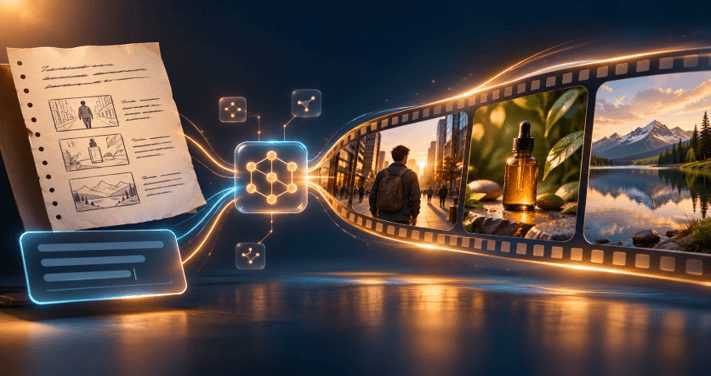
This guide looks at how text-to-video tools interpret prompts and scripts, what you should include in your prompt, and what you should expect in the output. It also looks at how the generated scenes fit into the editing process so you can decide what you want to generate with AI and what you want to edit yourself.
How does prompt-to-video work?
Prompt-to-video AI takes your text prompt and generates video scenes from it. It’s looking for the subject, the setting, the action, the visual style and the camera movement. Some of the tools out there can even add in dialogue, sound effects and music.
A video model is the AI system that creates the images and motion. It takes the text input and uses the patterns it learned during training to generate a sequence of frames. You’ll end up with one clip or a number of clips, with the voiceover and captions etc being added separately depending on the tool.
The prompt acts as a guide. “A person opens a package” is an example of the action you’re looking for. If you add in the room, the lighting, the camera angle and the mood you want it to be then you’re giving it a lot more direction. Google’s Veo prompt guide suggests you describe the framing, the movement, the style, the lighting, the characters and the action.
The first result is just a starting point. You may well need to go in and alter a scene, rewrite the narration or make a whole new clip if it doesn’t quite meet your requirements.
What should a useful prompt include?
A good prompt tells you what you’re seeing and what you’re seeing it in. Add in the subject, the action, the setting, the visual style and the camera move if those are relevant. Keep the core idea clear and then add the detail to flesh out the scene.
For instance, “Show a coffee cup on a table” is extremely open-ended. A more specific prompt would be “Close up of a ceramic cup on a wooden café table at sunrise. Steam rising as the camera slowly moves in. Warm natural light, very calm atmosphere”.
Try to answer these questions:
- Who or what is in the scene? Describe the main subject.
- What happens? Use a clear action, such as “walks toward the door.”
- Where does it happen? Name the setting and useful background details.
- How should it look and feel? Describe the style, lighting, or mood.
- What should the camera do? Specify a close-up, wide view, pan, or slow zoom.
Not every request requires you to include every detail. A simple scene may need only a subject and action.
From one idea to a scene sequence
A script gives your video its structure (what happens first, what the viewer needs to know and what comes next). A prompt will normally only cover one scene or a short clip. If you’re starting with a script the tool can break that down into scenes and then suggest visuals for each scene.
For a short product explainer, you’d probably start with a pain point, demonstrate how your product solves it, and then finish with a clear call to action. The AI can take those concepts and string them together into a script, but the script has to read naturally when you actually say it. Always read through what you’ve generated. Strip out any redundancies and ensure every sentence is contributing to your core message.
A useful workflow is:
- Write the main point in one sentence.
- Break the script into short sections, each focused on one idea.
- Add a visual direction for each section.
- Generate the scenes and check that they follow the script.
- Revise any scene that changes the meaning or tone.
Planning it like this enables you to pick up any gaps. If you’ve got a section that doesn’t have any clear visual direction then you can assess whether it needs a new scene, a title card or narration over an existing shot.
Can AI turn a full script into video?
Yes. A lot of the prompt-to-video tools out there can take a script and generate a sequence of scenes, visuals, and audio from it. The quality of the output will vary from tool to tool and script to script so you’ll need to check the output for any missing bits, awkward scene transitions and voiceover timing.
A script gives the system far more context than a brief prompt, but you still have to make the creative decisions. It may well pick a visual that fits the text but is completely off the mark in terms of what you’re actually trying to say. A line about saving time might just result in a standard clock image, when your actual point is about a team that’s been working flat out and finally finishing a project.
What Invideo adds to prompt-to-video AI
Prompt-to-video AI is about turning written prompts, scripts, or ideas into videos by generating scenes, visuals, movement, and audio from the input. It studies the requested setting, style, characters, and action, then builds clips from those details. Invideo’s prompt-to-video AI tool can turn a written idea into scenes with visuals, voiceovers, music, and effects, then refine the result. It is capable of producing video outputs up to 4K, with options that include animated and realistic characters.
A good way to use this is to make a first version and then go back to your script to check it. If a key point is missing from a scene then add clearer visual direction or change the scene. If you want more control over your footage and your edits, then an online editing tool will allow you to adjust your clips, captions, sound, and timing on a timeline.
Where generated scenes fit into editing
You can use the generated clips on their own or blend them with the footage you already have. A product team might create a clip to represent an idea that’s difficult to film and then intercut that with their own interviews and screen captures. A creator might generate an opening sequence, add their own recorded narration and then just slot in their existing clips for the remainder.
The key thing is to treat each generated scene as an editing decision. Does it support your message? Does it work with the other visuals? Does it keep the viewer interested? Then you need to look at the audio on its own. The voiceover, the music and the sound effects can completely change the feel of a scene even if the visuals are absolutely spot on.
For longer projects, you may well need to keep going after the generation has finished. InVideo Editor brings the AI editing agents and an editable timeline together in a single project. The agents can go through the footage, select takes, remove pauses, and put together a first cut. You can then go on to edit that yourself or assign further editing tasks whilst still having full control of the timeline.
This is particularly useful when your project is a mix of generated and recorded media. It enables you to put the whole thing together, check the story flow and make any necessary tweaks prior to the final cut being shared.
What should you review before publishing?
Check the video against your original goal. The scenes need to be showing the right thing, the narration needs to be natural and the cuts need to be right. Make sure the names, the product details, the captions and the claims are all correct.
Look closely at:
- Meaning: Does each scene support the script?
- Continuity: Do people, objects, and locations look consistent from shot to shot?
- Sound: Is speech clear, and does music leave room for it?
- Text: Are captions and on-screen words correct and readable?
- Format: Does the video fit the platform and screen where people will watch?
If a clip doesn’t feel right then tweak one element of the prompt at a time. So keep the subject and action the same, and just vary the camera angle or the lighting for instance. That way you can see which bit of the prompt actually made the difference.
Conclusion
AI can take your written concept and turn it into scenes, motion and audio. The quality of the end result is going to be very much down to your prompts and your choices. The clearer your prompts the better you can shape each clip. A script is very useful for structuring a longer video. A careful review is essential to ensure the final video is accurate and on track.
Start with a short bit of your script or just one scene. Describe what should happen, generate a version and check it before you go any further. If any of the scenes need work then work on them in the video editor and keep only the bits that really do support your story.
Frequently Asked Questions
What is prompt-to-video AI?
Prompt-to-video AI takes a written description and turns it into video. You specify the subject, the action, the setting and the style and the tool generates the video clip from that. Some of the tools can also generate the dialogue, the voice-over, the music, and the sound effects. The output will probably require some editing before it’s ready to go.
Can AI make a video from a full script?
Yes. Some tools will be able to take a script and generate a sequence of scenes, adding in the relevant visuals and audio. The results will vary from tool to tool and from input to input so it’s important to check that each scene actually corresponds to the script and that no key points have been omitted. You can of course tweak the script or the scene directions and re-generate as required.
How do I write a better video prompt?
Describe the subject, what it does, where it is and how the shot should look. Add in camera movement, lighting and mood where appropriate. Keep the principal action clear. If the result doesn’t quite hit the point then tweak one element at a time to see what makes the difference.
Can AI-generated video include voiceovers and music?
Some text-to-video tools will have the option to add voiceovers, music, dialogue, captions and sound effects. The range of features available will vary from tool to tool and the generated audio may well require some tweaking to suit the scene. Always listen for clear speech, ensure the captions match what is being said and check the sound mix before you go live.
Should I edit an AI-generated video before sharing it?
Yes. Check the story, the order of scenes, how visuals look, captions, and audio. Fix anything that doesn’t fit your message, and make sure names and claims are right. Editing lets you turn your material into a clear, finished video.
Popular on OTW Right Now!
-
 The 8 Best AI Software Development Companies Right Now — And Why Most of Them Don’t Deserve the Title
-
 How to Set Up AI Calling for Your Real Estate Leads: A Step-by-Step Guide
-
 How AI Floor Plan Tools Are Reshaping the Way We Design Spaces
-
 How Battery Technology Limits the Intelligence Capabilities of AI Glasses

About The Author

Gagan Bhangu
Founder of otechworld.com and managing editor. He is a tech geek, web-developer, and blogger. He holds a master's degree in computer applications and making money online since 2015.