
Download Windows 7 Games for Windows 11
Do you want to download, install, and play Windows 7 games on your Windows 11 computer? If yes, then you’re on the right page. You can download Windows 7 games for Windows 11.
You might be wondering, why bother to download these old Windows 7 games when Windows 11 already has a set of apps and games of its own? The answer is simplicity, nostalgia, and user preference.
Not all the games must be a huge download on Steam or the Xbox app. There are times when you just need to pass some time playing a quick round of Minesweeper or Spider Solitaire. That is why classic Windows 7 games are so attractive today: simple, offline, and infinitely re-playable.
Most people who have upgraded to Windows 11 recently might have realized that many of their old classic games found in Windows 7 are not present anymore.
Such games as Chess Titans, Purble Place, Minesweeper, Solitaire, Hearts, Mahjong Titans, and Spider Solitaire were once staples on our PCs that led to countless hours of fun and nostalgia. Sadly, with Windows 8 and onward, Microsoft eliminated these classic games in favor of newer releases on the Microsoft Store.
However, the modern versions of the games work fine, but many users still favor the classic appearance, offline accessibility, and straightforward gameplay of Windows 7 games.
The good point is that you can still install and use those old favorites on your Windows 11 PC just by following a few steps.
So, in this article, I’ll show you why you might want to bring Windows 7 games back on Windows 11 and how to install them properly on your computer.
Why Bring Back Windows 7 Games on Windows 11?
Before diving into the installation process, let’s quickly talk about why users still miss these games.
1. Nostalgia Factor
Most of us spent so much time playing Purble Place or Chess Titans as we grew up. There is a nostalgia connected to these games that cannot be matched and recreated in any modern game.
2. Offline Play
In comparison to most of the current Microsoft Store games that allow internet connection or have adverts in-game, the Windows 7 games are completely offline and hence are easily used casually.
3. Lightweight and Simple
The games that came with Windows 7 were lightweight, simple, speedy, and did not carry much load on resources. They ran smoothly on older PCs and continue to run with no problem on current systems.
4. Better Gameplay Experience
The interface of games such as Solitaire and Minesweeper was simple, minimal, and straightforward. Some users feel the modern versions are bloated with unnecessary features.
Also Read: How to Open and Play Edge Surf Game
Which Windows 7 Games Can You Install on Windows 11?

When you install the Windows 7 games pack, you’ll get access to almost all the classics, including:
- Chess Titans – A beautiful 3D chess game with adjustable difficulty.
- Minesweeper – The legendary puzzle game that tests your logic and patience.
- Solitaire – The timeless card game everyone loves.
- Spider Solitaire – A more advanced solitaire variation for strategy lovers.
- Hearts – A fun multiplayer card game.
- FreeCell – Another addictive card game variation.
- Mahjong Titans – Relaxing tile-matching game.
- Purble Place – A kid-friendly puzzle and memory game.
- Internet Spades – Internet Spades was a popular online card game that allowed you to play strategically with players all over the world.
- Internet Checkers – Internet Checkers allowed Windows 7 users to engage in fast-paced, strategic matches with players worldwide.
- Internet Backgammon – It allows users to play the classic strategy game online, moving pieces and rolling dice against actual players from all over the world.
These games come bundled in one installer, so you don’t have to hunt them down individually.
Download Windows 7 Games for Windows 11
Download the “Windows 7 Games for Windows 11, 10, and 8” installer package. Note that the Internet Games set has become optional, as Microsoft shut down the game servers, making them nearly impossible to play. The installer also supports HiDPI displays.
The latest version of the package is 3.1, and it fixes the error “Error opening file for writing: C:\Windows\System32\en-US\cmncliM.dll.mui”.
The games are compatible with the full range of MUI (language packs), so they will work in your native language. Several languages have been supported as follows:
ar-SA, bg-BG, cs-CZ, da-DK, de-DE, el-GR, en-US, es-ES, et-EE, fi-FI, fr-FR, he-IL, hr-HR, hu-HU, it-IT, ja-JP, ko-KR, lt-LT, lv-LV, nb-NO, nl-NL, pl-PL, pt-BR, pt-PT, ro-RO, ru-RU, sk-SK, sl-SI, sr-Latn-CS, sv-SE, th-TH, tr-TR, uk-UA, zh-CN, zh-TW
Download Windows 7 Games for Windows 11
The download button is given below.
After downloading, you need to install the game package on your Windows 11 computer.
Note: The Windows 7 games pack available for Windows 11 contains the original, untouched files directly taken from Windows 7. They haven’t been tampered with, modified, or bundled with unnecessary extras—just the classic games you remember, repackaged for modern systems. This ensures you get the authentic experience, exactly as it was on Windows 7.
How to Install Windows 7 Games on Windows 11
- Download the zip file from the given button, and after that right-click on the zip file and select the Extract all option from the context menu.

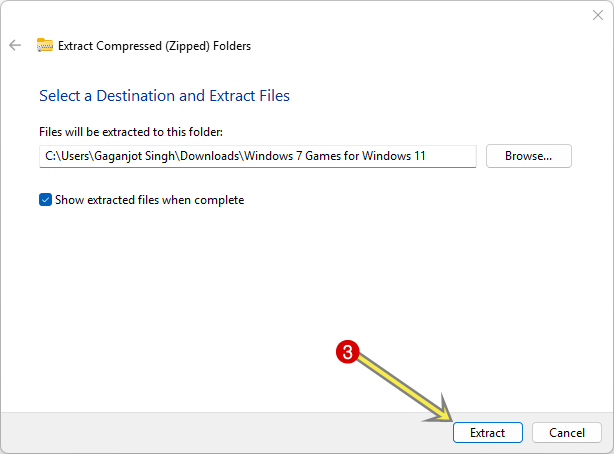
- Now you’ll see the pop-up window, select the destination (Optional), and click on the Extract button.

- After that, the extracted folder will open automatically, and you’ll see the “Windows 7 Games for Windows 11.exe” file. Double-click on it to execute.

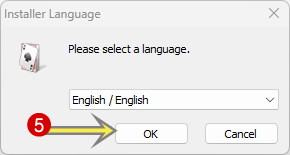
Click on the Yes button from the User Account Control pop-up. - Now the installer will be open. Select the language and click on the OK button.

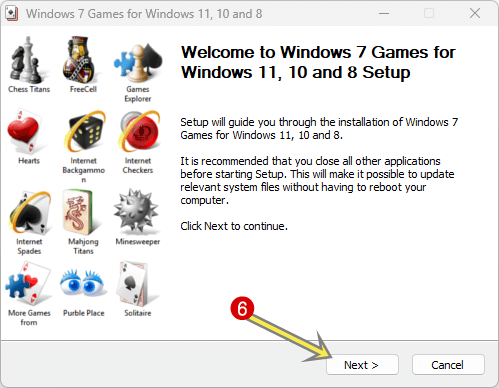
- On the next window, click on the Next button to continue.

- After that, click on the Install button, and the installation will begin.
Note that the internet games are not selected by default. - Click on the Finish button, and that’s it.


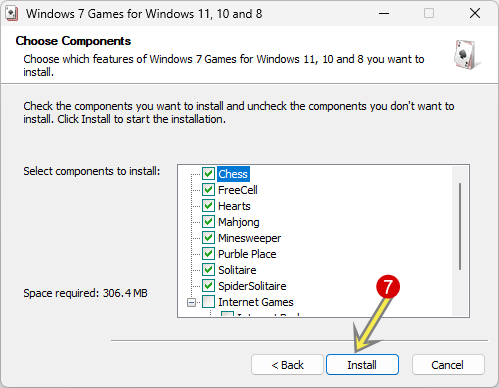
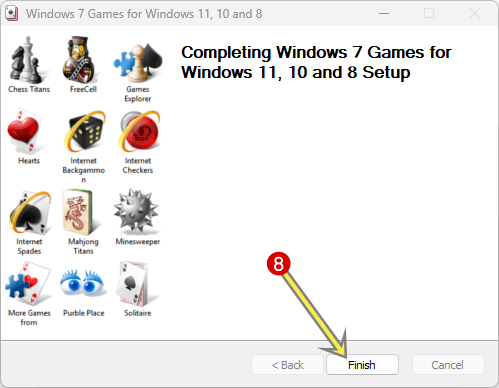
To open and play the games, click on the start (Windows icon) » All Apps » Expand the Games folder, and you’ll see all the games.
How to Uninstall Windows 7 Games on Windows 11
- Open the Settings app by pressing the Windows key + I keyboard shortcut or from the start menu.
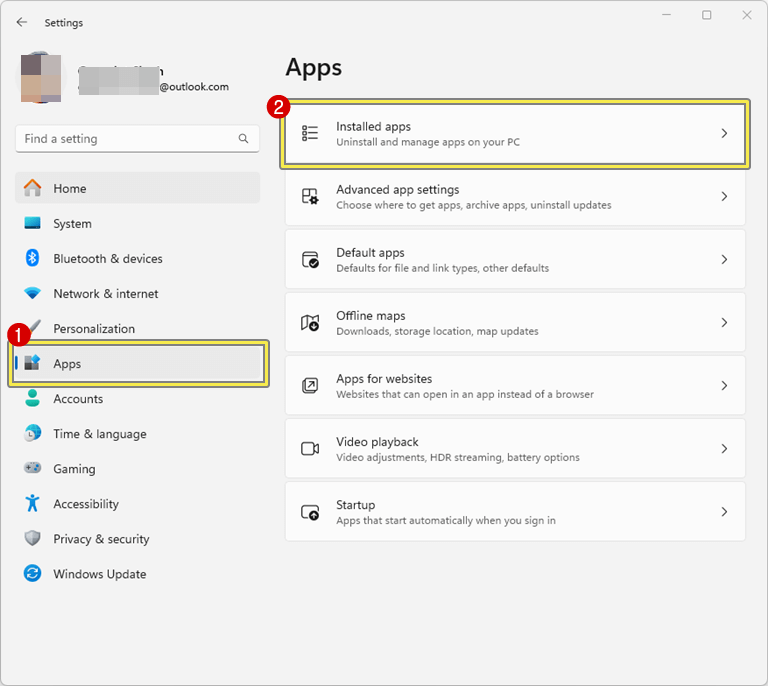
- After that, click on the Apps option from the left navigation pane and select the Installed Apps option from the right side.

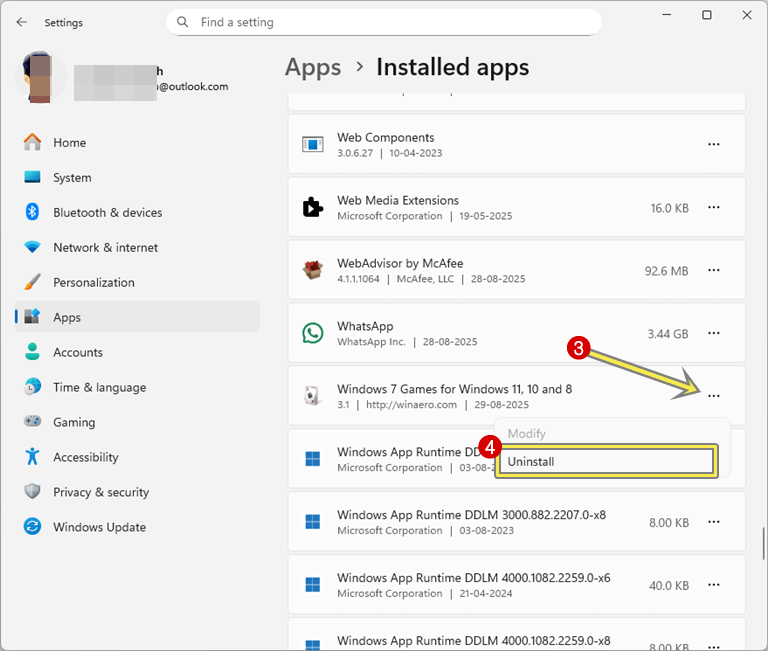
- You’ll see all the installed apps on your Windows 11 computer. Find the “Windows 7 Games for Windows 11, 10, and 8” from the list of apps. Click on the three dots next to the “Windows 7 Games for Windows 11, 10, and 8” option.
- Now you’ll see the Uninstall option. Click on the Uninstall button, and you’ll see the confirmation pop-up.
 Click on the Uninstall button again from the confirmation pop-up.
- After that, click on the Yes button from the User Account Control Warning pop-up.
- Now, from the pop-up window, click on the Uninstall button, and the uninstallation will begin.
- Click on the Finish button.
- That’s it.
 Click on the Uninstall button again from the confirmation pop-up.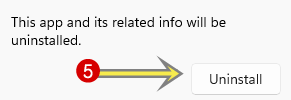

Frequently Asked Questions (FAQs)
1. Are Windows 7 games free to install on Windows 11?
Yes, they are completely free. These are the same games that were included with Windows 7 and have been repackaged by enthusiasts into modern Windows versions.
2. Will these games work on both Windows 10 and Windows 11?
Yes. The Windows 7 games pack is compatible with Windows 10 and 11 (32-bit and 64-bit).
3. Do I need an internet connection to play them?
No. These games are not internet-based; thus, anytime you want to play them, you can.
4. Will installing these games harm my computer?
No, the Windows 7 games pack available for Windows 11 contains the original and untouched files directly taken from Windows 7. They haven’t been tampered with or modified.
5. Can I uninstall them later?
Yes, you can uninstall them anytime. Read the uninstallation guide from this post.
6. Are there any differences from the original Windows 7 games?
No. They have the same features, graphics, and appearance as the originals from Windows 7.
Final Thoughts
Though Windows 11 is fresh, elegant, and has lots of features, sometimes it is the little things, such as classic games, that we miss most. Windows 7 games were simply fun to play and a little nostalgic. It can be fun to bring back Windows 7 games, even if just to enjoy without distractions or the need to be online.
If you follow the steps above, you should have no problem installing and enjoying all of the classic games like Chess Titans, Purble Place, Solitaire, and many more of these great classic games on your Windows 11 PC. Whether you are revisiting games from your childhood or you just want to play a simple game to help unwind or relax, these classics are still worth playing.
Popular on OTW Right Now!


About The Author

Gagan Bhangu
Founder of otechworld.com and managing editor. He is a tech geek, web-developer, and blogger. He holds a master's degree in computer applications and making money online since 2015.