
Best AI Video Enhancer Tools Tech Reviewers Actually Use in 2026
Introduction: The Real Test Isn’t “Can It Make Video 4K?”
Ever watched a review and thought, “Why does this clip look so much worse than the rest?”
That’s the problem tech reviewers must deal with in 2026.
A single review can contain footage taken by phone or webcam, computer screen video, clips shot with an action-cam, and older videos. Some videos just can’t be brought up by any means; others are very soft; some are very shaky; and finally, there are the compressed ones.
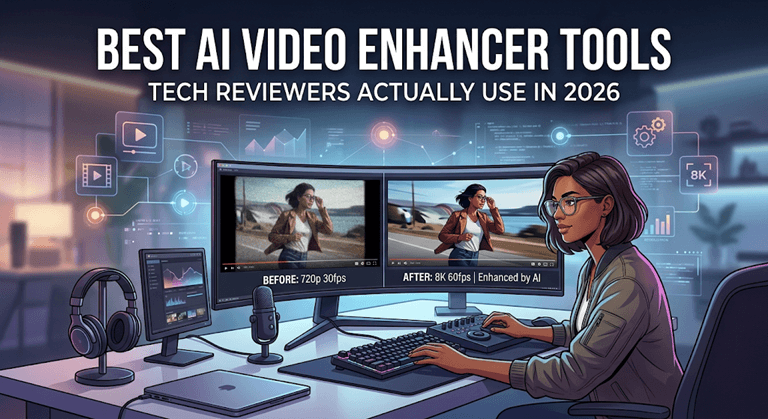
And no, exporting a 720p clip in 4K won’t magically bring back lost detail.
Then, what exactly can AI video enhancer repair? We tried out best video enhancer tools for different types of rough footage tech journalists commonly come across to identify those that deliver real-time quality boosting for the final video product.
The oTechWorld Video Quality Lab
How does an AI video enhancer compare when each of the tools gets a flawless demo clip?
Potentially, they all do a great job.
The real test of things gets messy, so instead of going with marketing samples, we tested six categories of footage that tech reviewers themselves normally deal with. Each clip features different issues from noisy night shots to heavily compressed social media videos.
The Test Clips
| Test clip | What it represents | What we look for |
| Smartphone indoor clip | Everyday tech-review footage | Noise + detail |
| 720p product demo | Low-resolution source | Upscaling |
| Night shot | Difficult lighting | Noise + texture |
| Talking head shot | Reviewer on camera | Face detail |
| Compressed social clip | Reused footage | Compression artifacts |
| AI-generated clip | Modern 2026 workflow | AI artifacts + unnatural detail |
What Counts for Good Enhancement?
More pixels don’t automatically mean better video. We look at the things viewers actually notice:
- Visible detail: Does the footage look sharper without looking fake?
- Natural textures: Do skin, fabric, hair, and surfaces still look real?
- Face preservation: Does the tool improve faces without changing them?
- Noise reduction: Can it clean up grain without wiping out detail?
- Edge quality: Do objects look clean rather than overly sharpened?
- Motion consistency: Does the enhancement hold up across moving frames?
What We Won’t Do
It’s very simple to create a flashy before and after video clip. Fair evaluation is more difficult.
We won’t assess a tool based entirely on its marketing demo or compare completely different source clips.
And one more thing: 4K output isn’t the same as 4K-quality footage. Upscaling can make a clip larger and cleaner, but it can’t magically recreate every missing detail.
1. The Low-Light Phone Test — Vmake Labs
The Problem: Small Sensors Don’t Love Dark Rooms
Have you ever shot a phone review sitting at your desk after sunset? Everything around you appear well-lit, but the camera just doesn’t see it.
Dark areas become noisy, edges of products soften, and the more you export, the softer it all gets.
Faces also get that weird, overly soft look.
What We Need from the Enhancer
For this test, we’re looking for four things:
- Less distracting noise
- More useful detail
- Sharper edges without the crunchy look
- Natural faces and product textures
1. Vmake Labs
Vmake Labs Video Quality Enhancer applies to a scene-based process, not a one size fit all models. Whether you want Vmake Labs to automatically pick the best enhancement or pick a specific model to enhance a type of footage, such as Low Light, Portrait, and Product.
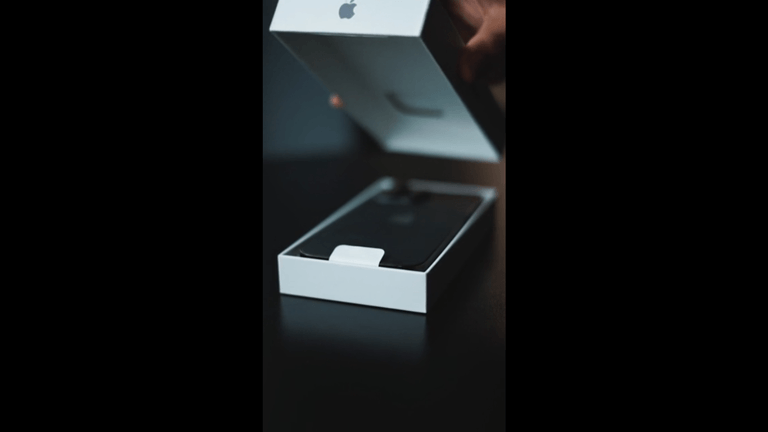
If you want a quick fix, Fast mode delivers a smooth but sharp result. Quality mode reconstructs the shot with AI for a more detailed result. Master is the highest-end restoration.
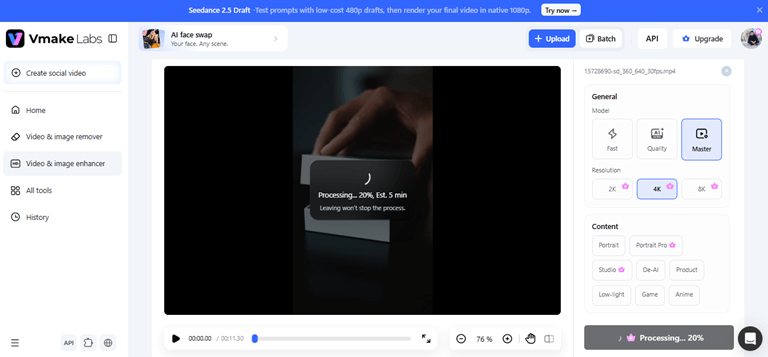
There are also 2K, 4K, and 8K output options, depending on the mode and source. That gives reviewers some room to work with when a close-up product shot needs more detail.
And if you’re cleaning up footage from a full review, batch processing can take care of up to 30 videos at the same time. It really helps you save time if you have several videos with a problem that you have to fix.
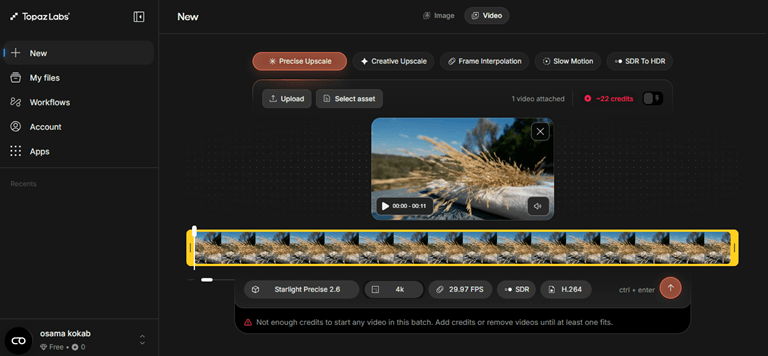
2. The 720p-to-4K Test — Topaz Video
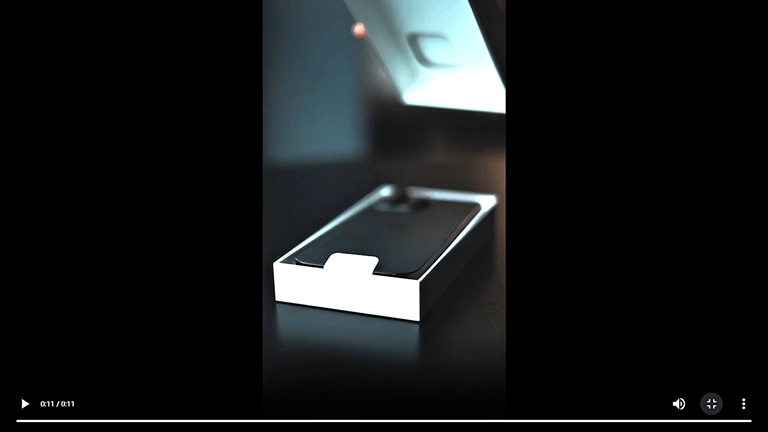
Here’s an example of a soft 720p product video being exported at 4K. Seems like it’s upgrading, but it’s not.
Simple upscaling to increase video size without increasing overall detail. We chose rough 720p footage to see how well its output could be scaled up to a bigger screen without losing definition, introducing blur, pixelation, or artificially textured grain.
What Topaz Video Brings to the Test
Topaz Video is designed to add enhancement frame by frame … not just lengthening the original image. Topaz video models use deep learning to add details that are missing, and that have been learned from millions of videos.
The game changer here is AI upscaling, which is used in our 720p test. Topaz can do 4x native resolution upscaling of lower res footage, with 1080p/4K native output options in its web workflow.
It also has a few different AI model presets depending on the footage type, so a blurry ancient clip won’t get the treatment of a more recent product showcase.
But upscaling isn’t all it does. Topaz also includes tools for:
- Denoising noisy footage
- Sharpening soft video
- Restoring old or degraded footage
- Stabilizing shaky clips
- Frame interpolation for smoother motion
- Frame-rate increases, including 30 fps, 60 fps, and beyond
- Unblurring and detail recovery
Topaz Video isn’t just trying to make a 720p file bigger. The real test is whether its AI reconstruction can make that footage look convincingly sharper without crossing the line into artificial detail.
3. The “Messy Archive” Test — HitPaw VikPea
Not all clips in a tech review are fresh off the camera. When you’re casually browsing your project folder and come across a clip that’s been exported, compressed, and re-exported more times than you remember.
What VikPea Offers
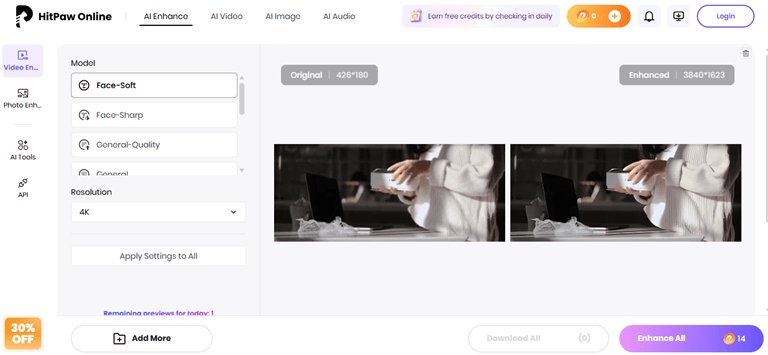
HitPaw VikPea can do more than just upscale up to 4K and 8K. It can use AI to upscale video, denoise and fix blur, stabilization, frame rate enhancement, and repair old or damaged videos.
It also makes use of scene models, which can be handy if your footage varies. The available options include models for general denoising, faces and portraits, anime, animals, e-commerce footage, and other video types.
If you’re working with an older or more compressed clip, an AI noise reduction model is especially useful. It works frame by frame to reduce digital grain and motion blur.
It supports common formats such as MP4, WebM, MOV, and GIF, with online files up to 2GB and output up to 4K.
The Results Don’t Fit into a Single “Best” Box
So, which AI video enhancer is actually the best?
That depends on the footage. A low-light reviewer clip needs a different fix than an old, compressed video. Instead of forcing every tool into a 1–5 rating, this simple matrix shows where we’d test each one first.
| Reviewer situation | Tool to test first | Why |
| Low-light reviewer footage | Vmake | Low-Light + multiple enhancement modes |
| Serious desktop restoration | Topaz Video | Extensive enhancement/restoration controls |
| Old/compressed footage | HitPaw VikPea | Restoration + compression/blur repair |
Conclusion
There isn’t one best AI video enhancer for all tech reviews. A dark phone clip, an ancient archive video, and a gentle 720p product demo all require different.
Our testing indicates an easy solution: Vmake for low-light reviewer footage, Topaz Video for more intense desktop restoration, and HitPaw VikPea for vintage or extremely compressed footage.
The bigger lesson is simple: don’t chase the biggest resolution number. Look at the details viewers actually notice—faces, textures, edges, noise, and motion.
Popular on OTW Right Now!



About The Author

Gagan Bhangu
Founder of otechworld.com and managing editor. He is a tech geek, web-developer, and blogger. He holds a master's degree in computer applications and making money online since 2015.