
How to Translate a PDF Online Without Losing Its Formatting
PDF files are designed to keep their appearance consistent across devices, but that structure can make them difficult to translate. Tables, images, headings, text boxes, and multi-column pages often become disorganised when the text is copied into a general translation tool. A better approach is to translate PDF online using a tool designed to process the complete document.
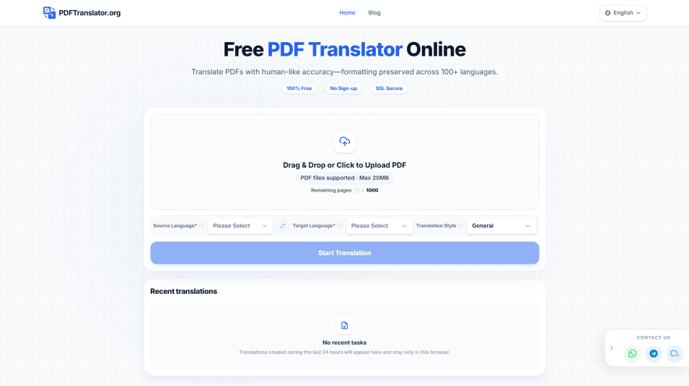
The objective is not only to convert words into another language. A usable translation should also keep the content readable and preserve the relationship between paragraphs, headings, tables, and images. This guide explains how to translate a PDF while reducing common formatting problems.
Why PDF Formatting Often Breaks During Translation
A PDF stores content differently from an ordinary text document. What appears to be one continuous paragraph may consist of several separately positioned text elements.
Translation tools that only extract the text may ignore this positioning. The translated words can be correct while the output document becomes difficult to follow.
Copying Text Removes the Original Structure
Copying and pasting may work for a short paragraph, but it is less reliable for a long or structured file.
Common problems include:
- Table rows and columns becoming mixed.
- Headings losing their hierarchy.
- Image captions moving away from the images.
- Bullet points becoming ordinary paragraphs.
- Footnotes appearing in the wrong place.
- Text from different columns appearing in the wrong order.
The problem becomes more serious when the translated text is longer than the original. A short English heading, for example, may take significantly more space in another language.
A layout-preserving PDF translator processes the document as a complete file rather than treating it as a collection of unrelated sentences.
Text-Based PDFs and Scanned PDFs Are Different
Not every PDF contains selectable text.
A text-based PDF normally allows users to highlight and copy words. These documents are generally easier to translate because the tool can identify the text directly.
A scanned PDF may consist only of page images. Because PDFTranslator currently does not support OCR or the translation of scanned documents, image-only PDFs cannot be processed in the same way as text-based files. If a scanned document needs to be translated, it should first be converted into an editable, text-based PDF using a separate OCR tool. The OCR output should then be checked carefully before it is uploaded for translation.
You can perform a quick check by trying to select a sentence with your cursor. If individual words cannot be highlighted, the document may be scanned or image-based.
OCR accuracy depends heavily on the quality of the source image. Low-resolution scans, handwriting, faded pages, tilted images, shadows, and dark borders can cause characters to be recognised incorrectly. Improving the scan or using a clearer original before OCR may produce better text, but OCR results should still be reviewed against the source.
How to Translate a PDF Online Step by Step
The translation process is usually simple, but preparing and reviewing the document properly can make the result more useful.
Step 1: Check the PDF File
Open the PDF and confirm that:
- Every page loads correctly.
- The text can be selected and is readable.
- The file is not password-protected.
- The pages appear in the correct order.
- The document does not contain information that should not be uploaded.
If the file contains confidential customer records, private financial data, unpublished research, or other restricted information, review the relevant privacy policy before using an online service.
It is also useful to keep an untouched copy of the original PDF for comparison.
Step 2: Upload the Document
Open the translation tool and select the PDF from your device.
PDFTranslator supports text-based files up to 20MB. Scanned or image-only PDFs are not currently supported because the platform does not provide OCR processing. If the document is scanned, use a separate OCR service first and upload the resulting text-based PDF only after checking that the text has been recognised correctly.
If a text-based document is larger than 20MB, it may need to be compressed or divided into smaller sections before translation.
The platform does not require users to create an account or provide credit card information for normal use. Uploaded files are processed using SSL-secured transmission and are automatically deleted within 24 hours after translation.
Step 3: Select the Source and Target Languages
Select the language used in the original document and the language required for the translated version.
PDFTranslator supports more than 100 languages, including English, Spanish, French, German, Chinese, Japanese, and Korean.
Make sure the correct source language is selected before starting the translation. PDFTranslator requires users to choose the source language manually and does not support automatic language detection. If the PDF contains passages in several languages, identify the primary source language and review those sections carefully after translation.
Step 4: Download and Review the Translation
Once the translation is complete, download the new PDF and compare it with the source file.
Review more than the first page. Formatting problems may only appear in later tables, image-heavy sections, appendices, or pages with multiple columns.
Check whether all pages are present and whether the translated text remains connected to the correct visual elements.
How to Preserve Tables, Images, and Page Layout
Using a free PDF translator that preserves the original layout can reduce manual reformatting, but the output should still be inspected.
Different languages require different amounts of space, so some line wrapping and spacing changes are normal.
Check Tables and Multi-Column Text
Tables are among the most difficult parts of a PDF to translate.
Compare the original and translated versions to confirm that:
- Column headings still match the correct data.
- Numbers remain in the right rows.
- Units and percentages have not changed.
- Table notes are still visible.
- Text has not overlapped cell borders.
For multi-column documents, read the first few sentences of each column to confirm that the content follows the correct order.
This is especially important for journal articles, newsletters, annual reports, and technical publications.
Compare Headings and Image Captions
Headings help readers understand the organisation of a document. Confirm that main sections and subsections remain visually distinguishable after translation.
Image captions should also remain close to the correct images. If a translated caption moves to another page or section, readers may misunderstand what it describes.
Diagrams containing text inside the image may not be translated automatically because the words are part of the image itself. These elements may require separate editing.
How to Translate Large PDF Files
Long reports, books, manuals, and course materials may exceed the file-size limit of an online translator.
Splitting and recombining the document can provide a practical solution.
Split Files That Exceed the Size Limit
Divide the document into logical sections rather than creating cuts in the middle of a chapter or table.
Useful division points include:
- Chapter endings.
- Major section breaks.
- Appendices.
- Groups of similar pages.
- Front matter and reference sections.
Give the files clear names such as “Part 1,” “Part 2,” and “Part 3” to avoid changing their order.
PDFTranslator includes a browser-based PDF splitting tool, so users do not need to install separate desktop software for this step.
Merge the Translated Sections
After translating each section, check that the page order is correct and then combine the files.
Before merging them, confirm that every part uses the same target language and that no pages are missing or repeated.
A merging tool can rebuild the separate sections into one complete PDF. Keep the individual files until the combined version has been reviewed.
Compress the Final PDF for Sharing
Translated documents can become larger than the originals, especially if they include many images or embedded fonts.
Compression can make the final PDF easier to email, upload, or store. However, excessive compression may reduce image and text quality.
Check the compressed file at normal zoom before sharing it. Small text, diagrams, and any OCR-converted pages should remain readable.
Common PDF Translation Problems and How to Fix Them
Even with a dedicated PDF tool, some documents require additional checking.
Incorrect Technical Terms
General AI translation may not always use the preferred terminology for legal, medical, financial, academic, or engineering content.
Create a short glossary of important terms before reviewing the document. Compare repeated expressions and replace inconsistent translations where necessary.
Contracts and other high-risk documents should be reviewed by a qualified professional before they are used for decisions or distributed externally.
Broken Tables or Missing Text
If a table becomes unreadable, try splitting the document so the page is processed in a smaller section. You can also compare the translated table with the original and manually correct important values or labels.
Missing text may be caused by unusual fonts, overlapping design elements, or text stored as an image. Check whether the same content can be selected in the source PDF. If it cannot be selected, the page may require OCR before it can be translated.
Scanned Pages That Cannot Be Processed
PDFTranslator currently does not support OCR or the direct translation of scanned, image-only PDFs. If a scanned page cannot be selected, convert it into a text-based PDF with a separate OCR tool before uploading it.
OCR quality depends on the source image. For better recognition:
- Rescan the page at a higher resolution.
- Straighten tilted pages.
- Improve contrast.
- Remove shadows and dark borders.
- Use a clear original where possible.
After OCR, compare the recognised text with the scanned source before translation. Always verify names, numbers, dates, and technical terms, as OCR errors can change their meaning. If the OCR output remains incomplete or inaccurate, correct it manually or use a clearer source before proceeding.
Final Checks Before Using the Translated PDF
Before sharing or relying on a translated PDF, complete a final review.
Confirm that:
- All pages are included and correctly ordered.
- The main headings remain clear.
- Tables match the source data.
- Images have the correct captions.
- Names, dates, numbers, and units are accurate.
- Important technical terms are consistent.
- Any ocr-converted text has been checked against the scanned source.
- No confidential information has been exposed.
- The final file opens correctly on another device.
PDFTranslator provides 1,000 free pages per calendar month and combines translation with PDF splitting, merging, and compression tools. This can simplify the workflow for users who regularly handle text-based reports, manuals, study materials, contracts, or other multilingual documents. Scanned or image-only files must first be processed with a separate OCR tool.
Online PDF translation can save considerable time, particularly when the tool preserves the original structure. The best results still come from combining automated translation with careful review.
By preparing the file, confirming that it contains selectable text, manually selecting the correct source language, checking the output, and verifying important information against the original, users can create translated PDFs that are both understandable and practical to use.
Popular on OTW Right Now!



About The Author

Gagan Bhangu
Founder of otechworld.com and managing editor. He is a tech geek, web-developer, and blogger. He holds a master's degree in computer applications and making money online since 2015.