
DS4Windows: Tool to Use PlayStation Controllers on Windows
A PlayStation controller feels natural in your hands, but the moment you connect it to a Windows PC, things often stop working as expected. Many games fail to recognize the controller, or key features like vibration and touchpad do not respond properly. It happens because most PC games are built around Xbox input, leaving PlayStation controllers at a disadvantage.
DS4Windows solves this problem by acting as a bridge between your controller and your PC. This makes it possible to play those games without any problems and have the PlayStation controller act as a virtual Xbox controller. It’s also compatible and brings you complete control with button remapping, custom profiles, and more advanced features to suit your game style.
What is DS4Windows?
DS4 Windows is an input mapper and virtual emulator that enables you to utilize the PlayStation controller without compatibility problems on a Windows PC. It does this by letting you use your PlayStation controller to control a virtual Xbox controller that most PC games can easily identify and use. It can be used with DualSock 3, DualSock 4, DualSense PS5, and even the Nintendo controller (JoyCon and Switch Pro).
Why Do You Need DS4Windows?
It is needed as many PC games will not be able to detect PlayStation controllers, or support them only when they are directly connected. Other crucial tasks,s such as precise input control, custom layouts, ts and advanced features, may be unavailable or inconsistent without an emulator. The addition of stable recognition and control over the way your controller functions in both Steam and non-Steam games will improve the experience of DS4Windows, making gameplay smoother and more reliable.
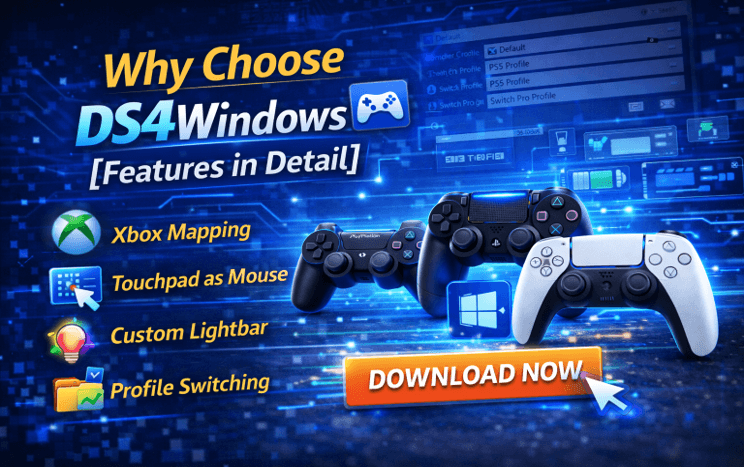
Key Features of DS4Windows
It provides numerous features that enhance controller compatibility and ensure you’re in complete control of your gaming setup. It offers customization options for your controller, such as button remapping and profiles, gyro support, and macros.
Controller Emulation
It uses Xbox 360 controller emulation to make your PlayStation controller fully compatible with most PC games. This emulation allows Windows games to run smoothly and be detected and supported properly with the support of the XInput system. Eliminates compatibility issues for your controller to function out of the box on various platforms.
Button Remapping
Each button can be mapped individually, thanks to advanced remapping options. You can map controller inputs to keys, mouse buttons,s or to other controller buttons with DS4Windows. This approach allows you to design layouts to fit the requirements of particular games or your own preferences.
Profile System
The profile system allows you to save and make different profiles for every game. You can configure DS4 Windows to switch profiles on the launch of a particular game. This way, each game is controlled in the optimal way without needing to alter it manually.
Gyroscope & Motion Controls
DS4Windows supports motion sensors found in controllers like the DualShock 4 controller and the DualSense controller. In FPS games, gyro controls can be used for aiming or for tilt-based actions in other games. This feature provides accuracy and makes the gameplay more realistic.
Touchpad Support
Your controller’s touch pad can be used as a mouse or a gesture input device. You can use it to navigate menus, scroll, or trigger custom actions. This is an extra degree of control, particularly useful in games that have complicated interfaces.
Lightbar Customization: The
DS4 tool allows you to do custom RGB colors and effects to the controller’s lightbar. Colors can also be assigned to battery levels to make it easier to keep an eye on the charge status while playing. It’s a kind of visual customization and a useful tool.
Macro & Special Actions
Macros can be made to execute several operations in one step. It’s helpful for performing intricate maneuvers or shortcuts in games. You can also instantly trigger special actions such as starting programs and switching profiles.
Rumble & Trigger EffectsThe
DS4 Controller supports vibration feedback to enhance realism during gameplay. It also features a dual-stage trigger customization option for greater control in games of racing or shooting. These characteristics mean that they’re more responsive and make gameplay more dynamic.
System Requirements
| Component | Requirement |
| Operating System | Windows 10 or Windows 11 |
| Processor | Any modern x86/x64 processor |
| RAM | Minimum 2 GB (4 GB recommended) |
| Storage | Less than 50 MB of free space |
| Required Drivers & Software | ViGEmBus Driver, HidHide Driver, .NET Runtime |
How to Download and Install DS4Window Tool?
- Step 1: Go to the official website for the latest version of DS4 Windows Downloads. Avoid using third-party sources to ensure safety and updated files.
- Step 2: Locate the downloaded .zip or .7zip file and extract it using built-in Windows tools or software like 7-Zip. Move the extracted folder to a location that is easy to access.
- Step 3: Open the folder and run the DS4Window.exe file. When prompted, choose AppData to store your settings for a smoother and error-free setup.
- Step 4: Install the required drivers, including ViGEm Bus Driver and HidHide Driver. Restart your PC if the system asks to complete the setup.
How to Connect Your Controller
- Step 1: Connect your controller using a USB cable and plug it into your PC. The tool will detect it automatically,y and you can start using it instantly.
- Step 2: For Bluetooth, hold the PS + Share button on DualShock 4 or PS + Create on DualSense until the light starts flashing.
- Step 3: Open Bluetooth settings on your PC, select Add device, and choose Wireless Controller from the list.
- Step 4: Once connected, it will recognize the controller, and it will be ready to use.
Conclusion
No more compatibility issues, DS4Window makes it easy to use PlayStation controllers on Windows PC. It ensures smooth connection as well as full control with customization, profiles,s and advanced features. For those seeking a dependable and adaptable option to elevate their gaming experience, DS4 Windows is a sensible and powerful alternative.
Frequently Asked Questions (FAQ)
Does DS4 Download work with all games?
It supports the majority of PC games, particularly those that accommodate Xbox controllers. It simulates Xbox input, making it easier to play a variety of games.
Can I use the PS5 controller?
Yes, it supports the DualSense controller up to 100%! It is compatible with both USB and Bluetooth, and offers button mapping and limited haptic feedback.
Does it cause lag?
No, it is designed to provide low-latency performance. A wired connection can also help to minimize input lag, enhancing the overall experience.
How many controllers can I connect?
Multiple controllers can be connected simultaneously, usually up to 4 controllers, as per the system and connection method.
Popular on OTW Right Now!



About The Author

Gagan Bhangu
Founder of otechworld.com and managing editor. He is a tech geek, web-developer, and blogger. He holds a master's degree in computer applications and making money online since 2015.