
8K Image Upscaler: Pick 4K or 8K by Final Use
Imagine a seller has just one product photo for a store listing (an 8×10 inch print) and a big display. The file may be OK for the listing but not for print. An 8K image upscaler will only help in the case where you need more pixels and the extra detail actually represents the product.
Work out your target size, select the best original photo, make an enlarged copy, and check the result in the context of where it will be used.
Step 1: Set a Target Before Using an 8K Image Upscaler
An 8K image upscaler offers a large output option, but the destination sets the target. Record the source width, height, and aspect ratio. Then calculate the final placement after any crop. A portrait photo’s mismatch with a wide screen still calls for a composition decision.
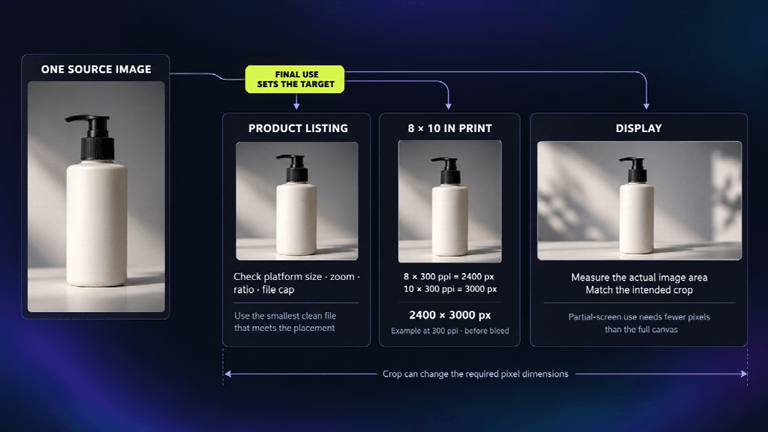
When you’re upsizing for print, you start with the printer’s final size, the required ppi (pixels per inch), the bleed, and the crop. Adobe states that pixel dimensions are inches x ppi. So if the printer wants 300 ppi, an 8 x 10 image would need 2400 x 3000 pixels prior to bleed. A 16 x 20 would need 4800 x 6000 pixels. Those are just examples, not set in stone. Simply changing the ppi label won’t give you any extra pixels unless you resample.
For a full-screen display, use its actual width and height. If you’re only using part of the screen, then work out the dimensions of that area. For a listing, check the platform’s size, zoom, aspect ratio, and file limits, and pick the file that meets those requirements even if the tool can do 8K.
| Destination | First measurement | Decision before upscaling |
| Close-view print | Finished inches × printer-required ppi, plus crop and bleed | Meet that printer’s pixel requirement, then inspect the image at print size. |
| Full-screen display | Actual canvas width × height and photo coverage | Match the intended crop; a partial-screen image needs less than the whole canvas. |
| Product listing | Store or marketplace image rules, zoom size, and file cap | Keep the smallest clean file that meets the placement. |
What Traditional Resizing and AI Actually Add
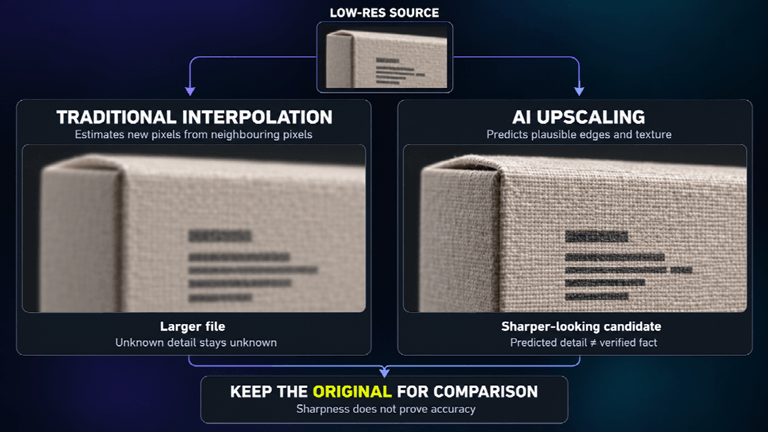
Traditional resizing just guesses what the new pixels should be based on the pixels around them. That can result in a larger file and may help it fit into a layout, but it can’t actually create any detail that wasn’t there to begin with. An AI upscaler will also add pixels, using the patterns it has learned to infer edges and textures. It can occasionally create a sharp edge where there wasn’t one.
This is important for a product photo. If you’ve got a soft fabric and you enlarge it, it may in fact look clearer. A small printed ingredient list could end up as a plausible but incorrect set of letters. A larger file or sharper preview doesn’t necessarily mean the detail is right. Always compare the original with the new one.
Step 2: Start from the Best Source
Use the original export or camera file rather than a screenshot from social media. Make sure you have the right to upload and use the image. Note any details that must be correct (package text, color, shape, accessories, etc.). A better source may mean you don’t need to upscale at all.
Look at the makeup first. If you’re after a narrow portrait to fit a 16:9 display, you need to decide whether you’re going to crop it, add borders, or take a wider shot. Adding more pixels doesn’t fix that. Cropping can also end up taking away some of the pixels you’ve already counted.
If the original is too fuzzy to make out the product label, then try to find a clearer version or take a fresh photo. Only the actual package can tell you what the label says.
Step 3: Upscale One Image and Export
WaveSpeedAI allows you to upload JPG, PNG, and WebP files and then download JPEG, PNG, or WebP. You can select 2K, 4K or 8K as your target. The seller can use a single approved photo to test the results. Choose your target size based on your prior calculation, and check your account balance and the cost. New users get some free credits but after that you pay according to the resolution you select. Check your account for your allowance and prices.
The service works in your browser (on phones and tablets as well). Your phone will still need internet and permission to upload the image. You’ll need to download the file in the format that your destination accepts. If you need transparency, exact colors, or metadata, then check the output, as these may not be preserved. Sometimes a better original or just a simple resize is all you need and that’s enough to get a small improvement.
Step 4: Inspect the Download at Its Actual Size
Check the width and height of your downloaded image. Simply selecting 4K or 8K won’t necessarily work, particularly if your image isn’t 16:9. Crop as appropriate and then view it at its actual print size or on screen as it will be used. Leave the original open for comparison.
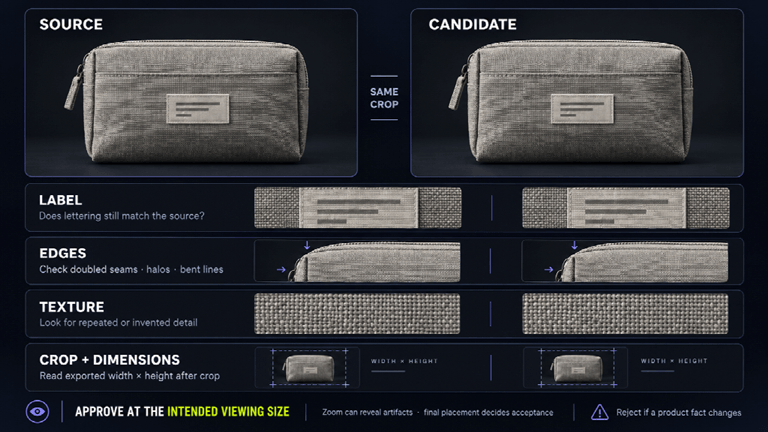
If you’re resizing a product photo for a larger proof, you still need to check the label, the edges, the texture, the crop, and the actual size yourself. This one hasn’t been tested with an upscaler.
Look at the package letters, the edges, the repeated textures at the same crop. Is there a doubled seam? Does any letter look different from the actual package? Do any of the straight lines appear to be bent? Do halos appear? You can zoom in to see the issues, but you should also check the image at the size that the end user will see it at.
After cropping, check all four sides of the image. The tool claims it doesn’t add a watermark, but you should check your original for any watermark and ensure you have the right to use the image. For print, check the exported size against what the printer actually requires after crop and bleed. For listings, check the file size, ratio, and product details to ensure they are all in accordance with the platform’s rules.
Choose 4K, 8K, or a Better Original
If it works with the original and looks good when you zoom in on it then go with it. For other uses, 2K or 4K would be sufficient. The smallest file that meets the requirement is the way to go as it keeps the file size down. An 8K file won’t help in the case of a small image slot.
Printing or displaying an image full screen may require a lot more pixels. The ITU states that 16:9 UHD 4K is 3840 x 2160 and UHD 8K is 7680 x 4320. Those are standard screen sizes. Only go for an 8K target if the size works in your layout and the detail is acceptable. Always check the actual exported width and height of a portrait image as the presets won’t give you the exact size. Be aware that predicted textures aren’t necessarily going to be correct even if the print size is correct.
Don’t use the new image if it alters the package text, changes someone’s features or changes the shape of the product. For IDs, for legal docs, for medical images, and any record where the content is proof of something, don’t trust the predicted details as actual facts. Always check the original or get a better scan. A higher preset won’t fix wrong information.
Record the Approval Rule
Keep the original file adjacent to the approved export. Note its pixel size, where and how it will be used, the printer/platform requirements and the small details you’ve checked against the original. The seller may well require a different file for the listing, the print and the display. If the new file has insufficient pixels or alters any product details in any way then don’t use it, go back to the original.
Popular on OTW Right Now!



About The Author

Gagan Bhangu
Founder of otechworld.com and managing editor. He is a tech geek, web-developer, and blogger. He holds a master's degree in computer applications and making money online since 2015.