
Does Mac Have a PDF Editor? Features, Limitations, and Best Alternatives
Mac users often assume their computer comes with everything they need to handle documents out of the box. In many cases, that assumption is correct. But when it comes to working with PDFs beyond basic viewing, the reality is a little more complicated. Apple’s built-in tools can handle some tasks, but they have real limitations that become obvious the moment your needs go beyond the basics.
If you’ve been searching for a dedicated PDF editor for Mac, you’ve probably noticed how quickly the options multiply. The market ranges from high-dollar office versions to easy-to-use browser versions, and it’s important to know what version works best for you based on your workflow.
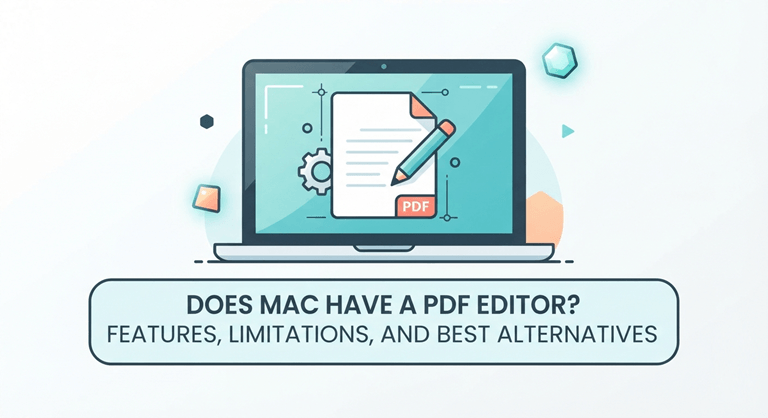
What Mac Offers by Default: Preview
Included with macOS is Preview, Apple’s native file viewer, which is also a basic PDF tool. Many Mac users use it regularly, but do not consider it a PDF editor. You can open PDFs at a click’s speed, highlight, note, fill in simple forms, add a signature, rotate pages, move and delete pages from a PDF document, and more.
Preview is good enough for occasional use for light tasks. To sign a contract and/or to mark a part of a report, you can do this without installing anything. The tool is extremely quick, clean, and deeply embedded in macOS.
However, Preview is not a PDF editor. Existing PDF text can’t be edited directly in the PDF; images can only be replaced if they are original; a scanned document can be OCRed; a PDF file can be compressed for email use; a PDF can be converted to Word or Excel; and multiple PDF files can be merged with only coarse-grained control. These are typical tasks that anyone who deals with PDFs on a regular basis will be doing. And Preview doesn’t provide such features.
Where Preview Falls Short
The shortcomings of Preview become apparent in professional or academic settings. The same problem will be encountered by a student taking notes on a scanned lecture handout, a freelancer converting a signed document to Word, or an HR professional consolidating various onboarding documents. Preview takes them partway there, then stops.
Perhaps the largest gap is with conversion. While Preview can transform a PDF into an image, it can’t convert a PDF to a Word or Excel file retaining the original formatting. This is a big drawback for anyone who routinely gets PDFs and does work on the PDF content.
Another missing piece is OCR. Scanned documents are basically images; without OCR, there is no way to search or edit the text. Preview has no OCR support whatsoever, and a scanned contract, receipt, or report will be locked and cannot be searched.
Third-Party Options on Mac
For more functionality, Macintosh users often resort to third-party tools. The most popular is Adobe Acrobat Pro, but it has a subscription fee that is not accessible to all users. There are also tools such as PDF Expert and PDFpen that have more PDF editing capabilities than Preview, which will also require installation and have their own cost.
One major drawback to desktop software is the setup time and expense. The app must be installed, and a license must be paid for. This promise is usually not worthwhile for users who only want to take advantage of the more sophisticated PDF capabilities from time to time.
PDFCap: The Best Alternative for Mac Users
The most useful tool for most Mac users is a browser-based tool, and PDFCap is the best one for that. It is fully browser-based, has no installation requirements, and includes over 50 PDF Tools for editing, conversion, signing, compressing, merging, splitting, and OCR.
The OCR engine has a high accuracy of 99.8% in more than 95 languages and is really useful for scanning any document in any language. You can convert any of the other formats that Preview doesn’t recognize, such as PDF to Word, Excel to PDF, PowerPoint to PDF, JPG to PDF, PNG to PDF—and vice versa—and do it right. There are no problems with files up to 100 MB, which would include most real-world documents.
PDFCap is not at all lax in its approach to security. GDPR & PCI DSS compliant, documents stored privately, and SSL encryption. In the case of applications that users are reluctant to upload sensitive data to online applications, these standards deliver true assurance.
The user workflow is straightforward: open the tool needed—upload your file—edit the file—download the result. No subscription to manage, no updates to install, and no macOS version compatibility issues. Works the same on MacBook, iMac, or any device that runs a Web browser.
Choosing the Right Approach
Preview is still a good option for simple tasks. It can be used to sign any document or shuffle a few pages, without hassle. However, if you’re constantly creating PDFs from other files, compressing, merging, or extracting information from them, you’re working around the problems of Preview—rather than with it.
Browser-based products such as PDFCap fill the gap without the expense or complexity of a desktop-based product. If you want PDF features but do not wish to invest in any expensive application, for Mac users, PDFCap is the easiest way out.
Popular on OTW Right Now!



About The Author

Gagan Bhangu
Founder of otechworld.com and managing editor. He is a tech geek, web-developer, and blogger. He holds a master's degree in computer applications and making money online since 2015.