
Fixed: Windows Update Error 0x80080005 [2026]
Getting Windows Update Error 0x80080005? Try These Fixes!

Error 0x80080005 is a common issue that many people encounter when upgrading to Windows 10. It can prevent Windows from downloading and installing updates, which can harm the security and performance of the operating system. Even the tech-savvy users will have nothing to do when faced with this error during the update. But you need not have any worries. To help you get your Windows update back on track, we are going to take you through a number of effective solutions to correct the Windows update error 0x80080005. Let’s dive in!
Part 1: Why Does Windows Update Error 0x80080005 Occur?
Windows Update error 0x80080005 is normally a sign of corrupted system files necessary to run windows update or a configuration error in windows update component. This error code may appear due to many things:
- The registry contains incorrect or outdated entries related to Windows Update.
- Network or firewall Issues.
- Your system is running low on storage space.
- Other software or third-party applications conflict with the Windows Update Service.
- Insufficient administrative permissions.
If you can’t diagnose the root cause of error 0x80080005, that’s okay. Just try the methods listed below one by one to see if they resolve the issue.
Part 2: Recover Lost Data From Windows Update Error 0x80080005
It has been noted that many users have lost valuable files after a Windows update. Hence, you must know how to avoid losing data before you get into the error 0x80080005 solutions. Besides the support in the form of pre-backup, we also highly recommend the use of Tenorshare 4DDiG to retrieve any lost or deleted information. This data recovery software is suitable for all data loss scenarios, including accidental deletion, formatting, virus attack, system crash, etc. Next, we’ll explore some of the notable features it offers:
- Data recovery on over 2,000 storage devices, including computers, external disks, USB drives, SD cards, and many more.
- Helps to restore different types of data, such as photos, videos, pictures, documents, emails, and so on.
- Retrieve important lost files in three steps. No technical knowledge required.
- Impressive success rate and 100% security.
- A free version is available for Windows users.
Here is how to recover lost data effortlessly using it:
Step 1: Download and install Tenorshare 4DDiG from their office website. When you start the program, you will be presented with a list of disks at the home interface. Then, choose a disk where data is lost and press the button with the name Scan in order to go on.
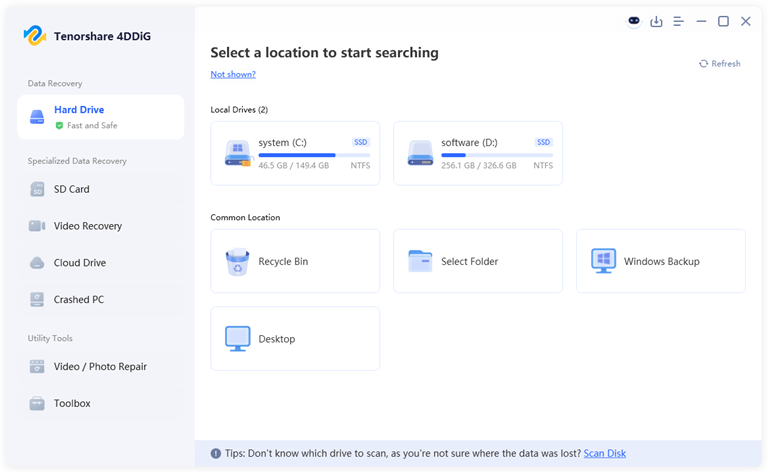
Step 2: 4DDiG will thoroughly scan the chosen disk to locate any missing files. After locating the required file, either using the tree view or file view, you can stop scanning or suspend the scanning process at will.

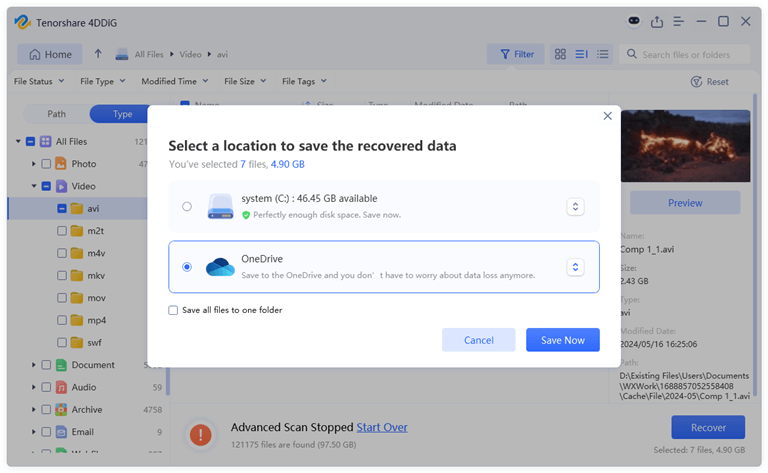
Step 3: Choose the files you have lost and press the “Recover” button. But do not save the files that you have recovered in the same place where you lost them.
Part 3: How to Fix Windows Update Error 0x80080005 Easily?
Solution 1: Run the Windows Update Troubleshooter
Microsoft Windows update error 0x80080005 can be resolved by the first method, whereby a built-in utility named Troubleshooter is used. It is able to spot recurring issues and make an effort to correct them automatically. To use this tool, you have to do the following steps:
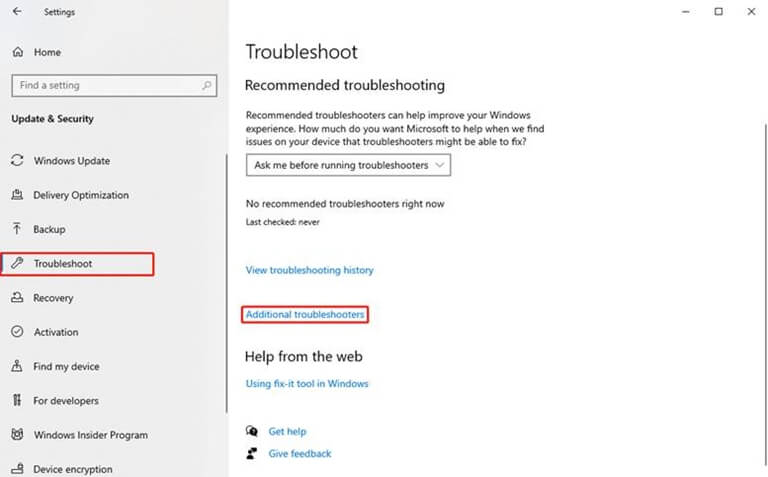
Step 1: Press Windows + I to open the settings and then press the option of “Update and Security”. Then, on the left side, you need to click on “Troubleshoot”.
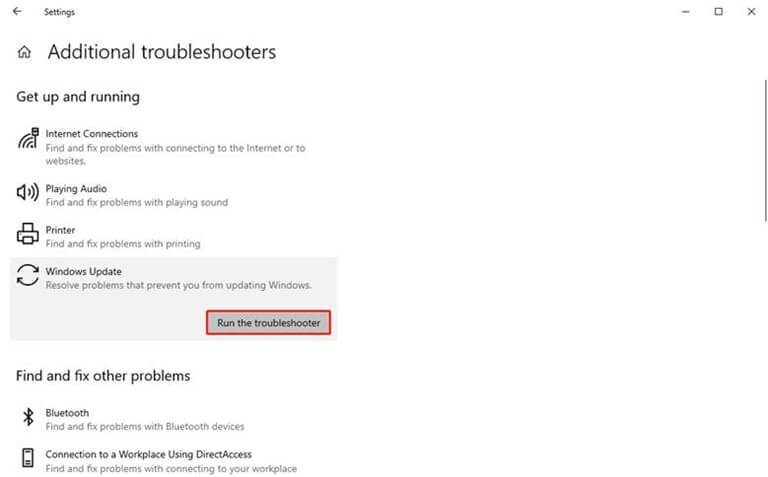
Step 2: Click on “Additional troubleshoots” > “Windows Update.”
Step 3: Finally, use the Windows Update troubleshooter.
Solution 2: Use the Media Creation Tool
And should you be a user familiar with Windows, then you are definitely familiar with the Media Creation Tool. This program is not only capable of enabling the user to upgrade the Windows operating system manually, but also assists them in rectifying any errors that arise during the system upgrade, as well as error code 0x80080005. Here is how to use it:
Step 1: Go to the official Microsoft website to download the Media Creation tool.
Step 2: Run the Media Creation Tool once it’s downloaded. After that, agree to the terms and hit “Upgrade my PC right now.”
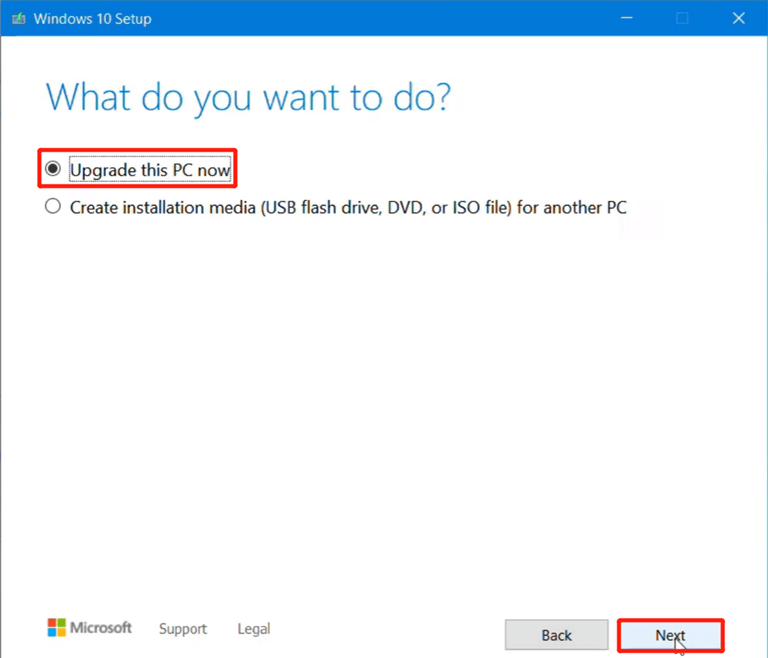
Step 3: Follow the on-screen instructions to manually complete the system update.
Step 4: Now, restart your PC and see if Windows update error 0x80080005 is fixed.
Solution 3: Run an SFC scan
As we said earlier, one of the offenders of error 0x80080005 is file system errors. To fix this problem, you may run an SFC (System File Checker) scan. Follow these steps:
Step 1: Press the Windows + X keys together and choose “Command Prompt (Admin).”
Step 2: A Command Prompt window will show up. You’ll need to type in the following command and hit Enter: sfc /scannow.
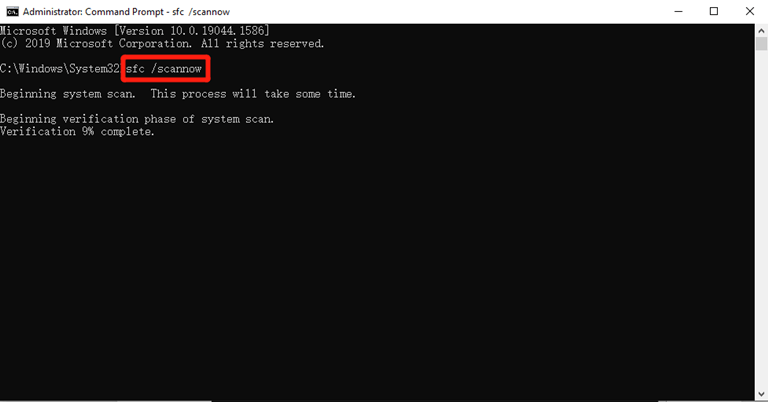
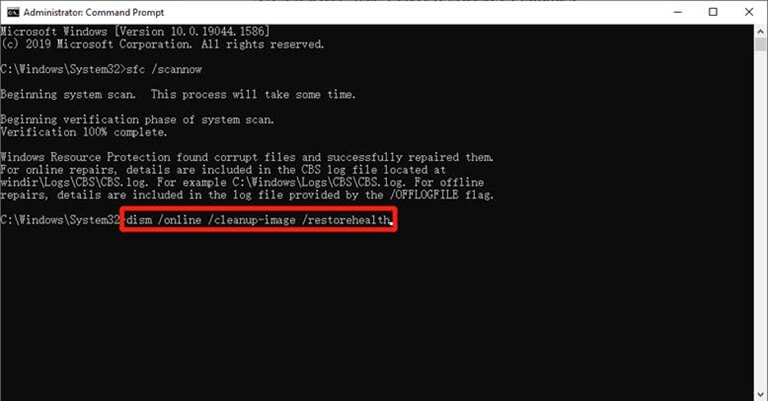
Step 3: If the SFC scan can’t fix the Windows update error 0x80080005, you can try running the DISM tool as well. The following is the corresponding command:
dism /online /cleanup-image /restorehealth
Solution 4: Disable Antivirus Software Temporarily
While antivirus software can protect your computer system from malware and virus infections, it can also interrupt the Windows update process and cause the error 0x80080005. That is why we suggest that you should turn off third-party antivirus software at least until the system upgrade is finished. In this way, it won’t mistakenly flag Windows update components or processes as potentially harmful, leading to their blocking or quarantine.
Solution 5: Clearing the Windows Update Cache
It is easy to troubleshoot Windows update error 0x80080005 by clearing the Windows update cache at times. Here is how to do it:
Step 1: Type Services after pressing the Windows + S keys. Open up this app and find “Windows Update” in the list.
Step 2: Right-click on it and select “Stop.”

Step 3: Open File Explorer and Navigate to C:\Windows\SoftwareDistribution\Download.
Step 4: Select all the files in this folder and delete them.
Solution 6: Grant the Necessary Access Permissions
In case the error 0x80080005 is still present, it is possible that you do not have the required permissions to read the directory of System Volume Information. You can follow these steps to overcome this problem:
Step 1: Press Windows + S and enter “CMD” into the search bar. Right-click on it and select “Run as administrator.”
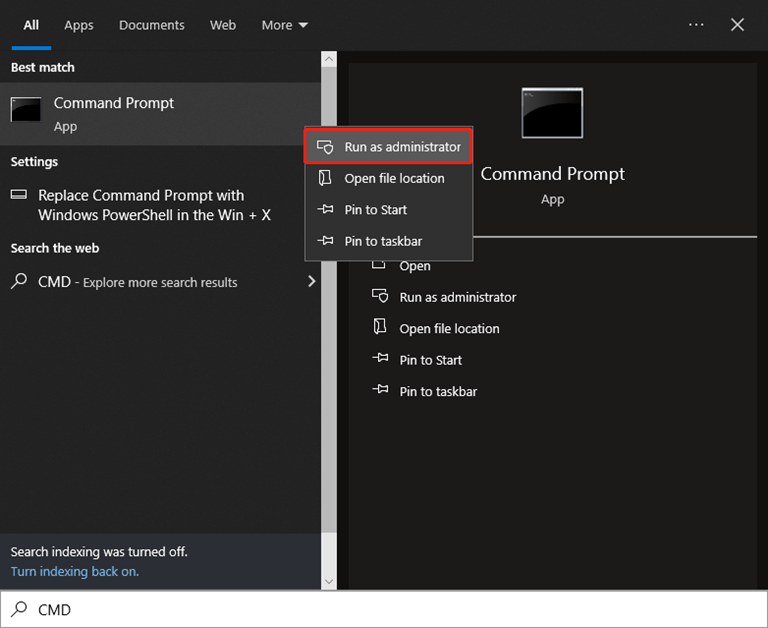
Step 2: Copy and paste the following command. Then, press Enter to execute:
cmd.exe /c takeown /f "C:System Volume Information*" /R /D Y && icacls "C:System Volume Information*" /grant:R SYSTEM:F /T /C /L
Solution 7: Reset Windows Update Components
In case the error 0x80080005 cannot be resolved by all of the above, it is possible to consider resetting the components of the Windows update. This measure will remove any case of corruption or misconfiguration that might have accumulated over the years. To do so, follow these steps:
Step 1: Run the command prompt as administrator using the previous method.
Step 2: Enter the following commands and hit Enter after each one:
- net stop wuauserv
- net stop cryptSvc
- net stop bits
- net stop msiserver
- ren C:\Windows\SoftwareDistribution SoftwareDistribution.old
- ren C:\Windows\System32\catroot2 catroot2.old
- net start wuauserv
- net start cryptSvc
- net start bits
- net start msiserver
- pause
Step 3: When it is complete, restart your computer and again attempt an update of Windows.
Part 4: How to Avoid Windows Update Error 0x80080005?
It is certainly something you do not want to experience, giving rise to this frustrating error during an update to other systems in the future, and that is why some precautions are to be taken. They are not complicated tasks that require a lot of clicks to be performed by the majority of users.
- Create System Restore Points: It is always advisable to create system restore points before you make any major changes to your system. These restore points can be used when there are any serious problems encountered when installing updates, but you can easily revert your device to the previous state without compromising the stability of the system.
- Maintain a Backup Strategy: It is important to regularly copy your valuable files to an external drive or cloud storage. In spite of the fact that this trick is not going to directly stop the possibility of repeating the error 0x80080005, in fact, it is the most appropriate way to avoid losing data.
- Maintain a Clean and Clutter-free System: Sometimes, unnecessary or incompatible programs are able to interfere with the installation of updates, so it is better to only have the needed software on your system, where possible.
Bottom Line
Now you can fix Windows Update error 0x80080005 like a pro and upgrade to Windows 10 seamlessly. It should be remembered that loss of data may also be an issue when we update our system that is why we need to have a trusted data recovery software such as Tenorshare 4DDiG. Its loss retrieval is easily achievable, and it has high success rates due to its user-friendly interface, in case of any unforeseen data loss.
Popular on OTW Right Now!



About The Author

Gagan Bhangu
Founder of otechworld.com and managing editor. He is a tech geek, web-developer, and blogger. He holds a master's degree in computer applications and making money online since 2015.