
UnblurImage.ai vs iPhone 16 Native Unblur: Which Tool Better Fixes Low-Light Grain?
Low-light photography is a challenge for every smartphone user. You might take a photo at a dark dinner or during a night walk and find it full of tiny, ugly dots. This grain ruins the clarity of your shots and makes them look cheap. Apple claims the iPhone 16 can handle these issues with its new built-in tools. However, many people are turning to specialized software to get better results.
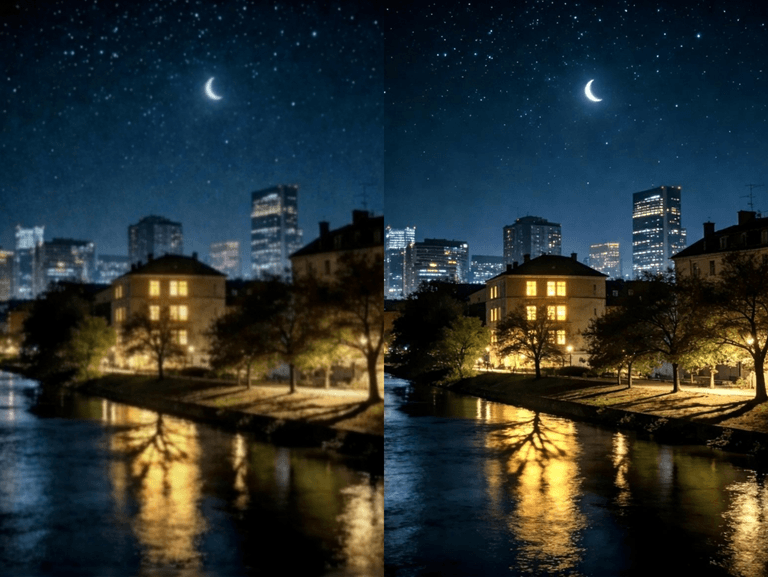
If you want to fix these ruined photos, you should look at a dedicated Unblur Image tool that uses artificial intelligence. These tools are designed specifically to look at pixels and figure out what should be there instead of the grain. While a phone tries to do everything at once, a specialized app focuses on one job. This focus often leads to much cleaner results for your favorite memories.
Sometimes the problem is not just in your photos but also in your clips. You can use a Video Enhancer to fix similar issues in moving pictures. Grainy video is even harder to fix than a still photo because the grain moves around in every frame. Having a tool that understands how to track these patterns is essential for anyone who wants high-quality content.
UnblurImage.ai Overview
UnblurImage.ai is a web-based platform that uses deep learning to repair photos. It does not just blur the grain away like old software used to do. Instead, it analyzes the image to understand the shapes and textures. If it sees a grainy face, it knows how a human face should look. It then fills in the gaps to create a sharp, clear image that looks natural.
This tool is built for people who need professional results without needing to learn complex software. You do not have to be an expert in photo editing to use it. You simply upload your grainy photo and let the AI do the heavy lifting. It works on any device with a web browser, which means you can use it on your computer, tablet, or even your phone.
Key Features of UnblurImage.ai
The primary characteristic of this tool is that it has an AI Upscaling and Denosing engine. It separates the real image data and the digital noise. The majority of simple editors handle it all identically; however, this tool can distinguish between a freckle and a grain of noise. This can enable it to retain the information you desire and to eliminate the clutter that you do not desire.
The other one is the batch processing capability. When you have an entire album of photos at a dark party, you can process them fast. The AI will make sure the lighting and sharpness will be similar in all your photos. It saves you much time as opposed to manually editing each and every photo on a small phone screen.
Pros and Cons of UnblurImage.ai
Pros:
- Realistic and high-quality detail reconstruction.
- Browsing works on any operating system.
- Very easy interface and no steep learning curve.
- Fixes heavy grain that cannot be corrected by regular phone editors.
Cons:
- An active internet connection is required to process images.
- Big files may require a few minutes to be uploaded and downloaded.
- Casual users may have a reason to do away with subscription costs.
Best For
This device is most suitable when the photographer and social media creators aim for the best quality possible. In case you have a picture that is really good and is spoiled by bad light, this is the device to use. It is also good with individuals who like working on a bigger screen, where they can perceive every detail.
iPhone 16 Native Unblur Overview
The iPhone 16 has an advanced camera and a Photos application that contains an embedded editor. Apple employs both hardware and software to eliminate noise immediately after you have taken the shot. You can enter the Edit menu in case the photo remains grainy. There are Noise Reduction and Sharpness sliders. These applications are literally on your gadget, hence very convenient.
Apple refers to its processing unit as Deep Fusion. It performs several exposures and combines them to locate the most suitable detail. When you use the manual sliders once you have made the image, you are instructing the phone to diffuse the pixels. It is a quick method of enhancing a photo to take a quick shot on a social media platform. There are no additional apps to download to start.
Key Features of iPhone 16 Native Unblur
The most significant aspect is the camera hardware integration. The iPhone 16 is aware of the sensor that was utilized and the lighting conditions. This metadata aids the phone in making intelligent assumptions on how the grain can be fixed. The Noise Reduction slider is highly responsive and provides you with visual feedback immediately as you slide your finger.
The other feature is the Smart HDR 5. This system operates automatically to adjust highlights and shadows. It tends to avoid the occurrence of grain by balancing the light. If you are shooting in ProRAW format, you get even more control over how the noise is handled. This provides you with a measure of flexibility over a typical JPEG file.
Pros and Cons of iPhone 16 Native Unblur
Pros:
- Free to all without any restriction, provided that you have the phone.
- Works even when not connected to any data or Wi-Fi.
- Real-time results with no upload or download time.
- Extremely convenient to reach directly from the photo gallery.
Cons:
- Can make skin look like plastic if you turn the slider up too high.
- Does not actually add back lost detail.
- Limited to the processing power of a mobile chip.
- Often leaves the image looking soft or blurry.
Best For
The native iPhone tools are suitable for those users who are casual and require a fast fix. The built-in editor will be ideal when you are transferring a photo via a text message or writing a short story. It is designed to suit individuals who believe in speed and convenience rather than in the best image reconstruction.
Side-by-Side Comparison
The greatest difference between the two is the way they treat the grain upon comparing them. The iPhone 16 is prone to smearing the grain. This gives the picture a smoother appearance, although it also takes away the texture of hair, cloth, and skin. UnblurImage.ai attempts to reconstruct those textures. It examines the pixels around it and attempts to determine what the texture is, which gives it a significantly sharper appearance.
The workflow is also very different. iPhone is a small screen that you type with your thumbs. This comes in handy with short edits. The results can be viewed on high resolution monitor with the AI web tool. This will show whether the AI has committed some errors or whether the picture is really clean.
| Comparison | UnblurImage.ai | iPhone 16 Native |
| Processing Method | Cloud Based Deep Learning | Local Hardware Processing |
| Detail Retention | High Reconstruction | Medium Smoothing |
| Ease of Use | Very Simple Web UI | Integrated in Photos App |
| Internet Required | Yes | No |
| Fine Control | Automated AI Precision | Manual Sliders |
| Device Support | Any Browser | iPhone 16 Only |
Final Recommendation
The selection of the appropriate tool will be based on the needs. The iPhone 16 native tools are the right way to go in case you are in a park and need to share a photo right away. They are quick and suitable for small screens. The noise reduction bar takes seconds to slide and achieve a decent result.
Nonetheless, in case you have a picture you would like to print or have forever, UnblurImage.ai is the obvious choice. The manner in which it reassembles details is much higher than the smoothing nature of a smartphone. It deals with the challenging low-light grain that normally gives the photo the appearance of a fogged mess. To achieve professional performance and actual clarity, the AI tool offers an amount of quality that a phone is still incapable of to date.
Popular on OTW Right Now!


About The Author

Gagan Bhangu
Founder of otechworld.com and managing editor. He is a tech geek, web-developer, and blogger. He holds a master's degree in computer applications and making money online since 2015.