
How to Split a PDF into Multiple Files: A Complete Guide for Beginners
Introduction
PDF files are one of the most widely used document formats for sharing reports, contracts, eBooks, invoices, and presentations. However, there are many situations where a single PDF becomes too large or contains more information than you actually need.
For example, you may get a 200-page report and only have to discuss certain chapters with the other members of the team. Or maybe you have a scanned copy of several invoices that must be split into separate files. In such situations, breaking a PDF into smaller parts can be useful, more organized, and convenient to share documents.
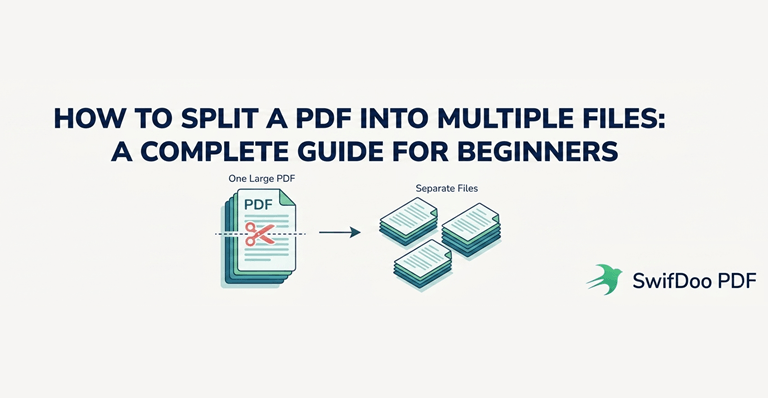
Fortunately, there are a variety of methods to cut apart a PDF, from built-in operating system resources to dedicated PDF editors. We’re going to tell you why you might want to split PDF files, outline the various approaches that exist for splitting PDFs, and explain how you can use tools like SwiDoo PDF to successfully split PDFs without compromising document quality.
Why Split a PDF into Multiple Files?
It is important to first understand the reasons behind PDF splitting before moving on to methods.
Easier File Sharing
Sometimes, it can be a problem to send or upload a huge file in PDF format. You can share easily if the document is divided into smaller parts.
Better Organization
You don’t need to save a large PDF file with a collection of miscellaneous information; you can divide chapters, reports, or records into individual files,s which can be accessed later with ease.
Improved Collaboration
Team members may need to access various parts of a document. When you split PDF files, you can only share the pages that you need.
Faster Processing
Smaller PDF files will load faster, particularly on mobile devices or cloud-based document management systems.
Enhanced Privacy
Splitting lets you send only the pages in the PDF that recipients need to view if it contains confidential information.
Method 1: Split a PDF Using Adobe Acrobat
Adobe Acrobat is one of the most famous PDF service providers and has built-in PDF splitting capabilities.
Steps:
- Open the PDF in Adobe Acrobat.
- Select Tools.
- Choose Organize Pages.
- Click Split.
- Choose how you want to split the document:
By number of pages
By file size
By top-level bookmarks - Click Split and save the new files.
Advantages
- Reliable PDF rendering
- Multiple splitting options
- Maintains formatting and quality
Limitations
- Requires a paid subscription for advanced features
- May be more expensive than necessary for occasional users
Method 2: Use Online PDF Splitters
Many websites offer free PDF splitting services directly through a browser.
Typical workflow:
- Upload your PDF.
- Select page ranges.
- Process the file.
- Download the separated PDFs.
Benefits
- No installation required
- Accessible from any device
- Suitable for quick tasks
Potential Drawbacks
- Upload speed depends on the internet connection
- File size limits may apply
- Sensitive documents may require additional privacy considerations
While online tools might be handy for casual users, many people who work with PDFs regularly will find that they need a PDF tool that can be installed on their desktop.
Method 3: Split PDF Files with SwifDoo PDF
For users who regularly work with PDFs, a dedicated PDF editor can provide a more efficient and flexible experience. One example is SwifDoo PDF.
What Is SwifDoo PDF?
SwifDoo PDF is a PDF management and editing application that includes tools for viewing, editing, converting, merging, compressing, and splitting PDF documents.
It’s not just about one PDF function, but a suite of document handling options in a single interface that can work well for your personal or workflow.
How to Split a PDF Using SwifDoo PDF
The process is straightforward:
Step 1: Open the PDF
Launch SwifDoo PDF and open the document you want to split.
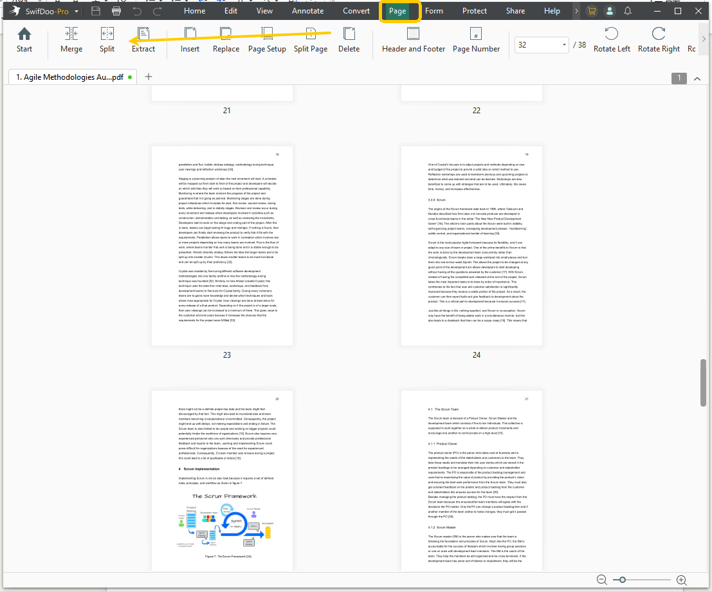
Step 2: Access the Split Tool
Find the document splitting option on the page.
Step 3: Choose Your Splitting Method
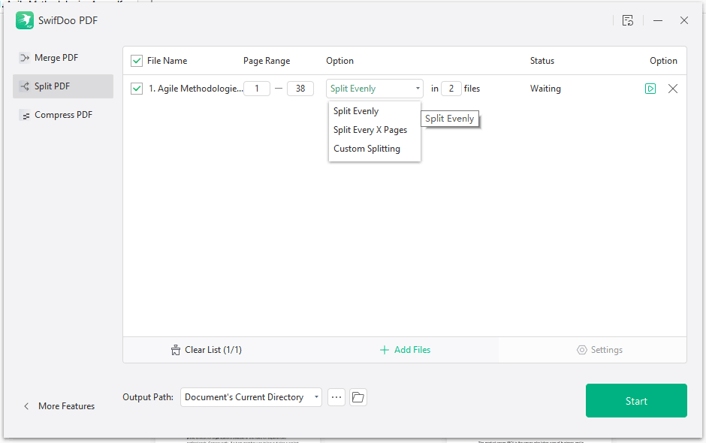
Depending on your needs, you can split:
- Every page into separate files
- Specific page ranges
- Large PDFs into smaller sections
Step 4: Configure Output Settings
Choose the destination folder and output preferences.
Step 5: Save the New Files
Start the process and allow the software to generate the individual PDF documents.
Why Some Users Prefer Dedicated Software
Compared with browser-based solutions, desktop PDF software often offers:
- Faster processing for large files
- Better handling of complex documents
- Batch operations
- Offline functionality
- More control over output settings
These advantages become particularly useful when managing business reports, legal documents, invoices, or large archives.
Tips for Splitting PDFs Efficiently
To avoid mistakes and improve productivity, consider the following best practices:
Plan Your Page Ranges
Before splitting, determine exactly which sections need to become separate files.
Rename Files Clearly
Use descriptive names such as:
- Chapter-1.pdf
- Invoice-January.pdf
- Contract-Part-A.pdf
Clear naming conventions make documents easier to locate later.
Keep a Backup
Always keep the original PDF before performing any modifications.
Check Output Quality
After splitting, verify that:
- All pages are included
- Formatting remains intact
- Images display correctly
- Hyperlinks still work if applicable
Consider File Security
If your documents contain sensitive information, choose tools that offer secure processing and privacy protections.
Final Thoughts
This is a very useful PDF splitting document management skill that is very easy to do. This can speed up your workflow whether you’re dealing with organizing business reports, separating invoices, sharing selected chapters, or even creating documents for collaboration.
This can be accomplished in a number of ways. While Adobe Acrobat has a powerful built-in suite of tools, there are PDF splitters available online that offer some quick and easy convenience, nd if you use PDF documents regularly, there are dedicated PDF splitters like SwifDoo PDF that offer some extra flexibility.
The key is to choose the right solution for you. If you need to do some tasks here and there, there are online tools to help. If you need an advanced workflow with large files or batch processing or regular PDF management, it may be worth considering a dedicated PDF editor and seeing which one works best for you.
Popular on OTW Right Now!



About The Author

Gagan Bhangu
Founder of otechworld.com and managing editor. He is a tech geek, web-developer, and blogger. He holds a master's degree in computer applications and making money online since 2015.