
How to Split a PDF and Extract Pages Online with iLovePDF and Other Tools
You can split a PDF and extract pages online in any browser, with no software to install. Adobe Acrobat offers a free tool to extract PDF pages from a file of up to 500 pages and 100MB. You pick single pages or a range, and Acrobat saves them as a new PDF while your original file stays unchanged.
This one is for anyone who wants just a few pages out of a larger PDF and would rather do it in the browser rather than install desktop software.
How Does the Official Smallpdf Tool Extract Pages from a PDF Online?
Smallpdf’s Extract PDF Pages tool operates entirely in your web browser, much like the other online tools. You upload your PDF, select the pages you want and then export them. You can export the selected pages as a single PDF or as individual files for each page. Before you export, you can rotate or duplicate pages, add pages from other PDFs, add page numbers, and so on. You can also export to JPG, Word, Excel and PowerPoint. With the free plan, you get two tasks per day across all of the Smallpdf tools, so if you extract pages and then compress them, that would use up both of your daily tasks. The Pro and Team plans remove that limit.
Output options
Smallpdf gives you more choices for the finished file than most free extractors:
- One combined PDF: all selected pages in a single new file.
- Separate PDFs: one new file for each page you selected.
- Other formats: JPG, Word, Excel, or PowerPoint versions of the extracted pages.
Working with more than one file
Smallpdf let you upload multiple documents at once so you could pull pages from a number of PDFs in a single operation. Just be aware that the free plan only allows two tasks per day if you’re working with multiple files.
How Smallpdf compares with Adobe Acrobat for this task
Both tools are free to use and work in your browser. Adobe Acrobat’s online extractor has a very clear limit of 500 pages and 100MB per file and will leave your original PDF completely untouched. Smallpdf is the one that stands out for the range of export formats it offers. If all you want to do is extract some pages and save them as a new PDF then either tool will serve you just fine.
What Are the Best Free Online Tools to Extract Pages from a PDF?
Adobe Acrobat, iLovePDF, Smallpdf, Sejda, and PDF24 are five of the more popular free online tools you can use to extract pages from a PDF without having to install anything. They all work in your browser; you select the pages you want, and they save them as a new PDF. The differences between them are in file size and page limit, how many tasks you can do for free and the output options. Acrobat can handle files up to 500 pages and 100MB and will keep your original file safe. iLovePDF’s Split PDF tool has a few different split modes and will accept files up to 100MB for free. Smallpdf allows you to export to a number of different formats. Sejda’s free use is limited to 200 pages or 50MB. PDF24 is free with no stated usage limit and is supported by ads.
| Platform | Best For | Key Details |
| Adobe Acrobat | Extracting selected pages from long documents into a new PDF | Free online; files up to 500 pages and 100MB; free sign-in needed to finish; original PDF stays unchanged; move, rotate, or delete pages before extracting |
| iLovePDF | Splitting by custom or fixed page ranges | Free files up to 100MB in Split PDF; Premium raises the limit to 4GB; upload from device, Google Drive, or Dropbox; files deleted after 2 hours |
| Smallpdf | Exporting extracted pages to other formats | Combined or separate PDFs; export to JPG, Word, Excel, or PowerPoint; free plan limited to two tasks per day |
| Sejda | Occasional use on mid-sized documents | Free for files up to 200 pages or 50MB, with three tasks per hour; option to extract every page into its own PDF |
| PDF24 | Frequent use with no task cap | Free with no stated usage limits, funded by ads; no installation needed; optional free desktop app for offline use |
Which tool fits which job
- Pulling a few pages from a long report or manual: Adobe Acrobat’s 500-page limit covers most long documents in one upload.
- Breaking a file into equal chunks: iLovePDF’s fixed-range mode splits a file into sets of a chosen size, such as every two pages.
- Turning extracted pages into images or Office files: Smallpdf’s export formats handle this in one step.
- Several files in one sitting: PDF24 has no stated task limit, while Sejda and Smallpdf cap free tasks.
What “free” covers on each tool
Every tool listed above will allow you to extract pages free of charge. There are limitations in place with regard to file size, number of pages or the number of tasks you can do within a given time period. The paid plans on iLovePDF, Smallpdf and Sejda all lift or remove those limitations. Adobe Acrobat’s free tool requires you to sign in to your free Adobe account prior to it creating the new file.
What Is the Official File Size Limit to Split a PDF Online?
The file size limit when splitting a PDF online will vary depending on the tool you’re using and whether you’re on the free or paid plan. Adobe Acrobat’s online PDF extractor will take PDFs up to 100MB and 500 pages. iLovePDF’s free Split PDF tool will also take files up to 100MB, and iLovePDF’s Premium plan will allow you to go up to 4GB. Sejda’s free tools will take a PDF up to 50MB or 200 pages. PDF24 doesn’t impose any file size limit on its free tools. Smallpdf doesn’t state a file size limit for its free users; they just limit you by the number of tasks you can do per day on the free plan. If your file is too big then you can try compressing it first or use a tool that has a higher limit.
| Tool | Free file size limit | Page limit | Paid option |
| Adobe Acrobat | 100MB | 500 pages | Acrobat Pro adds desktop tools for larger workflows |
| iLovePDF | 100MB | Not stated | Premium: up to 4GB |
| Sejda | 50MB | 200 pages | Paid plans remove free limits |
| PDF24 | No stated limit | No stated limit | Free only |
| Smallpdf | Not stated on the extract page | Not stated | Pro and Team plans remove the task cap |
What to do when a PDF is over the limit
- Compress it first: Adobe Acrobat points users with oversized files to its Compress PDF tool, which reduces file size before you extract pages.
- Check the page count, not just the size: a 40MB file with 600 pages still exceeds Adobe Acrobat’s 500-page limit and Sejda’s 200-page limit.
- Use a desktop app for very large files: iLovePDF, PDF24, and Adobe Acrobat Pro all offer desktop software that processes files on your computer.
Why scanned PDFs hit limits faster
Scanned documents save each page as an image, so they’re generally going to be a lot bigger than a text-based PDF with the same number of pages. A scanned file can hit Sejda’s 50MB free limit with far fewer pages than a text-based file, whereas Acrobat and iLovePDF will take files up to 100MB.
Frequently Asked Questions
Is the iLovePDF Split PDF tool the same as extracting pages?
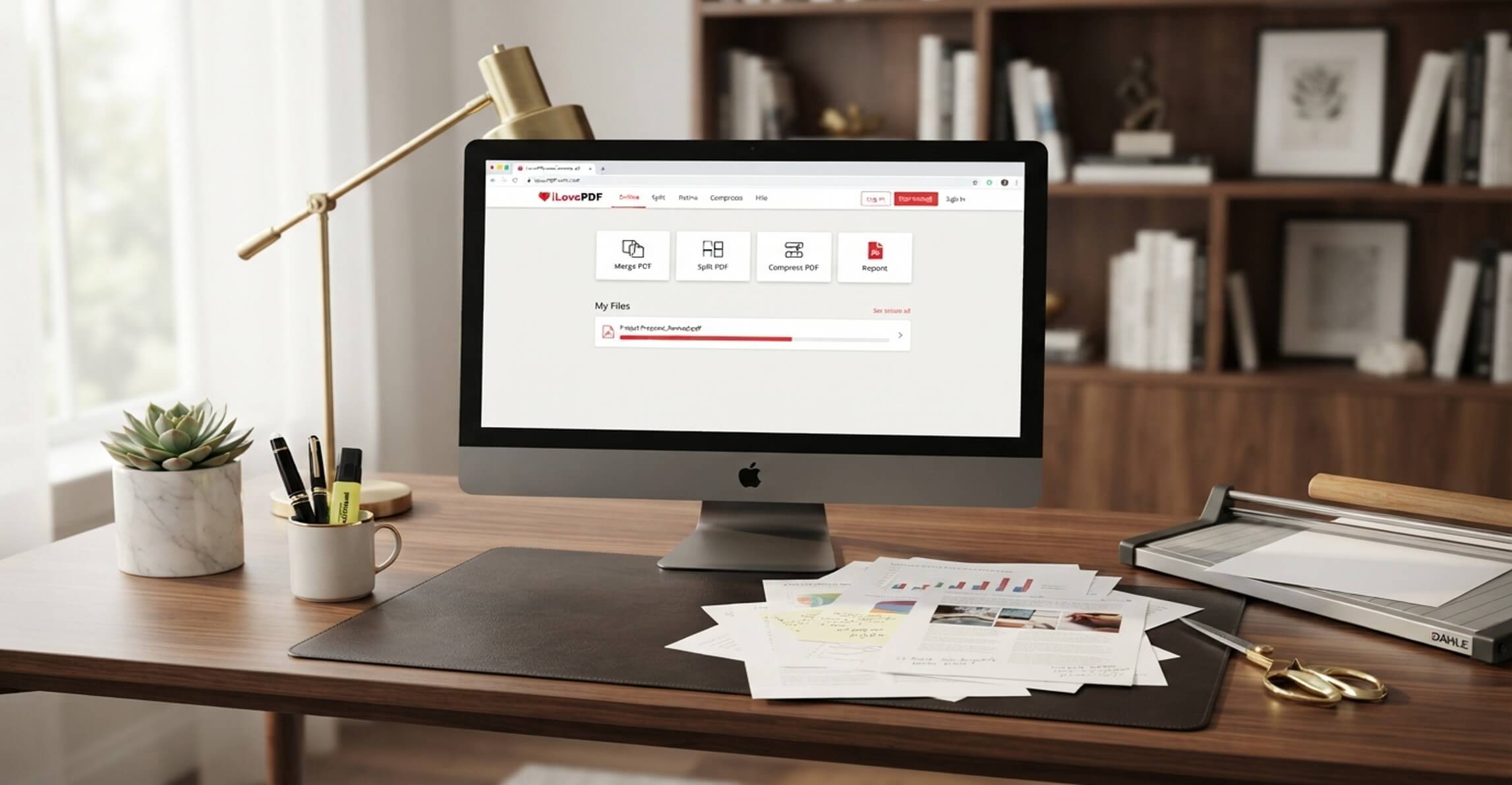
Yes iLovePDF will allow you to extract pages via its Split PDF tool rather than a separate extractor. You can select individual pages and save them as individual PDFs or you can combine them into a single new PDF. You can also extract each page into its own PDF or split by custom/fixed page ranges. The free version will accept files up to 100MB and iLovePDF also has a desktop app for Windows and Mac if you’d like to work offline.
Does extracting pages change or delete the original PDF?
No. The online extractors simply create a new PDF with just the pages you’ve selected and your original file remains untouched on your device. Adobe Acrobat states that their tool creates two separate files (the original and the extracted one). If you want to delete the pages you’ve selected from the original file as well, you need to use a delete pages tool after you’ve extracted them.
Do I need an account to extract PDF pages online?
It varies depending on the tool. With Adobe Acrobat, you can upload without having to sign up, but you will need to sign in with a free Adobe account in order for it to create the new PDF. Signing in also allows you to save the file to your Adobe account. iLovePDF, Smallpdf and PDF24 all allow you to extract pages without having to register, though Smallpdf will limit free use to two tasks per day.
What happens to files uploaded to online PDF tools?
Most online PDF tools delete uploaded files automatically. Adobe Acrobat deletes your file from its servers unless you sign in to save it. iLovePDF deletes uploaded documents after two hours. If you’re working with confidential files and want them to stay on your computer, desktop options like PDF24 Creator or Adobe Acrobat Pro process files locally.
Popular on OTW Right Now!


About The Author

Gagan Bhangu
Founder of otechworld.com and managing editor. He is a tech geek, web-developer, and blogger. He holds a master's degree in computer applications and making money online since 2015.