
How to Set Up Wave Browser for a More Organized Browsing Experience
A browser often becomes the control center for work, study, shopping, communication, and entertainment. When tabs and online tools accumulate, a few deliberate settings can make the experience easier to navigate.
This guide explains how to configure Wave Browser around a simple daily workflow, from importing familiar browsing data to arranging tools and reviewing performance controls.
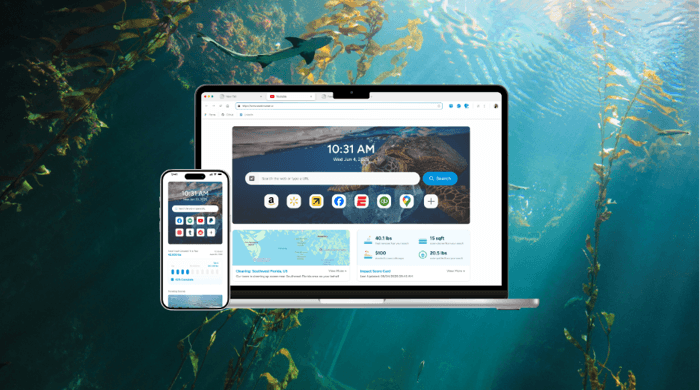
What is Wave Browser?
Wave Browser is an eco-friendly web browser that helps turn everyday browsing into verified environmental impact.
Through its partnership with 4ocean, Wave Browser helps fund the removal of plastic and trash from our ocean, rivers, and coastlines while offering features designed to support productivity, organization, and a more efficient browsing experience. Wave Browser is available for download on Windows, Mac, Android, and iOS.
Its approach combines familiar Chromium-based browsing, built-in productivity utilities, and a cleanup partnership with reported impact data users can follow. This describes a difference in model and emphasis, not a claim that one browser is universally superior.
How to set up Wave Browser step by step
1. Install the version for your device
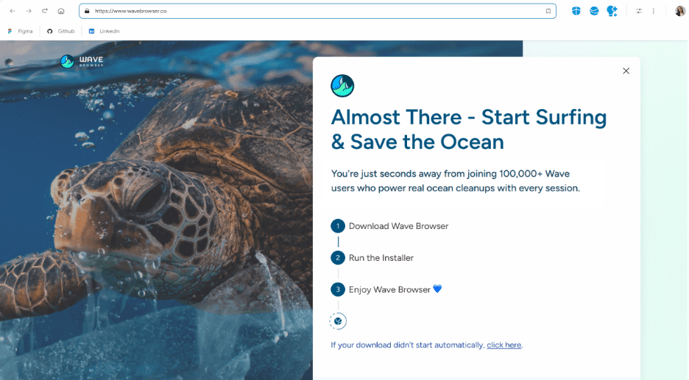
Start with Wave Browser’s official site or its installation support section and select the version for Windows, macOS, Android, or iOS. Complete the standard installation process for your platform. On a shared or managed device, check the organization’s software policy before installing any browser.
2. Bring over only the browsing data you need
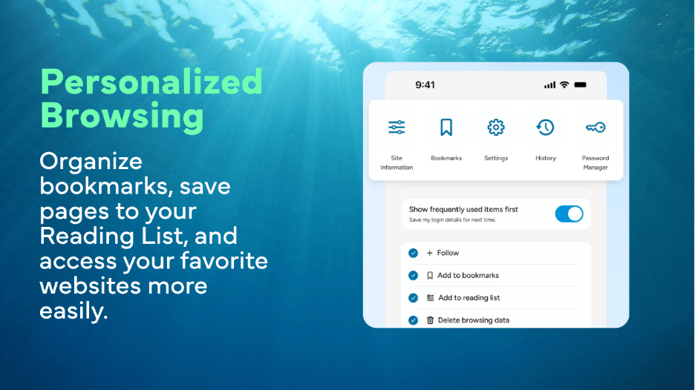
Open the browser settings and look for the import option. Depending on the desktop version and source browser, the available items may include bookmarks, browsing history, saved passwords, or other preferences.
Importing can reduce setup time, but it is worth selecting only the categories you intend to keep. After the import, open a few bookmarks and confirm that important sign-ins work as expected before relying on the new setup.
3. Organize frequently used tools
Keep the sidebar selective. Pinning every service can recreate the same clutter in a different place, so start with two or three essentials such as messaging, email, or a calendar and expand only when a shortcut proves useful.
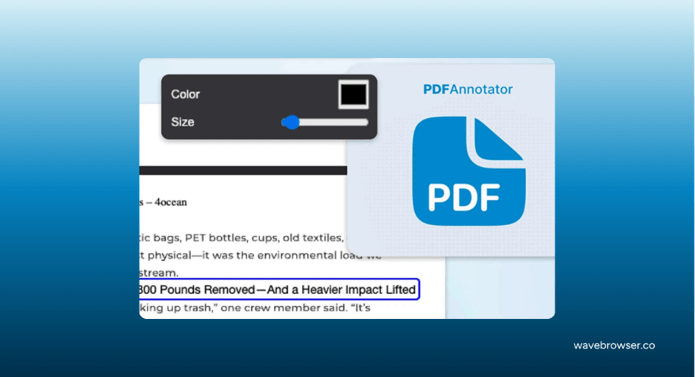
Wave also offers a PDF Annotator, Translate tool, Content Notifier, and Converter to support tasks such as reviewing documents, understanding webpages in different languages, following website updates, and converting units. Add each tool only when it supports your routine and provides a genuinely useful shortcut.
4. Use Split Screen for tasks that need two pages
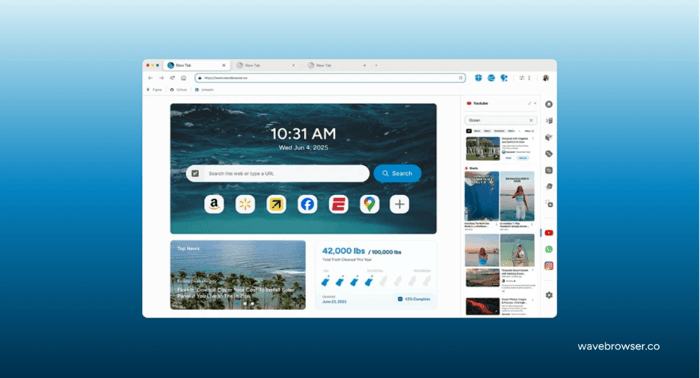
When two sources need to remain visible, open them in separate tabs and activate Split Screen from the browser interface. The feature places two pages side by side within one window. It can help when comparing products, following instructions while completing a form, checking references while drafting, or watching a tutorial alongside notes.
Split Screen supports organization, but it does not make every task better. For focused reading or work on a small display, a single page may remain easier to use.
5. Review Memory Saver and performance settings
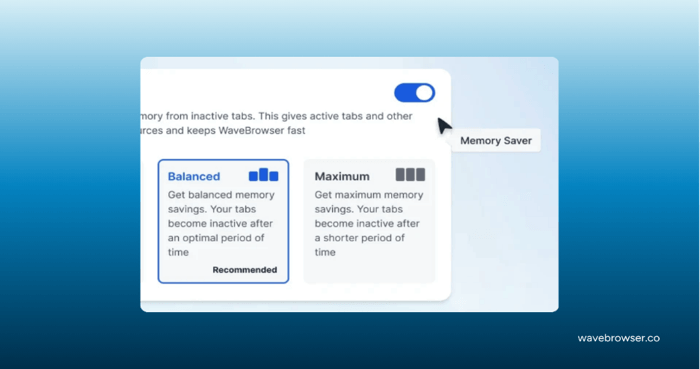
If many tabs remain open, go to Settings, locate the performance controls, and review Memory Saver. When enabled, the feature is designed to reduce the resources used by inactive tabs.
Memory Saver can support a smoother multitasking setup, but it cannot compensate for limited hardware, a slow connection, or the requirements of a demanding web application. Keep active work in the tabs you need and close pages that no longer serve a purpose.
6. Check ad blocking, site permissions, and privacy controls
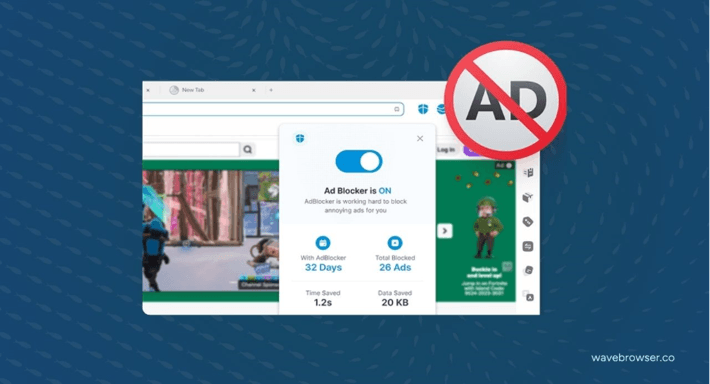
Wave includes a built-in ad blocker on desktop and Android versions. Review its settings and add exceptions for websites you intentionally support or for pages that do not function correctly with blocking enabled. No blocker catches every ad format, so treat it as one layer of browsing control rather than a guarantee.
Also review site permissions for location, camera, microphone, notifications, cookies, and pop-ups. Leave permissions blocked or set to ask unless a site genuinely needs them. These settings help you control access, but safe browsing still depends on software updates, careful downloads, strong account security, and attention to unfamiliar links.
7. Follow the environmental impact tracker
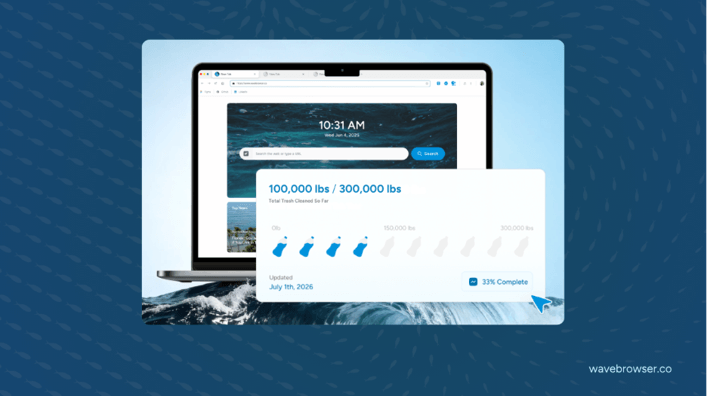
Wave connects everyday browsing with verified ocean cleanup through its partnership with 4ocean. Users can view the live impact tracker inside the browser and consult Wave’s published impact updates for reported cleanup activity. The tracker keeps the environmental model visible without requiring a separate action during each browsing session.
This is the central distinction in Wave’s approach: the browser combines everyday online activity with funding for the removal of plastic and trash from oceans, rivers, and coastlines. The 4ocean partnership supplies the operational cleanup component, while ongoing reporting gives users a way to follow the stated results.
Trust and safety checks for Wave Browser
Wave Browser is certified by AppEsteem, a third-party organization that evaluates applications against requirements related to software behavior, security, and transparency.
Certification is best understood as evidence of evaluation and standards compliance at the listed version and date. It should not be interpreted as a blanket privacy guarantee or a substitute for reviewing settings and maintaining good security habits.
Before installing any browser, confirm that the website address is correct, keep the application updated, and review permissions after major updates. These checks apply to Wave Browser as they do to other software.
Wave Browser reviews and independent recognition
Wave Browser has earned the SourceForge Leader Award for three consecutive seasons (Winter, Spring, and Summer 2026) based on outstanding customer reviews.
The Summer 2026 recognition placed Wave Browser among the top 5% of more than 100,000 reviewed software products on SourceForge in the Web Browsers and Eco-Friendly Web Browsers categories, demonstrating consistently positive user feedback over time.
A practical assessment of the setup
A useful browser setup is less about activating every feature and more about assigning each tool a clear role.
Bookmarks can hold durable references, the Reading List can collect temporary reading, the sidebar can keep a few recurring services within reach, and Split Screen can support tasks that genuinely need two pages. Memory Saver and permission controls then provide additional ways to manage resources and access.
Wave Browser’s case rests on this combination of practical browsing tools and a distinct environmental model. Its partnership with 4ocean allows users to support verified cleanup efforts while browsing normally, and the impact tracker provides a visible record of reported progress.
For readers evaluating whether the browser fits their routine, the most useful test is straightforward: configure a small set of features, use them during ordinary tasks, and assess whether the resulting workflow is easier to manage.
Popular on OTW Right Now!



About The Author

Gagan Bhangu
Founder of otechworld.com and managing editor. He is a tech geek, web-developer, and blogger. He holds a master's degree in computer applications and making money online since 2015.