
How Clideo Makes Video Editing Easy, Fast, and Fun
Are you searching for an online video editor that simplifies video creation and unlocks your creativity? Clideo.com is the perfect destination for you.
In today’s digital world, video content is everywhere. Whether it is a short social media clip, a YouTube tutorial, a product demonstration, or an autobiographical film that you wish to share with your friends.
However, the thought of video editing can be daunting, as it can be costly, requires a powerful computer, and takes hours of practice. That’s where Clideo comes in.
Clideo is an online video editing tool that enables users to edit, enhance, and transform videos directly from a web browser.
No downloading, no complex installation, and no high learning curve. The platform makes video editing a fun, fast, and easy process with its easy-to-use interface, diverse selection of tools, and quick cloud processing.
What is Clideo Online Video Editor?
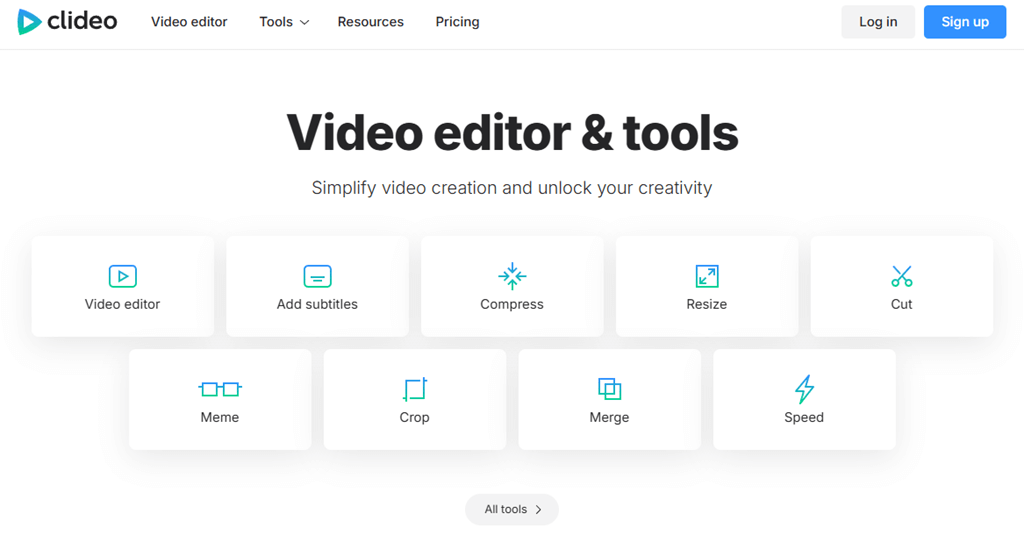
Clideo is a browser-based online video and media editor that offers a collection of easy-to-use tools designed to help you create professional-looking videos without the hassle.
Rather than having to install large software, you can use Clideo right on clideo.com and start editing instantly.
This online tool is specially designed for:
- Creators who require rapid editing for YouTube, TikTok, or Instagram.
- Companies and advertisers are aiming to create professional promos and advertisements.
- Casual users who simply desire to trim, scale, make clips, or merge them to share personally.
The platform is compatible with Windows, macOS, Android, and iOS, as it is fully in-browser, and you don’t need to install it on your device.
Also, Clideo is one of the most popular online video editing platforms, with 5 million monthly users.
List of Clideo Tools and Features that You Can Use to Edit Video and Media

Clideo has built-in useful tools that meet almost all video editing requirements. Here’s a breakdown:
- Video Editor: Complete online editor, timeline-based editing, add text, music, images, filters, transitions, etc.
- Add Subtitles: Easy to upload or type subtitles, or easy to sync them. You can also personalize the fonts.
- Compress Video: Compress video of any format and maintain quality. This feature is excellent for exchanging or uploading files at a reduced speed.
- Resize Video: Change the aspect ratio of any video (YouTube, Instagram, TikTok, and so on) quickly.
- Cut/Trim Video: Select and keep only the portions of the video you want.
- Meme Maker: The platform provides a template to create a funny meme. You just need to type the text and emojis.
- Crop Video: Elaborate on what is important by cutting off unnecessary portions of your video frame.
- Merge Video: Allows you to upload multiple videos and combine them into one seamless video with optional background music.
- Speed Video: Allows you to speed up or slow down video playback (perfect for time-lapse or slow-motion effects).
- Video Maker: You can create a video with images, GIFs, video clips, music, and text.
- Slideshow Maker: You can turn photos into a slideshow with music, transitions, and effects.
- GIF Maker: Allows you to convert videos or images into GIFs.
- Rotate video: Rotate your videos with one click. You can rotate video clips by 90, 180, or 270 degrees.
- Add Music to Video: Insert background music or sound effects to any video.
- Loop Video: You can add the video and loop it to make a video repeat multiple times. It helps to create a perfect loop for social media.
- Split video: You have to cut a video into parts and retain or delete certain parts when necessary.
- Mute video: The tool can be used in case you need to take all the unnecessary sounds off your clip.
- Flip Video: The Flip Video feature in Clideo lets you instantly flip your video horizontally or vertically, creating a mirrored effect with just one click.
- Reverse Video: The Reverse Video feature allows you to play your video backward, adding a creative and fun effect in seconds.
- Stop motion: Design a stop motion animation by selecting the required clip rate and speed.
- Filter video: Test various settings and select the most popular one to apply to a movie you have recorded.
- Adjust video: Adjust saturation and contrast, and add a vignette or fade effect by changing various settings of your file.
- GIF editor: Simple GIF maker and editor. Use any media to create GIFs, add text, adjust speed, resize, and trim any animated GIFs directly in your browser.
- Audio recorder: Audio recorder! An efficient online audio recorder. Record your own audio without any installations and edit it into a video immediately.
- Screen recorder: Record videos on your browser. Edit them using the same tool, combine them with other media, and add text or music.
- Presentation recorder: Video record your presentation and further edit it with the same tool.
- Camera recorder: Easy video recording with your web camera. Record your camera, add text, music, and stickers, and edit it however you want.
- Auto subtitle generator: Create automatic subtitles for a video of any language, edit and fine-tune captions to your liking.
- DPI converter: You can change the dots-per-inch of your image by selecting the required figure.
- Cut audio: Edit an audio to make your own ringtone or any other requirement.
- Merge audio: Drag a number of audio files into the tool and merge them in a single click.
- Video Converter: Convert to MP4, AVI, MOV, WEBM videos among others. Make music or a GIF of your video.
- Audio Converter: Convert your audio to MP3, WAV, OGG, M4A, M4R, OPUS, FLAC, etc. Turn your music into a video.
- Image Converter: Switch between picture formats to JPG, PNG, GIF, BMP, HEIC, WEBP, TIFF, or SVG. Turn your photo into a video.
- Video Translator: Create and translate subtitles with a single button and add an AI voiceover that has been translated.
- Translate English Video: Online translation of videos into any language with subtitles and automatic artificial voiceover in English.
- Audio Translator: Translating audio files automatically and producing and editing translated subtitles easily.
- Audio to Text: Get audio in your voice recording as text in your browser. Get a text file or add subtitles to a video.
- Video to Text: Automatically translate your video to text in your browser. Export the text as an SRT or TXT file, or insert subtitles into your video.
- Add Text to Video: Easily add text to your video online. Make the text unique yourself: adjust the size, font, color, and so on.
- Add Stickers to Video: Stickers can be added to your videos with ease on any occasion.
- Add Emojis to Video: Add your favorite emojis to your videos.
- Add Shapes to Video: Make videos a bit more beautiful by decorating them using shapes of varying sizes and colors when needed.
- Add Photo to Video: Combine videos and photos with ease. Calculate and personalize to your liking.
- Add Image to Video: Insert pictures on videos in the form of a logo, watermark, or drawings with additional details.
- Text to Speech: Design high-quality narration directly in your source with our text-to-video speech maker.
Apart from these, hundreds more tools are available on the Clideo platform.
How to Use the Clideo Online Video Editor?
1. Go to Clideo’s Website
Click on your browser and go to clideo.com. After that, sign up to create the account. From the home page, choose Video Editor.
2. Upload Your Video
After that, you need to upload the video. Click on the “Create Video” option and select a Upload Video option to upload the video either on your computer, Google Drive, or Dropbox. A direct video URL can also be pasted. 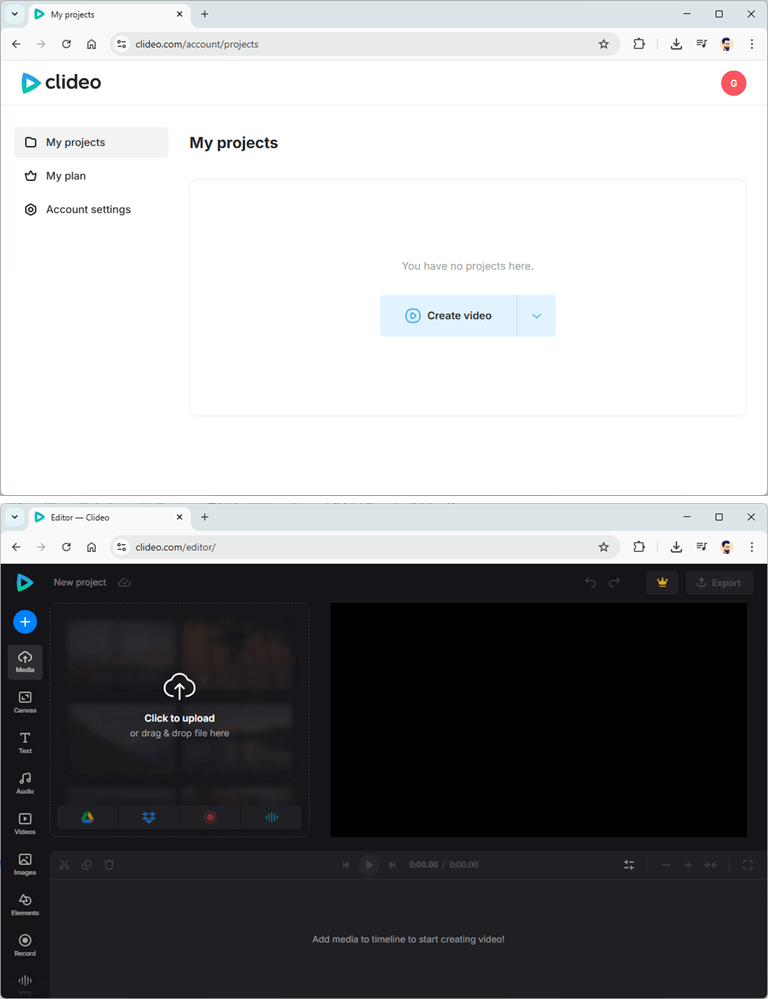
3. Edit Your Video
- Trim or Split: Use the handles on the timeline to drag out the parts you do not want.
- Add Music: Add background music or sounds.
- Add Texts and Images: Add titles, captions, or logos.
- Filter & Edits: Adjust brightness, contrast, saturation, or add filters to get a professional appearance.
- Resize & Crop: Resize the dimensions of YouTube, Instagram, TikTok, and custom dimensions.
- Transitions: Cross or fade transition between clips.
4. Preview Your Edits
After editing, you can preview the edited video. Check with the inbuilt preview window your video and then export.
5. Export the Video
- Select the format that you prefer (usually MP4 because it is compatible).
- Export To process your video, click on the Export button.
- Export the final file to your device- or to Google Drive / Dropbox.
6. No Watermark (Optional) Upgrade.
A mark will be placed on your video as a watermark in case you use the free version. To eliminate it, it is possible to upgrade to Clideo Pro.
Pricing – What Does it Cost?
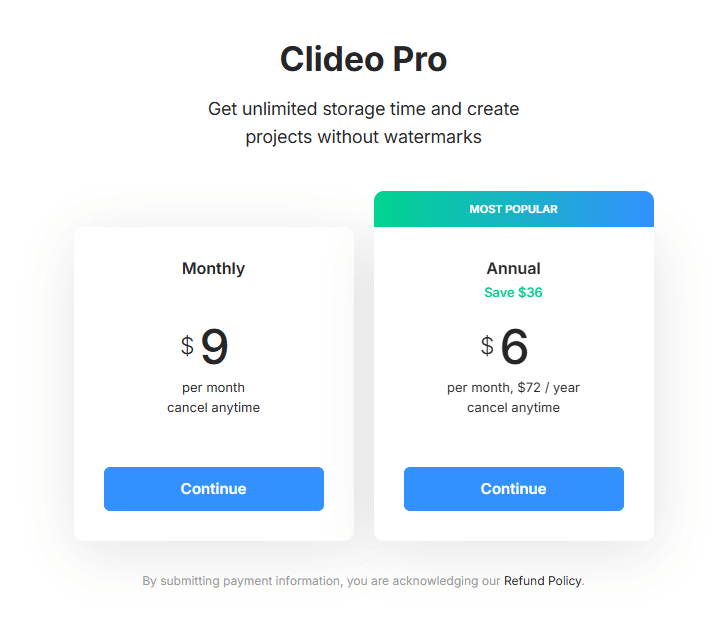
This online tool offers almost all editing features. However, you can use its free version with some limitations. For example, watermarks on exported videos, and file size/upload limits.
To unlock all features, get unlimited storage time, and create projects without watermarks, you need to buy its subscription.
The good thing is that the tool isn’t costly. The monthly subscription fee for Clideo is $9 per month and $72 per year.
Final Words
Clideo is one of the best all-in-one online video editor that does not require the use of heavy software. It simplifies the editing of videos and makes it a universal option. Whether you have to make a TikTok clip shorter, assemble YouTube videos, or make a family photo slide show, Clideo makes the process straightforward, quick, and enjoyable.
If you’re just starting out with video editing or need quick edits on the go, Clideo is definitely worth trying. To have an easier, smoother, watermark-free ride, it is a smart move to upgrade to Clideo Pro.
Popular on OTW Right Now!

About The Author

Gagan Bhangu
Founder of otechworld.com and managing editor. He is a tech geek, web-developer, and blogger. He holds a master's degree in computer applications and making money online since 2015.