
Download Classic Paint for Windows 11
Do you want to download Classic Paint for Windows 11 because it’s fast, simple, and familiar — perfect for quick edits without the clutter of modern tools. If yes, then you’re on the right page. Here is how to download and install Classic Paint for Windows 11.
When Microsoft released Windows 11, many built-in apps got a modern design as well. The beloved MS Paint wasn’t left out — it got a cleaner design, rounded corners, and new icons to match the Windows 11 aesthetic. Also, it gets new features such as layers, copilot integration, a built-in background remover, etc.

Some people have welcomed these changes, whereas others miss the simple look and old feel of the Classic Paint in older versions of Windows, such as Windows XP, Vista, Windows 7, 8, and 10.
If you’re one of those people who believe that the modern Paint is simply not the same one, you have good news: you can download and use Classic Paint on Windows 11.
What is Classic Paint?
Classic Paint is the original form of Microsoft Paint, which came with Windows over the decades. It initially saw release in Windows 1.0 in 1985 as a very simple graphics editor, and throughout the years, it became a sort of nostalgic gem within Windows.
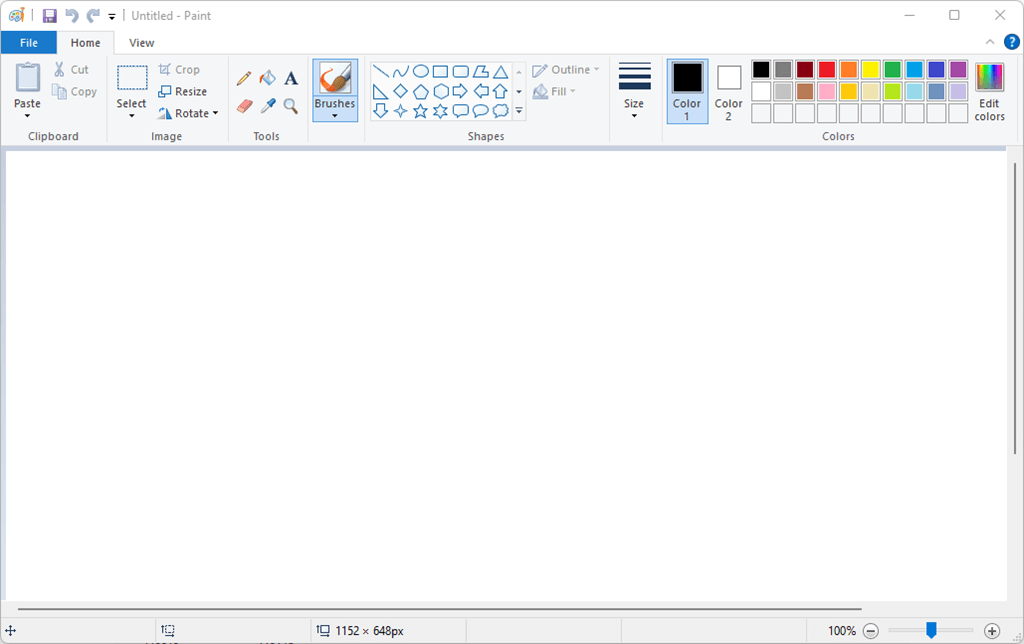
Some key features of Classic Paint:
- Simple interface – Minimal toolbar, no complex menus.
- Lightweight – Loads almost instantly, even on old and slow computers.
- Quick editing– Best suitable editing to crop, resize, doodle, or annotate photos.
- Offline – No cloud connection or internet is required.
- Consistent feel – Same layout for decades, making it easy for long-time users.
Modern Paint preserves most of these fundamental features, but it also modifies the design and rearranges some tools, which can feel strange.
Download Classic Paint for Windows 11
To install Classic Paint on Windows 11, the best way is to download a readily compiled installer that has the original version of the program files.
These installers are usually lightweight, portable, and don’t require complex setup. You can simply download the file, install it, run it, and start using Classic Paint right away.
Here at oTechWorld, the classic Paint (mspaint) app was taken from Windows 10 Build 14393. You can install it on Windows 11 and enjoy a faster and more usable image editor than the built-in one.
Also, after installing it, you can run it in a Run dialog as mspaint.exe or in the search box in the taskbar or in the Start menu. No system files will be overwritten. It will install next to the default built-in Paint app. You can even use both paint apps simultaneously without any issue.
Furthermore, the classic Paint will also be built into Windows 11’s right-click context menu. When you right-click on the image, you can edit the image using classic paint.
Also, you can set the classic paint as a default app for any image extensions.
It is compatible with all languages and locales of Windows, and hence its interface will be translated automatically. The installer identifies the languages you have installed on your Windows and will do the right thing to automatically provide you with the corresponding MUI files.
It comes with the following locales:
af-za, am-et, ar-sa, as-in, az-latn-az, be-by, bg-bg, bn-bd, bn-in, bs-latn-ba, ca-es, ca-es-valencia, chr-cher-us, cs-cz, cy-gb, da-dk, de-de, el-gr, en-gb, en-us, es-es, es-ms, et-ee, eu-es, fa-ir, fi-fi, fil-ph, fr-ca, fr-fr, ga-ie, gd-gb, gl-es, gu-in, ha-latn-ng, he-il, hi-in, hr-hr, hu-hu, hy-am, id-id, ig-ng, is-is, it-it, ja-jp, ka-ge, kk-kz, km-kh, kn-in, ko-kr, kok-in, ku-arab-iq, ky-kg, lb-lu, lo-la, lt-lt, lv-lv, mi-nz, mk-mk, ml-in, mn-mn, mr-in, ms-my, mt-mt, nb-no, ne-np, nl-nl, nn-no, nso-za, or-in, pa-arab-pk, pa-in, pl-pl, prs-af, pt-br, pt-pt, quc-latn-gt, quz-pe, ro-ro, ru-ru, rw-rw, sd-arab-pk, si-lk, sk-sk, sl-si, sq-al, sr-cyrl-ba, sr-cyrl-rs, sr-latn-rs, sv-se, sw-ke, ta-in, te-in, tg-cyrl-tj, th-th, ti-et, tk-tm, tn-za, tr-tr, tt-ru, ug-cn, uk-ua, ur-pk, uz-latn-uz, vi-vn, wo-sn, xh-za, yo-ng, zh-cn, zh-tw, zu-za.
Click on the Download button to download Classic Paint for Windows 11
After downloading, you need to install the program. Read the installtion guide.
How to install Classic Paint in Windows 11
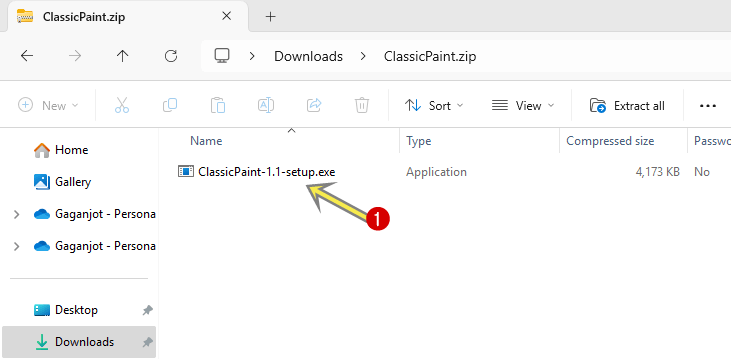
- Open the download ZIP file, and you’ll see the “ClassicPaint-1.1-setup.exe” file.
- Double-click on the ClassicPaint-1.1-setup.exe file.

However, you can extract the ZIP file, but there is no need for this. - After that, the User Account Control Warning pops up. Click on the Yes button to proceed.
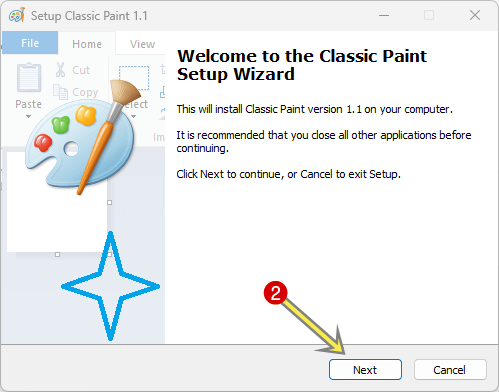
- Now you’ll see the classic paint setup window. Click on the Next button.

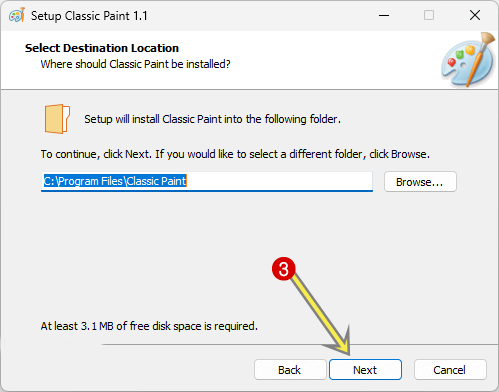
- After that, the “Select Destination Location” window will open. By default, the installation location is C:\Program Files\Classic Paint. You can change it according to your requirements. Click on the Next button to proceed.
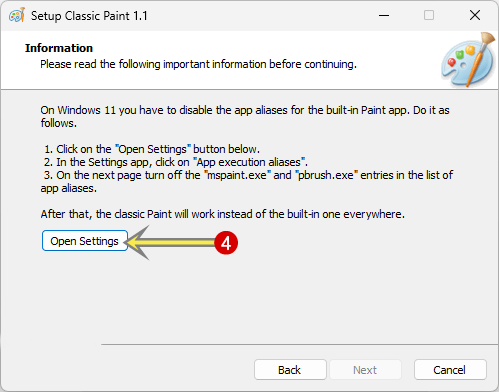
- In the next setup, you need to turn off app aliases from the App execution aliases. The Next button is greyed out and non-clickable. So click on the “Open Settings button“.
- Now the Settings app will be open. Click on the “App execution aliases” option.

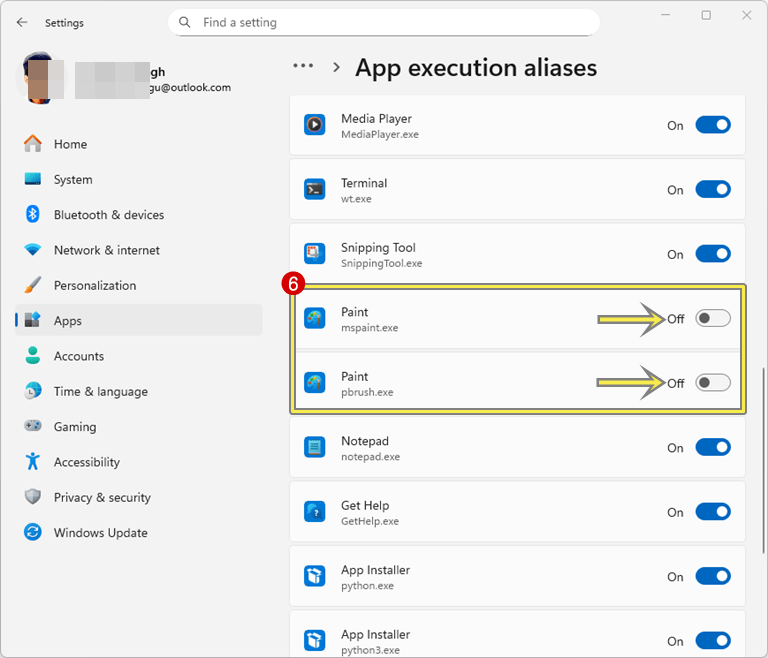
- You’ll see the list of apps. Scroll down and find the Paint apps with “mspaint.exe” and “pbrush.exe” options. Toggle off the buttons next to both apps and close the settings app.
- Now, click on the Next button. On the next window, again click on the Next button.

- After that, click on the Install button and then the Finish button.
- That’s it.



How to Uninstall Classic Paint in Windows 11
- Open the Settings app from the start menu or by pressing the Windows key + I keyboard shortcut.
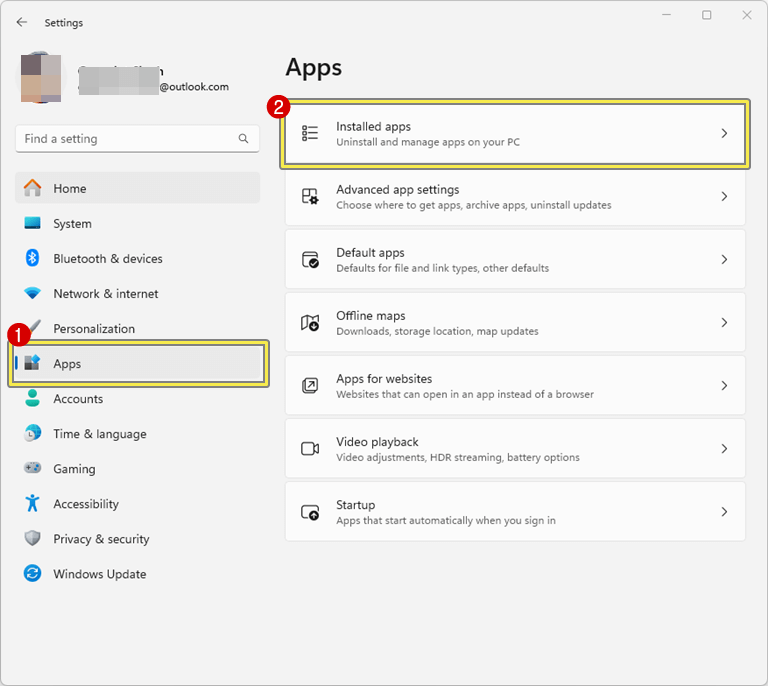
- Click on the Apps option from the left pane and open the Installed apps option.

- Find and navigate to “Classic Paint” from the apps list and click on the three dots (more options) next to the Classic Paint app.
- After that, click on the Uninstall option from the context menu.

- You’ll see the confirmation pop-up, click on the Uninstall option again.
- That’s all.

Difference Between Modern Paint and Classic Paint
| Feature | Modern Paint (Windows 11) | Classic Paint (Windows 7/XP/8/10) |
| Interface | Rounded corners, new icons, ribbon menu | Old-style menu & toolbar |
| Performance | Slightly heavier due to UI updates | Very lightweight |
| Touch Support | Optimized for touch devices | Not designed for touch |
| Features | Better text handling, dark mode support | Basic editing only |
| Nostalgia Factor | Modern feel | Classic old-school vibe |
Why Do People Still Want Classic Paint in Windows 11?
However, Microsoft has enhanced the design of Paint in Windows 11, but the outdated and classic Paint also enjoys its fan base. Here are some reasons why people prefer the classic version:
1. Familiarity
It can be compared to using older Windows (XP or Windows 7), so it is familiar to the user. You do not need to know exactly where every button and tool is in Classic Paint. You do not even have to adapt to a new interface.
2. Simplicity
Classic Paint is less distracting, without ribbon menus, and has no unnecessary additional functionality. It is oriented exactly towards basic editing.
3. Lightweight Performance
Classic Paint, being as minimal as it is, loads up immediately and practically has no system load. This saves a lot of computing in older/slower PCs.
4. Better for Quick Tasks
Just need to paste a screenshot, use some arrows, crop, and save -another thing that is easier done in Classic Paint than in the current one.
5. Nostalgia
To a great number of people, it is neither about functionality nor about the memories. They grew up with Classic Paint, and it played a big part in their childhood, whether it was doodling in the classroom or funny edits.
Frequently Asked Questions
1. Is It Safe to Install Classic Paint?
Yes, but only if you download it from a trusted source or copy it from an older PC yourself. Avoid suspicious “free software” websites that could bundle harmful files with the download.
2. Is Classic Paint still available in Windows 11 by default?
No. Windows 11 comes with the new, improved version of Paint. To get the original Classic Paint, you will need to download and install it manually.
3. Will Classic Paint work on Windows 11 without issues?
Yes. It is a lightweight program that runs well on Windows 11. Since it doesn’t depend on complex system files, it runs without compatibility problems for most users.
4. Can I have both Classic Paint and modern Paint installed together?
Yes. You can use Classic Paint together with the default new Paint app. They are separate programs, so installing one will not remove or replace the other.
5. Does Classic Paint support all image formats?
Classic Paint supports common formats like BMP, JPEG, PNG, and GIF. However, it doesn’t support some newer formats or advanced editing features found in modern editors.
6. Why not just use modern Paint?
Modern Paint works well, but some users prefer Classic Paint because it’s faster, simpler, and more familiar — ideal for quick edits without extra features.
Final Words
Now you know how to download and install Classic Paint for Windows 11. However, you can use the modern paint app alongside the classic app.
Classic Paint is not only an image editor; it is an aspect of the history of Windows. It has been 30 to 40 years since kids have been doing pixel art and workers in an office have been fast editing screenshots.
The new Paint in Windows 11 is pretty good, but there is a certain fun factor in using the original one. It is quicker, squeaky clean, and nostalgic.
So, when are you tired of all those fancy programs so much that you just want a simple program that can run and does what it is supposed to do? Then go ahead, download Classic Paint in Windows 11 and experience it.
Popular on OTW Right Now!




About The Author

Gagan Bhangu
Founder of otechworld.com and managing editor. He is a tech geek, web-developer, and blogger. He holds a master's degree in computer applications and making money online since 2015.