
Desktop Office Suites vs Browser-Based Editors: Which Is Better for Daily Work?
Modern office work often moves between a Windows desktop, a browser, a phone, and a cloud workspace. Both desktop office suites and browser-based editors can create documents, spreadsheets, and presentations, but they are optimized for different file sizes, collaboration patterns, privacy requirements, and network conditions.
Desktop software usually offers deeper formatting control, stronger offline access, local file handling, and better performance with complex documents. Browser editors emphasize fast access, link-based sharing, real-time comments, and simplified collaboration without installing a full application on every device.
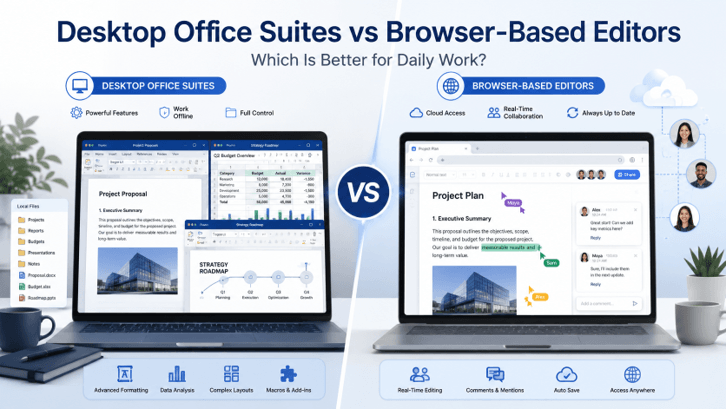
The best choice depends on the actual workflow rather than the longest feature list. This comparison focuses on compatibility, connectivity, performance, privacy, and multilingual document handling for users and teams, including those working across Hong Kong and Taiwan.
How Desktop Office Suites Work on Windows
Office software is installed on the computer. On the Windows platform, the application accesses local system resources like the processor, memory, storage, fonts, printers, and file associations.
Documents can be stored on the local drive, network, external device, or an external folder that is synced to the cloud. The primary editing program is local, so that many tasks can be done without needing to be on the internet all the time.
Desktop office suites often provide advanced tools for:
- Page layout and print formatting
- Spreadsheet formulas and data analysis
- Presentation animations and media
- PDF creation and conversion
- Comments and revision tracking
- Mail merge and document templates
- Font management
- Macros and automation
- Local backup and recovery
- Printer and scanner integration
The desktop software also typically provides greater control over the software application as it is used. Users can select installation options, modify preferences and settings, default file associations, local storage locations, and sometimes add-ins or extensions.
The compromise: software needs to be installed, maintained, and updated. May need administrator permission, space, and may not be compatible with the installed Windows version. Organizations might also have to control licensing, security policies, and deployment of the application on multiple computers.
How Browser-Based Office Editors Work
Browser-based editors are not installed like desktop applications, but are run inside a web browser. Typically, users log in to an account, access a document from cloud storage, and edit it on a web-based interface.
The biggest benefit is that it’s easy to use. A user may be able to log in to the same workspace from multiple computers without having to install the complete office suite. This can be convenient for remote work, multi-computer systems, classrooms, or when someone wants quick access to a file.
Browser editors commonly emphasize:
- Real-time collaboration
- Automatic cloud saving
- Shared links
- Comments and mentions
- Version history
- Simple access from multiple devices
- Centralized permissions
- Reduced local installation requirements
Team members can view changes to the document, and not many copies of the same document need to be sent back and forth. A manager can comment on a file that’s being edited by another manager, and a project owner can modify access permissions without making another copy.
However, browser editors are more reliant on the browser, Internet connection, cloud service, and account status. Limited offline editing might be available with some platforms; offline features may be set up ahead of time and may not contain all features.
The browser interface also may make some tools easier to use or eliminate, which are available on the desktop version. This is particularly apparent with large worksheets, page formatting, long documents, presentation formatting, and particular file management.
File Compatibility, Fonts, and Complex Formatting
Compatibility is one of the most important differences between desktop and browser-based office tools.
A simple document with plain text and basic headings may open correctly in almost any editor. Problems are more likely to appear in complex files containing:
- Custom fonts
- Tables
- Text boxes
- Images
- Headers and footers
- Footnotes
- Page breaks
- Tracked changes
- Comments
- Embedded objects
- Charts
- Advanced formulas
- Conditional formatting
- Presentation transitions
Users considering wps电脑版 should test real documents containing tables, images, comments, headers, and page breaks before making it their primary desktop workspace.
Some browser editors may store an uploaded document in their internal Internet format. This conversion could alter the spacing, pagination, fonts, table width, formulas, and/or the presentation effects. The quality of the document on paper or exported may differ from the screen view, even if the document appears to be correct.
Desktop suites typically offer greater formatting controls, since they are expected to interact with local fonts, printer settings, document templates, and operating-system resources.
Not all desktop applications will be able to keep all documents the same. Still, compatibility will depend on the file format, software version, fonts, and features used. A safe way is to test representative files before you select any tool as the primary editor.
Offline Access and Network Reliability
When the internet connection is not reliable, desktop office software may be better.
A local application can open and edit files locally without needing a network connection. This is handy when on the road, when you have no network connection, when you are in a field location, or if you have an unstable network connection in your office.
Offer offline modes that require the user to turn off their internet connection before using them in a browser editor (this usually doesn’t happen with other editors). There might be a label for offline mode, and synchronization might be postponed until the connection is restored.
Network quality also affects the editing experience. A slow connection may cause:
- Delayed typing or formatting
- Slow file loading
- Failed uploads
- Incomplete synchronization
- Delayed comments
- Problems opening large presentations
- Conflicts between online and offline copies
If the Internet connection isn’t always reliable, desktop software offers a more stable environment for users who regularly access important files in a location where they can’t rely on Internet access.
In situations where the connection is reliable, and sharing is more crucial than going offline, browser-based editors are still valuable. The selection should be based on the user’s network characteristics and should not be based on conditions as demonstrated in a product.
Performance With Large Documents and Spreadsheets
More pressure is put on both the application and the device when the document is large.
Large images and videos in a presentation, hundreds of pages in a report, and thousands of formulas in a spreadsheet can make it slow to respond in the browser. The browser will need to allocate system resources to other system processes, including tabs, extensions, background activities, and other browser-based applications.
Local memory and processor resources may be used more efficiently in desktop office software for more challenging tasks. It can also offer enhanced control of recalculating, media compression, image quality, printing, and file recovery.
Common tasks that may perform better in desktop software include:
- Editing long reports
- Sorting large spreadsheets
- Working with complex formulas
- Managing multiple sheets
- Creating charts from large datasets
- Compressing presentation images
- Exporting high-quality PDFs
- Comparing document versions
- Working with several files at once
The computer is still the determining factor for performance. If the device has little memory, insufficient storage, or an out-of-date processor, the desktop application will not function well.
If it’s an ordinary document, you might be able to use a browser editor that can handle the task in a timely fashion. The distinction is more significant as files get larger, become more formatted, and the amount of data grows.
Privacy, Cloud Access, and Local File Storage
One important consideration is privacy, as this may significantly impact the decision between desktop and browser-based editing.
A desktop application can access files in the local file system. This provides users with greater control over where any documents are saved, who has access to the computer, and whether the file is uploaded to a cloud service.
This may be important for:
- Legal documents
- Financial records
- Client information
- Internal company reports
- Employee records
- Unpublished research
- Confidential contracts
- Sensitive business plans
Typically, all browser editors will upload or create files in a cloud environment. This can enhance the way the service and data are shared and backed up. Still, it also demands that the user master a service’s permissions, data security, retention policies, sharing, and downloading options.
Local storage doesn’t have to be inherently secure. Not only can a lost laptop, but a weak password, unencrypted drive or missing backup can present significant risk. The screen locks, operating system patching, antivirus software, backups, and access control are still necessary on desktop computers.
The biggest difference is the amount of control. In some cases, sensitive data is in a format that makes it easier to keep it on the desktop, and desktop workflows are more dependent on the security and configuration of the desktop environment. Browser workflows are more reliant upon the security and configuration of the cloud platform.
When Desktop Office Software Is the Better Choice
A desktop office suite is generally the best option for more complex formatting, power performance, using a computer without an internet connection, or when local file management is necessary.
Solutions such as WPS Office for Windows are generally evaluated through practical tasks including document editing, PDF export, spreadsheet handling, and cross-device access.
Desktop software is especially suitable when users need to:
- Edit long or complex documents
- Work with advanced spreadsheet formulas
- Preserve precise page layout
- Use custom fonts and templates
- Print documents regularly
- Export stable PDF files
- Work without internet access
- Keep sensitive files on local storage
- Use multiple documents side by side
- Manage large presentations
- Use desktop shortcuts and file associations
It’s also great for people who are using one main Windows computer for most of the day. The installed suite integrates seamlessly as an integral part of the everyday file management and productivity environment.
Users need to make sure they test the desktop suite they are considering, how it installs, how it handles updates, how it handles files, how it handles exports, how it handles data recovery, and its default application settings.
When a Browser-Based Editor Is Enough
A browser editor may be enough when the work is lightweight, collaborative, and strongly connected to cloud storage.
It works well for:
- Short documents
- Basic spreadsheets
- Simple presentations
- Meeting notes
- Shared checklists
- Team comments
- Real-time co-editing
- Quick access from different computers
- Link-based sharing
- Temporary review tasks
Browser editors can minimize the time required for software installation and updates. They also make it easy to collaborate as everyone is on the same online version rather than sending multiple attachments.
The browser might be enough for teams that primarily develop internal notes, schedules, basic reports, and team drafts.
But users should still test export quality, offline access, file conversion, permissions, and account recovery. An editor for your browser could be great for making edits quickly while collaborating with other people, but not for the final document.
Choosing an Office Workflow for Hong Kong and Taiwan
Many Hong Kong and Taiwan businesses rely on hybrid work, which means that English and Traditional Chinese files will need to be sent and received, and remote approvals will be required, as well as documents being sent to clients via software applications. Generally, a desktop editor will be more secure for final formatting, using embedded fonts, complex spreadsheets, and output ready for print. In contrast, a browser editor can help with quicker and easier comments and simultaneous review.
Network quality and data-handling policies should also factor into the decision. Teams that travel, work at shared sites, or have sensitive information on their records may require secure offline access and secure local storage. Teams with a need for quick collaboration should opt for browser-based tools, but with attention to permissions, version control, and account security.
Desktop vs Browser Office Software Checklist
Before choosing between a desktop office suite and a browser-based editor, review the following questions:
- Do the files contain complex formatting, formulas, or media?
- Is reliable offline access required?
- Are the documents sensitive or confidential?
- Does the workflow require real-time collaboration?
- Are large files common?
- Is precise printing or PDF export important?
- Will several devices be used?
- Can the computer install and maintain desktop software?
- Is the internet connection stable?
- Does the tool preserve real work files correctly?
A desktop office suite will typically be more powerful for complex editing if you need to work offline, need local storage, have large files to work with, or need precise formatting. For fast access, collaborative editing in the cloud, comments by others, and simple document tasks, a browser editor is typically preferable.
Frequently Asked Questions
Are browser-based editors good enough for professional work?
These can be used for writing, commenting, reviewing, and for light files. If the layout is a bit more complex, the spreadsheet extensive, the macros sophisticated, and the print production or formatting strict, it’s likely a more careful test or a desktop suite will be needed.
Which option works better without internet access?
A locally installed desktop suite typically offers the best offline experience. There are some platforms that support offline usage of the browser, but this may be limited in availability and is not guaranteed to be well synchronized and should be tested before traveling or work hours.
Can a team use both desktop and browser tools?
Yes. The best approach to a hybrid workflow is to share and approve with the browser, and edit, test compatibility, and finalize export and archiving with desktop software.
Conclusion
There are different problems to be solved by Desktop office suites and browser editors. Browser tools tend to excel with simple files, in-line editing, instant collaboration, and shared comments. In contrast, desktop tools excel in providing more control when working offline, with complex files and precise formatting.
The best prediction is made using a selection of representative files in the actual environment. Hybrid workflows may be a solution that provides the collaboration features of the browser and maintains desktop compatibility and quality control.
Popular on OTW Right Now!
-
 Best Free Hard Drive Cloning Software for Windows 2026
-
 Complete Guide to E-Billing Software for Legal Departments
-
 Update Drivers Easily with Driver Booster and Enjoy Free Malware Removal with IObit Malware Fighter
-
 From Monoliths to Microservices: Refactoring Legacy Travel Booking Systems for High Availability




About The Author

Gagan Bhangu
Founder of otechworld.com and managing editor. He is a tech geek, web-developer, and blogger. He holds a master's degree in computer applications and making money online since 2015.