
Console Commands in Counter-Strike 1.6: The Ultimate Guide for Every Situation
Remember that legendary feeling of opening a thick, gray box in the middle of a heated match? You were not just playing a game; you were rewiring it in real-time. Whether you are a veteran who remembers the smell of dusty LAN cafes or a newcomer trying to understand why your crosshair is the size of a watermelon, console commands are your best friends. Sometimes, you might find that certain commands simply refuse to execute because of a bugged client, but this cs 1.6 build works great for testing everything we are about to cover.
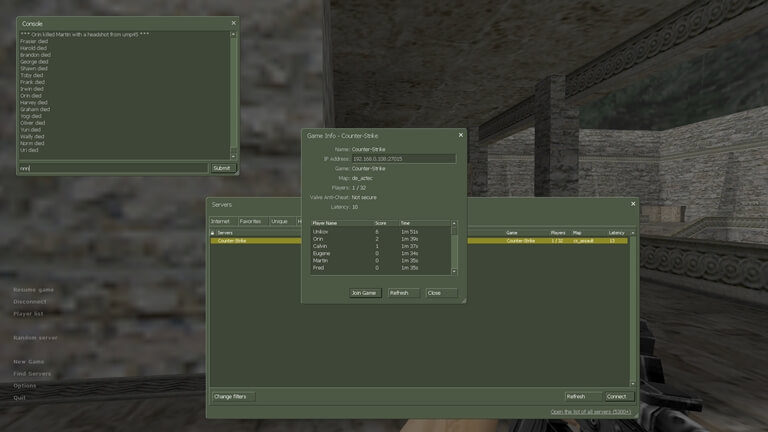
Why Console Commands are the Heart of Counter-Strike 1.6
The console is a portal to professional-level gameplay in the Counter-Strike 1.6 universe; it is more than just a tool. The renowned GoldSrc engine provides you with raw, unadulterated access to its core while current games hide their settings behind glossy menus. With surgical accuracy, you can solve lag, raise your frames, and alter your crosshair. You are starting at a disadvantage if you are not using the console. It’s the difference between being a casual player and a real server dominator. Knowing these lines of material helps you to shape the game into a competitive work of art and get past the constraints of a default installation.
Master the Interface: Basic UI and Control Commands
Before you begin hopping like a bunny or shooting like a god, you have to be at ease in your digital skin. Though these commands will improve your experience, the default settings are sometimes cumbersome and intended for hardware from the late nineties.
- This is absolutely necessary. hud_fastswitch 1 It enables you to change weapons quickly without needing to click your mouse once more. It eliminates that bothersome additional step and can save your life in a flash confrontation.
- Tired of your crosshair expanding to the borders of the screen while moving or jumping? cl_dynamiccrosshair 0 Keep this static by setting it to zero. It always helps you see where the middle of your screen is.
- _cl_autowepswitch 0 – When you pick up a strong weapon, this keeps you from reflexively turning to it. Not dying anymore since you grabbed a FAMAS in a pistol round while trying to shoot by mistake.
- sensitivity 1.5 – Change this value to locate your golden aim. Though it relies on your mouse pad area, most professionals prefer less sensitivity for improved headshot consistency.
- Volume 0.5 – manage the mayhem. While you are listening for footsteps, keep a stray grenade from blowing your eardrums into the following century.
- Setting m_rawinput to 1 guarantees that your actual movement exactly matches the in-game pointer by avoiding Windows mouse acceleration.
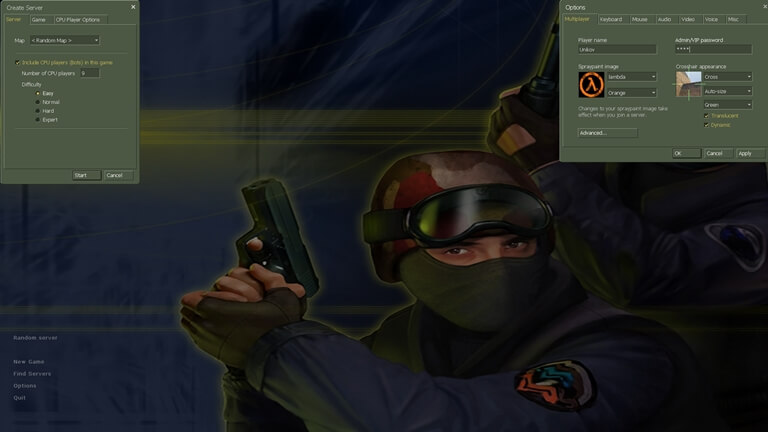
Performance Boost: Commands for Maximum FPS
A stuttering screen ruins the famous de_dust2 atmosphere. To reach that creamy smooth 100 FPS—the gold standard for this engine—you need to contact the engine straight. Here is where the magic happens if you think your game is lagging or the smoke grenades are affecting your performance:
- The holy grail of options is fps_max 101. The framerate of CS 1.6 controls the physics and recoil, with 101 being the ideal to guarantee the best engine operation.
- Developer 0 – Stay off unless you wish for odd physics glitches. Running with high developer numbers might lead to weird movement bugs on some servers.
- cl_weather 0 – Giving you a big performance improvement and far better visibility for sniping, this eliminates rain on maps like de_aztec or snow on de_office.
- r_dynamic 0 – Off dynamic illumination. It keeps your frame rate from dropping when flashes and explosions go off, even if it looks less posh.
- Though it somewhat makes blood and smoke appear somewhat pixelated or heavier, gl_spriteblend 0 greatly increases visibility through the edges of thick smoke plumes.
- gl_vsync 0 – Always turn off vertical sync. It causes significant input lag that would cause your mouse to seem to be moving through honey.
Network Optimization: Reducing Ping and Setting Rates
If your Rates are off, online play in Counter-Strike 1.6 can be a disorganized mess. Have you ever shot someone in the head just to have them teleport three meters away? That is a rate issue. To guarantee that hit registration is as accurate as possible, the aim is to maximize the data flow between you and the server:
- rate 25000: The present benchmark for broadband access. Tells the server the amount of data you can manage. Some high-tick servers let you even reach 100,000.
- The number of packets you get from the server every second, cl_updaterate 101, should fit your fps_max perfectly.
- The number of packets you send to the server is determined by cl_cmdrate 101. Reducing this will make your shots feel delayed,d even if it will assist with choke.
- ex_interp 0.01 – This makes sure that the player models line up with their actual hitboxes. If you set this to 1 (the default), you will often find yourself shooting behind moving targets. So set it correctly, or you will be shooting at ghosts.
Sharpen Your Aim: Commands for Better Shooting
Shooting in this game is a kind of art. It’s addicting but painful. You need a crosshair and a weapon view that won’t take your focus from the assignment at hand if you want to improve your muscle memory:
- cl crosshair size Most players find a small crosshair far more useful for long-range taps and locating that little pixel of a head over a crate.
- crosshair color 250 250 2.50 With RGB values, you can design a unique color. Populcolors ar are white or brilliant green as they stand out against the grey and brown maps.
- cl_bob 0 stops your gun from swaying back and forth while you’re running, which helps you to concentrate on the center of the screen during a rush.
- cl_bobcycle 0 – Maintains the visual experience as static and reliable as feasible by eliminating the weapon view model’s rhythmic motion.
- cl_crosshair_translucent 0 – Makes your crosshair solid. Seeing your target precisely on brilliant maps like de_nuke depends on this.
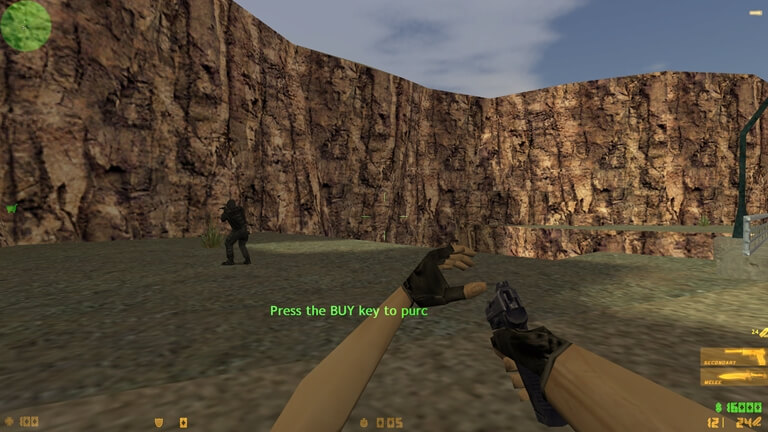
Comfort and Utility: Essential Binds
Efficiency is crucial. Why search menus when one key combination will do everything? Legendary players who can buy a complete kit and leave the spawn in under two seconds have bindings as their secret sauce:
- The traditional bunnyhop bind is mwheelup +jump. Using the scroll wheel rather than the spacebar allows for more fluid movement and much simpler timing of several jumps.
- tie v team_say FALL BACK! – Fast communication can help a round. You may assign any phrase to a key to fit your team’s needs right now.
- bind f Drop – Crucial for quickly distributing weapons to allies during the buy period, free of inventory fumbling.
- Stop cycling across all of your grenades with the 4 key. In the heat of a battle, map each one (flash, smoke, HE) to a certain key for quick access.
- Ensure your tilde key is truly active by rebinding it if your keyboard arrangement is resistant.
Taking Control: Server Administration Commands
You are the god of that environment if you are playing with friends or managing your own server. To maintain the match fair and orderly, you need the official power of the RCON (Remote Console):
- rcon_password Your key to the kingdom, your pass. Enter first here to get entrance to server-side changes.
- rcon sv_reset 1 – Resets the round. Use this following the warm-up and after everyone has joined the server.
- rcon mp_freezetime 0 – For fast-paced practice or aim maps, remove the starting round wait time.
- rcon mp_autoteambalance 0 – Keep the server from separating you and your buddies. Perfect for Clan Wars or 5v5 scrims.
- For someone who chooses to be disruptive or violates the rules, use rcon kick playername.
- rcon mp_startmoney 16000 – This is great for practice rounds where you want everyone to start with full gear.
How to Save Your Perfect Setup: Creating a CFG
You don’t want to type these commands every time you launch the game. That would be a nightmare. Instead, you should create a permanent record of your settings that survives updates and reinstalls.
Step 1: Navigate to your “cstrike” folder (usually inside the Half-Life or SteamApps directory).
Step 2: Find the file named config.cfg. This is where the game saves basic settings.
Step 3: While you can edit this file, it is better to create a new one called userconfig.cfg. The engine is programmed to look for this file automatically.
Step 4: Paste all your favorite commands, rates, and binds into this new file.
Step 5: Save it. Now, every time you start Counter-Strike 1.6, your personal settings will override the defaults.
If your config feels broken or the console won’t open even after editing the files, ensure your game folder is not set to “Read-Only” in Windows. Sometimes, a fresh installation is the only way to clear out years of junk settings and broken scripts. You can find a reliable version where the console works perfectly right here.
Mastering these commands is a rite of passage for anyone serious about the game. It turns a simple shooter into a highly tuned machine that responds to your every whim. Don’t be afraid to experiment – finding your perfect “cfg” is a personal journey that every veteran has taken. Once you have your rates set and your binds ready, the only thing left to do is click heads. Download the game, load your config, and get back into the action where you belong!
Popular on OTW Right Now!



About The Author

Gagan Bhangu
Founder of otechworld.com and managing editor. He is a tech geek, web-developer, and blogger. He holds a master's degree in computer applications and making money online since 2015.