
Animate Your Resume Video with a Confident AI Voice on CapCut PC
It can be difficult to make a resume video if you are not comfortable recording your voice. Speaking on camera or with a mic that has sound can be challenging for most professionals.
However, including voice in your video makes it more personal and clearer. A little narration can tell employers about your skills and work in a way that relates better.
That’s where software such as CapCut desktop video editor comes in. It has clever features that allow you to make your resume come alive without saying a word.
One of them is the AI voice feature, which reads your script in a calm voice. Let’s explore why this works so perfectly and how to do it in just a couple of simple steps.
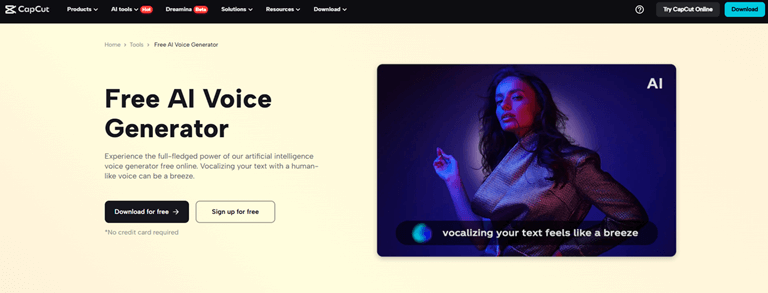
Why Use an AI Voice for Resume Videos
Voice is one of the first things others notice in a video resume. It matches your style and helps deliver your message clearly. But not everyone is comfortable talking on camera.
Some are shy, some have thick accents, and some lack good audio equipment. In these situations, incorporating a strong AI voice generator into your resume video is a clever and easy solution.
It provides your video with a clear and consistent voice. It makes your message delivered calmly and clearly. You are also able to maintain the same tone for every section of your video, adding to a clean and polished touch. It is even better when you include subtitles or brief text slides that complement the voice.
If you are applying via websites such as LinkedIn or your own portfolio website, a voiceover stands out. It provides that little bit of extra professionalism that many hiring committees pay attention to.
Just keep in mind, although the CapCut computer video editor provides you with access to a number of awesome tools, certain tools, like the AI voice generator, might require a paid upgrade. Still, using free tools can provide solid results for most resume videos.
Advantages of Using TTS on Resumes and Portfolio Videos
Using text-to-speech in resume videos gives your content a clean and polished voice. It helps explain your role, skills, and projects in a way that’s easy to follow. There’s no need to worry about noisy surroundings or unclear speech.
It also conserves time. You can rewrite your message, modify some words, and reuse it without recording more audio. This keeps you concentrating on your content rather than repeating the same thing numerous times.
Adding voice, along with subtitles, makes your video easier to understand. This assists viewers who can speak different languages or who have hearing issues.
You can also sync your voice tone with the profession. Use a professional tone for business roles and a more relaxed, casual tone for creative or design positions. To enhance your video’s appearance, try applying an AI video upscaler. It can render your clips or slides sharper, thus giving your video a clean and elegant tone.
Even when you are not experienced in editing, the features of the CapCut desktop video editor are easy to use. With a few clicks, you can design a professional-looking video resume that sounds and appears appropriate for the job that you aspire to.
Steps to Animate a Resume with AI Voice on CapCut PC
Step 1: Install CapCut Desktop Video Editor
Begin by visiting the official website and downloading the CapCut desktop video editor. Make sure to select the PC version.
It has features such as TTS and voice features that might not be available on the mobile app. After installing, open the editor and create a free account.

Step 2: Upload Resume Video or Make a Visual Presentation
Open the editor and tap the Import button. Upload your resume content. This could be a short video, slides, or even motion graphics. Drag your clips into the timeline to begin editing your project.
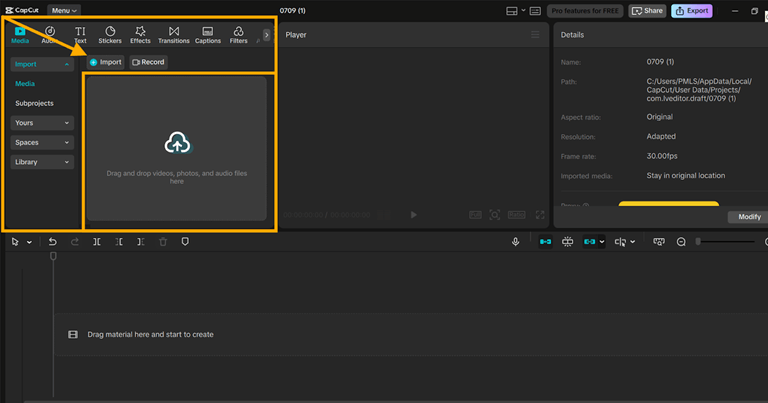
Step 3: Add Text-to-Speech Narration
Click on the Text tab, then the Text-to-Speech (TTS) option. Type out the script or message you want to include in the video. Select a voice appropriate for the tone: formal, authoritative, or concise. You can also place the voice at exact points in the video using the built-in text to speech AI feature.
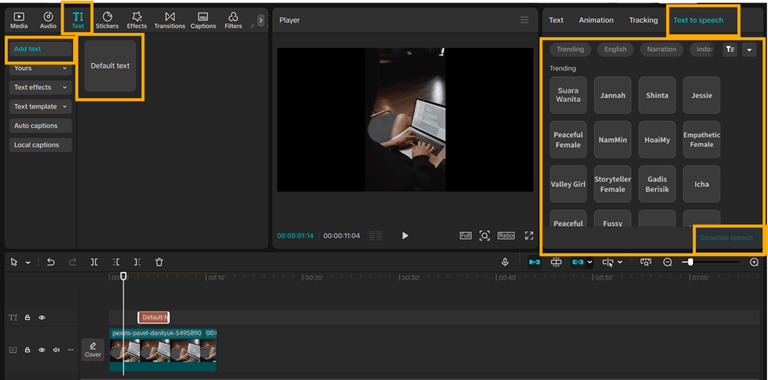
Step 4: Add Subtitles or Visuals
Click on the Captions tab and choose Auto Captions, or enter the text manually. Alter the font, size, or layout to suit your design. If needed, add simple graphics or use transitions to mark sections of your video.
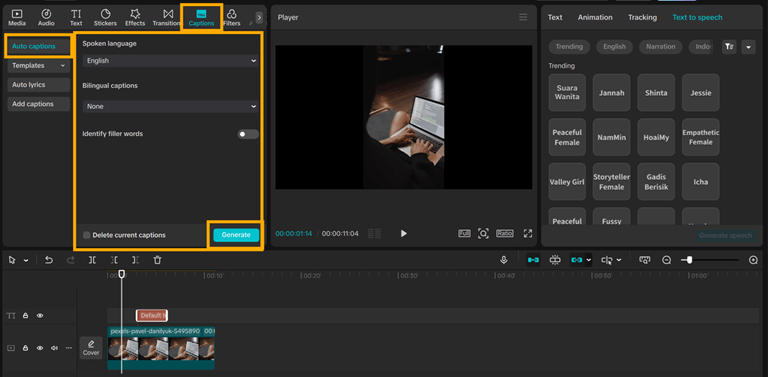
Step 5: Export and Save
After reviewing your edits, click the Export button. Set your video resolution to 1080p or 4K, depending on your needs. Save the video to your PC and share it on job boards, LinkedIn, or your website.
With its voice tools and easy-to-use visual editing, CapCut PC makes your resume videos more understandable and followable.
You don’t have to master complex skills to achieve a professional outcome. Experiment with it now and give a powerful voice to your next career pitch.

Conclusion
You don’t require a microphone or a recording studio to produce a powerful resume video. CapCut PC allows you to utilize capabilities such as the AI voice generator that can provide a clear and confident voice for your content. You can also incorporate text, images, and subtitles that assist you in describing your work in simple and straightforward terms.
Experiment with various voice tones and customize the subtitle design to fit your profession. This helps make your resume feel more personal and easier to follow.
Remember, the CapCut desktop video editor provides access to numerous free tools, but certain voice functions may require a paid subscription.
Begin now. Let your resume video do the talking for you, both visually and concisely, using CapCut PC.
Popular on OTW Right Now!




About The Author

Gagan Bhangu
Founder of otechworld.com and managing editor. He is a tech geek, web-developer, and blogger. He holds a master's degree in computer applications and making money online since 2015.