
How a Tesla-Style Screen Can Modernize Your Ford F-150
Playing music through Bluetooth and having your phone’s maps on the dashboard are two different experiences. An F-150 may handle calls and audio perfectly well while still leaving its owner reaching for a phone to check the next turn.
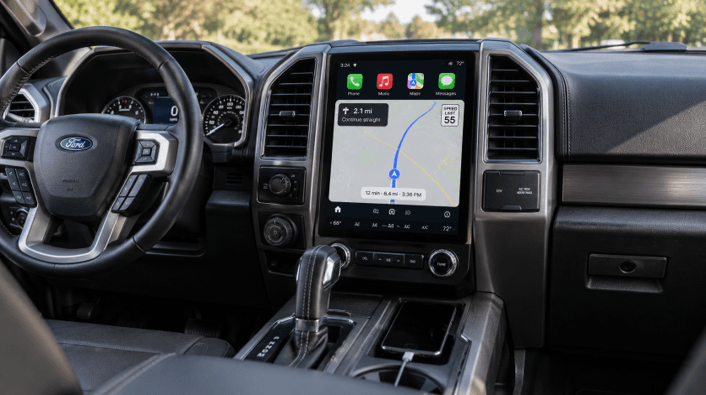
A screen like the one Tesla uses could incorporate navigation, smartphone integration, and a larger interface into the dashboard, and the key point is how these features work with the truck’s existing equipment.
When deciding whether to upgrade, keep three points in mind: what the current system already supports, the difference between an Android-based screen and Android Auto, and the factory functions that must be retained. Once you have those answers, your decision to buy becomes much clearer than it would if you considered screen size alone.
First, Identify What You Want to Improve
Start with the feature that feels uncomfortable in your current setup. For example, do you want phone navigation on the dashboard, a larger map display, or easier access to music and calls? List the two or three modifications that would make a difference when carrying out a normal drive.
First, check the factory system and its settings. If CarPlay or Android Auto already works, the upgrade may be about display size or how well the interface meets your needs. However, if a connection that used to work reliably has become unreliable, it is necessary to check the cable, the connection settings, and the available software updates before considering it a hardware limitation.
This is also useful when requesting advice from a supplier, since describing the problem along with the truck’s year and the existing radio details gives them something specific to evaluate.
What Does a Tesla-Style Screen Actually Add?
The term ‘Tesla-style’ refers to aftermarket displays that have a large touchscreen design. It doesn’t imply that the device runs Tesla software or includes Tesla driving features in a vehicle made by another manufacturer.
For example, Merge Screens’ ford f150 tesla screen is listed for 2009–2026 trucks, with the configuration matched to the vehicle. The range uses Android 13 and supports Apple CarPlay and Android Auto.
That combination offers the owner a number of ways of using the display; the screen runs its own operating system, and a connected phone provides an additional interface for supported apps. Setup and troubleshooting are easier when you know which one you are using.
Android, Android Auto and CarPlay Explained
The names sound related, but they describe different parts of the experience.
| System | What it does | What to check |
| The screen’s Android operating system | Runs the unit’s own interface and compatible apps installed on it | App requirements, storage, and how the unit gets internet access |
| Android Auto | Brings supported apps from a compatible Android phone to the vehicle display | Phone compatibility, permissions, and the wired or wireless connection |
| Apple CarPlay | Provides an interface for supported iPhone apps, including navigation, calls and audio | iPhone setup, supported apps and the receiver’s connection requirements |
An iPhone can therefore work with an Android-based screen when that screen supports CarPlay. The operating system inside the display does not require every driver to use an Android phone.
Likewise, having Android on the screen does not make every installed app available through Android Auto—Apple and Google each support particular apps in their respective vehicle interfaces. Check the specific navigation or music app you want to use and which mode it works in.
For someone who mainly wants familiar maps, calls, and playlists, phone integration may cover most everyday needs. Native apps become a separate consideration when you want the screen itself to handle a specific task.
Choose the Configuration That Fits Your Model Year
The fact that a range of models spanning several generations of F-150 is available doesn’t mean that all the screen options are suitable for every truck; it is necessary to take the dashboard design and the original infotainment equipment into account when making the selection.
The listing for the Merge Screens currently states that the 13.2-inch SYNC 4 Premium screen is the only one available for 2022 and newer trucks, so owners should verify the configuration that is available for their specific year before comparing the screen sizes.
After installation, consider what you can see from the driver’s seat. Check an installation video to see if it shows a dashboard that matches. Evaluate how easy the map is to read, how easy it is to access the controls you use most often, and whether the display fits the available space. The diagonal figure indicates the size of the panel; it doesn’t tell you how comfortable the final installation will feel.
Make Factory Integration Part of the Decision
Make a list of all the equipment that has been fitted to the truck, covering its audio system, cameras, steering-wheel controls and climate controls; also include any modifications made after the original fitting. Ask the supplier to explain how each installation-related function works.
Merge Screens states that its system is compatible with SYNC 2, 3 and 4, with SYNC 1 being replaced. The listing also specifies that the factory radio must be present and functioning; hence, any existing fault with the radio must be dealt with before deciding on this upgrade.
To demonstrate its capabilities usefully, the system should display not only the home screen but also the reversing-camera view, a change of climate setting, an alteration of the audio settings, and a return to the navigation menu. This shows how the various functions fit into a typical drive and indicates which controls you will need to use in order to access them.
Decide How Your Phone and the Screen Will Connect
The product page states that wired CarPlay and Android Auto are provided, with wireless connectivity being available as an optional upgrade. Make sure to mention your preferred method of connection when discussing the configuration.
When using a wired connection, make use of the specified data connection and a suitable USB cable. The fact that a phone is charging does not in itself mean that smartphone integration is functioning. Follow the instructions that come with the unit for the correct port and connection sequence.
When setting up wirelessly, you should check that your phone is compatible and finish the initial pairing while the vehicle is parked. After restarting the vehicle, test the ability to reconnect. If two people frequently use the truck, confirm how to select the desired phone when both are nearby.
Consider internet access separately. Apps that run on a phone or those that operate directly on the screen might be using different types of connections. Determine which device needs data, check whether a hotspot or another available connection is needed, and see whether any extra subscription is involved. A wireless connection to the display does not provide its own internet service.
Set Up the Everyday Essentials Before Your First Trip
When the installation is finished, take the time to set up the functions that you actually intend to use. It’s better to carry out a brief and systematic check than to open every available application.
- Connect your usual phone. Complete the permission prompts and verify that the intended interface opens.
- Start a familiar route while parked. Check the map view, spoken directions, and audio volume.
- Test calls and music. Make a test call while stationary and confirm that both parties can hear clearly.
- Check the truck’s retained functions. Work through the camera, climate controls, steering-wheel buttons, and audio equipment applicable to your configuration.
- Adjust the display. Review brightness, the day and night appearance, and the position of frequently used apps where customization is supported.
Make sure that the instructions for installation and connection are kept available for future reference. When something acts unexpectedly, note whether the issue occurs within the screen’s interface, with CarPlay, through Android Auto, or in the factory system. This distinction gives technical support much more useful information than simply saying the screen isn’t working.
Questions F-150 Owners Often Ask
What about a 2013 or 2014 F-150?
The model years mentioned are within the range stated on the product page. Please provide the original details for the radio, climate control, and audio system before placing your order so the supplier can confirm the correct configuration, using the year as the starting point for that discussion.
Will a bigger screen improve the camera image?
While a bigger screen may make the image easier to see, it won’t on its own improve the detail that the camera captures. To determine whether the outcome meets your expectations, you should examine the actual camera feed and see how it looks on the installed unit.
Can I use the screen mainly for CarPlay or Android Auto?
Yes, as long as your phone and the connection you have chosen are compatible. You don’t need to use every native Android app or feature to make your purchase decision based on what you’ll use regularly.
Conclusion: Build a Dashboard Setup That Works for You
A Tesla-style screen is a practical upgrade for an F-150 owner who wants a bigger interface and easy access to phone navigation, calls, and audio. The best reason for buying is the clear improvement it brings to the tasks you carry out every day.
Before ordering, discuss your truck’s year, factory equipment, and preferred phone connection with Mergescreens. Confirm the available configuration and the full installation requirements, so you know what the finished setup will involve.
Once you’ve made your decisions, the upgrade’s purpose is to put the information and controls you use onto a dashboard that feels familiar. The change is worthwhile because it leads to an easy-to-follow route, a clear call, and a connection that works as expected.
Popular on OTW Right Now!




About The Author

Gagan Bhangu
Founder of otechworld.com and managing editor. He is a tech geek, web-developer, and blogger. He holds a master's degree in computer applications and making money online since 2015.