
DMARC Record Generator: Configure Your Email Policy Fast
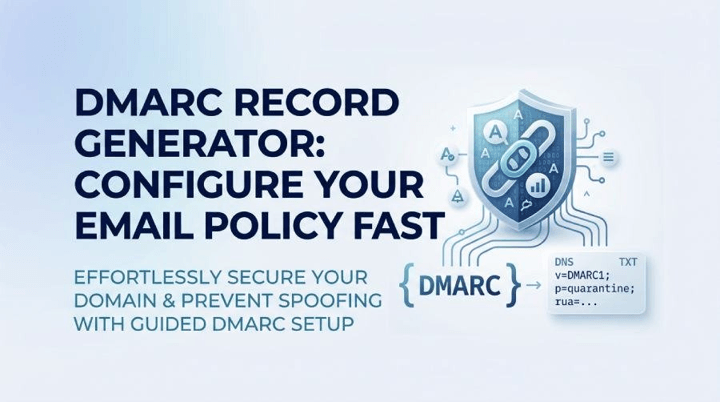
A DMARC record generator simplifies the process of email authentication by allowing you to easily create the appropriate DNS record without having to deal with complicated syntax. Combining DMARC with SPF and DKIM can reduce the risk of domain spoofing, increase your email’s trustworthiness, and give businesses insight into email authentication results. In this guide, you will learn the functionality of DMARC record generators, important tags to enable, how to create, publish, test, and increasingly implement a DMARC policy.
What a DMARC Record Is and Why It Matters
A DMARC record is a TXT record in the DNS that provides instructions to an email receiver on what to do with emails that claim origin from your domain, but don’t pass the authentication tests. DMARC – Domain-based Message Authentication, Reporting, and Conformance- is an extension of the SPF record and DKIM that verifies if email has been properly authorized to use a domain.
DMARC is fundamentally the combination of three important controls: authentication results, domain alignment, and reporting. Upon receipt of email, the email receiver will perform SPF checks and DKIM checks to determine if SPF and DKIM were successful and if the SPF and DKIM results match the visible domain in the “From” field. If the message fails, the next steps depend on the published DMARC policy.
DMARC Protects Your Domain from Abuse
If you don’t have a DMARC policy, it’s easy for an attacker to spoof your domain in phishing attacks, invoice fraud, credential theft, and more. A well-configured DMARC record protects your organization’s customers, employees, partners, and suppliers from malicious email masquerading as your organization.
For Individuals & Small Businesses, DMARC helps increase trust and minimize delivery issues. DMARC is typically integrated into larger email authentication, compliance, and brand protection schemes for organizations and enterprises, Educational Services, and Financial Services. MSPs & IT agencies also use DMARC management practices to keep multiple client domains secure at scale.
Reporting Is the Foundation of DMARC Visibility
You can request two types of reports from a DMARC record: an aggregate report and a forensic report. An aggregate report contains summary-level data for mail streams related to your domain, such as source IPs, SPF and DKIM results, and DMARC alignment. Sometimes referred to as a failure report, a forensic report provides message-level information when authentication fails.
Aggregate reports are typically XML-based, so many teams rely on platforms such as dmarcian, dmarc.io, or a DMARC Management Platform such as DMARCReport.com to process and visualize the data. A forensic or failure report may contain sensitive details, so it should be handled carefully with strong report-processing controls.
How a DMARC Record Generator Simplifies Setup
The DMARC record generator will allow you to generate the proper DNS TXT record without having to remember all the tag, separator, and record syntax rules. You can save the time of writing the record by providing your domain, a DMARC policy, a reporting address, and letting the tool generate the output you can publish into the DNS.
A well-designed DMARC record generator minimizes mistakes, especially for teams new to implementing DMARC. It can also explain each setup option, suggest a safe policy to follow for monitoring, and alert you when you are moving toward quarantine or rejection.
Using a DMARC Wizard for Guided Configuration
A DMARC wizard is particularly helpful as it converts technical parameters into guided questions. There are questions that a DMARC Record Wizard might ask:
- What domain are you protecting?
- Which policy type do you want: none, quarantine, or reject?
- Where should the aggregate report be sent?
- Do you want a forensic report or failure report destination?
- What percentage of email should the DMARC policy apply to?
With tools like MXToolBox SuperTool, DMARC Domain Checker, DMARC Inspector, and dmarcian’s DMARC services, you can easily configure, validate, and monitor your records. Other related utilities include SPF Record Generator, SPF Surveyor, DKIM Inspector, DKIM Validator, BIMI Tools, XML to Human Converter, Alert Central, Delivery Center, API Reference resources, News & Knowledge Blog content, and DKIM Academy training in some ecosystems.
When to Use Manual Edit
Manual editing might be required if you have several reporting destinations, strict subdomain configuration, or advanced mail streams, even if you have a DMARC record generator. The best tools produce record values quickly while also letting the expert administrator set record settings to their preference.
Key DMARC Tags to Configure: p, rua, ruf, pct, and More
A DMARC record consists of tags that identify the actions and reports associated with the DMARC policy. If you want to publish changes to the DMARC record in DNS, it helps to understand these tags and make sure they match what the DMARC record generator produces.
The p Tag: Your DMARC Policy
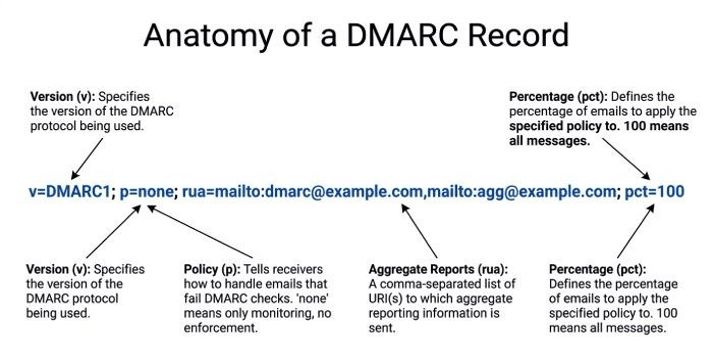
The p tag defines the domain’s main DMARC policy. The three common values are:
- p=none: monitoring only; this none policy requests reports but does not instruct receivers to email.
- p=quarantine: email the email receiver to treat the email as suspicious, often sending it to spam.
- p=reject: tells the email receiver to reject the email during SMTP processing.
Do not implement a DMARC policy until you have identified legitimate email streams and authentication alignment is successful.
The rua Tag: Aggregate Report Destination
The rua tag defines where the aggregate report should be sent. For example:
rua=mailto:dmarc-reports@example.com
This reporting address is an aggregation point for participating mailbox providers for reporting data. Many teams use a DMARC Management Platform, DMARC Data Provider, or an XML-to-Human Converter to interpret and visualize the data, as it’s delivered in an XML-based report format.
The ruf Tag: Forensic and Failure Reports
The ruf tag defines the destination for a forensic report, also known as a failure report. For example:
ruf=mailto:dmarc-failures@example.com
Depending on the email receiver and privacy rules, a forensic report can contain information on an individual failure report. Some receivers do not send a forensic report, and some receivers send only limited failure report data. However, failure report visibility can be valuable for diagnosing spoofing/forwarding problems and authentication deficiencies.
pct and Other Record Parameters
The pct tag determines the ratio of messages that are part of the DMARC policy. For instance, pct=25 means that 25% of email is subject to the policy. Other record parameters are sp, adkim, and aspf.
Step-by-Step: Generating, Publishing, and Testing Your DMARC Record
1. RevEmailurrent Email Authentication
Not all domain names have valid DKIM signing and SPF records, so before using a DMARC record generator, make sure your domain has both. Complete an MX lookup to see which emails are processed, and check outbound senders like Microsoft 365, Google Workspace, CRM systems, marketing automation, billing systems, and support desks.
Several tools can check an email’s health before implementing a DMARC record, such as MXToolBox, SuperTool, DKIM Inspector, DKIM Validator, SPF Surveyor, and a domain checker.
2. Generate Record Values
Generate a DMARC record using a DMARC record generator or DMARC wizard. Begin with a none policy, add your aggregate report address, and then select if you want a forensic report or failure report. If privacy is a concern, restrict forensic reports or send them to a controlled mailbox.
The generator should generate a TXT record in the domain name service for the host:
_dmarc.yourdomain.com
The value will include your DMARC policy, reporting address, and other record parameters.
3. Publish Record in DNS
To notify of record changes, log in to your DNS provider and add a record called _dmarc that contains a TXT record. Copy and paste the generated DMARC record exactly as provided. Do not add any unnecessary spaces, duplicate DMARC records, or incorrect hostnames. Simple DNS formatting errors can cause DMARC to fail.
Validate After Publishing
Once DNS has propagated, use a DNS record checker, DMARC Domain Checker, or DMARC Inspector to check the records. Verify that the DMARC record is present, the record syntax is correct, and that the DMARC policy is the same as the desired setup option.
4. Review Reports and Authentication Results
Your domain should start receiving aggregate reports once live from participating providers. Process reports to interpret the aggregate data, identify sending problems, and identify unauthorized senders. If set up, review forensic report/failure report information for further details on susemailus/misaligned email.
Best Practices for Moving from Monitoring to Enforcement
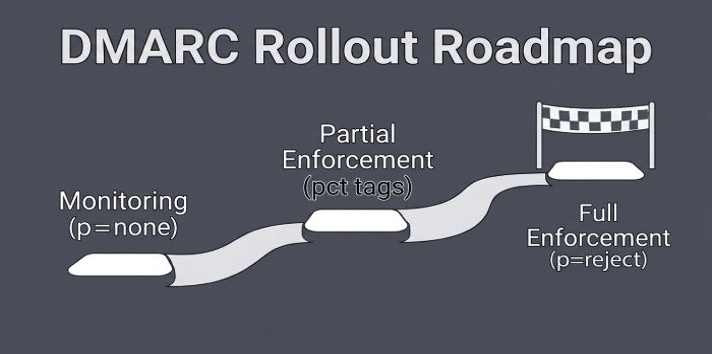
Try to deploy DMARC with the “p” value set to “none” to gather data without interfering with normal email flow. While monitoring, check all aggregate reports, map all approved mail streams, and check SPF/DKIM alignment. Once you get more confident, you can use a DMARC record generator to help you update your DMARC record!
Move from policy to quarantine to rejection. For instance, if p=quarantine and pct=25, then when authentication results are fairly steady, increase to pct=50, pct=75, and pct=100. Once quarantine is successful, quarantine to p=reject to block unauthenticated email that uses your domain.
If you have complex domains, third-party senders, or regulated mail flows, use the DMARC support resources, DMARC consultation, or a DMARC management platform. The right DMARC wizard, coupled with diligent monitoring and record validation, helps safeguard your domain, improve your email health, and minimize the risk of email abuse.
Popular on OTW Right Now!
-
 See It Before It’s Built: How VR Rendering Walkthrough Tours Are Changing Project Visualization
-
 5 Online Beginner Courses with Guided Projects in 2026 That Build Real Portfolio Work
-
 The Future of Personal Tech: 7 Everyday Gadgets That Are Becoming Essential
-
 FICA Calculator: Social Security and Medicare Taxes




About The Author

Gagan Bhangu
Founder of otechworld.com and managing editor. He is a tech geek, web-developer, and blogger. He holds a master's degree in computer applications and making money online since 2015.