
How Multilingual Users Can Set Up Telegram in Chinese Across Windows, Android, and iPhone
Chinese language setup workflow across Windows, Android, and iPhone
Messaging applications are used across borders, devices, and languages. A person may communicate in Chinese on a smartphone, work in English on a Windows computer, and use another system language on a tablet. This multilingual environment can make a messaging app feel inconsistent, especially when the interface language differs from one device to another.
Telegram can be used on mobile, desktop, and web, but the language options might be different on each version. Certain settings, their location, and supported language options might differ depending on the operating system, app version, and kind of installation.
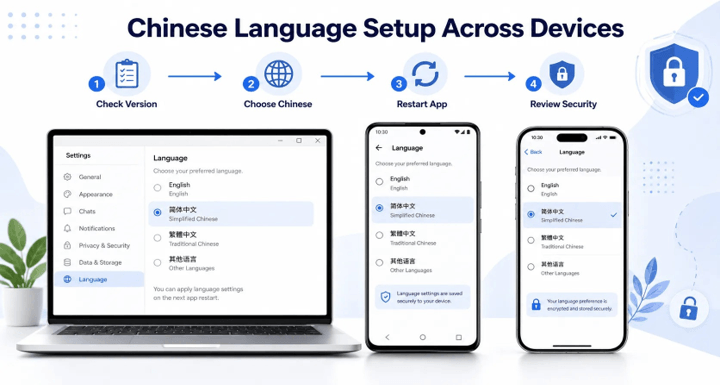
If the user wishes to change toa Chinese language interface, the best way to do it is to check the version of the app first, switch to Chinese language on each device, and to check security and privacy settings. That process can be done across Windows, Android, and iPhone without using untrusted installers or even befuddling third-party changes.
Check the App Version Before Changing the Language
Check the version of Telegram before searching for language settings. An outdated version could have a different menu structure, be missing recently updated translations, or have different behavior than instructions for a newer version.
If you’re using a smartphone, look at the app info in the official App Store or in the application settings. To find the version number on Windows, go to the Telegram settings and search for it there, or you can go to Windows settings and find the application entry there.
It is also essential to check if the Windows installation was done from the Microsoft Store or from a Desktop Installer. These versions can be updated via various routes, and users sometimes install both versions without their knowledge. This means that a desktop shortcut might be activated that opens an older version of the program, but another version of the program is still installed somewhere else on the computer.
Before updating or reinstalling the application:
- Confirm that the account is still accessible.
- Check that the registered phone number is active.
- Review any important downloaded files.
- Close Telegram completely before installing an update.
- Avoid downloading executable files from pop-up advertisements or unfamiliar mirrors.
Users looking for a structured overview of Chinese-language access and device options can consult a reference such as Telegram 中文版 before comparing the settings available on their own installations.
A language guide should be treated as a configuration reference rather than proof that a particular installer is official. The source of the application itself should always be verified separately.
Change the Language on Android and iPhone.
On Android and iPhone, the language option is generally located inside Telegram’s settings. The exact wording and menu arrangement may differ between platforms or versions, but the process usually follows a similar pattern:
- Open Telegram.
- Open the main Settings section.
- Find the Language option.
- Review the available languages.
- Select the preferred Chinese option when available.
- Close and reopen the application if the interface does not update immediately.
Users can view simplified Chinese, traditional Chinese, or Chinese depending on the version and language resources, or view a language pack applied by a translation link. Some options may not be available in every application, so users should use the ones that are available in their own application and not assume that these are available on all devices.
After changing the language, review several parts of the interface:
- Main navigation labels
- Privacy and Security settings
- Notification controls
- Chat and group menus
- File download settings
- Date and time formatting
There will be a time period where some text is still in English. This could occur when a new feature is launched prior to all translation strings. Failure to change the language setting does NOT necessarily mean that the language setting failed to change.
In addition, users should also consider the app interface language as well as the phone’s keyboard language. You cannot automatically switch the Telegram app from English to Chinese by changing its language. Switching the app language from English to Chinese won’t automatically add a Chinese keyboard. Control of the keyboard is handled by the Android or iOS settings.
Configure the Chinese Interface on Windows
The Windows version needs to be looked at separately, as often the desktop settings are different to that of the phone.
Start Telegram Desktop and navigate to Settings. Find the Language option and read through the options. Once you choose your desired language, refresh the desktop application if certain menus don’t change instantly.
If the language doesn’t seem to change, make sure thatthere ise more than one Telegram installation on the computer. Common possibilities include:
- A Microsoft Store installation
- A standalone Telegram Desktop installation
- A portable version stored in another folder
- An old shortcut linked to a previous installation
- A modified or unofficial desktop client
To determine the active version, right-click the icon of the application being used or check the application’s installation folder with Windows. Only delete old shortcuts if you’re sure that the correct account configuration and downloaded files are in that installation.
After the setup of the interface, Windows users need to check the download folder for any additional data that may have been downloaded. Documents, photos, videos, archive files, and voice files can be stored with messaging apps over time. These files will be stored in a dedicated Telegram folder and will be easier to manage, minimizing the chance of personal files being mixed with work files.
The change of the Windows display language will not affect Telegram. Application language is different than operating-system language, and it is usually controlled separately.
Keep Language Settings Consistent Across Devices
Telegram accounts can be used on several devices, but many interface preferences remain local to each installation. This means that changing the language on Android may not automatically change it on Windows or iPhone.
A practical cross-device setup process is:
- Update each Telegram installation.
- Check the language separately on every device.
- Restart each application after making changes.
- Compare privacy settings and notification behavior.
- Confirm that the correct account is active.
- Remove old sessions that are no longer needed.
A detailed Telegram 中文设置 reference can help multilingual users organize the relevant steps before configuring separate mobile and desktop installations.
For families, international teams, and users who frequently switch between Chinese and English, language consistency is very helpful. Having the same interface terms for each device makes privacy controls easier to find, sharing steps with another more straightforward, and troubleshooting is easier when problems occur with the account.
Users are advised not to make simultaneous changes to several settings. When you change all at once, it’s hard to see what part of the change is responsible for the unexpected effect if the language, download folder, notification rules, and/or privacy options are all changed at the same time. Set up one category at a time and test it before going on.
Fix Missing or Incorrect Chinese Language Options
Language settings do not always work as expected. The following checks can resolve many common problems.
The Chinese Option Does Not Appear
Update Telegram via the installation source used. Restart the phone/computer, and view the language menu again.
If it is not available, check if the app is a legitimate Telegram app or not. Clients might be modified, have partial translations, or perhaps not support a language pack.
If users are using a CLP, they should check the source of the link. A language link should not ask for a password, SMS code, payment, or installation of any other application.
The Interface Returns to English
This may happen after reinstalling the application, switching to another local installation, resetting app data, or opening a different desktop shortcut.
Check the following:
- Whether the correct account is open
- Whether the application was recently reinstalled
- Whether a system-cleaning tool removed local settings
- Whether the computer has multiple Telegram versions
- Whether the language choice was fully applied before closing the app
Set the language again and close the application normally. Then reopen it from the confirmed shortcut.
Only Part of the Interface Is Translated
Partial translation is possible if the newly released features have not been fully covered in the language. There may also be some text generated by the system, bot messages, website pages, and linked pages that aren’t translated.
Do not install new language packs again and again just because some labels are not translated by the language pack. Identify if the untranslated text is from Telegram’s interface, OS, bot, or external page.
Verify Download Sources and Avoid Fake Pages
Fake download sites often imitate popular messaging services. The pages might be branded and have the same colors as the original website, or they may have a number of large download buttons that bewilder the visitor.
Before downloading or reinstalling Telegram:
- Inspect the full domain name.
- Confirm that the connection uses HTTPS.
- Check where each download button leads.
- Avoid pages that open several advertising tabs.
- Do not run unknown EXE, APK, ZIP, or RAR files.
- Be cautious when a page claims that a “special Chinese edition” is required.
- Never provide a login code to a download website or support agent.
The ranking of a page does not indicate that it is an official one. Search results can be preceded by advertisements, and third-party download sites might have titles that contain the words “official,” “verified,” or “secure”.
When running an installer on Windows, verify the publisher and digital signature. On Android, do not allow any sources other than trusted ones unless it has a specific and trusted need. If you’re using an iPhone, install the App Store app, and skip any configurations from websites you don’t know.
The language setting of the interface should not affect the security settings.
Review Privacy and Security Settings After Setup
When the interface is able to be understood, take a moment to check the security settings of the account.
Use 2-factor authentication. This enhances the login code by adding a password, making it harder to be able to access without permission. Set a good, distinct password and keep a recovery option for your account.
Then check active devices/session. Take out old phones, shared computers, or browsers that are no longer used. This is particularly important after logging into the temporary computer or lost device.
Other useful settings to review include:
- Phone-number visibility
- Profile-photo visibility
- Group and channel invitation permissions
- Automatic media downloads
- Passcode or biometric locking
- Call permissions
- Forwarded-message attribution
- Login alerts
Don’t give a Telegram login code to anyone. A legitimate contact, administrator, seller, or support member will not require the code needed to access an account.
When using a shared Windows computer: Sign out and delete private files that have been downloaded locally. Just closing the app may leave the account open to the next person who logs in to the device.
Final Cross-Device Checklist
- Telegram was obtained through a trusted source.
- The application is updated on every device.
- The preferred Chinese language is selected separately on mobile and desktop.
- Old or duplicate Windows installations have been identified.
- The interface remains correct after restarting the application.
- Download folders and automatic media settings have been reviewed.
- Two-step verification is enabled.
- Unused active sessions have been terminated.
- Login codes have not been shared with anyone.
- Privacy settings match the user’s communication needs.
Conclusion
You can’t just click on the language button to switch to Chinese Telegram in Windows, Android, and iPhone. There can be different local preferences, menus, and update channels for each installation.
The best way to do this is to check the source of the application, update all installations, set the language for each device separately, and then check the privacy and security settings. Also be wary of sites that claim that unofficial installers are required as Chinese versions.
Having a consistent interface, particularly for multilingual users and users who log in to the same account from various devices, can simplify the usage of Telegram. But convenience should never be overlooked; source verification, password protection, and careful session management should never be ignored.
Popular on OTW Right Now!




About The Author

Gagan Bhangu
Founder of otechworld.com and managing editor. He is a tech geek, web-developer, and blogger. He holds a master's degree in computer applications and making money online since 2015.