
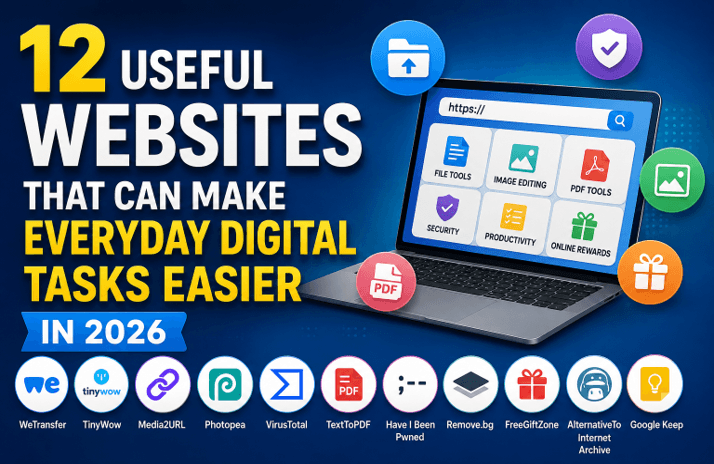
12 Useful Websites That Can Make Everyday Digital Tasks Easier in 2026
A surprising amount of everyday computer work now happens inside a browser. Something as small as sending a large file, editing a photo, checking a suspicious link, or turning written content into a PDF once required separate software. Today, many of these jobs can be completed through a website without installing another application on your computer.
The difficult part is no longer finding an online tool. There are thousands of them, and many seem to offer almost the same thing. The more useful websites are usually the ones that solve a clear problem without making a simple job unnecessarily complicated.
The websites below cover different situations rather than one specific type of work. Some help with files and documents, while others are useful for security, images, research, software discovery, or online rewards.
1. TinyWow for Small File and Document Tasks
There are times when you only need to make one small change to a file. Installing a large desktop application for a job that may take less than a minute rarely makes sense. TinyWow brings a collection of common file, document, image, and PDF utilities into a website that you can access through a browser.
It can be useful when you occasionally need to convert a document, work with a PDF, resize an image, or complete another small file related task. Instead of keeping several applications installed for jobs you rarely perform, you can open the relevant tool when you actually need it.
This type of website is especially practical on a computer where you cannot install new software, such as a work machine, shared computer, or temporary device.
2. WeTransfer for Sending Large Files
Email works well for normal documents and small attachments, but it quickly becomes inconvenient when a file grows larger. Videos, design files, project folders, and collections of high-resolution images can easily exceed the attachment limits used by email services.
WeTransfer provides a simple way to send larger files to another person without trying to squeeze them into an email attachment. You upload the files, prepare the transfer, and the recipient receives a way to access them.
It is useful when the main goal is transferring a file from one person to another. That is different from hosting a file because another website needs a usable URL, which is where a service designed specifically for media links becomes more suitable.
3. Media2URL for Turning Local Media Into Shareable URLs
A file saved on your computer is not always useful on the web by itself. You may have an image, PDF, video, GIF, or audio file ready to use, but another website may ask you to provide a URL instead of uploading the original file directly.
Media2URL is designed for this situation. You can upload common types of media and create a link that can then be shared or used wherever a web address is required. This is useful when you need to move something from local storage into a form that another website, client, forum, or online project can access.
The distinction between file transfer and media hosting is useful here. A transfer service is normally suitable when another person simply needs to receive a file. A media hosting service becomes more practical when the link itself is part of the workflow and may need to be copied, shared, embedded, or used later.
4. Photopea for Editing Images in a Browser
Basic image editing often begins with a small request. A photo needs to be cropped, some text has to be added, a layer needs adjustment, or an image needs to be prepared before it is uploaded somewhere else.
Photopea brings a fairly capable image editing environment into the browser. It is especially useful when you need editing controls that go beyond the simple crop and resize options found in many lightweight image tools.
Someone who works across different computers may also find this convenient because the editing environment is available through a website rather than depending on one installed program. For occasional work, that can remove the need to install a large editing application simply to make a few changes.
5. VirusTotal for Checking an Unfamiliar File or Link
Suspicious downloads and unfamiliar links are common enough that opening everything without checking it first is not a good habit. A file may arrive through email, a messaging application, a forum, or a download page that you have never used before.
VirusTotal allows you to submit a file or URL for analysis using information from multiple security systems. It can provide useful warning signals when something appears suspicious.
A clean result should not be treated as an absolute guarantee that something is safe. Security tools have limits, and new threats may not always be recognised immediately. It is better to use the result as one part of your decision along with where the file came from and whether you expected to receive it.
6. TextToPDF for Creating PDF Files From Written Content
PDF files remain common for assignments, reports, invoices, instructions, printable documents, and information that needs to keep a predictable layout. The problem is that creating a simple PDF can sometimes feel unnecessarily complicated when the computer does not already have suitable software installed.
TextToPDF gives you a way to work with text and PDF related tasks through a browser. When the main job is turning written content into a PDF, opening a specialised online tool can be quicker than installing a complete desktop PDF application for one small task.
This can be useful on shared computers or devices where you want to complete the job without changing the software setup. It also makes sense when PDF work is occasional and you do not need a large professional document suite sitting on the computer all the time.
7. Have I Been Pwned for Checking Known Data Breach Exposure
People often reuse the same email address across shopping websites, applications, forums, newsletters, and online services. When one of those services suffers a data breach, the email address connected with the account may appear in exposed data.
Have I Been Pwned lets you check whether an email address has appeared in known breach records. Finding an address there does not automatically mean someone currently has access to your accounts, but it gives you a reason to review the affected services more carefully.
A sensible response is to change passwords on affected accounts and avoid using the same password across different services. Enabling an additional sign in verification method where available also gives an account another layer of protection if a password is ever exposed.
8. Remove.bg for Removing a Photo Background
Removing a background sounds simple until you try to do it manually around hair, clothing, objects, and uneven edges. For a quick graphic or product image, spending time drawing around every part of the subject may not be worth the effort.
Remove.bg is built around automating much of that process. You upload an image and the service attempts to separate the main subject from the existing background.
This can help with product photographs, profile pictures, presentation graphics, and simple social media images. You should still inspect the final edges before using the image because automatic background removal can struggle with transparent objects, fine hair, or areas where the subject and background have similar colours.
9. FreeGiftZone for People Interested in Online Rewards
Not every useful website needs to be about work or productivity. People who regularly use Android applications and Google Play may also be interested in reward programs, promotional opportunities, and information about earning digital rewards.
FreeGiftZone focuses on its own reward ecosystem along with Google Play reward related content. It is aimed at users who are already interested in this part of the Android and digital rewards space rather than people looking for a general productivity service.
Reward websites should always be approached with clear expectations. Read the participation rules before spending time on an activity, understand what qualifies for a reward, and avoid assuming that every online promotion works in the same way. That makes it easier to judge whether a particular opportunity is useful for you before taking part.
10. AlternativeTo for Finding Different Software Options
Finding an application that performs a certain job is easy when you already know its name. The harder situation comes when the application you use becomes expensive, stops supporting your operating system, or simply no longer suits the way you work.
AlternativeTo helps you discover other software that performs a similar function. You can start with an application you already know and explore alternatives that may work on another platform or follow a different pricing model.
This is particularly useful before purchasing software because it gives you a wider view of the available choices. The most popular alternative is not automatically the best one, so it is still worth checking features, pricing, privacy practices, and current user feedback before moving your work to another application.
11. Internet Archive for Finding Older Web Content
Websites change constantly. Pages are redesigned, articles disappear, old resources are removed, and sometimes an entire website goes offline. That can become a problem when you are trying to find information you remember seeing months or years ago.
The Internet Archive keeps historical material from different parts of the web through projects such as the Wayback Machine. When an older page has been captured, you may be able to view a version from an earlier date.
This is useful for research, checking how a website looked in the past, or locating information that is no longer available on the current version of a site. Not every page or every date is archived, so it should not be treated as a guaranteed backup of everything published online.
12. Google Keep for Quick Notes and Everyday Information
Not every productivity problem needs a complicated project management system. Sometimes you only need somewhere to save a thought, keep a short list, store a useful link, or remember something you need later.
Google Keep works well for these smaller tasks because notes remain simple and easy to access. You can use it for shopping lists, work reminders, short pieces of information, or ideas that would otherwise disappear into random messages and browser tabs.
Its main advantage is simplicity. If your work requires detailed project planning, complex document organisation, or large team workflows, another tool may be more suitable. For everyday notes, keeping the system uncomplicated can actually make it easier to continue using it.
Quick Comparison of the 12 Websites
| Website | Useful when you need to |
| TinyWow | Complete small file or document tasks |
| WeTransfer | Send large files to another person |
| Media2URL | Turn local media files into shareable URLs |
| Photopea | Edit images through a browser |
| VirusTotal | Examine unfamiliar files or links |
| TextToPDF | Create and work with PDF content |
| Have I Been Pwned | Check known data breach exposure |
| Remove.bg | Remove a background from an image |
| FreeGiftZone | Explore online reward related content |
| AlternativeTo | Find alternatives to familiar software |
| Internet Archive | Look for older versions of web pages |
| Google Keep | Save notes and simple everyday information |
Choosing the Right Website for the Job
Several websites can appear similar until you look at the exact problem they are trying to solve. Sending a large video to a colleague is different from creating a URL for the same video, even though both situations involve the same file. In the same way, editing a PDF and creating a PDF from written content are related tasks but may require completely different tools.
Start by identifying what needs to happen to the file or information you already have. If another person only needs to receive a file, use a service designed for transferring files. If another website specifically asks for a URL, a media hosting service is the more suitable choice because the link itself becomes part of the task.
The same approach works for the rest of the tools in this list. Choosing a website because it solves the exact problem in front of you usually gives a better result than choosing the service with the longest feature list.
Check a Few Things Before Uploading Files to an Online Tool
Browser tools are convenient because they remove installation work, but uploading a file also means giving a website access to that file for some part of the process. That is not a major concern for an ordinary image or public document, but the decision deserves more thought when the file contains private or sensitive information.
Before uploading something important, it helps to check four things:
- Look at what the file contains. A public image and a document containing personal records do not carry the same privacy risk.
- Read how the service handles uploaded files. Storage and deletion practices can differ between websites, so you should understand what happens after the task is complete.
- Confirm that you are using the genuine website. Similar domain names and copied pages can make an unfamiliar tool look more trustworthy than it really is.
- Keep a local copy of anything important. An online utility should not become the only place where an important document or media file exists.
These checks take very little time and can prevent a convenient tool from becoming an unnecessary privacy or file recovery problem.
Final Thoughts
The browser has gradually become a practical workspace rather than just a place for reading websites. Many small jobs that once required separate programs can now be completed through specialised online tools, which is especially convenient when you are working on a temporary device or only need a particular function occasionally.
The best approach is not to collect as many tools as possible. Keep a few reliable options for the tasks you actually perform, understand what each website is designed to do, and choose the one that matches the job in front of you. That usually saves more time than trying to make one tool handle everything.
Popular on OTW Right Now!




About The Author

Gagan Bhangu
Founder of otechworld.com and managing editor. He is a tech geek, web-developer, and blogger. He holds a master's degree in computer applications and making money online since 2015.