
Transform Dry Lectures into Engaging Lessons Using Free Audio Tools
Digital learners today demand more than just facts; they want a whole experience. Your voice counts more than ever if you’re teaching online, making training modules, or posting instructional content on social media. If your lectures sound flat or robotic, people will stop paying attention in just a few minutes. That’s where CapCut Web comes in. It’s a free, web-based creative tool that can help you change the way your lessons sound, look, and feel. CapCut Web’s text to audio free tool makes it easy for teachers to stay interesting, clear, and professional. Features like subtle voice changes and creative AI video editing also help teachers create engaging content for their students.
Why does flat audio kill even great content?
Even the best lesson can sound boring if the speaker doesn’t sound interested. If you speak in a monotone voice, have background noise, or don’t show any emotion, you can make important information sound like noise. To keep students engaged, today’s learners require explicit, emotionally charged, and fast-paced content. That’s where innovative audio tools come in; they let you customize your message with warmth, tone, and polish. You can transform your voice from weak to intense and your lectures from boring to exciting with just a few adjustments.
Create high-quality voiceovers in minutes with CapCut Web’s text-to-audio
Lectures that are dry and read aloud typically don’t capture people’s attention. But what if you could instantly turn your writing into lively audio? You can achieve that with CapCut Web’s text-to-speech tool. This function converts your script into smooth, natural-sounding narration using AI-generated voices, whether you’re preparing for an online class, an e-learning module, or a tutorial. The steps to using this tool are listed below.
Step 1: Upload your text
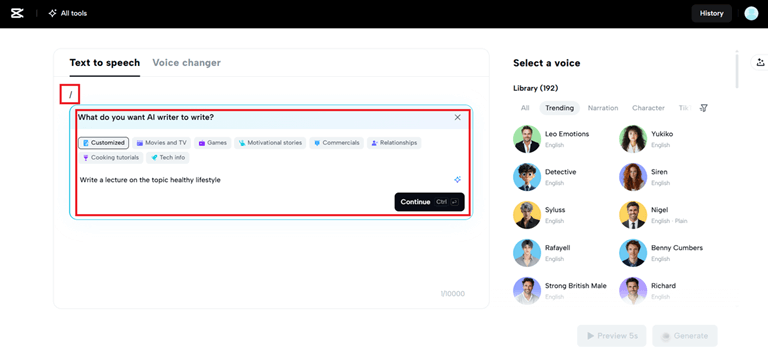
To get started, log in to CapCut Web and go to the Text-to-Speech area. You can either copy and paste your lecture script into the box or click the “/” icon to let AI assist you in writing a new, instructive lecture script based on a simple prompt or topic idea. Click “Continue” to proceed and record the voiceover once you’re satisfied with your work.
Step 2: Pick an AI voice that sounds natural
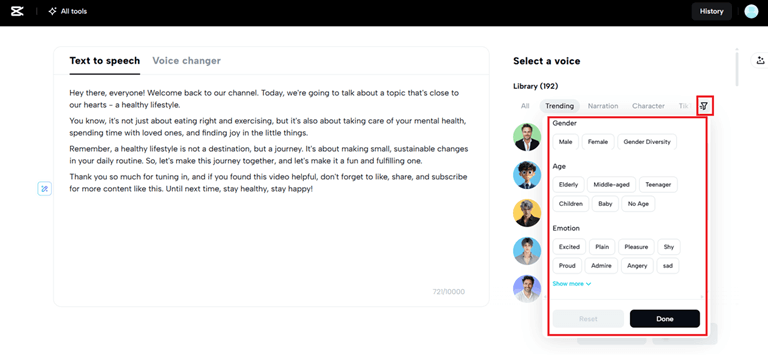
CapCut Web has a lot of different AI voices to choose from, so you can find one that fits your teaching style, whether you want a calm, professional voice or a more lively one. To find alternatives based on language, gender, tone, emotion, accent, or age, click on the voice filter icon on the right panel. This will help ensure your audio aligns with the mood of your lesson. When you’ve found the perfect voice, click “Done” to save it and get ready to hear your lecture narration sound natural.
Step 3: Fine-tune the voice with speed and pitch
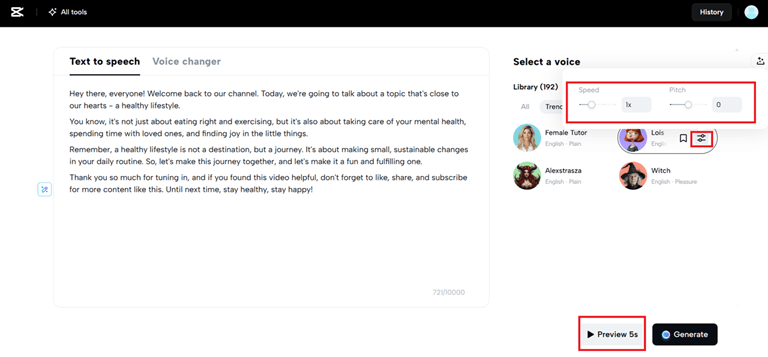
You can use easy sliders to change the speed and pitch of your voice after you’ve chosen it. This will make it sound exactly right for your podcast. Click “Preview 5s” at the bottom to hear a short sample and see if it fits the tone and goes well with the written text before you finish the voice.
Step 4: Generate and download your podcast audio
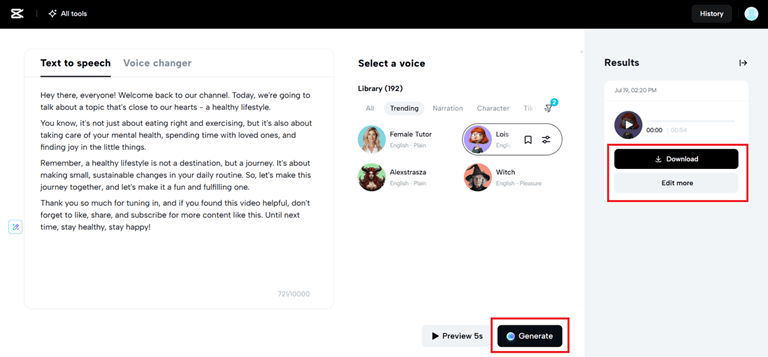
When everything sounds good, click “Generate” to make a clean audio file of your script. The AI completes its task in just a few seconds. You can choose between “Download” and “Edit more.” If you only want the voiceover for your podcast, click “Audio only” under Download. If you require synced text for repurposing, choose “Audio with captions.” Do you want to change things or make them into a video podcast? To go back in and make final changes, tap “Edit more.”
Boost the energy of your lectures using CapCut Web’s voice changer
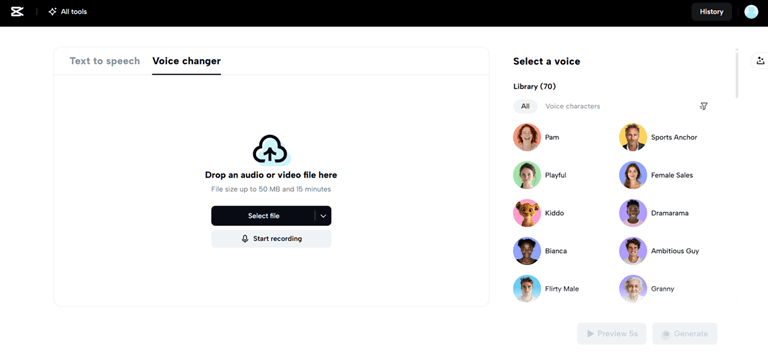
You don’t have to start again if you’ve already recorded your lecture and it sounds boring or overly monotone. CapCut Web’s voice changer allows you to instantly adjust the tone, pitch, and character of your voice, giving your audio a distinctive sound. This tool makes it easy to fine-tune your narration, whether you want it to be more impassioned, softer, or just clearer and easier to listen to. It’s great for teachers who wish to make their pre-recorded lessons more engaging and lively, especially when teaching challenging subjects. Students will be able to connect with your subject far better with just a few minor tweaks.
Bring your lessons to life with CapCut Web’s AI video editor
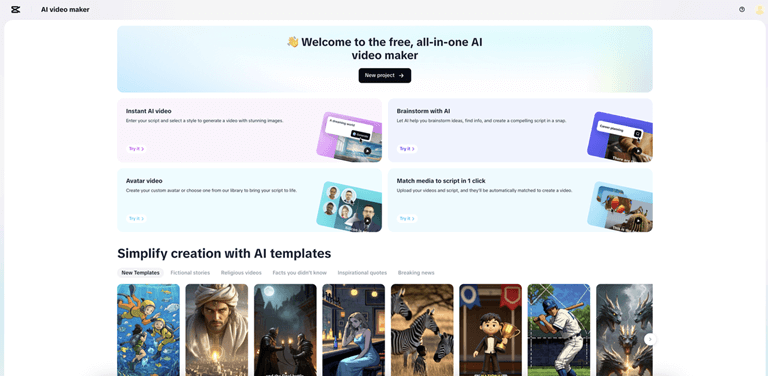
Now that your audio lesson is ready, you need to choose graphics that really grab people’s attention. That’s when the AI video editor in CapCut Web takes control. This application enables you to create professional-looking, dynamic videos in just a few minutes, rather than spending hours learning to use complicated software. Add dynamic text, visual cues, transitions, and subtitles that automatically sync with your voiceover to enhance your presentation. The AI even proposes changes to the arrangement and cuts to make sure your lesson goes smoothly. CapCut’s AI video editor turns static courses into interactive visual storytelling, whether you’re using slides, diagrams, or just a voiceover. This is great for remote learning, tutorials, or even YouTube classes. It’s the simplest method to turn boring lectures into practical lessons.
Final takeaway
In the fast-paced world of digital learning today, how you educate is just as essential as what you teach. You can quickly turn your scripts into professional voiceovers that sound crisp and polished with technologies like CapCut Web’s text-to-audio feature. Have you already recorded your lecture? Without having to record again, the voice changer may add life, tone, and excitement. The AI video editor allows you to make dynamic, attention-grabbing courses without needing to know how to edit. When you’re ready to make it all a complete visual experience, it does all the work for you.
Want to make boring lectures into engaging digital content? Try CapCut Web today and start making classes that people will want to finish.
Popular on OTW Right Now!



About The Author

Gagan Bhangu
Founder of otechworld.com and managing editor. He is a tech geek, web-developer, and blogger. He holds a master's degree in computer applications and making money online since 2015.