
Recover Deleted Downloads on Windows with Drecov
A download list in a browser may make a missing file appear easier to locate than it actually is. You’ll recall having downloaded a PDF, an installer, or a collection of images. The browser will still display the entry, but if you click on it an error message will appear since the local copy has vanished. Before going through the trouble of downloading all the files once more, check whether the file has been moved, deleted, or was never saved in the place you expected.
The guide starts by recommending the least disruptive method. You should first check the browser and the Windows folders for a backup or the original file and only scan the local drive when you are certain that the file is actually missing. The key rule is this: if there is any possibility that you may need to recover data that has been deleted from a drive, you should stop writing new data to that drive.
A Download Entry Is Not the File
Browsers such as Chrome and Edge maintain a record of downloads that can remain even after the file has been moved or deleted. The presence of a filename in the browser does not mean that the actual data is still located in your Downloads folder. On the other hand, the absence of an entry in the download history does not prove that the file has been deleted; clearing the browser history typically alters the record but not the saved file.
Go to the browser’s Downloads page and, if the option to view the files in the folder is provided, use it. If that doesn’t work, record the filename, the source website, and the approximate date of the download. Doing so will enable the Windows search program and any subsequent recovery scan to work more quickly. In the case where the source was a legitimate account portal, see whether the file can be downloaded once again. It is generally better to re-download a public manual or receipt than to carry out a recovery scan.
Find the File Before Treating It as Deleted
Begin by using File Explorer; go to Downloads in your user profile and then carry out a search of the entire computer for the filename. Also try the file extension, such as .pdf, .docx, .zip, .jpg, or the one that corresponds to the missing file. Order the search results by the date they were last modified. Since some browsers and various applications save files to custom folders, it’s possible that the user has moved the file while organizing their files.
Check the browser’s download settings next. Both Chrome and Edge have the option of saving files to a folder you select or asking where each file should be saved. If the browser is set up to save files onto an external drive, then you should reconnect that device and search it without adding any new files. Additionally, a shared family PC might have more than one Windows user profile, each of which has its own Downloads folder.
When a file was received via email, from a cloud storage service, through a chat application, or from a work portal, check the original source. Both OneDrive, Google Drive, and the various collaboration tools might also contain earlier versions or their own recycle bin copies. It is not possible to assume that a file which has been stored only in a cloud account was at any time written to the local disk, since local recovery software cannot recover bytes that were never stored there.
Check the Windows Recycle Bin
To open the Recycle Bin, you can search for the item by name or sort the entries by date of deletion; if the item appears, select Restore and then check that it opens. In some cases, Windows will skip the Recycle Bin when dealing with an extremely large file or one that has been deleted from a removable drive. Therefore, the fact that the file is not in the Recycle Bin does not mean the question is settled.
Look for Copies and Versions
A backup feature called Windows File History or a cloud-synced folder might hold a duplicate copy. When searching for a file, it is necessary to use both its content type and the date rather than relying solely on the filename, since downloaded files usually have general names like ‘document(2).pdf’. If a file opens but has the wrong contents, check the original service to see whether a more recent or older version is available before searching the disk.
Avoid Overwriting the Missing Download
If the file had actually been deleted from the local drive and can no longer be downloaded, then you should reduce activity on the source volume. All operations such as downloading files, installing programs, updating the browser cache, and carrying out Windows updates involve writing new data; this can cause the storage space which previously contained the missing file to be overwritten. The danger is particularly urgent in the case of SSDs since TRIM and background maintenance may make the deleted data unavailable. None of the recovery tools can guarantee that the process can be reversed.
You should not install a recovery program on the partition that used to contain the file. In the case where the missing item was on `C:`, use a different good drive or, if the file is particularly important, connect the source drive to a second computer and carry out the recovery from there. It is necessary to avoid using disk cleanup or repair programs before you have secured the data that you need.
There is also a security question: if an installer or an archive disappears after a security warning, you should check your antivirus records before restoring it. You should not revert a malicious file that has been quarantined merely because its name appears on a browser list. Software should only be redownloaded from its official publisher.
When Drecov Fits
When a local copy exists, the source drive remains stable, and the simpler checks fail, PandaOffice Drecov can search for recoverable files on Windows storage. It supports internal hard drives, external drives, USB drives, and memory cards, and can locate common document, image, video, audio, archive, and email formats. Its scan is read-only, so the scan itself does not intentionally modify the selected source.
Quick Scan is appropriate for files that have recently been deleted, while Deep Scan carries out a more thorough search whenever the first scan fails to find the item or the file system records are damaged. The program allows you to preview files that it supports and also to pause or resume longer scans; these facilities are important in the case where the Downloads folder contained hundreds of unrelated items and you needed to verify a particular version.
Drecov does not take the place of the original website or cloud account and it also can’t fix a physically failing disk; if a drive makes a clicking sound, keeps on disconnecting, or becomes inaccessible while the scan is taking place, you should stop and get professional assistance rather than continually putting stress on the hardware.
Recover a Deleted Download Step by Step
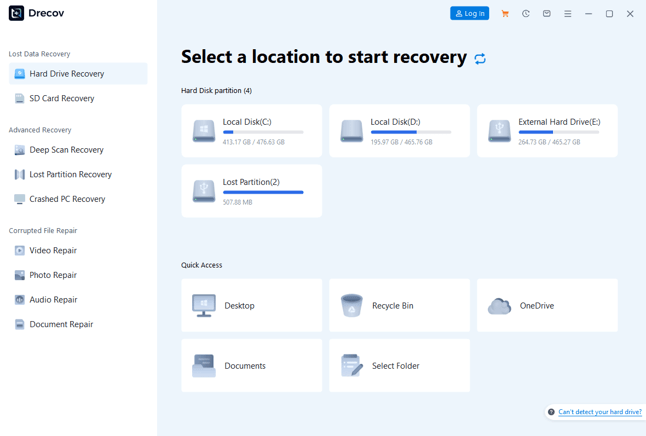
1. Identify the Original Drive
Check where the file was before it was deleted; a typical browser download might have been on the `C:` drive, but the browser settings could point to a second partition or an external disk. Instead, scan the original location rather than checking every drive.
2. Run Quick Scan First
Choose the original drive and carry out a Quick Scan. Use the filename, file extension, and approximate date when the file was downloaded that you noted earlier to reduce the number of results. It is useful to have a familiar filename, but you should look at the file itself before concluding that it is the correct one.
3. Try Deep Scan if Needed
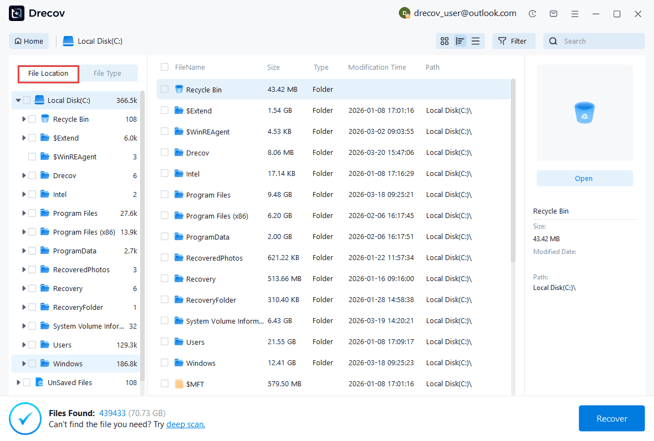
If no useful items are found during a Quick Scan, then carry out a Deep Scan. This may take a longer time, especially when scanning a large drive. Filter the results by file type and preview the ones that are likely to be matches. In some cases, the recovered files will have lost their original file names or folder paths, so the content and size can be more helpful than the label.
4. Save and Verify
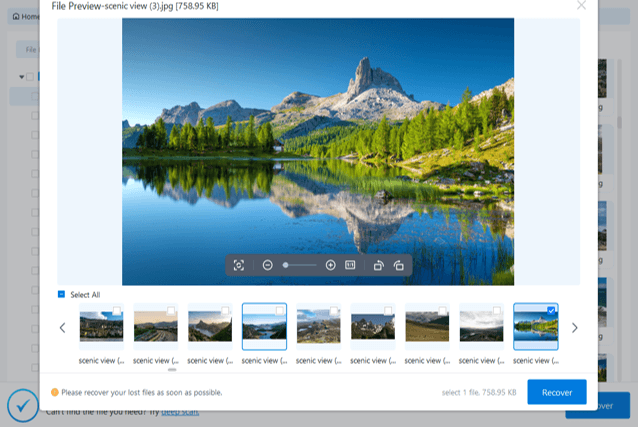
Choose the file and save it to a separate destination that is healthy. Open it using the correct application. Check the pages of a PDF, the contents of an archive, or the full playback of the media file. If more than one option is available, retain them until you have been able to identify the full copy.
Common Questions
1. Can browser history restore a deleted download?
There is a history of a previous download or of the source of that download; it might allow you to download the file once more, but it will not itself reconstruct a deleted local copy.
2. Does an empty Recycle Bin mean recovery is impossible?
It doesn’t have to be so. There are certain deletion methods that don’t go through the bin, and the files could have been moved. Start by searching the drive and the backups. A read-only scan might detect deleted local data if it has not been overwritten.
3. Can I recover a download from a damaged external drive?
Only attempt a software scan when the drive is stable enough to read. For a hard drive recovery case involving clicking, repeated disconnects, or severe read errors, stop and consult a professional service.
Keep Downloads Easier to Find Next Time
Make a distinct folder for the files that you want to keep and then move them out of the Downloads folder after you’ve checked them. Ensure that you have at least one separate backup of the receipts, the original project files, and all other important items. With regard to software, record the official source URL instead of keeping the outdated installer forever. Lastly, check the browser’s download location before you change your computer or reinstall Windows.
Final Thoughts
Most missing downloads should be handled with search, the Recycle Bin, the original source, and backups. When a local file really was deleted, and the source drive remains healthy, Drecov provides a read-only scan path. Act early, avoid writing to the source, and verify recovered files on a different drive before returning to normal use.
Popular on OTW Right Now!


About The Author

Gagan Bhangu
Founder of otechworld.com and managing editor. He is a tech geek, web-developer, and blogger. He holds a master's degree in computer applications and making money online since 2015.