
Moving Installed Programs Made Easy: How I Transferred Apps Without Messing Up Registry Keys
My Windows PC was running low on space on the main drive and I knew I needed to do something about it. A number of apps were taking up space but the thought of just uninstalling and reinstalling everything was a bit of a chore. I wanted to move some of the apps to another drive without losing their settings or having to go through the hassle of broken shortcuts.
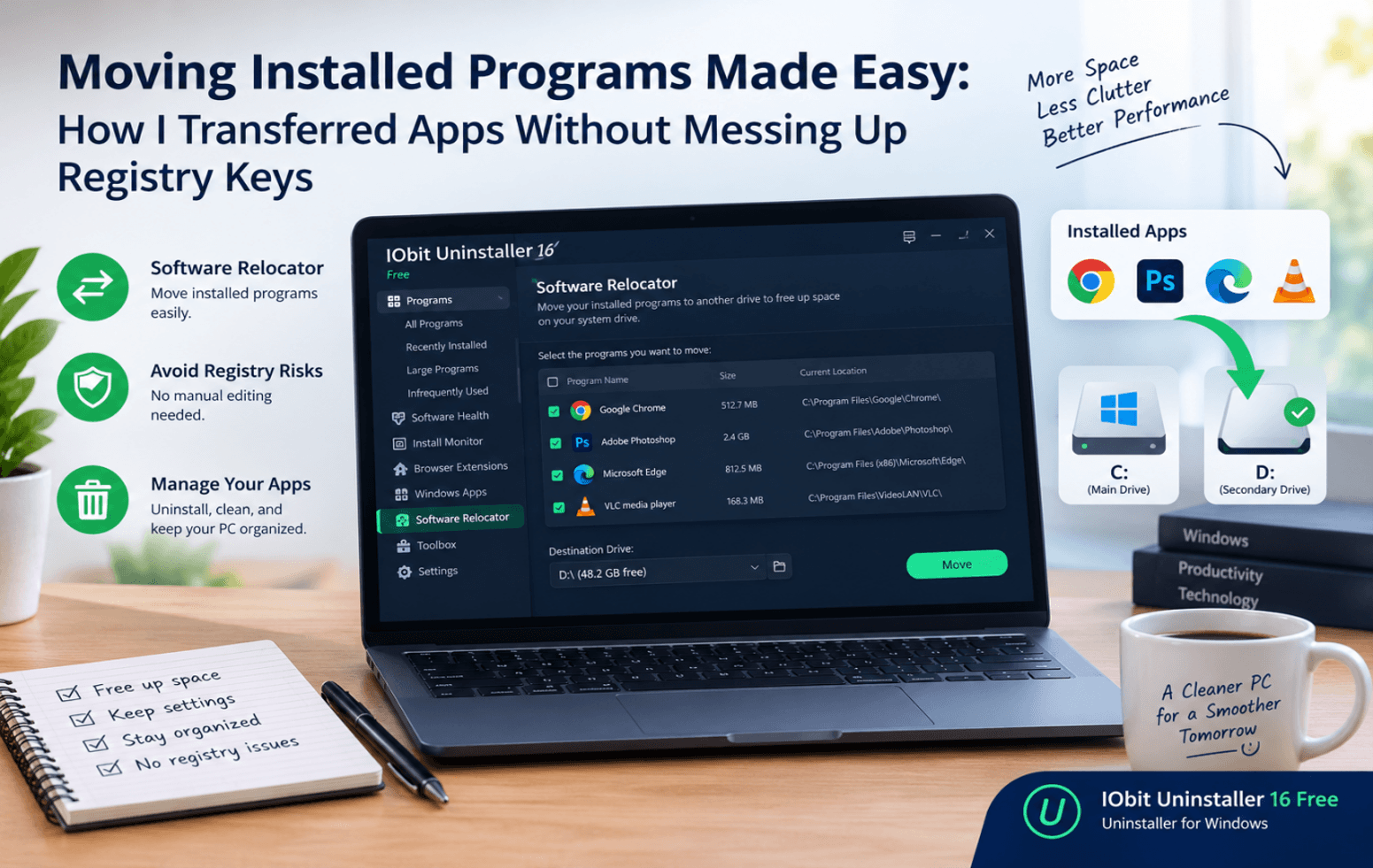
However I knew that moving an installed app wasn’t always as simple as just copying the folder. Some apps are reliant on registry entries, config files, shared components and the like and the wrong sort of change to those things can completely break an app.
That was when I started exploring a more practical solution with IObit Uninstaller.
Why Moving Installed Programs Can Be Tricky
I thought moving the software to another drive would be a doddle, but quickly found that installed programs can well be dependent on files and settings that are outside of their main folders. Once you’ve looked into it a bit you realise that installed programs can well be dependent on things outside of the files in their main folder.
For example a program could be storing its settings in the Windows Registry or its support files in some other location. If I move the folder without updating the appropriate references then Windows or the application itself may well still be looking in the old location.
That’s why I decided against any experimentation of my own with the registry keys. If you mess up one of the entries you can quite easily create a whole host of other problems and I simply didn’t want to risk my current configuration by attempting to free up some space in that way.
Finding a Safer Way to Manage My Applications
I started looking for an uninstaller for Windows that offered more than basic application removal. I wanted a tool that could help me manage installed programs while reducing the amount of manual work involved.
I chose IObit Uninstaller 16 Free to find out more about its software management features and functionality. It has a feature called Software Relocator which is intended to assist users in relocating supported installed applications to another location.
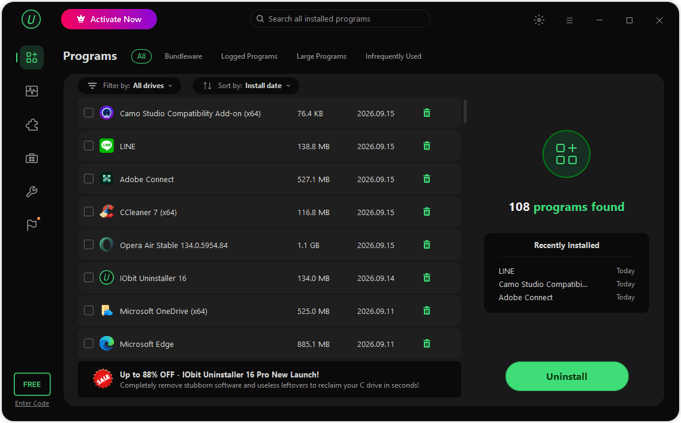
What I liked was the notion of using a dedicated tool rather than manually dragging the program folders between the drives and hoping that everything still worked.
How I Approached the Transfer
Before doing anything else I checked how much space was available on the secondary drive and looked at the applications that were installed to see which ones we might be able to move.
My process was straightforward:
- Select an appropriate application: I found a program I wanted to retain but didn’t need to keep installed on my primary drive.
- Check its requirements: I made sure the destination drive had enough free space and considered whether the application supported relocation.
- Use Software Relocator: I followed the available options in IObit Uninstaller rather than manually moving files or editing registry entries.

- Check the application afterward: Once the process was complete, I opened the program and checked whether its main functions and shortcuts worked as expected.
- Review the available storage: Finally, I checked whether the move had helped free up space on the original drive.
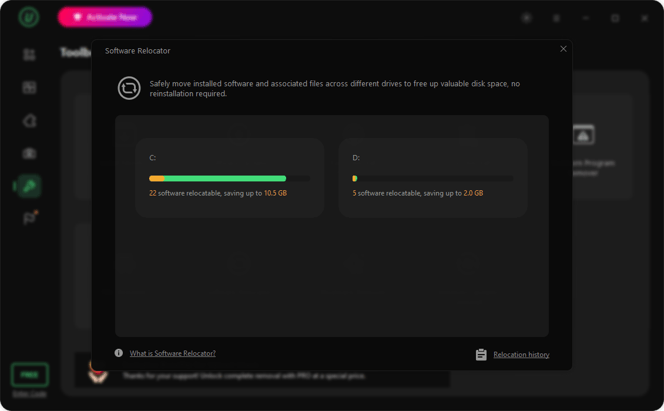
The exact options can vary depending on the application and software version, so I would not assume every installed program can be moved successfully.
More Features of IObit Uninstaller 16 I Like
- Batch Uninstall: I love being able to select and remove multiple applications and browser extensions simultaneously in a single click, which saves me so much time.
- Deep Residual Cleaning: It automatically detects and purges leftover files, AppData folders, and invalid registry entries left behind after standard uninstalls so nothing gets left behind on my drive.
- Bloatware Remover: I can easily clean up unwanted pre-installed Windows apps (such as OneDrive, Copilot, and Edge) alongside bundled third-party programs that I never wanted in the first place.
- Software Health Management: I regularly use the one-click scan to detect outdated software, permission issues, intrusive notifications, and residual junk files across my entire system, fixing them all in one pass.
- Force Uninstall & Stubborn Program Remover: Whenever I run into stubborn, corrupted, or otherwise unremovable programs, I can rely on this tool to eliminate them by pointing directly to their residual files and folder directories.
- Install Monitor: It tracks system changes in real-time during software installations, giving me peace of mind that I can achieve a complete, trace-free removal later if I decide to delete the app.
- Browser Safeguard & Ad Blocker: I appreciate how effortlessly it manages my browser extensions across Chrome, Firefox, Edge, and Internet Explorer while blocking intrusive pop-ups and spam notifications.
What I Learned From the Experience
The key lesson was that moving software and moving normal files are two different things.
Docs, pics and vids can generally be moved between drives without affecting the installed apps. Programs are more complicated as they can be dependent on installation paths, shared libraries, background services and config data.
I also found that it’s not always necessary or sensible to move every app to a different location. Some apps are better off where they are, some can be reinstalled onto another drive using their own installer.
For me it was far more useful to pick the right approach for each application than it was to try and do everything at once.
Why I Found IObit Uninstaller Useful
My experience with IObit Uninstaller introduced me to a more organized way of handling applications when storage became an issue. Instead of immediately uninstalling useful programs or manually moving their folders, I could explore a relocation option where supported.
Having all the application management features in one place also made it a lot easier to keep track of the software that was installed and to manage the applications efficiently. Keeping an eye on what software you have installed, removing the stuff you no longer need and managing your storage are all part of keeping your Windows system in order.
Still I’d regard relocation as something that would benefit from a bit of preparation. Backing up your key data and making sure the app still works afterwards would be sensible things to do.
Pros
- Offers a relocation option for supported applications
- Reduces the need for manual folder transfers
- Helps users manage installed software
- Can help free space on the original drive
- Provides additional application removal and cleanup features
Cons
- Not every installed application is suitable for relocation
- Some programs may require repair or reinstallation
- Users should verify application behavior after moving it
- Backups and careful checks are still important
My Final Verdict
Moving installed programs doesn’t necessarily mean you have to go in and manually edit the registry keys or just copy the folders and hope for the best. The key thing is to use the right method and to realise that different applications have different requirements.
For my purposes I did have a go at IObit Uninstaller 16 Free as it has a Software Relocator feature which provides an alternative to manually relocating some apps. It did help me to be a bit more considered about my storage management and it did serve as a good reminder to check the results rather than just assume that every move would be perfect.
My advice is pretty straightforward really: check the app first, use an appropriate relocation method and then test the program. That bit of extra care can make managing Windows storage a lot less of a pain.
Popular on OTW Right Now!




About The Author

Gagan Bhangu
Founder of otechworld.com and managing editor. He is a tech geek, web-developer, and blogger. He holds a master's degree in computer applications and making money online since 2015.