
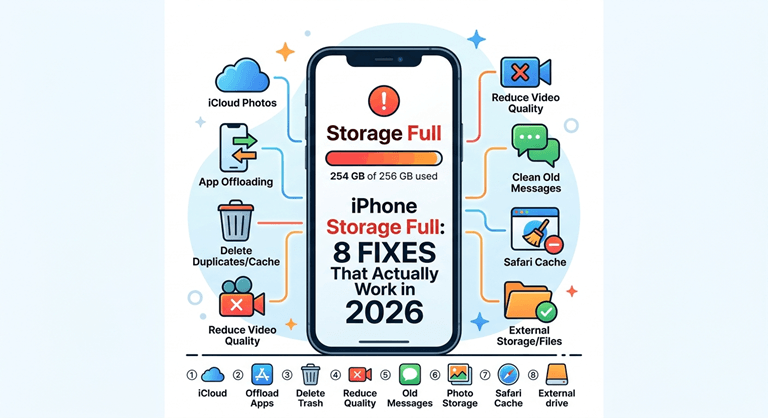
iPhone Storage Full: 8 Fixes That Actually Work in 2026
iPhone storage fills up faster than it used to because the files have gotten bigger. iPhone 15 Pro and 16 Pro shoot video in ProRes and photos in 48-megapixel resolution by default. A ten-minute video clip can consume 6GB. A week of casual photography can fill 10GB. If your iPhone says storage is full, the solution is rarely one thing — it is a ranked sequence of actions starting with what recovers the most space fastest.
1. Check What Is Actually Using Your Storage First
Prior to deleting, go to Settings » General » iPhone Storage. Wait 15 seconds for the breakdown to appear — it takes time to get a good estimate.
Categories are displayed on the bar chart at the top. Below is a list of individual apps sorted by size. The suggestion Apple displays at the top of this screen is worth reading — they’re geared specifically to how you’re using your phone, and they’re frequently the highest-effecting thing you can do.
Make a note of the difference between the size of the app and the size of its “Documents and Data. Another app could be 200MB in the app but 4GB in Documents and Data — that’s where the actual app size is being used, whether it’s downloads that are going to the Documents and Data folder, or content being cached, offline, or stored in the app account.
2. Delete or Offload Apps You Do Not Use
When you delete an application, you will lose it and all of its data. Offloading uninstalls the app, but retains documents and data — helpful if you need to reinstall the app without losing documents.
Navigate to Settings » General » iPhone Storage and click on any app. There will be Offload and Delete options.
If you haven’t used the app for months, it’s probably best to delete it. For apps that are used rarely (travel apps or seasonal tools), Offload stores your data for free until it is reinstalled.
Alternatively, you can set apps to offload automatically: Apps » App Store » Check “Offload Unused Apps”. This will automatically remove apps that have not been used in a while when storage space is low.
3. Clear Streaming App Caches
Streaming apps such as Spotify, Apple Music, Netflix, and YouTube cache downloaded data and store content that can use up to several gigabytes without you noticing.
Spotify: Go to Settings (inside Spotify » Storage) and delete the cache. Apple Music: Settings » Music » Downloaded Music. Review and delete albums or playlists you no longer need offline. Netflix: Downloads section inside the app — delete individual titles or all downloads. Podcasts: Settings » Podcasts » Downloaded Episodes. Set to delete after listening.
Such caches are rebuilt with the use of the apps, and a cache deletion is not a permanent solution, but it can be the quickest route to recover 2-5GB of data to start with.
4. Manage Photos and Videos — The Biggest Storage Consumer
In most cases, this is the biggest category on the storage screen – Photos. The most space-saving actions are these three.
Enable iCloud Photos with Optimize Storage. Go to Settings » Photos » toggle on iCloud Photos. For “iPhone Storage”, choose “Optimize iPhone Storage” instead of “Download and Keep Originals. This will ensure that full-resolution images remain stored in iCloud with smaller optimized versions stored on the device. When necessary, you can download the original.
Review and delete duplicates. Open Albums in Photos, and scroll to Duplicates in the Utilities section. iOS can recognize duplicate and similar pictures and allows you to combine them with a single tap. This new addition to iOS 16 is underutilized.
Delete large videos manually. Select Albums and then Videos in Photos. Arrange in order of size (if possible), or scroll to find long clips. A single 10-minute ProRes video may take up more space than hundreds of photos.
Also, check Recently Deleted in Photos — deleted photos and videos stay here for thirty days before being permanently removed. When you empty it manually, it will recover the space right away.
5. Clear Safari Cache and Browser Data
Safari saves website information, photos, and offline content over time.
Click Settings» Safari, then Clear History and Website Data. This clears browsing history, cookies, and browser cache. It will not remove saved passwords and won’t remove AutoFill data.
On iPhone, Chrome and Firefox have their own menu item to clear their caches.
6. Review Messages Attachments
All photos, videos, and files sent and received are recorded in conversations in the Messages app. This can be a few gigabytes for users with long-running message threads.
Go to Settings » General » iPhone Storage » Messages » Review Large Attachments. This displays a list of the largest files saved in Messages that are sorted. They can be deleted one by one without deleting the message thread they are part of.
There are also options to automatically delete conversations after 30 days or 1 year: Settings » Messages » Keep Messages.
7. Check Third-Party App Document Storage
Some apps, such as Files, Pages, Numbers, Keynote, and third-party document editors, store locally, which makes it easy to forget files. Navigate to Settings » General » iPhone Storage, select each app, and check the Document & Data size.
If the app can be made cloud-based, like anything syncing with iCloud, Google Drive, or Dropbox, local copies can be safely deleted as long as the file is in the cloud. Cleanup local copies from within the app instead of the iPhone Storage screen to prevent issues.
8. Consider Upgrading iCloud Storage
If you’re finding you are running out of storage even with active content management, the problem might be that you have an iCloud storage plan that is too low to support Optimize Storage.
Starting at 5 GB free, iCloud offers all users a variety of features. The 50GB plan runs $0.99 a month and is good for most users. The 200GB plan is for families with a shared iCloud Family plan.
If you have sufficient storage space in iCloud and Optimize Storage is turned on, there is not much of a storage issue on the device, as the iPhone will automatically upload other contents to iCloud when you’re not using them.
For ongoing iOS tips covering storage management changes across iOS updates — including how new default photo formats and Apple Intelligence caches affect storage in each release — Apfelpatient covers iOS feature changes in depth. Their iPhone section is a useful resource for tracking what changes with each update. For more context on how iPhone software evolution is making storage management more automated over time, see this analysis of where smartphone software is heading.
FAQ
1. Why does my iPhone say storage is full when I have iCloud storage available?
iCloud and iPhone storage are separate. iCloud stores your backups, photos, and documents online. iPhone storage is the physical space on your device. iCloud space does not give your phone more space; it allows you to use features that remove space from your phone, such as Optimize Storage.
2. Does clearing the cache delete my data?
Clearing app caches will take out temporary files like downloaded media, browsing data, and buffered content. It will not delete your Account, settings, saved passwords, or personal files in the app. Cache rebuilds as needed while using the app.
3. How much space should I keep free on iPhone?
iOS requires free space to update, edit photos, and function as an application. The rule of thumb is to not have less than 1- 2 GB of space left at all times. You might have performance problems and may not be able to install updates if there is less than 1GB available.
4. Will offloading an app delete my game progress?
Offloading keeps Documents and Data, including saved game progress for most of the games. If a game does not save to iCloud or the game’s cloud service, check the backup method before offloading this game.
5. Does iPhone automatically manage storage?
Applications can be offloaded automatically if there is not enough iOS device storage (Settings » App Store » Offload Unused Apps). It doesn’t automatically delete photos, clear caches, or manage app data. The Recommendations section under Settings » General » iPhone Storage is a section for personalized suggestions, but it’s a manual process.
Popular on OTW Right Now!



About The Author

Gagan Bhangu
Founder of otechworld.com and managing editor. He is a tech geek, web-developer, and blogger. He holds a master's degree in computer applications and making money online since 2015.