
How to Set Up Checklists With Excel
Excel probably is not the first tool people think of when they hear the word “checklist”.
People usually imagine task apps, project management software, or a specific task software. In reality, though, Excel is actually a very useful checklist tool when you need something flexible, easily customizable,e and something you can easily incorporate into the rest of your work. It is also great if your checklist ought to be utilized in conjunction with dates, proprietors, notes, trackers, or reporting – as opposed to being a solitary list.
This is indeed where Excel is invaluable. A checklist in Excel doesn’t need to be simply a list of tasks and boxes. Can turn into a working process instrument. See task status, due dates, owners, priorities, progress, and repeat actions, all in one place. It is possible to keep it simple, and it’s possible to make it a lot smarter – and not too complicated.
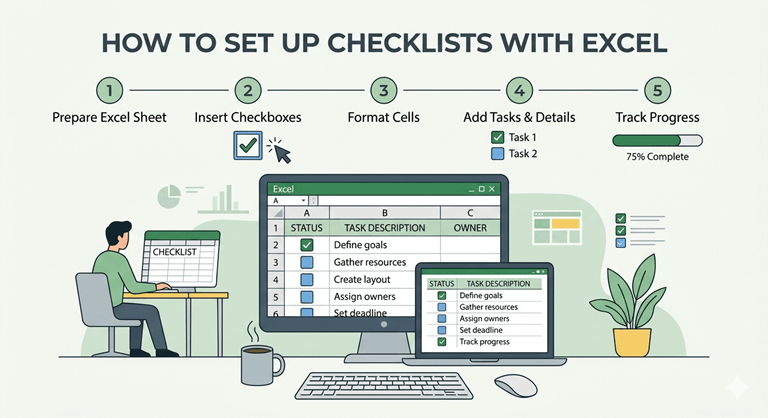
Let’s go through the process of creating checklists in Excel that are usable, neat, and useful. We will examine the optimal structure to begin with,whene to use checkboxes, when to go with dropdowns, and how to put the checklist in a format that can be easily scanned and avoid creating something so complicated that no one desires to utilize it.
Why Excel Works Well for Checklists
One of the main reasons that Excel is a good checklist tool is that it provides you with structure without tying you to someone else’s system.
Many checklist apps have a particular working method. This has been helpful, but can be restricting. With Excel, you have a ton of control. You can choose which columns to utilize, which statuses are important, what to emphasize,e and what information you truly wish to keep an eye on.
This is especially convenient if your checklist has a process associated with it, like Excel. You can use a basic shopping list or packing list in just about any location. When you’re creating a checklist app for content publishing, client onboarding, monthly finance admin, team handoffs, or any other routine business tasks, Excel begins to lose its charm.
The other great thing is that your checklist can do more than just contain tasks. It can also be used to calculate, filter, sort, and flag information, thanks to its ability to reside in a spreadsheet. This will allow your checklist to indicate what is overdue, what is complete, high priority,y and what is still due to be completed without you having to manually check each row every time.
That’s why the Excel checklist seems to be less a list than a working system.
However, if you are serious about improving your checklist game, you might consider purchasing one of the numerous dedicated checklist software packages available, which are specifically developed to assist with checklists. This is a helpful article about the ideal checklist software.
That being said, if you really do need to level up your checklist game, you may wish to invest in one of the many specialized software packages that are designed from the ground up to help you with the checklists. Here is a useful guide on the best checklist software.
Start With the Structure Before Anything Else
One of the easiest mistakes is jumping straight to formatting before deciding what the checklist actually needs to do.
A much better place to start is with the structure.
The very first thing in any checklist is a column for the tasks, as well as a means to show task completion. In reality, however, most useful checklists amount to just a little more. The best basic rig is:
- Task
- Status
- Owner
- Due Date
- Priority
- Notes
That’s sufficient to make something more useful than just a plain to-do list.
Suppose you have to make a checklist of the steps in publishing an article. You can organize it like that, rather than just stating the tasks:
- Write first draft – In Progress – Editorial – 12 June
- Add images – Not Started – Design – 13 June
- Final proofread – Waiting – Editorial – 14 June
That is immediately more useful, as you can see what needs to be done, as well as where and who is involved,d and when it needs to be done.
It may be the hardest change to make when creating checklists in Excel. From “a list of things” to “a process tracker people can use”.
Use Checkboxes When You Want a Simple Visual Checklist
If you would like the checklist to look like a “tick-box” list, then you can definitely do that with Excel.
Use checkboxes for relatively short, visual, and simple checklists. They are particularly useful for personal routines, a short list of items to review, or a single checklist that is only used once,ce and you are more interested in ticking items off and having a sense of satisfaction with the completed list.
A weekly reset checklist is a good example. You might have items like:
- Clear inbox
- Review calendar
- Update task list
- Check upcoming deadlines
- Prepare for Monday
In that kind of system, ten checkboxes are suitable since the checklist does not intend to keep track of a complex process. All it requires is a simple yes/no separation.
However, checklists may be less effective as their size increases or as there are more details to the process. A single tick box is becoming a bit restrictive if a task can be blocked, waiting on someone else, in progress, or partially complete.
When simplicity and visual clarity are desired, checkboxes are great. They’re not as good when you need to record more specifics on the checklist.
Use Status Dropdowns for More Flexible Checklists
Where a business or process checklist is concerned, sometimes a status dropdown is more suitable than a checkbox.
It is because most real-life workflows are never just “done” or “not done”.
A task might be:
- Not Started
- In Progress
- Waiting on Approval
- Blocked
- Complete
If more than one person is involved or it is a checklist that can be used in a repeat process, that additional nuance is important.
The checklist is also tidier with a status drop-down. Everyone uses the same status language rather than a variety of people saying “done”, “complete, “finished,” or “sorted”. This helps keep the sheet cleaner and makes it much easier to filter/sort later.
In the case of a client onboarding checklist, some of the tasks could be:
- Send welcome email — Complete
- Request logins — Waiting on Client
- Create shared folder — Complete
- Schedule kickoff call — In Progress
This gives you a much more accurate picture of what is happening than a simple tick box ever could.
So while checkboxes are useful for simple visual lists, dropdowns are usually the stronger choice for operational checklists.
Add Conditional Formatting So the Checklist Is Easier to Use
However, when the structure is set up, conditional formatting can be one of the best and most effective ways to make the checklist more useful.
At this point, your spreadsheet becomes useful and starts to help you.
Conditional formatting will automatically highlight rows or cells based on the value in the cells. This means your checklist can visually display what is most important without you having to carefully read each row of your checklist every time.
For example, you could set things up so that:
- Completed tasks will be colored green or grey.
- All tasks that are not finished by the deadline appear in red.
- There are clearly some items where you need to make an effort to be more active.
- Tasks that are blocked will appear in amber.
This is important because a good checklist should be easily scannable. When things look just like they do, they will require more thought and energy to determine what requires attention. The important items stand out if they are appropriate; then the sheet is much easier in real life.
Suppose you had a checklist consisting of 40 rows. When not formatted, it can be rather thick. Just by following some simple rules, your eye is instantly drawn to the overdue tasks, unfinished work, and urgent items.
This is where Excel can prove really useful.
Keep the Checklist Practical, Not Overbuilt
This is both good and bad—Excel is capable of much.
You can be tempted to start writing formulas, creating colour schemes, adding hidden sheets, and other neat tracking features with ease. In some cases, it’s worth it. It’s not very often.
The best checklist is one that everyone will use and keep updating.
This should be understandable, easy to maintain, and not require a tutorial by anyone to open and understand what is happening. The checklist will gradually grow annoying if every time it needs to be done, there are a lot of decisions and formatting.
One good guideline is that all columns ought to have a purpose.
If the column is of assistance or clarity, retain it. Remove it if it did exist, and it was a good idea when created, but it is not used. So it’s the same with formulas and rules. They should make the checklist more convenient, rather than more cumbersome.
A checklist should smooth out, not complicate, the process.
A Simple Excel Checklist Setup That Works Well
If you want a reliable structure that works for lots of different situations, this is a strong starting point:
Column A: Task
Column B: Status
Column C: Owner
Column D: Due Date
Column E: Priority
Column F: Notes
Then: Use a status dropdown in Column B
- Use a priority dropdown in Column E if helpful
- Highlight completed tasks in a softer colour
- Highlight overdue, unfinished tasks in red. Keep notes for short context only
This configuration is good as it is transparent, but not dense. It allows tracking simple tasks, but also provides enough detail to make the checklist truly useful for repetitive tasks.
You can use this for things like:
- article publishing
- event planning
- monthly admin
- team onboarding
- website launch prep
- content reviews
- recurring business tasks
It can be used to cover a lot, but not too complex.
Use Excel Checklists for Processes, Not Just Reminders
This is one of the best ways to utilize Excel.
If the checklist is used for reminders, it’s okay, but Excel is particularly useful when the checklist is used for a repeated process.
Some examples of a content publishing checklist are:
- Draft complete
- Images added
- Internal links added
- Meta description written
- Final review complete
- Scheduled
- Shared with team
A monthly admin checklist might include:
- Review invoices
- Chase outstanding payments
- Reconcile bank entries
- Update reporting sheet
- Check upcoming subscriptions
A new starter checklist might include:
- Send a welcome email
- Set up account access
- Add to team systems
- Share key documents
- Schedule induction call
In each instance, Excel assists with the checklist,t not only reminding you of tasks. It is assisting you to repeat the same procedure each and every time.
It’s here that it is particularly useful.
Common Mistakes to Avoid
There are a few problems that are commonly encountered with Excel checklists.
One is too complicated, and the other is not. The more the administration checklist requires, the more people will be unable to use it correctly. Do the basics, then only the additional ones that are really helpful.
The other way is inconsistent wording. When statuses aren’t structured, it can quickly get messy. That is the reason that dropdowns are frequently a valuable enhancement.
Another common problem is the less-than-good layout. When checklist items are all the way in front of you, it’s more difficult to read and more difficult to believe. The use of headers, using spacing sensibly, and some conditional formatting can make a big difference.
Last but not least, some people create a checklist, but never check it again. However, checklists need to change. If some steps are omitted in all operations, are unclear, or are not necessary, the checklist needs to be improved. The more a checklist is used,d the better it will become.
Final Thoughts
Many people don’t realize that Excel is an excellent tool for creating a checklist. It’s flexible, can be customized, ed and is especially helpful when your checklist is more than just a list of tasks.
The idea is to make it manageable. Use a blank structure to begin. For a simple, visual list, use checkboxes. For more flexibility, use the status dropdowns. Include conditional formatting to make the checklist more easily scanned. And, most importantly, create something people will want to use.
An Excel checklist, when done correctly, can be a very useful aspect of your workflow. Not only a list of tasks, but a small system that facilitates repetitive tasks, makes them easier, clearer, and much less dependent on memory.
Popular on OTW Right Now!




About The Author

Gagan Bhangu
Founder of otechworld.com and managing editor. He is a tech geek, web-developer, and blogger. He holds a master's degree in computer applications and making money online since 2015.