
How to Restore Preinstalled Microsoft Office Download on New PCs
Microsoft Office is pre-installed in many new PCs. Nevertheless, this Office setup can be lost after a system reformat or Windows reinstallation. This is a major problem that leads to confusion since the users think that the software is installed forever. It is essential to restore it to avoid purchasing it again and to maintain continuity of the license. An appropriate restitution guarantees that the original license is active and legally bound to the device. Knowing how to install and re-enable preloaded office versions can assist you in restoring full functionality within a short time and in a safe manner.
Understanding OEM and Digital Licenses
Office Versions are frequently sold in Original Equipment Manufacturer (OEM) licenses. It implies that the Office suite was legally installed by the manufacturer prior to the device getting out of the factory. Other OEM packages will comprise a trial version, whereas a permanent license, like Office Home and Student or Office Home and Business, is included.
The major distinction is in the way licenses are handled. Trial versions typically become inactive after a short time, and one should buy or subscribe to Microsoft 365. Full OEM licenses are valid as long as the device lasts. Microsoft associates digital licenses with hardware or a Microsoft account. This connection is activated, and once it is, even after reinstalling Windows, the same account can renew the license without using a product key. Many users search for Microsoft Office free download, but genuine OEM licenses already provide legal access without extra cost.

Checking If Office Was Preinstalled
Note: Before reinstalling, ensure that Office was initially preloaded on the PC. In Windows 10 or 11, enter the settings, then Apps, and find Microsoft Office in the list. Certainly, had it been listed, it probably had an OEM version. In the case of older systems, look for a Certificate of Authenticity (COA) sticker, possibly with a product key.
The other way is through the services and subscriptions page of the Microsoft account. Check account.microsoft.com/services and see whether an Office edition is listed there. In case it is visible, the license is attached to the account. In other situations, manufacturers also email product information or put it on the desktop when a computer is first switched on.
Accessing Your Preinstalled License
In case Office was connected with a Microsoft account, it can be restored easily. Go to account.microsoft.com/services to see all the registered products. You will probably encounter such editions as Office Home and Student 2021 or Office Home and Business 2019. Confirm the status of the subscription.
After verification, click on Install Office. This redirects to Office.com, where the new compatible version is automatically downloaded. Once installed, open any Office application, including Word or Excel, and use the same Microsoft account. The license is automatically enabled, which proves that the version that is already installed is being restored properly.
Re-Downloading from Microsoft
In case Office package is deleted during a reset, it is the safest way to install it on the official site of Microsoft. Go to Office.com and use the same account as your PC. On the home page, choose to install office followed by the version of the product.
After downloading, execute the setup file. The installer identifies and automatically downloads files that match your Windows version. Once installed, open any Office application and log in to verify that it has been activated. The system checks your hardware ID and account information and recovers the OEM license without any problems. Do not download installers to third-party sites because unofficial versions might have old or insecure files.
Troubleshooting Activation Issues
Even with the right account, there are activation errors sometimes. Typical codes are 0xC004F074 or 0x80070005, which are usually as a result of network problems or corrupt registry keys. Automatically fix the activation issues by executing the Microsoft Support and Recovery Assistant (SaRA).
In case of a problem, go to the Office support page or call Microsoft. The support personnel can check the license ownership and change it when necessary. Make sure you have the serial number or the evidence of purchase of the PC so that the resolution can be quicker. Registry cleaners or system optimizers that may destroy license data must be avoided.
The other useful thing is to run the inbuilt Office Activation Troubleshooter in settings, update and security, activation. It scans the system and fixes the majority of the license recognition mistakes.
Preventing Future Loss
Once you have reinstated Office, make efforts to secure the installation. Use the Windows built-in Backup tool to create a system restore point or a recovery drive. This recovery allows you to roll back to a working state in case the office is deleted once again by mistake.
Store the Office license to a Microsoft account in the cloud. This approach is such that in case the device is wiped down, the license can still be obtained over the web. Do not delete the Windows.old folder, right after re-installing Windows, this file might also have the activation information.
Do not install using aggressive uninstallers or registry cleaning software. Such utilities usually destroy important license data. In case you change devices regularly, it is best to have a digital record of the associated Microsoft account credentials. Secure storage of activation emails also assists in recovery.
Using an online document editor is another way to maintain productivity while troubleshooting Office. Microsoft 365 is a browser-based package that can be used on any device, which is beneficial when the local applications are unavailable at the moment.
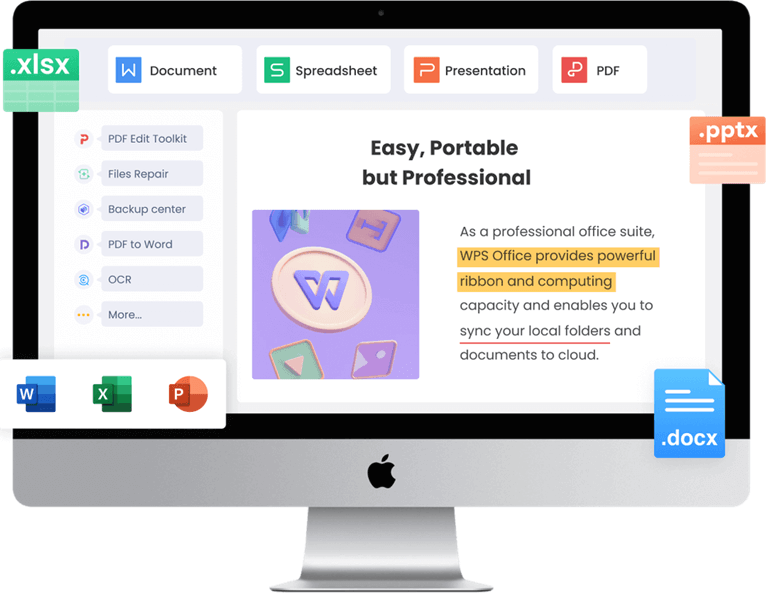
Alternative: Installing Free WPS Office on New PCs
In case Microsoft Office cannot be restored, one can use WPS Office as a backup. WPS Office consists of a full package of Writer, Spreadsheets, and Presentation tools that are compatible with the Word, Excel, and PowerPoint formats. It also has PDF editing, file conversion, and collaboration features at no cost.
Installation is simple. Go to the official WPS site, obtain the setup file, and follow the instructions given on the screen. The application is easy to install and compatible with Windows 7, 10, and 11. The interface is similar to Microsoft Office once it has been launched; hence, the transition is easy.
WPS Office is also able to synchronize files between devices, and cloud storage is supported, allowing it to be edited anywhere. It provides a huge number of templates for reports, resumes, and presentations. The built-in PDF editor enables you to merge, annotate, and compress files without the use of external applications.
WPS offers non-subscription permanent access to Microsoft Office, unlike trial versions. Millions of people around the world trust it because of its reliability and compatibility. The platform is also less resource-intensive on the system, which suits laptops with low storage capacity.
WPS Cloud allows users to share and co-edit documents in real time. The security is very high with encryption and frequent updates. WPS Office is the most suitable long-term alternative to users who want to have a one-time installation and no recurring charges.
Conclusion
Re-installing Microsoft Office that comes with a new PC is not difficult at all, provided that you know how to manage the licenses. The suite can be restored safely by checking connected accounts, confirming the activation of OEM, and downloading through authoritative sources. It is always a good idea to have a backup and connect the software to a Microsoft account to continue without any reset.
WPS Office is a reliable and free alternative when restoration is complex or the license is lost. It provides complete functionality, high compatibility, and contemporary design without subscriptions. Regardless of whether one wants to reinstall Office or switch to WPS, productivity is still easy, safe, and effective on any Windows computer.
Popular on OTW Right Now!
-
 The Importance of Crane Operator Training: Building Safety and Skill at New Heights
-
 How Can Streamlined LEI Management Enhance Reporting Accuracy and Reduce Risk?
-
 Solo, Stranded, and Safe: How Self-Recovery Tools Empower Independent Road Trippers
-
 How GenAI Added to Data Science Course Can Help You in 2026?




About The Author

Gagan Bhangu
Founder of otechworld.com and managing editor. He is a tech geek, web-developer, and blogger. He holds a master's degree in computer applications and making money online since 2015.