
How to Fake Mobile Phone GPS Location
We often rely on our phone’s GPS software for accurate weather forecasts, directions to the nearest restaurant, or walking distance. But sometimes, changing your GPS location in apps like WhatsApp, Facebook Messenger, Google Maps, Pokemon Go, and Snapchat can also offer benefits, such as protecting your privacy and giving you an edge in games.
How to change location on iPhone/Android? There are two options for changing your virtual location on an Android or iPhone. One is to change your IP address, which can trick websites you visit into thinking you are somewhere else. The other is to change your phone’s GPS location, which is more widespread and mainly works with location-based apps like Google Maps. If you want a more realistic display of your location, software that changes your phone’s GPS location is essential. I’ve spent years exploring and evaluating top tools designed to spoof or change the GPS location on smartphones. Here, I’ll introduce one of the best location changers for your iPhone or Android phone.
Best GPS Location Changer
As I mentioned earlier, I’ve tested many location changer apps, and one, MagFone Location Changer, has proven to be exceptionally effective. Pokémon Go is a location-based game with strict rules, and cheating can lead to account bans. Despite the strict limitations of such platforms, MagFone Location Changer manages to operate with impressive precision, offering reliable results without triggering bans. Now, let’s dive into its standout features and walk through how to use it effectively.
What is MagFone Location Changer
MagFone Location Changer is one of the most popular location spoofing apps. While its popularity initially drew me to it, after using it, I can vouch for the truth behind all the great reviews you’ve heard. MagFone Location Changer can be used for a variety of purposes, including testing location-based apps, protecting personal privacy, and accessing location-specific content.
Features of MagFone Location Changer
MagFone Location Changer offers all the features you’d expect from a location-changing app. Here are some of my favorites:
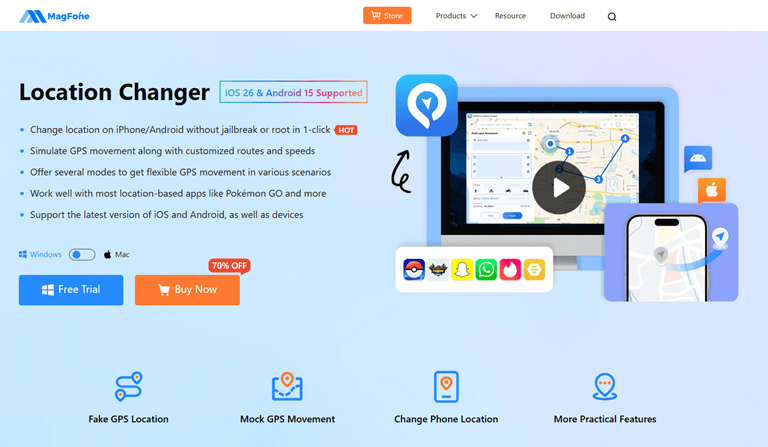
#1. GPS Location Changer
If you think someone is tracking your phone, MagFone Location Changer can hide your location. You can create a virtual location on a map to prevent contact tracing. Furthermore, you can create a fake virtual location to disguising your movements and share it on social media platforms. This feature can also be used to interact with people from different countries on dating apps. So, if you’re looking to try your luck in romance abroad, MagFone Location Changer has you covered.
#2. Movement Simulation
All GPS location-changing apps on the market offer GPS location-changing functionality. However, MagFone Location Changer goes a step further. In addition to faking your location, you can also simulate your real-time movement trajectory through simulation. You can create a real-time route on the map and set your running speed to simulate your real-life movement. It may sound a bit laborious, but it will convince your stalker that your fake location is real.
#3. Joystick Movement
Compared to the second type of movement simulation, Joystick Movement is more realistic. You can control your running direction 360° using the remote control and set your running speed at any time. This mode is particularly suitable for Pokémon Go players.
How to Fake Mobile Phone GPS Location
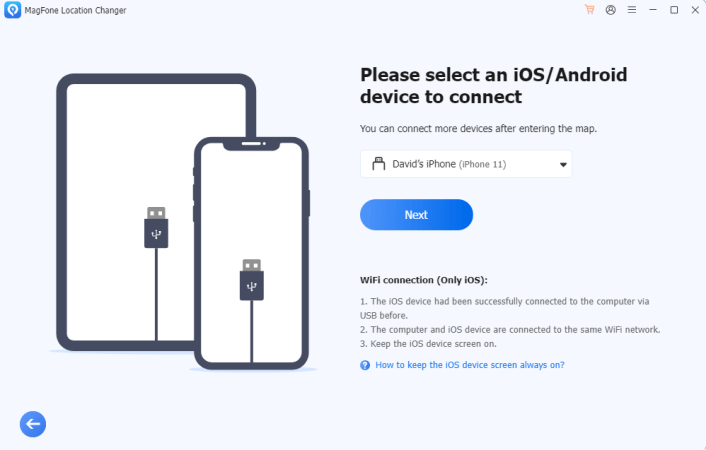
Download a simulated GPS location app on your computer, such as the MagFone Location Changer I mentioned. Connect the phone whose GPS location you want to modify to your computer. Click the Start button.
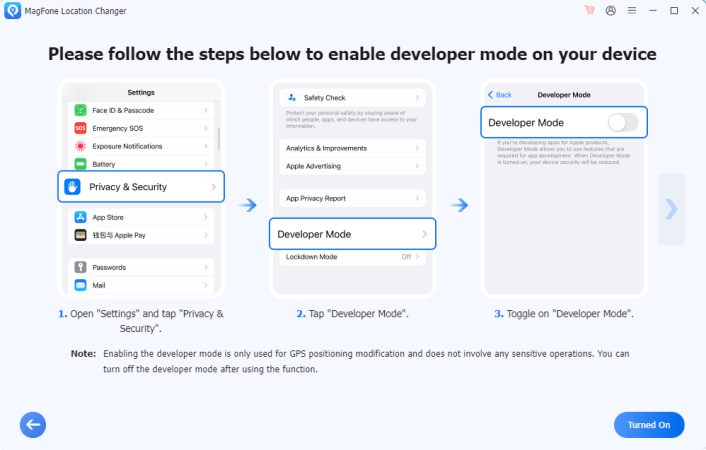
Open your phone’s Developer options. The steps required to enable Developer options vary depending on your device model. MagFone will provide specific instructions based on your phone model.
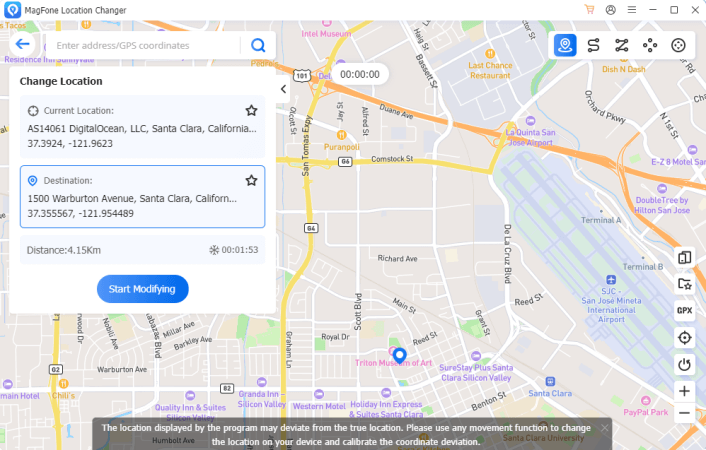
After the map loads, simply pick your desired spot and hit the ‘Start Modifying’ button to instantly jump to that new location.
Popular on OTW Right Now!



About The Author

Gagan Bhangu
Founder of otechworld.com and managing editor. He is a tech geek, web-developer, and blogger. He holds a master's degree in computer applications and making money online since 2015.