
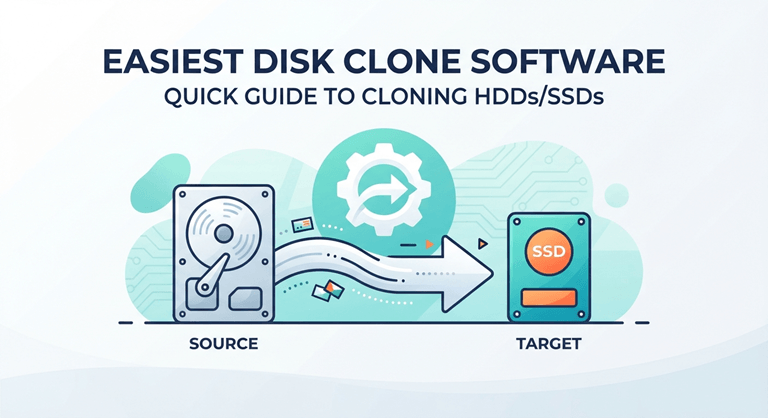
Easiest Disk Clone Software: Quick Guide to Cloning HDDs/SSDs
Upgrading your storage, migrating your system, or protecting your data doesn’t mean spending hours reinstalling and reconfiguring everything from the ground up. With the right disk cloning software, you can copy an entire hard drive—including the operating system, applications, settings, and files—onto a new disk in one smooth, efficient process.
This guide offers you the best disk clone software for Windows PC and servers and walks you through the step-by-step process of cloning a disk safely and efficiently.
What Matters in Disk Clone Software?
Not every disk clone tool is created equal. Some tools are designed for simplicity, others are advanced tools for IT professionals. It all boils down to a few key attributes that make a difference in terms of performance, reliability, and usability.
🚩 Cloning Method: Intelligent vs. Sector-by-Sector
There are two types of cloning: intelligent cloning (only clones used sectors) and sector-by-sector cloning (copies every bit of data), and a good cloning tool should support both. Intelligent cloning is quicker when cloning a larger drive to a smaller SSD, and it can clone with hidden and deleted data intact; sector-by-sectorcloning is best for creating an exact copy of a drive, including hidden and deleted data.
🚩 SSD Optimization and Alignment
It’s crucial to do it properly when switching from a hard disk to an SSD, ensuring that the 4K alignment is followed. Better read/write speeds and a longer SSD lifespan should be achieved by automatically aligning partitions in disk clone software. If you don’t have this feature, then you may end up with poor performance even if you upgrade your hardware.
🚩 Bootable Clone Capability
The most critical thing is whether the drive to be cloned can boot. Reliable disk clone software guarantees that the operating system, boot records, and system partitions are transferred accurately, allowing you to boot your computer from the new drive without problems.
🚩 Compatibility and Flexibility
The software should support a wide range of systems and disk types, including:
- Windows 11/10/8/7
- Windows Server 2025/2022/2019/2016/2012
- GPT and MBR partition styles
- SATA, NVMe, and M.2 SSDs
It should also handle cloning across different disk sizes and brands without compatibility issues.
🚩 Speed and Stability
Large drives can take a long time to clone,e and that’s where performance counts. Efficient disk clone software reduces downtime and provides fast cloning speeds without disturbing the system. Hot cloning (without shutting down your system) is just one of the features that can enhance convenience.
Considering all these factors, AOMEI Cloner is a wise option. Easy to use and creates clones of systems, disks, or partitions; allows you to upgrade from hard disk drives to solid-state drives without reinstalling Windows. It provides intelligent sector-by-sector cloning, automatic SSD alignment,t and also supports different disk sizes and MBR/GPT styles. Perfect for home renovations and sophisticated installations.
How to Clone a Hard Drive to an SSD Easily
In this part, you’ll learn how to clone a hard drive to an SSD using AOMEI Cloner. Before you start, make sure you have everything ready:
- Connect the target SSD to your computer (via SATA or a USB-to-SATA adapter).
- Ensure the SSD has enough capacity to hold the data from your source drive.
- Back up critical files (as a precaution).
- Download and install AOMEI Cloner.
Then follow the steps below:
Step 1. Launch AOMEI Cloner, then choose “Clone” → “Disk Clone” from the main menu. This option allows you to copy the entire hard drive, including the operating system, applications, and personal files.
Step 2. Choose your current hard drive (HDD) as the source disk. Click “Next” to continue.
Step 3. Select your SSD as the destination disk and click “Next”. The software will warn you that all data on the target disk will be overwritten—confirm to proceed.
Step 4. Before starting the cloning process, enable the “SSD Alignment” option. This ensures optimal read/write speeds and extends the lifespan of your SSD.
You can also:
- Use “Edit Partitions” to resize partitions if the SSD is larger.
- Choose “Sector-By-Sector Clone” if you need an exact copy (optional).
Step 5. Click “Start Clone,” and the cloning process will begin. The cloning time will depend on the size of your data and the speed of your hardware. You can continue using your computer during the process.
Step 6. Once the cloning is complete, you can boot from the cloned SSD:
- Shut down your computer.
- Replace the old HDD with the SSD, or keep both installed.
- Enter BIOS/UEFI settings and set the SSD as the primary boot device.
- Save changes and restart your computer.
Assuming everything is configured properly, your system should boot from the SSD and all your data should be intact.
Final Thoughts
Selecting the best disk clone software is crucial for upgrading drives, safeguarding data, and migrating systems. Of all the tools in the category, AOMEI Cloner offers the best simplicity and an advanced feature set, so both novice and professional users can use it. With the proper procedure, it is possible to clone a hard drive to an SSD without negatively impacting performance or user experience.
Popular on OTW Right Now!

About The Author

Gagan Bhangu
Founder of otechworld.com and managing editor. He is a tech geek, web-developer, and blogger. He holds a master's degree in computer applications and making money online since 2015.