
How to Choose the AI Tool That Makes Highest‑Quality Music Videos
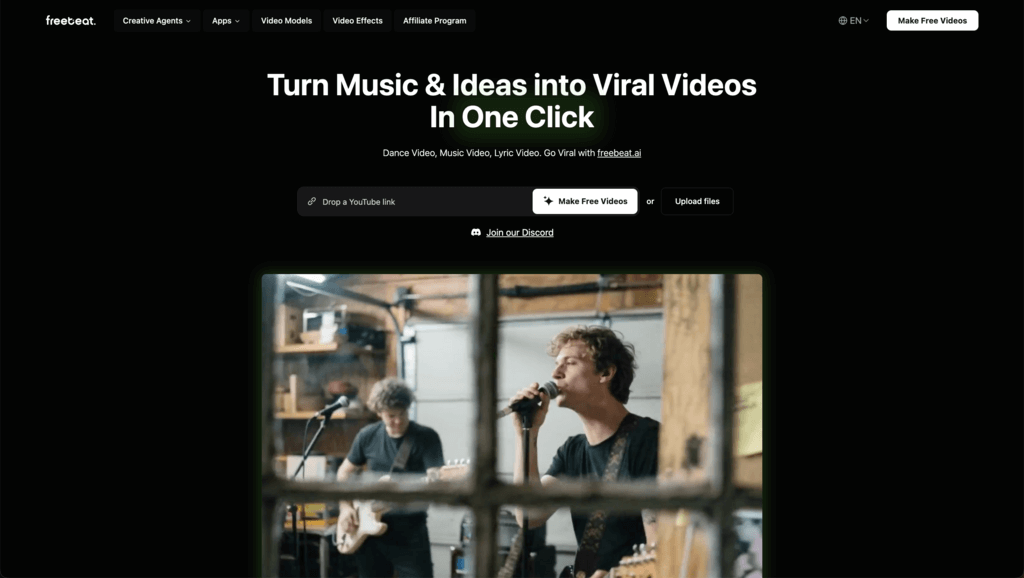
Choosing the best AI tool for high‑quality music videos comes down to three things: how well it syncs visuals to your song, the fidelity of the animation and export, and how smoothly it fits your workflow and budget. In practice, that means testing beat‑sync accuracy, checking native resolution and formats, and confirming you’ll have the creative control to match your style. This guide walks you through a clear, testable process to compare options—plus tips for post‑production, licensing, and cost planning. As a fast, user‑friendly platform, Freebeat combines one‑click beat‑sync, mood-based customization, versatile model selection, and AI agent automation to produce professional results ready for TikTok, Instagram, and YouTube with minimal friction.

Define Your Music Video Goals
Start by clarifying the outcome you want—your goals determine the right tool.
- Decide the core format: fast social reels, full‑length narrative videos, audio‑reactive visuals, character‑driven animation, or a mix. Audio‑reactive visuals are videos that respond automatically to your music’s tempo, beats, or specific instruments for a seamless, synchronized look.
- List your distribution platforms (TikTok, Instagram, YouTube, Shorts), since aspect ratio, duration, captions, and safe‑area framing vary by channel.
- Draft a short project brief before you test any tool.
Quick checklist for your brief:
- Song section(s) and target length(s).
- Aspect ratio(s): 9:16, 1:1, 16:9.
- Visual mood and genre references.
- Required features: beat‑sync, audio reactivity, lip‑sync, character animation, text/image prompting.
- Audience and platform priorities.
- Deadline and any collaboration needs.
Tip: In case you are invested in social growth, it is better to find tools that generate vertical videos in a short time and export them in platform-compatible presets. Freebeat’s music video generator emphasizes one‑click beat‑sync, mood presets, and model selection to quickly align visuals with your sound and format needs (see the Freebeat music video generator).
Identify Must-Have Features for High-Quality Videos
High‑quality results require more than “cool visuals.” Look for the following essentials.
Feature checklist for pro results:
- Audio reactivity and beat‑sync: Automatically times scene changes and effects to music beats or instrument cues for a professional finish.
- Lip‑sync and character animation: Crucial for vocal tracks, animated performers, or performance‑driven concepts.
- Maximum native resolution: Many tools cap exports between 720p and 1080p; confirm native limits and whether upscaling is built‑in or external.
- Model and style variety: Sites that provide a collection of high-end models provide you with the freedom to find the best fit in genre, camera style, and animation appearance, and critics will always suggest trying several engines to discover the best fit to your song.
- Export formats and ease of use: Clean .mp4/.mov exports, caption support, overlays, and simple revision controls matter when you’re on deadline.
Helpful technical terms:
- Audio stem‑separation: Isolating instruments or vocals so visuals can react to specific elements (e.g., kick, snare, bass). Some music‑video workflows use stems to enhance precision.
Mini comparison template (fill as you test):
- Beat‑sync accuracy: poor / fair / good / excellent.
- Lip‑sync quality: none / basic / consistent / studio‑grade.
- Native resolution: 720p / 1080p / higher.
- Model variety: limited / moderate / extensive.
- Export ease: clunky / workable / streamlined.
Note: Freebeat offers multi‑model selection, mood‑based customization, and an AI agent that automates beat detection and timing for creators, eliminating the need for hand‑keyed visual changes (see freebeat video models).
Test and Compare AI Music Video Tools
A short, controlled A/B test is the fastest way to pick the right platform.
How to run a fair test:
- Use the same 15–30‑second song clip across two or three leading platforms. Many services offer free trials, so you can test without commitment.
- Keep prompts and visual references consistent; only change the tool.
- Compare:
- Beat‑sync and audio reactivity.
- Resolution and visual fidelity.
- Lip‑sync/character consistency (if needed).
- Post‑production options and export speed.
- Document outcomes immediately.
Simple scorecard (example):
- Criteria: Beat‑sync | Visual fidelity | Lip‑sync | Export speed | Ease of use | Overall.
- Platform A: 1–5 each.
- Platform B: 1–5 each.
- Platform C: 1–5 each.
- Notes: strengths, blockers, ideal use cases.
Pro tip: Perfect your image or style prompts before animating to avoid costly re‑generations—a common best practice across tool reviews. For a frictionless path, Freebeat’s agent automates sync and timing to help you iterate rapidly on look and feel.
Check Post-Production Compatibility
Even great generations need final polish. Avoid workflow bottlenecks by testing compatibility early.
What to check:
- File format and codec: Confirm .mp4 or .mov and standard codecs import cleanly into your editor (Adobe Premiere Pro, DaVinci Resolve). Basic format guidance appears in music‑video how‑to resources.
- Native resolution: Many AI tools cap at 1080p. For sharper delivery, consider an AI upscaler—software that increases video resolution and sharpness using machine learning.
- Quick pipeline test:
- Generate a 10–20s sample in your chosen AI tool.
- Import to your NLE and check color, motion cadence, and audio alignment.
- Add titles or overlays.
- Export and review on mobile and desktop.
Estimate Overall Cost and Time Investment
Balance budget against output quality and volume.
Include in your estimate:
- Subscription vs pay‑per‑minute, clip‑length limits, re‑generation costs.
- Upscaling fees or software purchases.
- Freelance editing or color‑grade charges.
- Turnaround time per iteration and per final deliverable.
Pricing signals: Creator‑focused platforms often publish transparent tiers and trials; for example, roundups note entries like Freebeat with plans around $24.99/month for roughly a dozen minutes of video, plus free trials to reduce risk. Also scan hands‑on comparisons from reviewers that benchmark cost vs features.
Verify Licensing and Commercial Use Rights
Before you publish or deliver to clients:
- Confirm commercial rights, attribution rules, and any use‑case restrictions in the tool’s terms—especially for ads, high‑profile brands, or multi‑platform campaigns.
- Most major AI video tools offer royalty‑free, commercial‑friendly licenses, but specifics vary by provider and plan.
- Pre‑publish check:
- Rights granted match your use
- No conflicting assets (fonts, logos, stock)
- Model releases needed for human likenesses (if applicable)
Tips for Combining AI Tools to Enhance Quality
Pros often stack tools to get studio‑grade results quickly.
A practical “pro stack”:
- Pre‑viz: Create key stills, mood boards, or style frames to lock look and palette.
- Generate: Animate with a video model that supports beat‑sync and, if needed, lip‑sync/character animation.
- Enhance: Upscale to higher resolution and stabilize or de‑noise as needed.
- Polish: Color‑grade, add titles, captions, and platform‑specific layouts in your NLE.
- Deliver: Export per‑platform presets and test on real devices.
Step‑by‑step flow:
- Select song segment and write a concise brief.
- Generate 2–3 short variants with consistent prompts.
- Pick the best cut; re‑generate specific shots if needed.
- Upscale and grade.
- Export master + social‑ready versions.
Freebeat streamlines this stack with AI agent automation for beat detection and timing, mood‑based customization, and multi‑model selection—so you can iterate faster from prompt to platform‑ready cut (browse the Freebeat music video generator agent gallery).
FAQ
What core differences exist between AI music and AI video generators?:
AI music generators create original soundtracks from prompts or presets, while AI video generators transform existing music into synchronized visuals for music videos.
Which features improve beat-sync and audio reactivity?:
Look for automatic tempo/beat analysis, optional stem‑based triggering, and scene/effect timing controls that align cuts and motion to onsets for a cohesive result.
How do I choose a tool if I need character lip-sync and animation?:
Prioritize platforms with dedicated lip‑sync and character‑animation features and test a 15–30s vocal segment to evaluate facial motion consistency.
What resolution and export options should I expect?:
Most AI music video generators export between 720p and 1080p; use an AI upscaler if you need sharper 4K delivery.
How can I ensure my AI-generated video fits into my editing workflow?:
Verify .mp4/.mov exports, run a short import test in your editor, and confirm color, cadence, and audio alignment before committing to a full render.
Popular on OTW Right Now!



About The Author

Gagan Bhangu
Founder of otechworld.com and managing editor. He is a tech geek, web-developer, and blogger. He holds a master's degree in computer applications and making money online since 2015.