
How a Quality Docking Station Turns Any Laptop Into a Workstation
A laptop is far more useful at a desk if you have a single connection which brings your displays, your storage, your network and your input devices all together. A good dock minimises the amount of cabling you have to fiddle with, keeps your normal kit all connected and allows you to move seamlessly between working on the move and at your desk. The right dock will provide power and will be compatible with your laptop’s ports, your operating system and your monitor. These are the sorts of considerations that will go a long way to creating a sensible working environment so you need to start with the connection standards.
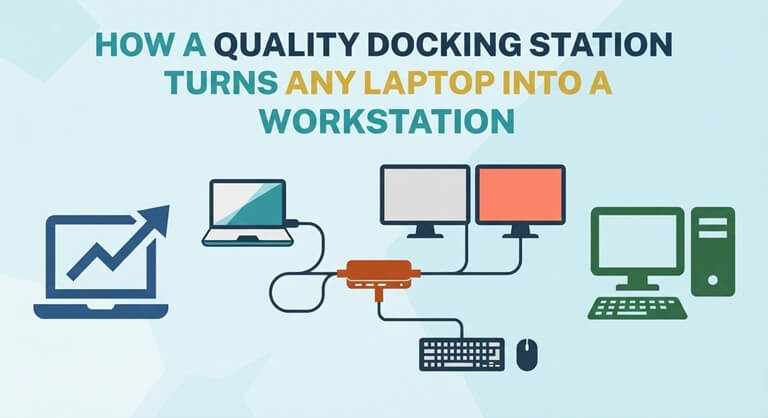
A dock acts as a central connection point for a desk setup. Instead of plugging each accessory into the laptop, a user connects one cable and leaves the remaining devices in place. A guide to laptops with docking stations helps compare docks by port count, display support, power delivery, and operating system compatibility. Those factors determine whether a dock fits the computer, monitors, and peripherals already used at the desk.
Why one connection changes the desk
A good dock makes your laptop far more useful at your desk and still allows you to take it with you. The type of connection (USB-C, USB-A, USB4, Thunderbolt etc.) will determine how the dock interfaces with your laptop. Compatibility is key as a cable may physically fit but not actually support charging, video or data. Always check your laptop manual before you go shopping to ensure you’re not picking a dock that looks perfect but in fact won’t work.
Choose a dock for the workspace
A stationary dock is ideal for a permanent desk where your monitors, keyboard, mouse, webcam and storage are all permanently plugged in. A mobile dock is smaller, fits in a travel bag and is perfect for use in a temporary workspace. Mobile docks tend to have fewer ports and rely on power pass-through whereas the stationary docks have more ports and can charge your laptop. It’s a case of portability versus having your desk ready to go at all times.
Match displays to the workload
Start by working out how many monitors you’re going to need and what video standard your laptop supports. Some docks will support one, two, three or even four monitors (depending on the model). The vast majority of modern monitors will be HDMI or DisplayPort compatible, though you may have some older monitors that will require VGA or DVI. You’ll also need to consider the resolution and refresh rate you require (particularly if you do any design, analysis or video work). Choose a dock that is suitable for your current set of monitors.
Check port selection
Port count matters because a workstation depends on more than display output. USB ports connect a keyboard, mouse, storage drive, or webcam, while Ethernet provides a wired network connection where wireless access is unreliable. Audio connections support headsets for calls, and card readers help transfer files when work requires them.
Where the ports are situated is important too. Rear ports are good for keeping your permanent cables neat, front ports are better for plugging in your temporary devices. You need to look at the network and USB speeds as well, particularly if you’re going to be transferring large amounts of data. Your dock needs to have sufficient bandwidth to cope with all your devices when you’re working.
Confirm power requirements
Power delivery is what determines whether your laptop will charge when you’re using it in conjunction with other devices. The stationary docks covered in this guide go from 65W to 140W EPR so you need to ensure that the dock you’re looking at is one that will deliver the power your laptop requires. If the dock doesn’t deliver sufficient power then you’ll still be reliant on your laptop’s own charger.
Cable length and where you position the dock are important for day to day use. The cable needs to be long enough to reach your laptop without having to stretch it across your desk or put any strain on the port.
Review software compatibility
Ensure the dock is compatible with your OS just as you would check hardware compatibility. This guide lists Windows, macOS, Android, Chrome OS and Linux/Ubuntu as supported, though of course each dock will be different.
How multiple monitors work can vary depending on your OS even if the connectors are the same. Always check for any driver requirements, firmware updates or display limits prior to setting up the dock to avoid any issues down the line.
Keep the desk practical
A good dock makes your desk setup easier every day. Your monitors and devices are all connected and you only need to plug in one cable to get going. When you’re ready to leave you just unplug one cable rather than a number of them. You’ll still have to deal with cable management as a dock won’t solve the problems of poor cable placement or overloaded power strips. Having a clear plan for your connections is what makes the setup process so much easier.
Conclusion
The best way to go about choosing a docking station is to start by making a list of what you actually have. Make a list of your laptop’s connector, your charging requirements, your OS, your monitor outputs and the various devices you have at your desk. That list will then allow you to whittle your options down and spot any potential compatibility issues before you go and buy.
The right dock turns your laptop into a proper workstation, yet still allows you to unplug and work wherever you want.
Popular on OTW Right Now!




About The Author

Gagan Bhangu
Founder of otechworld.com and managing editor. He is a tech geek, web-developer, and blogger. He holds a master's degree in computer applications and making money online since 2015.