
Plug and Watch: How to Stream from a MacBook to a TV Without Feeling Overwhelmed
Device pairing is all about efficiency and rapidity, as many users are keen on streaming video content anytime, without interruptions. With a rising number of individuals eager to binge-watch their beloved programs trouble-free, the question of streaming from a MacBook to a TV has emerged as a pivotal issue.
If you roam the Internet for ways to stream to a TV from a Mac to achieve seamless video quality, this guide is for you.
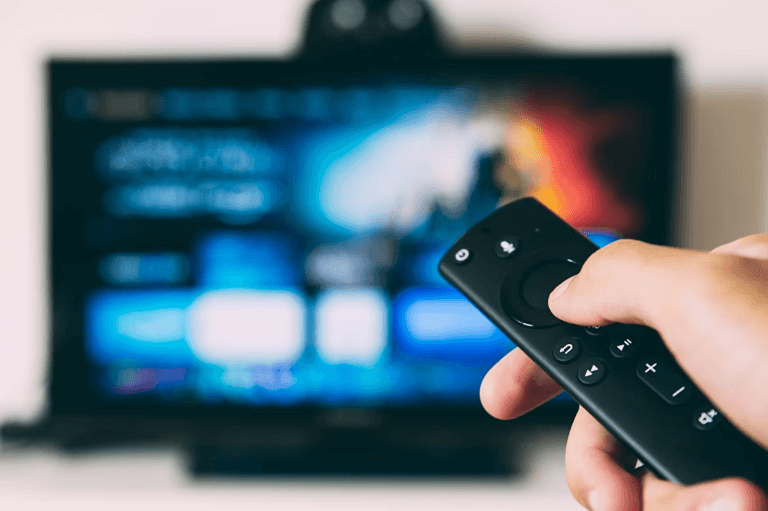
Cross-Device Integration: Prospects and Perks
A large flat-screen TV typically provides a more pleasurable graphic experience than any PC display, giving you a green light to relax and immerse yourself in a bigger-screen experience. Streaming from a leading-edge Apple device lets you catch programs on a larger display, adding more delight to audiovisual presentation.
1. How to Stream from your MacBook to a TV with Elmedia Player
Elemedia Player is a Mac-exclusive media player software designated for advanced video playback with support for wireless streaming technologies like AirPlay, Chromecast, and DLNA. These features make Elemedia Player a viable option for modern users with cutting-edge technologies at home
We’ll start with a quick guide on downloading the software, opening files, and streaming your best-loved videos.
- Download Elmedia Player using the direct download button on their website or through your Mac’s App Store. Both options will download the official Elmedia software.
- Open Elmedia Player after installing it. Click the File tab, then select Open from the drop-down menu. Browse the files on your computer to find the video you are interested in.
- The video is now in progress. Now, you are geared up to stream to tv from mac using trailblazing technology.
2. How to Cast from a MacBook to a TV via AirPlay
As widely recognized, AirPlay is Apple’s default feature for mirroring its devices. You can lean on its possibilities to duplicate your MacBook’s viewing surface. For those in urgent need of simplicity and promptness, AirPlay works as a first-instance connection tool.
AirPlay does not require a wire, as the connection between your MacBook and TV can be established using WiFi only. Notably, its capabilities aren’t limited to Apple TVs. You can effortlessly mirror your MacBook desktop across multiple devices if your appliance is AirPlay-compatible.
The underlying process sets out how to cast your MacBook screen to a TV via AirPlay:
- Before you get started, ensure your TV and MacBook’s WiFi share the same network.
- Broadcast the video you would like to play on a TV from your MacBook’s Finder.
- The AirPlay symbol will pop up in the lower-right corner of the screen. Click on it, and the TVs detected by your MacBook are on.
- Select your TV to demonstrate the video.
Remember that you can round off a linking process provided that your TV supports AirPlay. If not, other methods below may prove beneficial since they are suitable for diverse TV brands and models.
3. How to Mirror a MacBook to a TV via a Wired Connection
While wireless projection has gained immense popularity, the wired method can also show your Mac display on an external monitor. Nonetheless, you should add a couple of accessories to synchronize the two devices.
To boost the efficiency of a wired display technology, you’ll need a USB-C or USB-A to HDMI adapter and an HDMI cable at hand. Moreover, your TV must have an HDMI port available; otherwise, it entails zero connection to your Apple device.
Check out a simple tutorial to grasp how to mirror your MacBook to a TV via a wired connection:
- Connect a USB-C or USB-A to HDMI adapter to your MacBook, then attach it to your TV’s HDMI port.
- As soon as your TV recognizes the process, switch its input to HDMI, then refer to your System Preferences > Displays.
- Finally, regulate the Display option to demonstrate your MacBook screen on your telly.
4. How to Cast from a MacBook to a TV via Chromecast

Verify that your chosen appliance is “on the same wavelength with Chromecast”, a prominent mirroring method supported on both TVs and MacBooks. Unlike AirPlay, the requirements aren’t built into your TV or MacBook by default, but the linking process goes smoothly by means of a Chromecast accessory.
To get the ball rolling, you are only expected to connect the Chromecast to your TV’s HDMI port and install Google Chrome on your MacBook to form a connection. As in Section 2, your TV must have an HDMI port; otherwise, your MacBook won’t detect the TV.
Note these concise points below for casting your MacBook’s screen to a TV with Chromecast:
- Link the Chromecast to your TV and use Google Chrome on your Mac computer.
- Open Google Chrome and press the three points in the upper-right corner when ready.
- Select Share » Cast, then opt for your TV from the roster of items at your disposal.
By thoroughly navigating our meticulous guide, video broadcasting from a MacBook to a TV will leave you happy-go-lucky.
Popular on OTW Right Now!




About The Author

Gagan Bhangu
Founder of otechworld.com and managing editor. He is a tech geek, web-developer, and blogger. He holds a master's degree in computer applications and making money online since 2015.