
How to Listen to Kindle Books on Your Phone or Tablet with CastReader
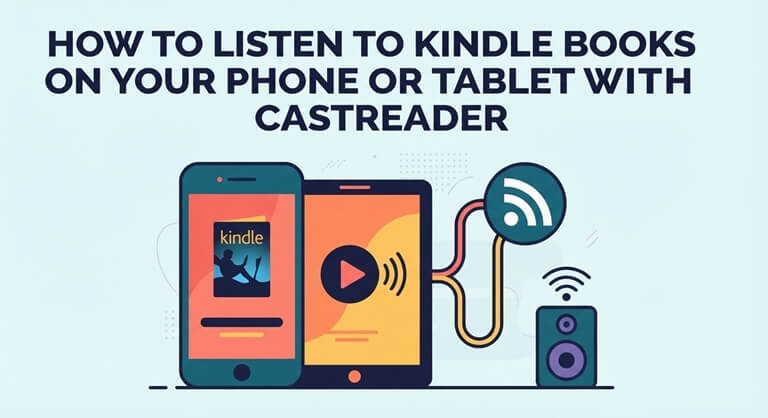
You already have the Kindle book. You may now wish to listen to the next chapter on your phone as you’re cooking, or on your iPad with the text in front of you. That’s the power of text to speech (TTS) which enables you to do this without having to track down a separate audiobook.
The CastReader app makes this trivial. On iPhone, Android, or iPad, you can connect your Kindle library, open a book, and listen to it with a natural-sounding AI voice. The text is highlighted as it’s being read so you can follow along or go back at any time.
Start with the app for your device
The CastReader mobile Kindle guide has the App Store download for iPhone and iPad and the Google Play download for Android. Install the native app for your phone or tablet. The illustrated steps below show the iPhone interface; controls may be arranged differently in other versions.
You’ll be listening to your books via the CastReader app. The Kindle app has its own controls but these instructions are based on using the CastReader library connection and player. Make sure you have your Amazon account details to hand before you start.
Free plan gives you 20 minutes of AI listening per day and allows you to speed up playback to 1.25x. The Pro plan has more listening time, more voices and speeds up to 3x. Try a supported book and check your current allowance in the app prior to committing to a subscription.
Connect your library and open a book
- On the CastReader iPhone home screen, tap the books icon in the top right-hand corner next to your profile picture. This will take you to Library Sources.
- In the Available to Connect section, find Kindle and tap Connect. Sign in with the Amazon account you use for your Kindle books.
- Let your bookshelf sync, then return to the Kindle shelf in CastReader. Open a book, tap Read Aloud and select a voice to begin listening.
On Android and iPad, you connect your Kindle library in the app and then follow the on-screen prompts. The screenshot is of the iPhone version so your device will likely be different.
If you don’t see a book, make sure you’ve got the correct Amazon account linked to that title. Check your connection and any sync messages before you try again. Book availability is dependent on your account, the title and the way you’re reading. You may well be signed in successfully and still not have access to every title.
For CastReader on iPhone, you’d go to Library Sources and tap Connect next to Kindle under Available to Connect. The location of those controls may be different in other versions of the app.
On a phone, keep listening with the screen off
CastReader allows you to listen in the background or with your phone locked so you can keep listening even after you’ve put your phone down. When the screen is on it will highlight and scroll the text as it’s reading. On an iPad, the larger screen makes it very easy to read along.
Before you get into a long listening session, have a look at the opening paragraphs on screen and compare them with the book. Try pausing, resuming and even locking the screen for a moment to see where the playback resumes. Saved progress will of course take you back to where you left off, but it’s worth checking how that works with your book.
Choose a voice you want to spend a chapter with
Listening to a book is quite different to just hearing a short notification. CastReader has natural AI voices and you can adjust the speed. Give it a go with both the dialogue and the descriptions from your book. Choose a voice that you like for a few pages rather than just one that sounds good in the short demo.
These are the steps for using CastReader on phones and tablets (not on Kindle e-ink devices). Once your book is open you pick a passage, test the voice and then listen to a few paragraphs.
Popular on OTW Right Now!


About The Author

Gagan Bhangu
Founder of otechworld.com and managing editor. He is a tech geek, web-developer, and blogger. He holds a master's degree in computer applications and making money online since 2015.