
The desk behind the monitor arm: clamp, edge, clearance and cables for two screens
| TL;DR
• A clamp-on dual monitor arm needs a solid back edge with nothing under it: no frame rail, apron, or modesty panel where the lower jaw has to bite. Glass tops are out entirely. • Most home office desktops are laminate over an MDF or particleboard core, and a clamp tightened onto that core can crush it. A steel reinforcement plate under the jaw spreads the load. • OSHA’s workstation guidance puts the screen 20 to 40 inches from your eyes and suggests pulling the desk away from the wall when the monitor needs room behind it. An arm’s elbow swings into exactly that space. • On a standing desk, the arm and both screens count against the lift capacity (one 60 by 30 inch model lists 220 lb), and every cable needs enough slack for the full height range. Short version: a monitor arm is only as steady as the strip of desk it grabs. Check that strip before you check the arm. |
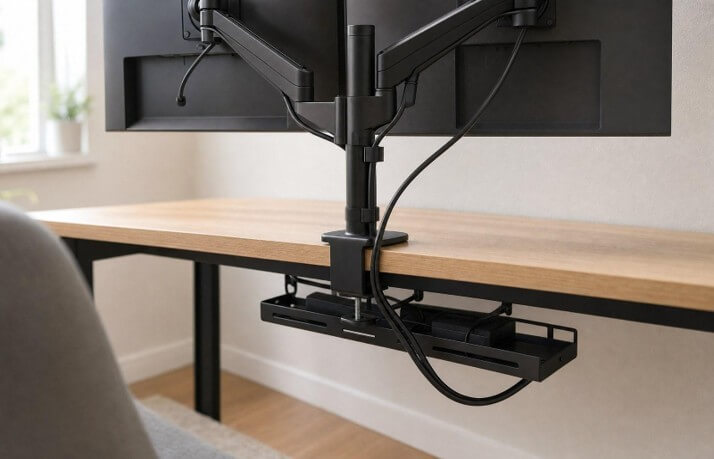
Reviews tend to make two screen arms look as if they’re floating in the air; they don’t. They’re actually hung from a single point on the back edge of your desk, which has to carry the weight of both monitors and the arm’s reach. The desk is more important than the arm. How thick and solid the top of the desk is at the point where the clamp attaches, whether there’s anything in the way of the clamp, whether the arms can swing back without hitting the wall, and where the cables run all matter. If you get any of those details wrong, then even a fairly expensive arm is going to be sagging by the end of the week.
Start with what the desktop is made of
The material under the clamp matters more than the arm’s spec sheet. Filter one large online catalog of home office desks by material, and the pattern is plain: of 1,299 desks, 1,150 are tagged laminate and 521 MDF, against 93 veneer and 51 solid wood. Twenty-nine are tagged glass.
Laminate is all right, really, but the problem is the core. The clamp is pressing down on two little pads, and over time the MDF or particleboard underneath the lower pad gets squashed. That then causes the clamp to loosen, the pole to go crooked, and the screens to sag forward.
The solution is straightforward really: put a flat steel plate between the lower clamp and the underside of the desk (ideally one that’s a bit wider than the clamp). Some arms come with this plate pre-fitted, but if yours doesn’t, then it can be purchased separately. Don’t use a clamp at all on a glass desk. In that situation, you’d be better off with a freestanding base or mounting the arm to the wall.
Clamp or grommet: read the desk edge first
The type of mount you can use is going to be dictated by the back edge of your desk rather than your preference.
| Mount type | What the desk must have | Where it goes wrong |
| Edge clamp | A back edge with open space under it for the lower jaw, and a top thickness inside the clamp’s stated range | Frame rails, aprons, or modesty panels right at the edge; a top that’s thicker at the edge band than in the middle |
| Grommet (through-bolt) | An existing cable grommet hole, or permission to drill one, at least a few inches in from the edge | Hole diameter doesn’t match the arm’s bolt; the hole sits over a frame member. |
| Freestanding base | Enough flat desk area for the base plate | Takes up desk surface; less stable with two large screens |
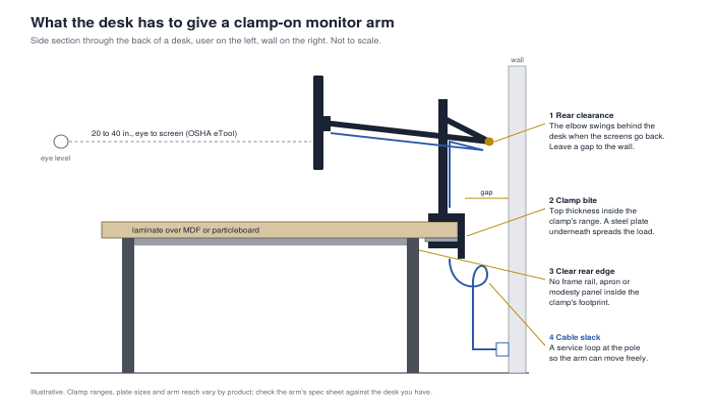
Measure the thickness of your desk precisely at the point where the clamp will attach (using a tape measure or calipers). Compare this to the range specified on the arm’s box. The edge band can be thicker than the rest of the desk. Then have a look underneath the desk. A lot of steel desk frames have a crossbar close to the back edge, and if that’s in the way, the clamp won’t be able to close properly and will end up gripping the bar rather than the desk.
Leave room behind the desk.
Monitor arms need space behind the desk, and most people end up putting their desks right up against the wall. If you move the screens back to create some desk space, then the arm will fold, and the elbows will swing out behind the pole. If the desk is too close to the wall, the elbows will hit the wall and won’t be able to move any further.
OSHA’s computer workstation eTool covers this from the ergonomic side. It puts the preferred viewing distance at 20 to 40 inches from eye to screen, and when the desk is too shallow, one of its suggestions is to pull the desk away from the wall to make room for the back of the monitor. With an arm, a gap of a few inches is usually enough. Check by folding the arm all the way back before you finalize where the desk goes.
The same OSHA page states that monitors should not be more than 35 degrees to either side. For two screens, you’d position the seam directly in front of you and angle each monitor in towards you.
Weight: the arm’s rating, not the screen size
A matching mounting pattern tells you the screen will bolt on. It doesn’t tell you the arm can hold it. The VESA mounting standard is the hole pattern on the back of the monitor, and its flat display mounting overview gives each size class a weight ceiling: displays from 12 to 22.9 inches up to 30.8 lb, and from 23 to 30.9 inches up to 50 lb. Those are limits for the interface. Your actual monitor is almost certainly lighter, and the arm’s own rating is what counts.
Check the weight of your monitor without the stand and compare it to the arm’s weight rating. If the monitor is significantly lighter than the arm’s rating range, it may not stay level at all. If it’s near the top of the rating range, then it will put a lot of strain on the clamp and on the desk.
Cables need a loop, not a straight line.
Plan your cable routing when you’re fitting the mount, as the arm is going to move and the cables have to move with it. Feed each cable through the arm clips, leave a loose loop where it comes off the pole, and then run it into a tray or channel underneath the desk. If the cable is too tight, it will pull on the monitor every time you move it.
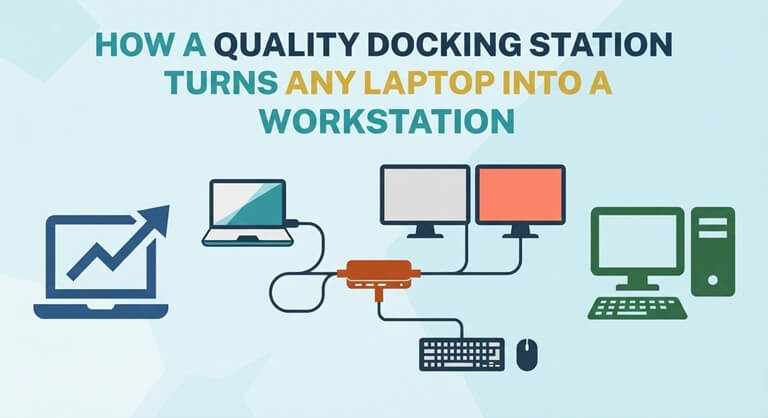
If the laptop goes through a dock, mount the dock under the desk too, so only one cable runs up to the desk surface. Otechworld’s piece on how a docking station turns a laptop into a workstation covers matching the dock’s video outputs to two displays, which is the other half of a two-screen setup.
Standing desks add two more checks.
A height-adjustable desk will lift everything on top of it, including the arm and the monitors. Take, for instance, a 60 x 30 inch sit-to-stand desk, which might have a 220lb capacity. That would be quite sufficient for an arm and two screens, not so much if you were to add a desktop PC, speakers, and books.
After you’ve got it set up, move the desk from its lowest to its highest position with all the cabling attached. If any of the cables become tight at the highest position, then add more slack. The cables should be attached to the desk frame so that they travel up and down with the desk rather than to the floor or wall.
Re-tighten after the first week
Clamps can loosen over time as the desk core compresses. A clamp that felt tight at first may loosen after a week. Check it after the first week and again a month later. After that, it usually stays secure. People focus on the arm, but it’s the desk that actually shifts.
Popular on OTW Right Now!


About The Author

Gagan Bhangu
Founder of otechworld.com and managing editor. He is a tech geek, web-developer, and blogger. He holds a master's degree in computer applications and making money online since 2015.