
Why is My Internet so Slow on My Phone & How to Fix it?
Your smartphone’s internet connection should be lightning-fast, so it’s frustrating when it isn’t. In this post, we answer the question of why my internet is so slow on my phone and how to fix it. We’ll look at common causes and practical solutions. By the end, you’ll know how to speed up your mobile data and stay connected.
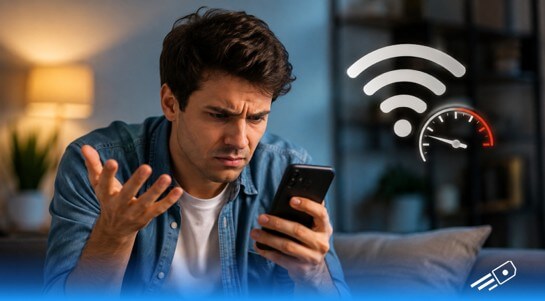
Endless Loading: Why Is My Mobile Data So Slow?
If you are wondering: what is mobile data? It is an internet connection provided by your cellular network (such as 4G LTE or 5G) that lets your phone access the internet when you’re not connected to Wi-Fi. Suddenly, if you are facing slow internet, these might be the culprit:
- Network congestion: If many users are on the same cell tower, speeds can plummet. Apple notes that slow performance often happens due to “network congestion” or when moving between cell towers. In busy areas (stadiums, city centers) or while traveling, your data may crawl. So if you’ve ever wondered, “Why is my cellular data so slow?” it’s often because too many devices are competing for the same bandwidth.
- Spotty coverage: Rural areas or areas with thick walls or tunnels provide spotty coverage. Some buildings or basements block data, even if they are full bars. Move to another place and/or close to a window.
- Data caps or throttling: You may experience data caps or data throttling. Most networks slow down (throttle) your speeds once you exceed the monthly cap. If you’ve used up your allowance, the network may intentionally dial back your data rate. This “fair use” policy may make you wonder about mobile data speed again when the cycle restarts and ask yourself, “Why is my mobile data so slow”?
iPhone Offline: Cellular Data Not Working? Try These Fixes
If you are an Apple user and your iPhone cellular data is not working, here is what you can do:
- Disable Airplane mode: Airplane mode turns off cellular data on iPhone. Open Settings and make sure Airplane mode is off. (If it was on, turn it off and data should return.)
- Turn on Mobile Data: In Settings > Cellular (Mobile Data) on iOS, make sure the Cellular Data switch is on. It seems like a no-brainer, but lots of iPhone users might mistake it for a bug.
- Restart your iPhone: Many connectivity issues will be resolved with a quick Restart. Turnn the power on and off, which removes minor software glitches and reconnects your iPhone to the network.
- Check your SIM/eSIM: If your iPhone has a SIM, remove it and put it back in. If you’re using an eSIM, ensure that it’s in place or active. If a mis-seated SIM is causing the issue, it may be possible to repair it and restore service.
Android Offline: Mobile Data Not Working? Follow These Steps
If you are an Android user and your data is not working, here is what you can do:
- Initial fixes: If the Android mobile data is not working at all, first reboot the device. Then turn Airplane mode on and off for 10 seconds. If there is no mobile data, the first things to try according to Android Authority are to restart the phone, toggle Airplane mode, check the SIM, and check your plan. These are frequently the most common problems that are solved.
- Check your SIM card: A loose or dirty SIM may cause service disruptions. Turn off, take out the SIM, clean it, and put it back in. Also make sure you’re using the correct SIM slot (for dual-SIM) and that the SIM is not damaged. According to the Android guide, a required fix involves checking and reinserting the SIM.
- Restart your device: Like the iPhone, a reboot will eliminate glitches. Hold down the power button until it restarts. Select Restart, then after the phone starts up, check for data functionality. This is an easy thing to do and can reconnect that impasse.
Data Activation: How to Turn On Mobile Data
Turning on mobile data is simple if you follow these steps:
- On iPhone: Go to Settings and select Cellular (or Mobile Data) and switch to On. This turns on the phone’s data radio, allowing you to use the internet outside of Wi‑Fi.
- On Android: Swipe down from the top of the screen to see the Quick Settings, then tap Data Usage (or Mobile networks) and turn on Mobile data.
How Do I Switch Off Data Roaming
If you are struggling with data roaming, here is how to fix it:
- On iPhone: In Settings, select Mobile Data > Mobile Data Options, then disable Data Roaming. Thus, your cell phone won’t use foreign networks (and incur additional fees) when you’re outside your carrier’s service region.
- On Android: Go to Settings > Mobile Networks (or Connections > Mobile networks), and turn off Data roaming. This way, the phone will not be able to use another carrier’s network when abroad. Keep in mind that this isn’t turning off all mobile data; it just turns off the use of data networks outside your home network.
To enhance mobile internet speed, try the following:
Tips to Improve Mobile Internet Speed
If you want to improve your mobile internet, here is what you should do:
- Find better signal: If data is painfully slow, the most important fix is location. Move to an open space or near a window to avoid obstructions. Also, experiment with network modes: sometimes 4G may beat 5G in fringe areas or vice versa.
- Restart or toggle Airplane mode: Switching to Airplane mode and then back again or rebooting the device will give you an instant boost in speed. This makes your phone automatically disconnect and reconnect to the network – usually to a stronger cell tower. This is no small matter: numerous connectivity problems are solved with a simple reset.
- Try another eSIM: A few devices or eSIMs enable you to pick another provider. If one network is weak or congested, use another network that is available. Installing an eSIM can make speeds much better when traveling, versus roaming on your home provider. This essentially provides your telephone a new association.
Enjoy Fast Global Data with eSIM Cards.
For travelers or those who are tired of terrible mobile data, eSIM cards can be a useful relief. You can buy eSIM online in a minimum of 190 countries: a fast setup and secure connection due to no need for the physical SIM to be replaced. If you are tired of slow and expensive mobile internet, it’s time to explore eSIM Cards to enjoy seamless connectivity anywhere.
Your Internet Speed Questions Answered!
Hopefully you now have a good idea of why my internet is so slow on my phone and how to rectify that. Sometimes it’s just a switch to turn on or off, a better signal, or a clean-up of background drains. We’ve already written a couple of quick tips for iPhone and Android – from making sure your mobile data is turned on to turning it off in other countries.
Don’t forget to stay up to date on software and a healthy data plan. So here are some tips to help you make the most of your mobile Internet connection and avoid laggy moments. The next time your loading bar gets stuck, keep these in mind: a faster, smoother connection is just a setting away.
Popular on OTW Right Now!


About The Author

Gagan Bhangu
Founder of otechworld.com and managing editor. He is a tech geek, web-developer, and blogger. He holds a master's degree in computer applications and making money online since 2015.