
How to Speed Up YouTube Video More Than 2x (3x or 4x)
Do you want to speed up YouTube video more than 2x, i.e., 3x or 4x? If yes, then you’re on the right page.
YouTube has become the world’s biggest learning and entertainment hub. On YouTube, many of us consume long-form content in the form of tutorials, lectures, online courses, interviews, or even podcasts. Although this information can be useful, it can be extremely time-consuming at the same time. It is where the playback speed option comes in.

By default, YouTube provides an option to speed up the video from 1x to 2x. But you can easily speed up the video to 3x or 4x.
You might want to speed up YouTube videos to save some time, whether you are watching tutorials, lectures, podcasts, or even binge-watching long-form content.
YouTube supports playback speeds up to 2x by default, which is 2 times faster than the normal video speed.
However, what about more than 2x, i.e., 3x or 4x? Unluckily, this is not a default option provided by YouTube.
So, in this post, I’ll show you why you may require faster playback, and how you can use various methods to play YouTube videos even faster than 2 times.
What Does It Mean to Speed Up a YouTube Video?
When you speed up a video, you increase its playback speed. For example:
- 1.25x speed: The video plays 25% faster.
- 1.5x speed: The video plays 50% faster.
- 2x speed: The video plays twice as fast.
- 3x or 4x speed: The video plays three or four times faster than normal.
This is highly advantageous in long-form videos in which you do not require the whole information. As an example, when you have a 1-hour lecture at 2x speed, you will be done after 30 minutes. Provided you can go faster than 2x (3x, 4x), it may take you only 15-20 minutes.
By default, YouTube does not provide a 3x or 4x speed because not everyone can comfortably watch at 3x or 4x speed.
YouTube officially allows speeds between 0.25x and 2x, but not beyond. At higher speeds (like 3x or 4x), most videos become hard to understand. Speech sounds rushed and unnatural, making it difficult for the average user to follow.
But due to some reasons, sometimes you might want to accelerate the video speed more than 2x.
Also Read: How to Download YouTube Shorts for WhatsApp Status
How to Speed Up YouTube Video More Than 2x (3x or 4x)
Now the big question: How do you actually go beyond 2x?
Here are the most reliable methods:
Method 1. Use Browser Extension
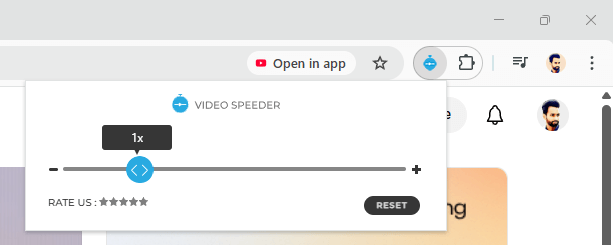
Browser extensions are the simplest method to bypass the speed limit on YouTube. The extensions are small additional tools that are built directly into your web browser, which allow you access to additional features that are not offered by YouTube itself.
Extensions are simple to install, lightweight, user-friendly, and universal.
For example, if you’re someone who regularly consumes long lectures, podcasts, or courses, an extension can become your time-saving companion. Rather than being trapped at 2x speed, the playback speed can be adjusted to what you require. Others enjoy keeping it at small steps, such as 2.25x, whereas others enjoy flying up to 3x or more.
You can use the Video Speed Controller extension on the Google Chrome, Microsoft Edge, or Mozilla Firefox browser to speed up YouTube videos more than 2x.
The links are given below to get/install extensions on your browser.
- Get Video Speed Controller for Google Chrome
- Get Video Speed Controller for Microsoft Edge
- Get Video Speed Controller for Mozilla Firefox
Features of the Video Speed Controller extension
- Adjustable Playback Speed: Adjust AV playback speed; slow motion (e.g., 0.25x) or fast preview (e.g., 4x). Entirely customize this video speed adjustment tool.
- Easy Interface: Only one convenient pop-up menu to enable and manage playback speed, which makes it a customizable video speed experience.
- Keyboard Shortcuts: Control video speed at full speed with the default and customized video speed. Shortcut keys allow you to control changes more easily.
- Platform Compatibility: Supports video streaming platforms such as Netflix, Amazon Prime Video, YouTube, Twitch, Disney+ Hotstar, and others. Excellent extension of the playback speed for YouTube users.
- Fine-Tuning Options: To control playback more accurately, step adjustments allow you to fine-tune your playback.
How to use a Video Speed Controller Extension
- Install the Extension: The video speed controller extension is a free option that can be installed through the Chrome Web Store, Edge Add-ons, and Firefox Add-ons.
- Start a Video: Select a video on the platform of your choice, for example, YouTube or any other, and set the rate of video playback to your preference.
- Access the Extension: Click the extension icon from the toolbar of the browser and open the control video speed extension.
- Change Playback Speed: You can adjust the playback speed using the pop-up menu: increase or decrease the playback speed of YouTube videos to play faster or slower.
Keyboard Shortcuts of Video Speed Controller Extension
Increase Speed:
- Windows/Linux: Ctrl + Shift + Right
- Mac: Command + Shift + Right
Decrease Speed:
- Windows/Linux: Ctrl + Shift + Left
- Mac: Command + Shift + Left
Open Extension:
- Windows/Linux: Ctrl + Shift + J
- Mac: Option + J
Reset Speed:
- One-click reset to normal speed (1.0x).
Method 2: Using Developer Tools (Custom Code)
If you don’t want to install the extension, then you can use the developer tools option to manually tweak playback speed via the browser console.
Steps are given below:
- Open a YouTube video in Chrome, Edge, or Firefox.
- Press F12 (or right-click » Inspect) to open Developer Tools.
- Go to the Console tab.
- Paste this code and press Enter.
$('video').playbackRate=xNote: Replace the x with the speed. For example, replace x with 3 to get 3x speed or 4 to get 4x speed.

- Your video will now play at that speed until you refresh the page.

Tip: If you are unable to paste the code in the console tab and get the error, then type “allow pasting” (without quotes) before pasting the code and pressing the Enter button. After that, you will be able to paste the code into the console tab.

Method 3. Download and Play YouTube Video Locally on VLC Player
In case you often require a very high speed of playback, you can download the video and play it through a media player such as VLC.
Numerous online tools are available to download YouTube videos.
After downloading the video, open the video using VLC media player and press the ] key to increase the playback speed and [ to decrease the playback speed.
Note that audio output is supported only for a maximum of 4x. After that, you can’t hear the audio.
Note: Only download videos for personal use and respect YouTube’s terms of service.
Things to Keep in Mind
- Comprehension Drops: It can be hard to comprehend new or difficult issues at 3x or 4x.
- Audio Distortion: Depending on the speed of the video, the voice will sound more like a chipmunk.
- Not Everyone: High-speed playback can be stressful to some people.
- Experiment: Start with 2x, and then stepwise add 2.5x, 3x, etc.
Frequently Asked Questions (FAQ)
1. Can I officially speed up YouTube beyond 2x?
No. YouTube currently officially supports a 2x limit. Extensions, scripts, or third-party players will be required to go higher.
2. Is it safe to use browser extensions?
The most popular extension is the Video Speed Controller, which is safe and widely used. Always download from official browser stores and read user reviews.
3. Can I set a default speed for all YouTube videos?
Yes. Video Speed Controller extensions allow you to create a global default speed, which all videos start at 3x (or any other speed).
4. Will speeding up videos affect YouTube captions or ads?
Yes, captions can go too fast, and advertisements can as well. The video itself, however, will not break.
5. Does faster playback reduce video quality?
No, the resolution remains the same. Only the playback time changes.
6. Why would anyone want 4x speed? Isn’t it too fast?
Not for everyone. However, it can save enormous amounts of time when it comes to slow-moving lectures, podcasts, or review sessions. The brains of some individuals adjust well to rapid listening.
Final Thoughts
I hope this guide helps you learn how to speed up a YouTube video more than 2x (3x or 4x). The default 2x speed offered by YouTube is quite sufficient for most users, although when you live to consume large volumes of content in a short time, 3x or 4x playback can be a godsend.
As a student revisiting lectures, a businessperson skimming webinars, or simply a person who likes to consume content at a faster pace, you can find many different ways to surpass the limitations offered by YouTube.
- Casual users: Stick with 2x.
- Advanced learners: Try extensions or custom code for 3x+.
- Power users: Download videos and use VLC for maximum control.
Balance is the trick: you should not read too fast because you might miss important information. Why, after all, watch faster without knowing what you just watched?
Now you can accelerate your videos on YouTube more than 2 times and regain your precious time in the day with these tricks!
Popular on OTW Right Now!




About The Author

Gagan Bhangu
Founder of otechworld.com and managing editor. He is a tech geek, web-developer, and blogger. He holds a master's degree in computer applications and making money online since 2015.